
Jellyseerr
Discover movies and shows, request them for Radarr or Sonarr to grab, and track requests through to approval.
iPhoneMacOn this page
Jellyseerr lets people request movies and shows without touching Radarr or Sonarr directly. Pocket Homelab gives it a Discover tab for browsing and requesting, plus a Requests screen for approving, declining or deleting.
What you get
- Discover tab: a poster grid across Trending, Popular Movies, Popular Series, Upcoming Movies and Upcoming Series, plus a search field. Each category’s first page is kept on the device, so Discover opens on posters and refreshes them in the background; with Discover in the tab bar it is loaded at launch.
- Search finds movies, shows and people, in Jellyseerr’s order. A person opens their page: photo, birth, biography (Show more), IMDb and Open in Jellyseerr, then every movie and show under Appearances (“as Jack Sparrow”) and Crew, the best known first, with an All / Movies / Shows filter. Click a title to open its detail sheet and Request it.
- Misspelt searches: when a search finds nothing, it is tried again with the spelling corrected, then one word at a time, and the page says what it searched instead (“johhny depp” finds Johnny Depp).
- Sort and filter search results and a person’s movies and shows: All / Movies / Shows (and People in a search), In library / Requested / Not requested, and Newest first, Oldest first, Title A–Z or Highest rated. A show sorts by the year it first aired.
- Status badges on posters: “⏳” orange for requested, “⏳” blue for processing, “partial” yellow for partially available, “✓” green for available.
- Requests screen: opened with Requests in Discover’s toolbar, filterable by status, with approve/decline/retry and a delete confirmation.
- Quick action: Search Jellyseerr jumps to Discover with the search field focused.
- Home links row: a “Jellyseerr” browser chip appears as soon as the URL is set, even without an API key.
- There is no Home dashboard tile or header widget for Jellyseerr. Its only Home presence is the browser link.
Set up
- In Jellyseerr, go to Settings → General and copy the API Key (must be an admin account).
- In the app, go to Settings → Services → Jellyseerr, paste the URL and key, then press Test connection.
| Key | Field | Required | Secret | Where to get it |
|---|---|---|---|---|
JELLYSEERR_URL | Jellyseerr URL | Required | — | Base URL of your instance. Leave empty to hide Jellyseerr features. |
JELLYSEERR_API_KEY | API key | Required | Secret | Settings → General → API Key (admin). |
On iPhone
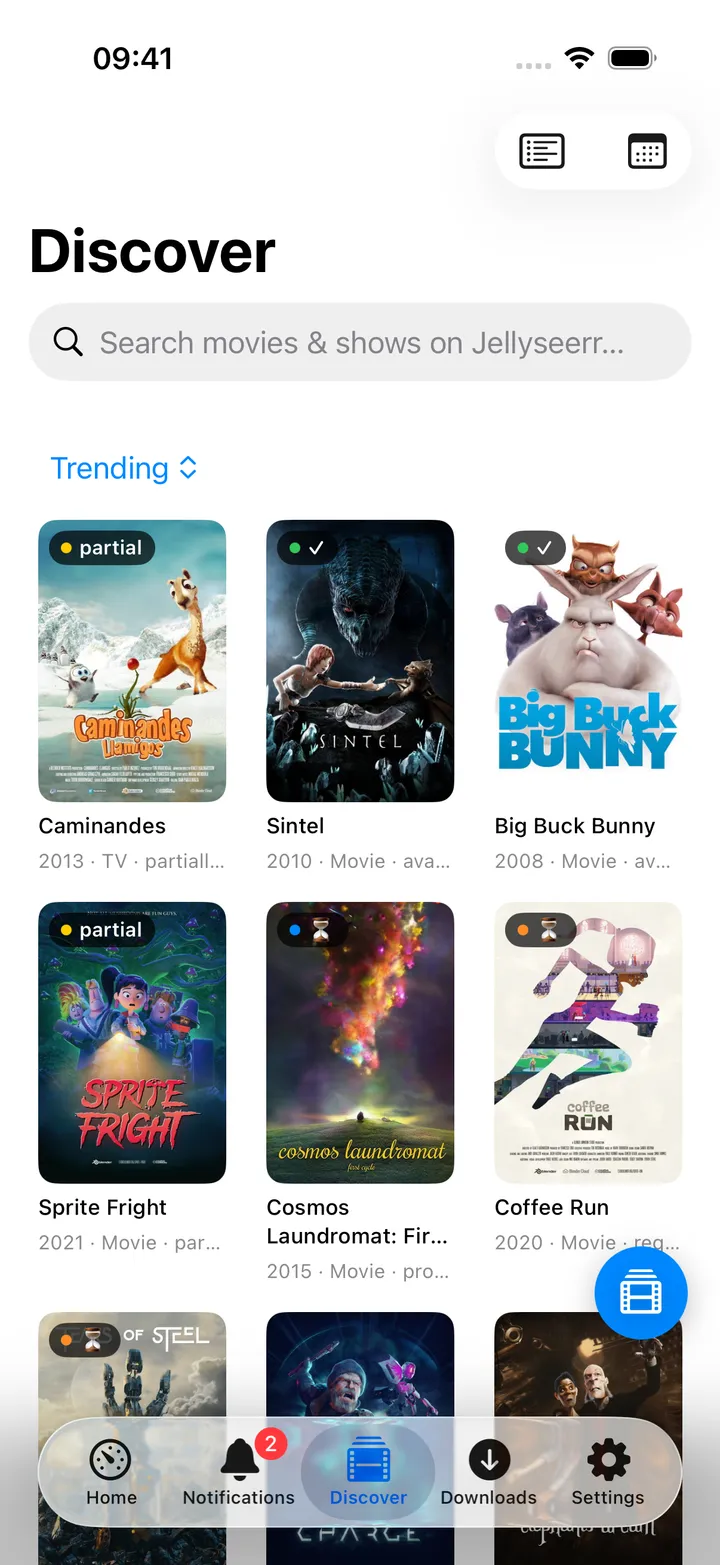
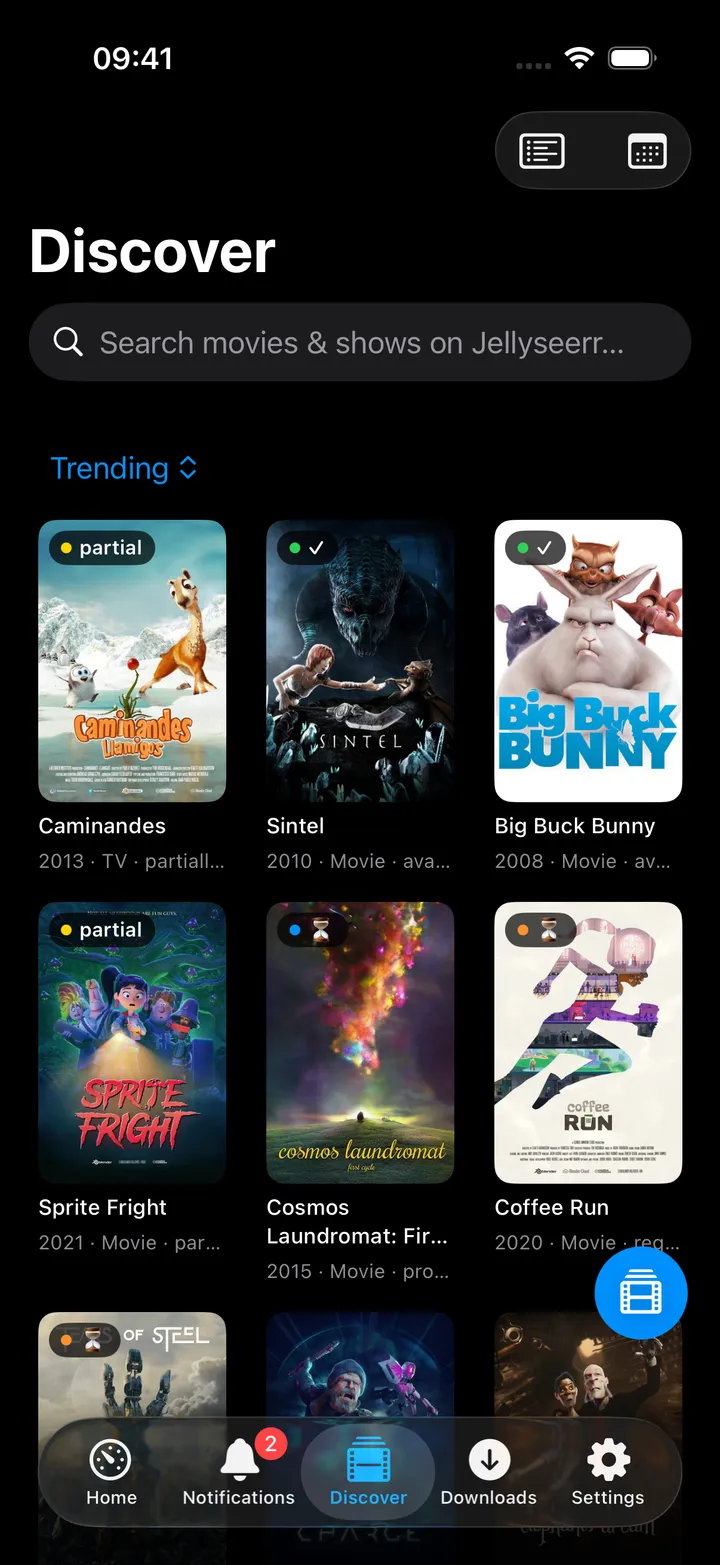
Screen action button: the round button beside the + holds Search, the five categories (the one on screen is marked), Requests, Media calendar and Refresh. The first five show until you pick your own with Choose actions…; turn the button off in Settings → App → Screen action buttons.
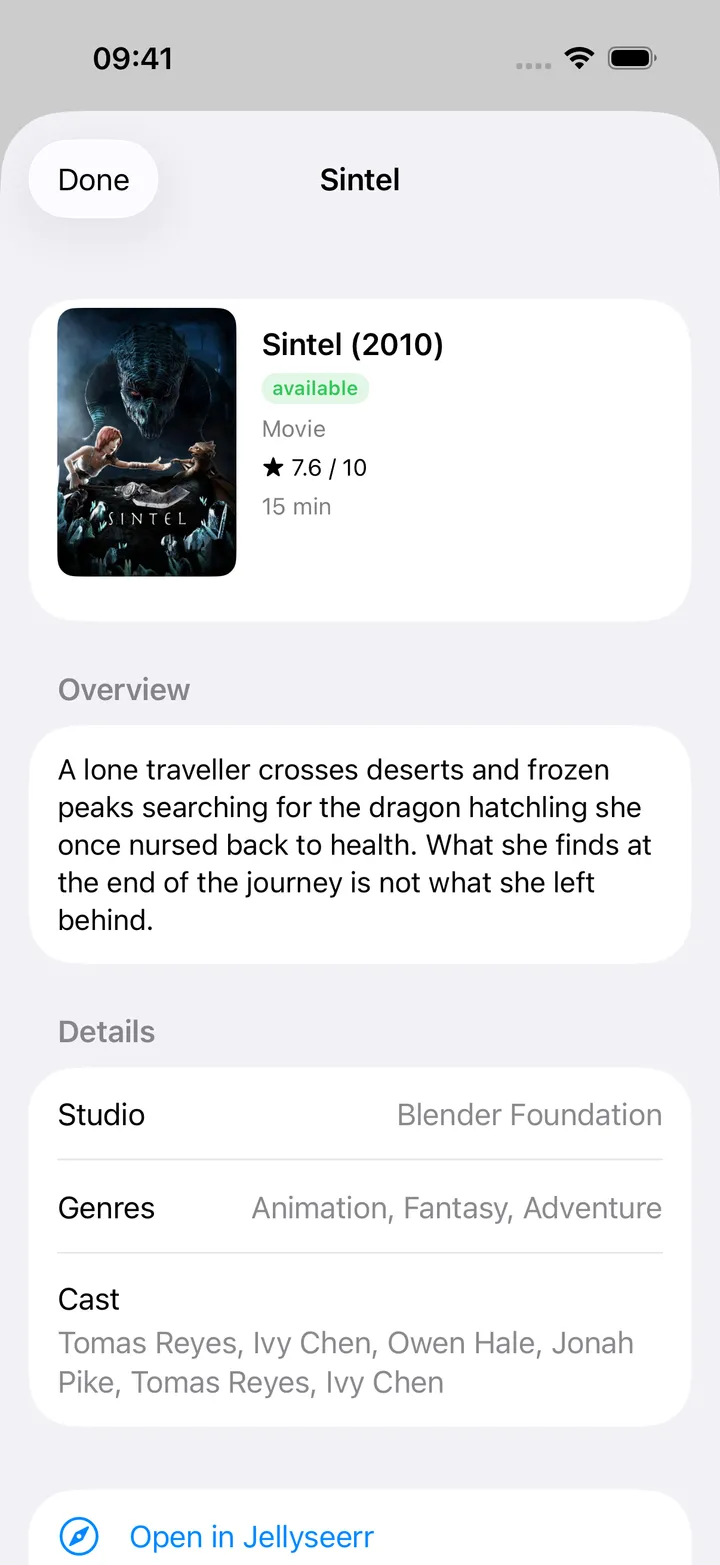
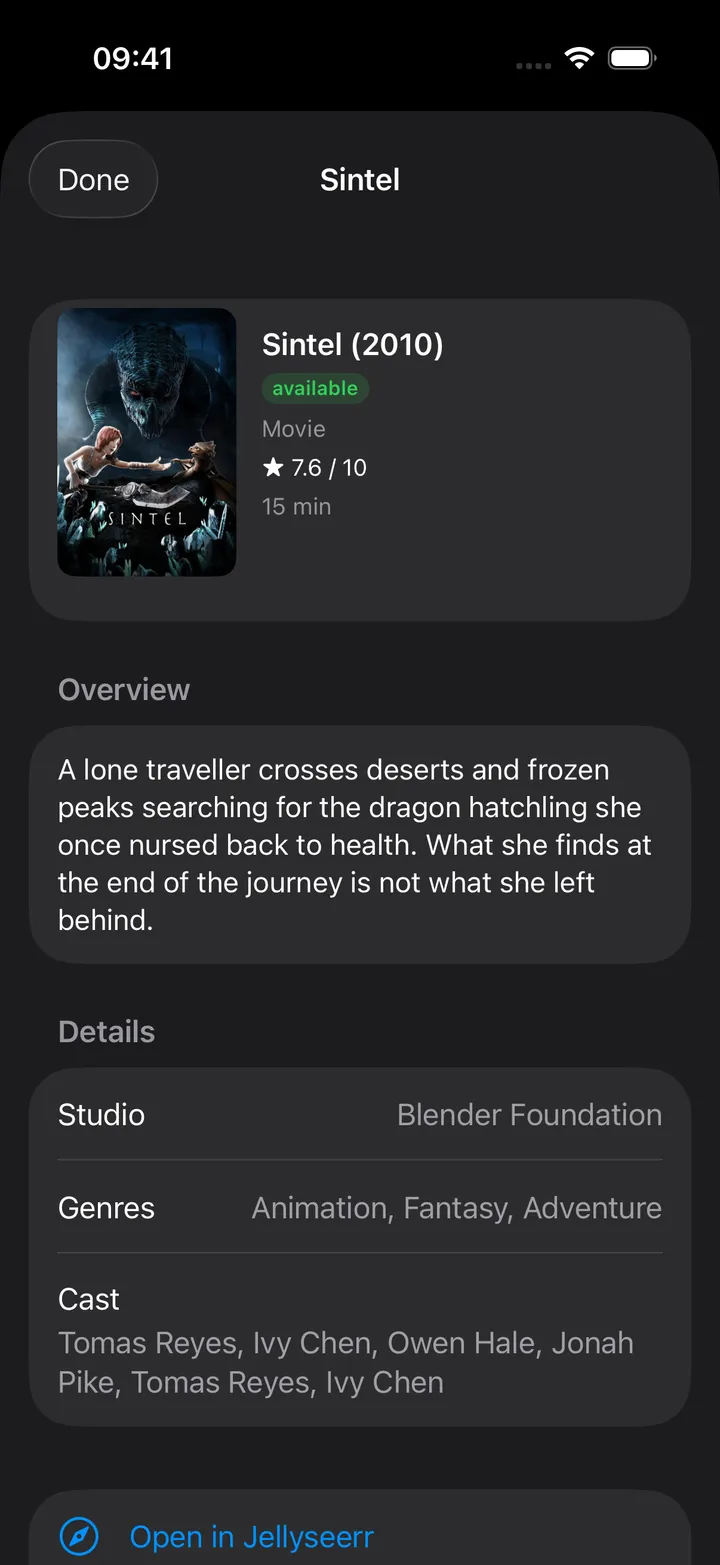
- The detail sheet opens on the title’s backdrop with the poster over it, the title, “Series · 2021 · 45 min · 3 seasons” and a status pill (Available, Requested, Processing, Partially available), then the tagline.
- Under it, a row of rating cards that scrolls sideways, each with its source’s mark: IMDb (with votes), the Tomatometer (a red tomato when Fresh, a seal when Certified Fresh, a green splat when Rotten), the Popcornmeter (full or spilled popcorn), the Metascore (green, yellow or red), TMDB (with votes) and Trakt. A card with an ↗ opens the title on that site.
- Then Request, a row of Jellyseerr, Copy Title (and the Radarr or Sonarr page when opened from the calendar), the overview cut to four lines with More, genres as chips, and Details as tiles: network or studio, first aired or released, status, language, runtime or episode length, episodes.
- Seasons is a card of rows: tap a season to fold out its episodes (stills, air dates, descriptions); its Request button stays separate.
- Cast, Directors, Writers & Creators and Producers are rows of photos with the character or job that scroll sideways. Tap a person for their page.
- Request (a movie) or Request All Seasons (a show) requests everything at once; each season row also has its own Request button. When the Radarr or Sonarr server behind Jellyseerr has more than one quality profile, Request with profile asks which one first, listing every profile by name with the default marked; on the Mac it is a menu with the default preselected and a Request button. With a single profile the request goes straight out with the server default. With Sonarr connected, a show also has Episodes in Sonarr: which episodes are downloaded, downloading, failed or missing.
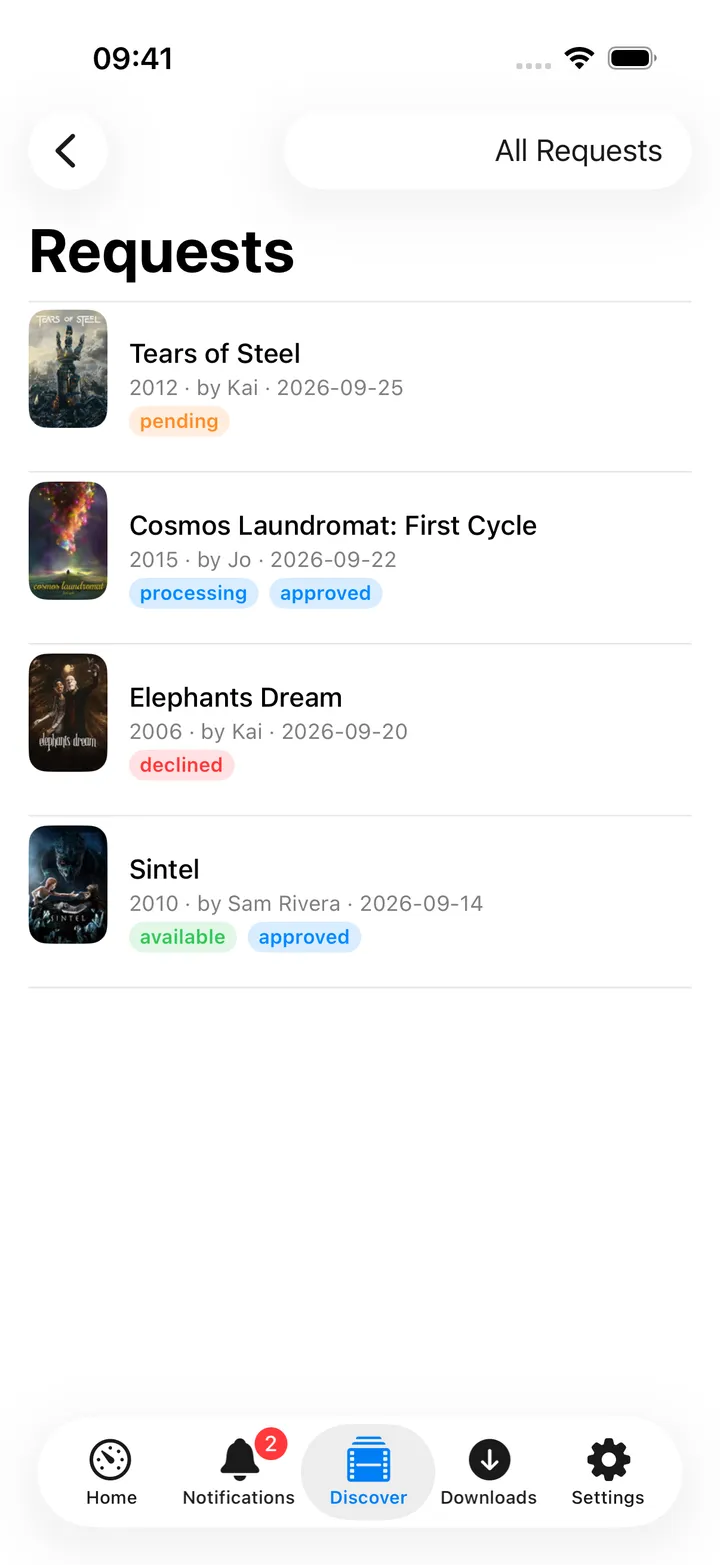
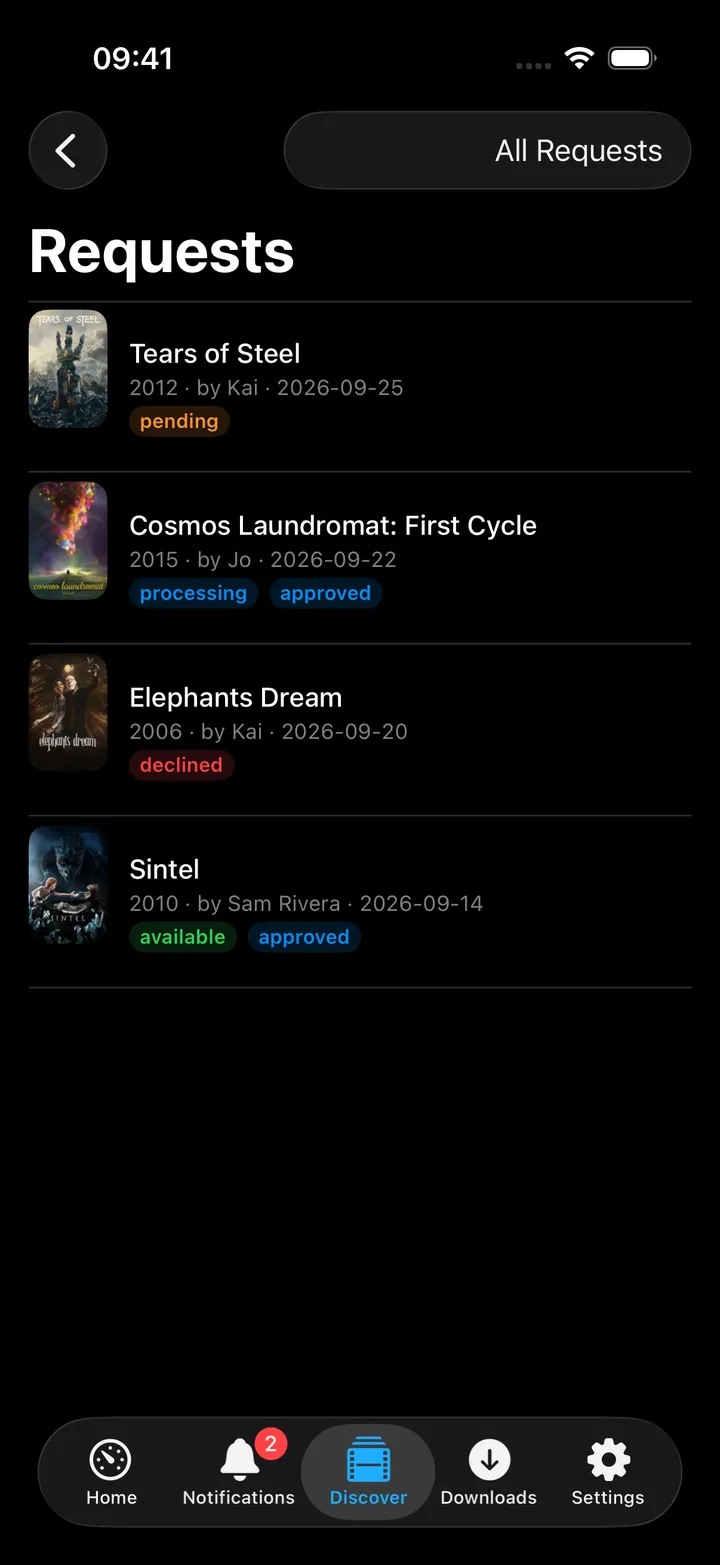
- Pick a status from the filter menu in the toolbar. Swipe a pending request right to Approve or Decline; a failed request can be Retry’d; swipe left to Delete, which removes the request only (files already downloaded are untouched). Shows get an Episodes button on the row when Sonarr is connected (see Sonarr).
On Mac
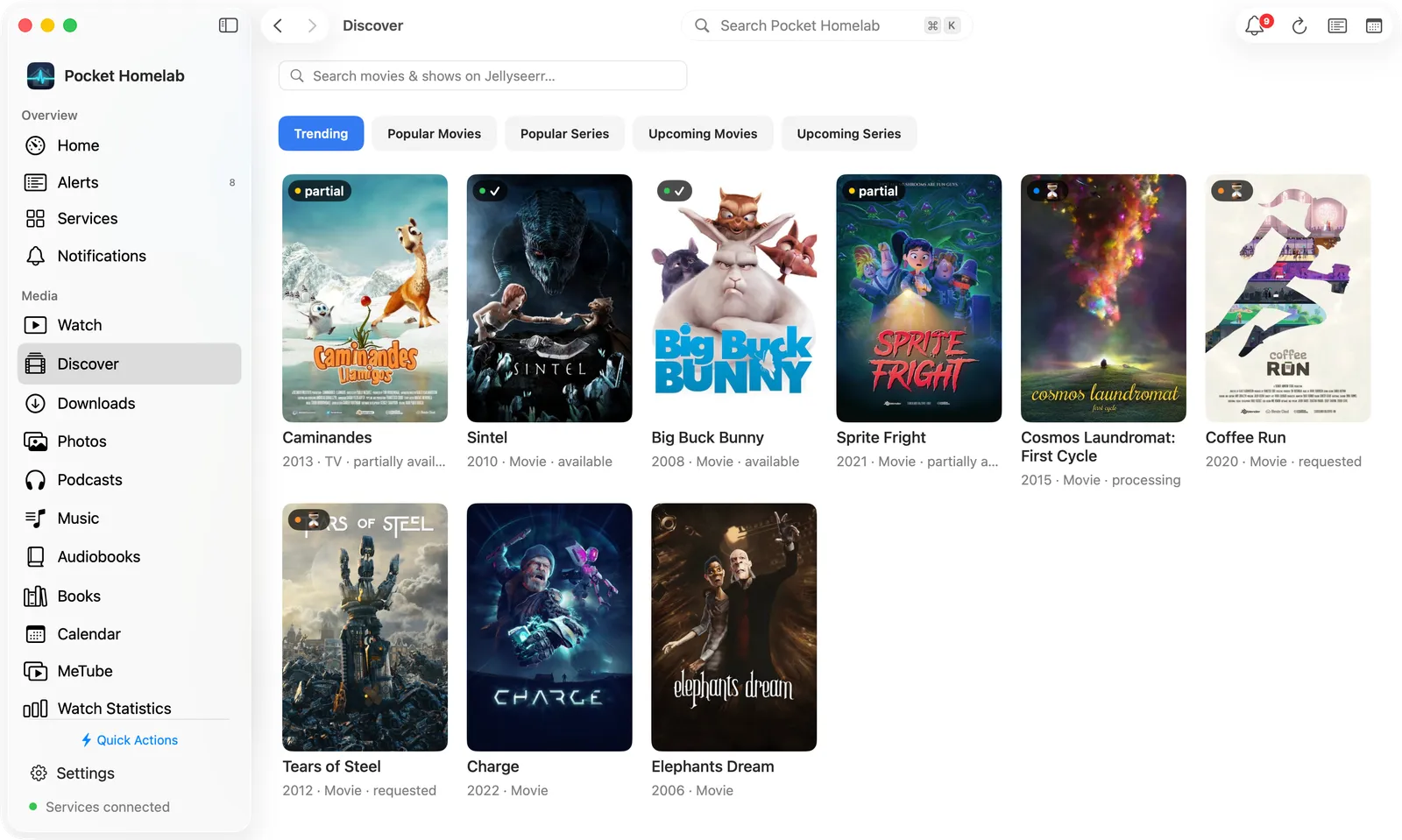
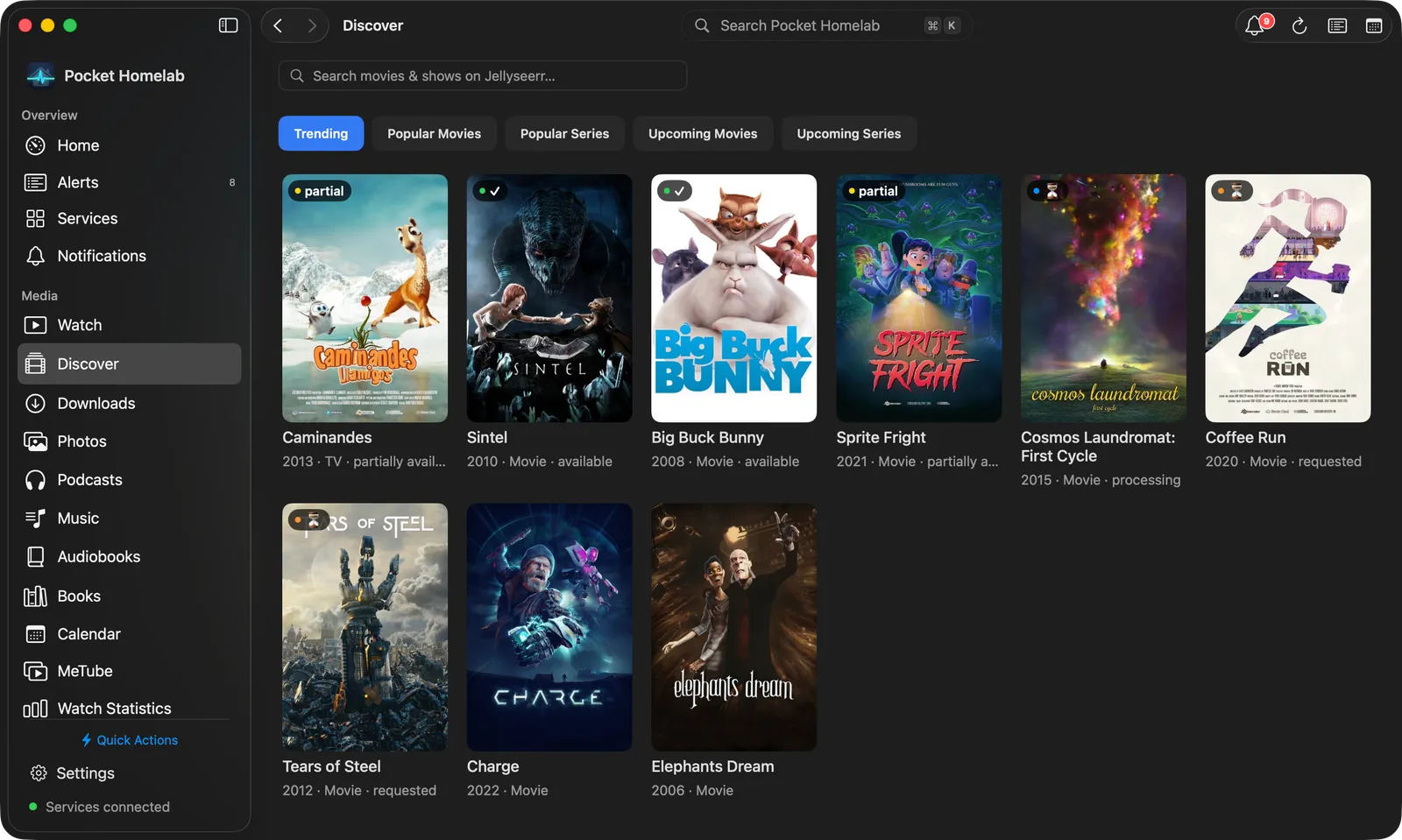
- Discover is a section of its own in the sidebar, under Media. Categories are separate rounded tabs that scroll sideways when the window is narrow.
- Opening a title shows a wide, two-column detail sheet: the poster with Request movie or Request all seasons and the other actions on the left, and on the right the title with the same rating cards as on the iPhone (IMDb, Tomatometer, Popcornmeter, Metascore, TMDB, Trakt), each linking to its source when available, then the synopsis, release date, status and original language, season cards, and cast & crew (the cast with character names, then directors, writers and producers). Click a person for their page. The two columns scroll independently; a click outside the sheet closes it.
- Clicking a season card opens its episode list inline under the seasons (names, stills, air dates and descriptions); requesting a season stays a separate button.
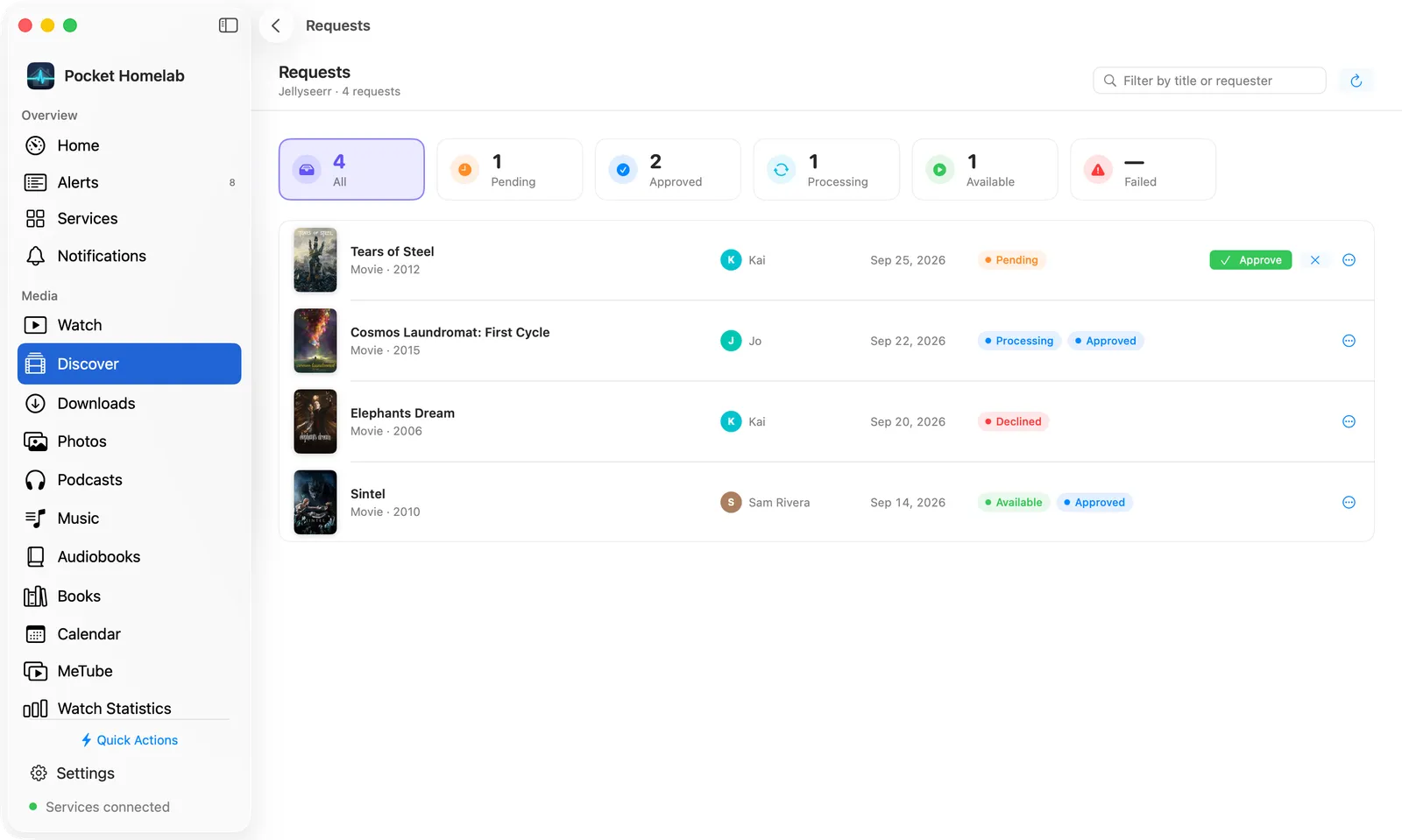
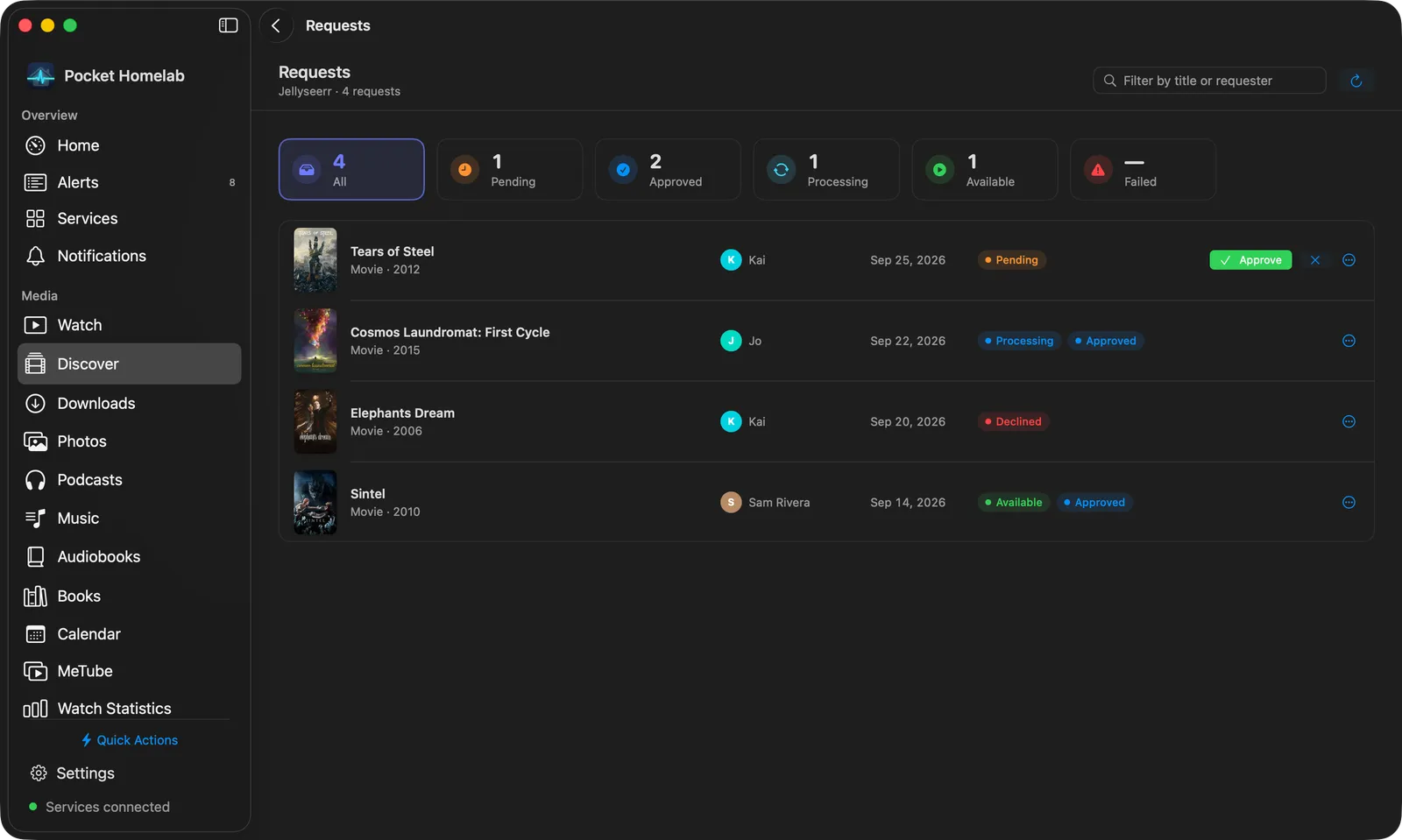
- Requests has no sidebar entry of its own: open it with Requests in Discover’s toolbar. The page is a bar with the total, a Filter by title or requester field and Refresh (⌘R); a row of tiles (All, Pending, Approved, Processing, Available, Failed) that shows each status’s count and picks the filter; then a card of rows with the poster, title and kind, who asked, the date and the status pills.
- Each row carries its actions as buttons: Approve and decline (✕) on a pending request, Retry on a failed one, Episodes for a show when Sonarr is connected. The ⋯ menu, or a right-click, has Details, Episodes, the same approve/decline/retry and Delete Request…. Click the poster or title for the detail sheet.
- Episodes opens the show’s page in Sonarr’s view, laid out like a Music album page: the show beside its poster, then one folding card per season.
- Keyboard: ⌘3 opens Discover; ⌥⌘F jumps straight to search.
Actions
- Request a movie, or Request All Seasons / a single season of a show, sent straight to Jellyseerr, which hands it to whichever Radarr/Sonarr server it has configured as default.
- Approve / Decline / Retry / Delete a request from the Requests screen.
- Approving with an admin key means Radarr/Sonarr genuinely start grabbing. There is no dry run.
Works with
- Radarr / Sonarr / Lidarr / Chaptarr (Media calendar): Discover’s toolbar (and its screen action button) gains a Media calendar button once any of those is configured. On the Mac, a release clicked in the calendar opens in this same detail sheet; movies and shows are matched to Jellyseerr by their TMDB/TVDB ids, never by title.
- Sonarr: Episodes in Sonarr on a show’s detail (iPhone) and Episodes on a show’s request.
- Radarr: with Radarr connected, a movie’s detail adds the Metascore and Trakt cards (and IMDb when Jellyseerr has none), looked up in Radarr by the movie’s TMDB id. The movie need not be in Radarr.
- The quality-profile picker reads whichever Radarr/Sonarr server Jellyseerr itself has set as default. The app’s own Radarr/Sonarr settings are not involved.
- ntfy alerts mentioning “jellyseerr” or “request” are filed under the Requests category in the Alerts inbox.
Tips & troubleshooting
- A partially available series shows no Request buttons at all, not even per-season. Use Open in Jellyseerr to fill in the missing seasons from the web UI.
- There is no root-folder or 4K picker here, only a quality-profile choice when more than one exists.
- The Requests filter has no “Declined” option; declined requests only show up under All Requests (All on the Mac).
- On the Mac, Failed has no count from the server: its tile shows how many rows loaded once you open it.
- Poster images come straight from
image.tmdb.org, so the device needs internet access even on a fully local network. - IMDb and Rotten Tomatoes ratings are fetched through your Jellyseerr server and need no extra key; Metacritic and Trakt come from Radarr, for movies only. A title without them simply shows fewer cards. Shows get TMDB and Rotten Tomatoes only: Jellyseerr has no IMDb score for a series.