
Pocket Habits
Your habit tracker from Pocket Habits: tonight's check-in with a ✓ and ✗ for every habit, sleep and mood scores and the journal line, the month grid with streaks, the insights, and the habits and trackers themselves, from the phone, the Mac or Android.
iPhoneMacAndroidOn this page
Pocket Habits is a free, open-source (MIT), self-hosted habit tracker that copies the one-page bullet-journal spread: seven habits in a month grid, a sleep score and a day rating out of five, a weight row and one good thing per day. One Go binary, one SQLite file, a REST API with personal tokens. It is made by the author of Pocket Homelab as its habit companion. Pocket Homelab is the notebook in your pocket: it does tonight’s check-in, shows the month grid and your streaks, and manages the habits and trackers. Reminders, users, API tokens, backups and import stay in the web app.
Install Pocket Habits
If you do not run it yet, the project on GitHub has the setup for Docker and bare metal. The shortest way is the container:
mkdir pocket-habits && cd pocket-habits
curl -O https://raw.githubusercontent.com/abjelosevic88/pocket-homelab-habit-tracker/main/docker-compose.yml
docker compose up -d
Open it in the browser, create your account, add up to seven habits under Habits & trackers, and set TZ: it
decides what “today” is.
Set up
- In Pocket Habits, open Settings → API tokens and create a token. Copy it: it starts with
ph_and is shown once. - In Pocket Homelab: Settings → Services → Pocket Habits, paste the base URL and the token, then Test connection. It reads the dashboard and answers with today’s progress, the month’s rate and your streak.
- Turn on the Habits tab in Settings → Tabs if you want it in the tab bar, and add the Habits card to Home under Settings → Home layout.
| Key | Field | Required | Secret | Where to get it |
|---|---|---|---|---|
HABITS_URL | Pocket Habits URL | Required | — | Base address of your Pocket Habits server, for tonight's check-in, the month grid, your streaks and the journal. Leave empty to hide it. |
HABITS_API_KEY | Pocket Habits API token | Required | — | A token from Pocket Habits → Settings → API tokens (starts with ph_). Stored in the Keychain. |
The check-in
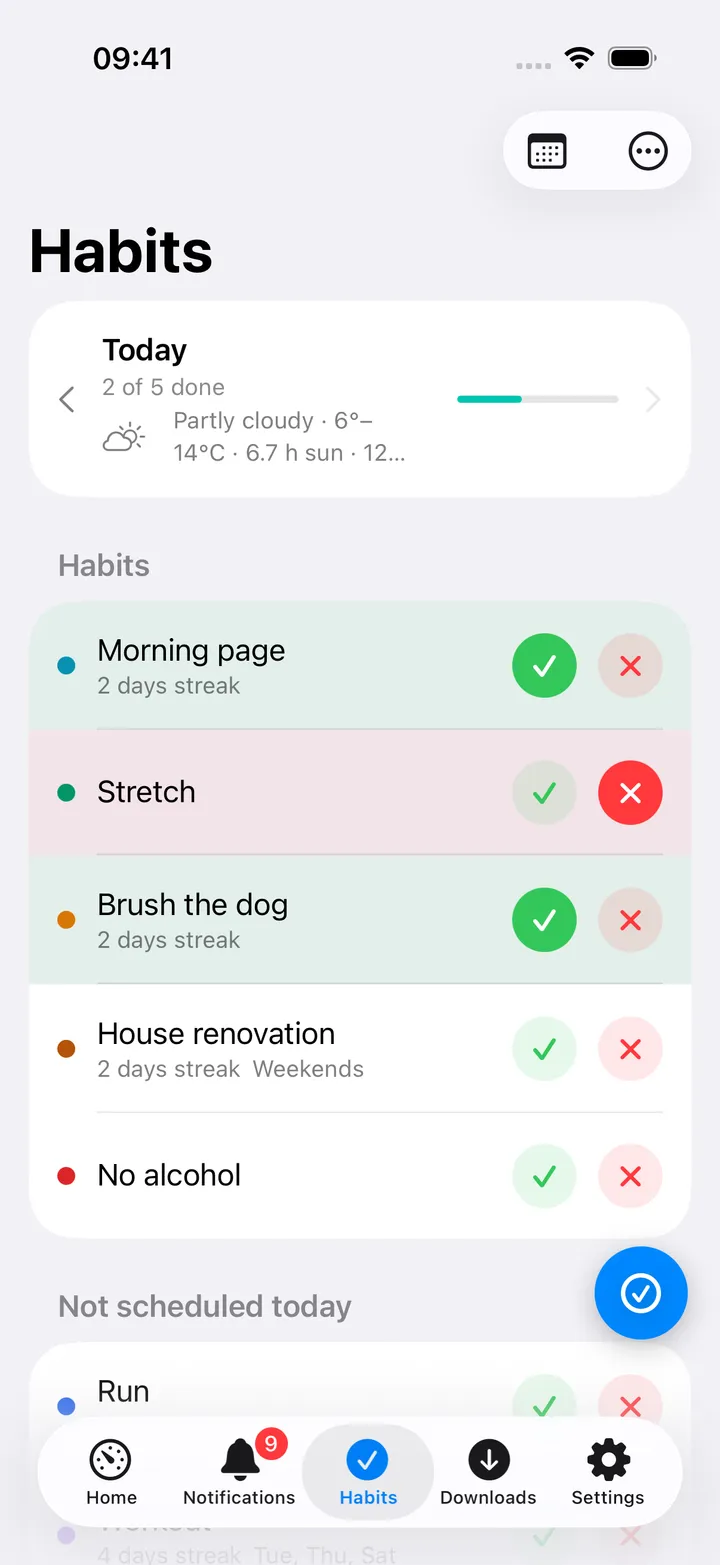
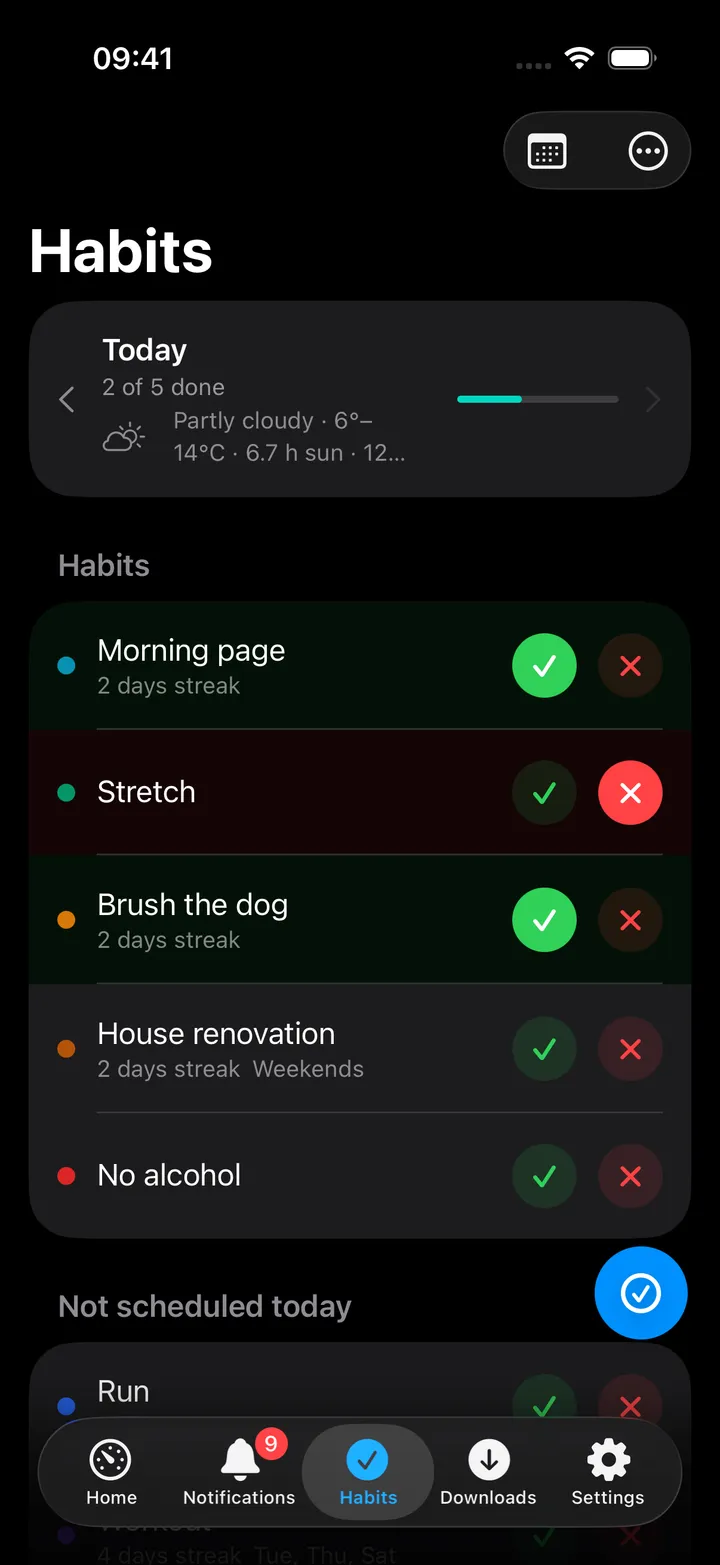
The Habits screen opens on today, as the web app’s Today page does:
- The day at the top, with arrows to go back to an earlier day (the server refuses a day in the future) and how many of today’s habits are done.
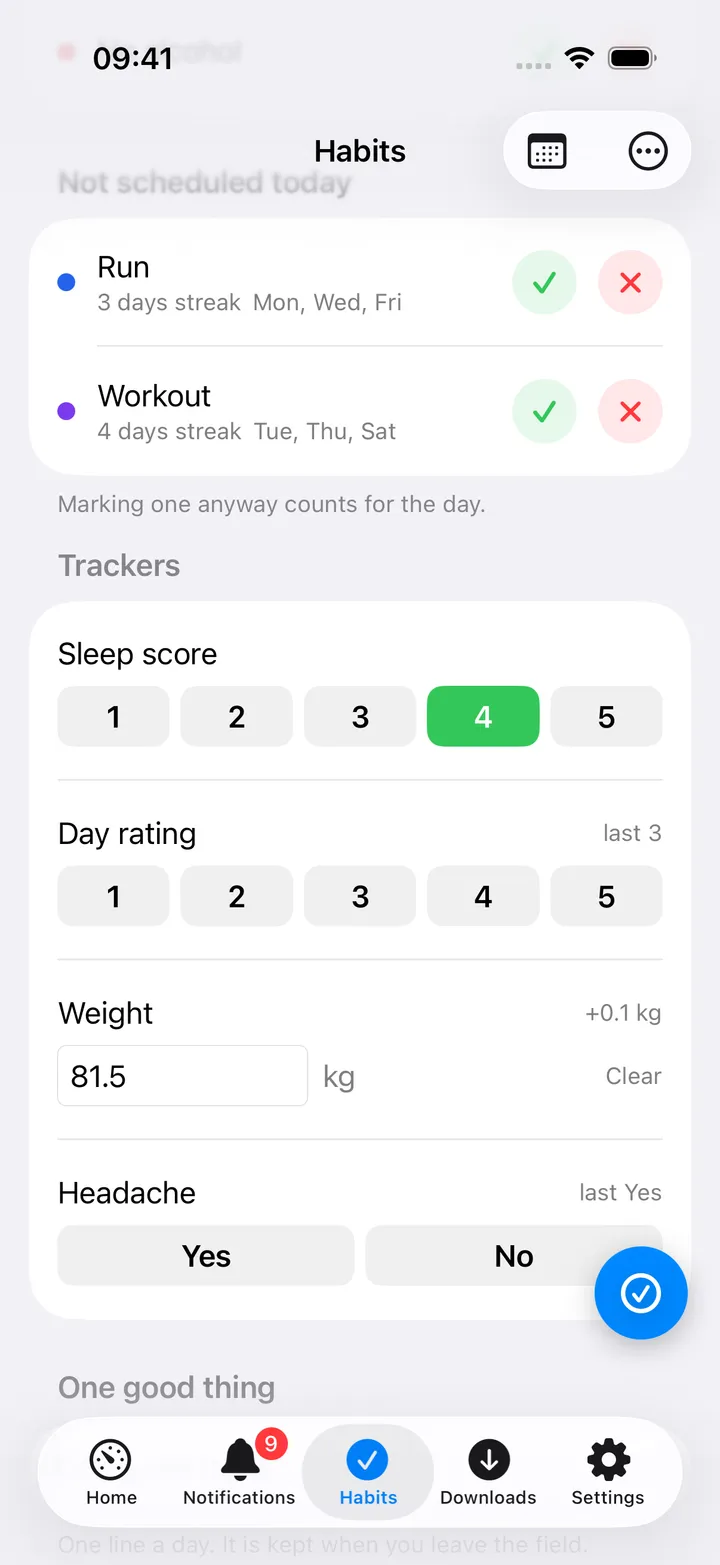
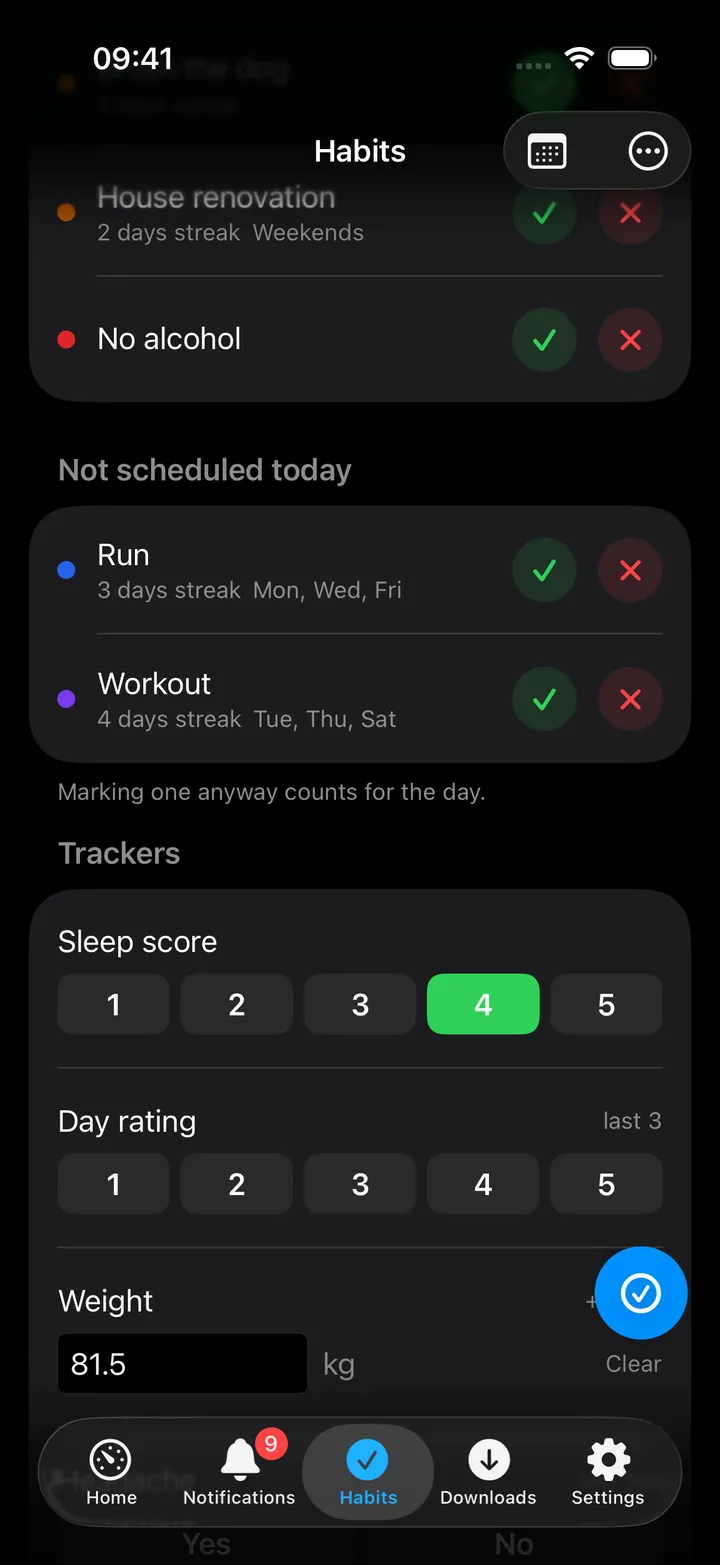
- Habits: every habit scheduled today with a ✓ and a ✗. The row turns green or red; tapping the active mark clears the day. Habits not scheduled today sit under their own heading and can be marked anyway. A streak shows under the name.
- Trackers: a score out of five as pills, coloured by the notebook’s bands (green at the good end, yellow in the middle, pink at the bad one); a Yes / No question; a number such as your weight with the change since the last value, saved when you leave the field. The server’s own ranges, steps and units apply.
- One good thing: the journal line, kept when the field loses focus (and the optional bad thing when the server has it switched on).
- Important: something to remember about the day. The date turns red on the month grid. It needs a Pocket Habits server from 15 October 2026 or later.
- This month: the rate, perfect days, the best streak and the journal count, and the way to the month grid, the insights and the habits and trackers.
Every mark goes to the server at once with your token; the counts and streaks come back from it. With the server out of reach the mark fails with a message rather than wait in the offline outbox.
The month grid
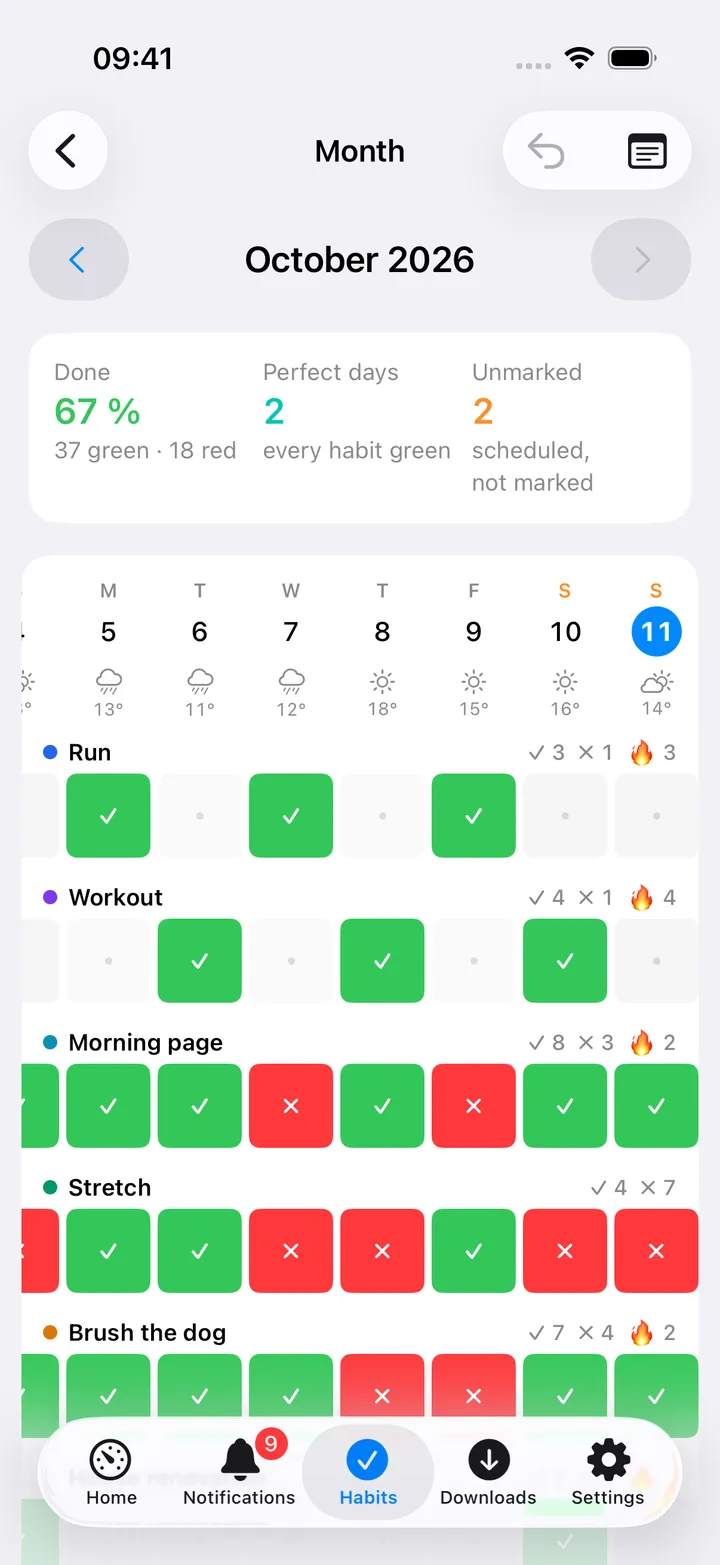
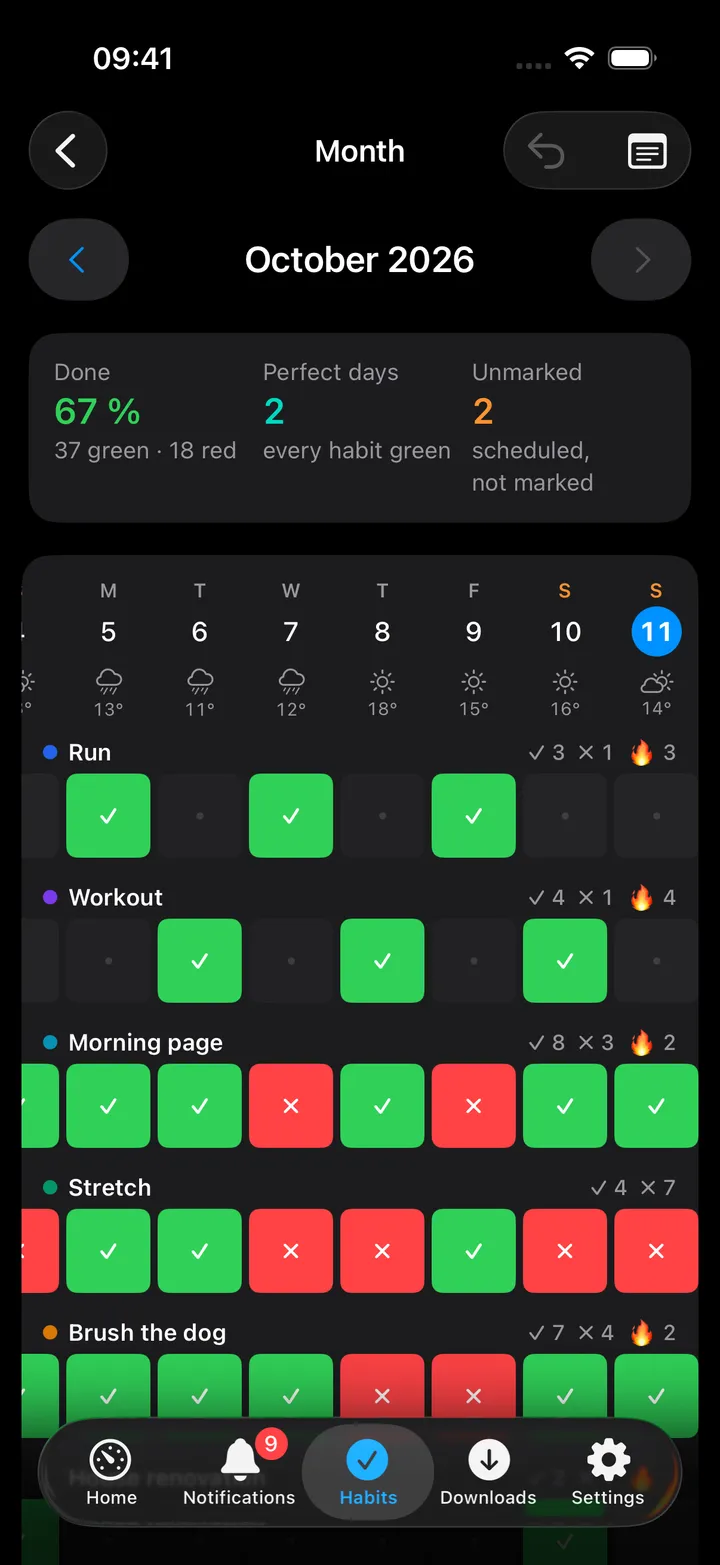
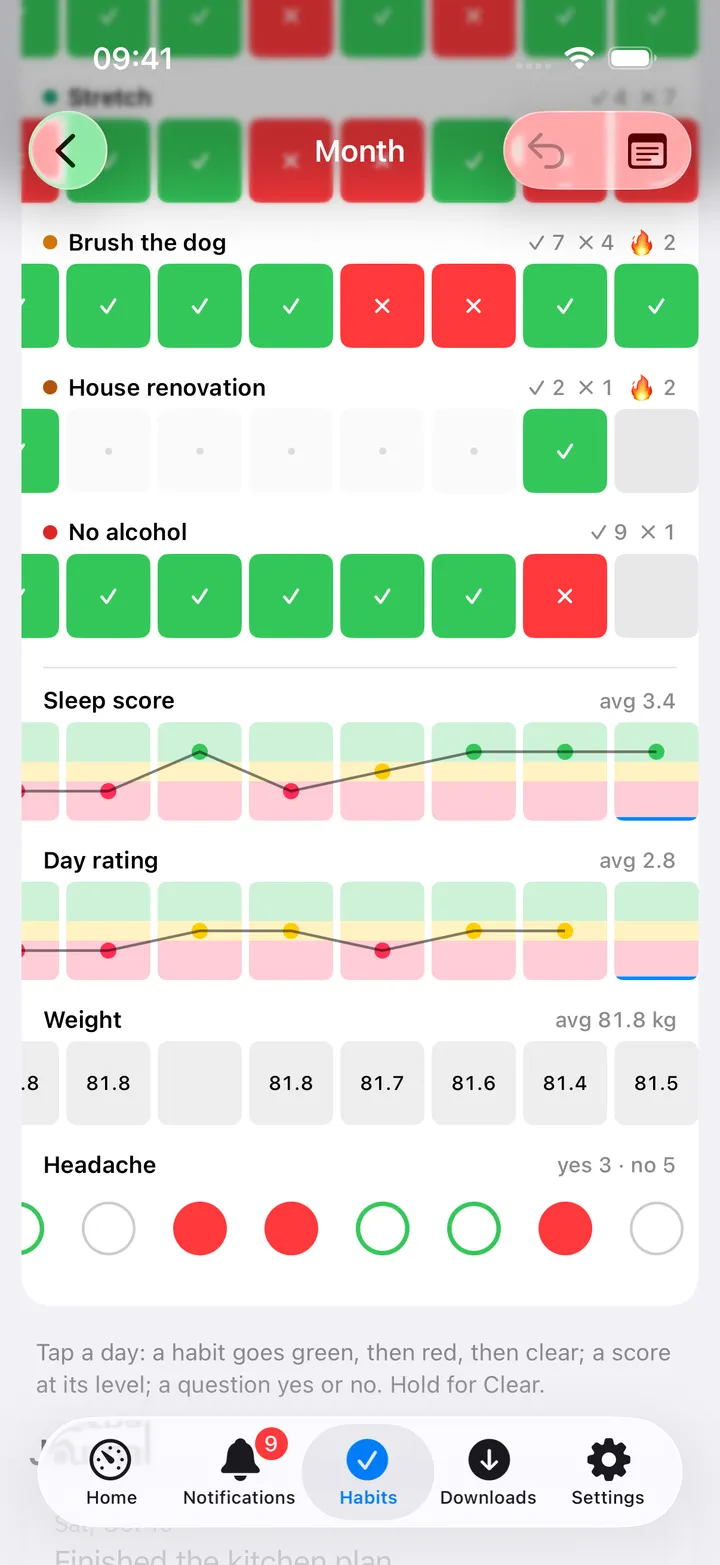
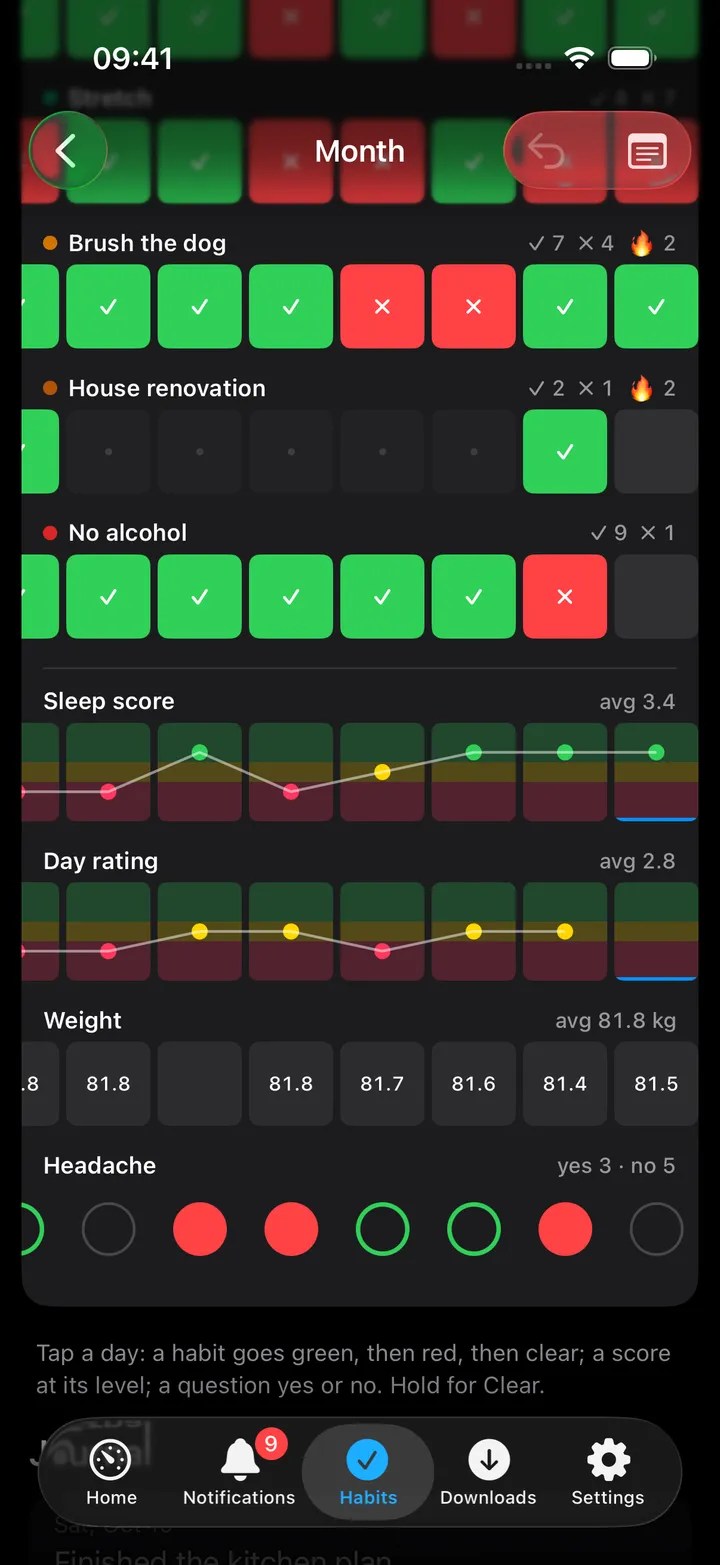
Month grid is the notebook page. On the iPhone the days take the card’s full width, a week at a time with cells big enough for a thumb; swipe sideways for the rest of the month (it opens on today). Each row’s name and figures sit on a line above it and stay put while you swipe. The habits come first: tap a cell to mark the day (done, then missed, then clear), with ✓, ✗ and the streak beside the name. The trackers follow in the same columns, and every cell is a tap: a score shows its levels over the three bands with a line through the days, and a tap on a level sets it (again clears it); a yes / no question is a circle that a tap turns to yes or no; a number opens a small box with Set and Clear. Hold a cell for Clear (and Done / Missed on a habit). Each change ticks, and Undo at the top takes the last one back. The journal lines of the month are at the bottom; the arrows flip months.
Write the journal from the month. Write in journal at the top opens today’s day: the journal line, the bad thing when the server has it on, and the important note. Tap a date in the grid’s header (click it on the Mac) to open that day instead; every journal line in the month’s list opens its day too, to change it.
Important days. In the same day sheet, write a note about that day, or a day ahead. The date becomes a red circle, and the month lists its Important days with their notes; tap one to change or remove it. Send to Notes includes them. The Pocket Habits web page does the same: click a date on its month grid, or use the Important box on Today.
The floating window on the Mac
On the Mac, ⌃⌥⌘H opens Habits in a floating window over whatever app you are in, while Pocket Homelab is running. A switch at its top chooses what the window shows: Today, the day’s check-in with its habits, trackers and journal line, or Month, the month grid. The choice is kept for next time, and so are the window’s position and size. The window stays up until you close it; pressing the shortcut again hides it. The Month, Insights and Habits & trackers buttons on the check-in open inside the window. The key is registered only with Pocket Habits connected, and it can be changed under Settings → Quick Actions → Shortcuts.
Insights
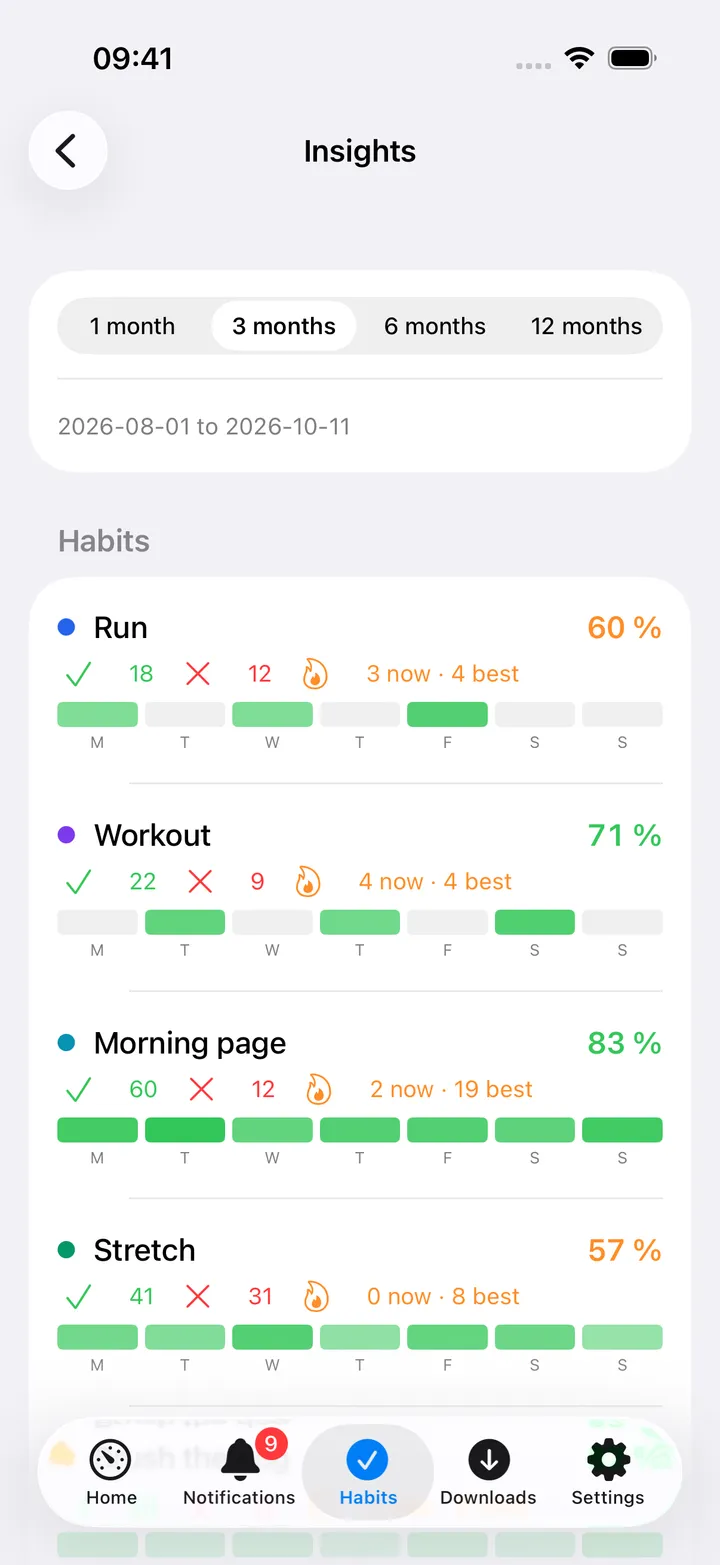
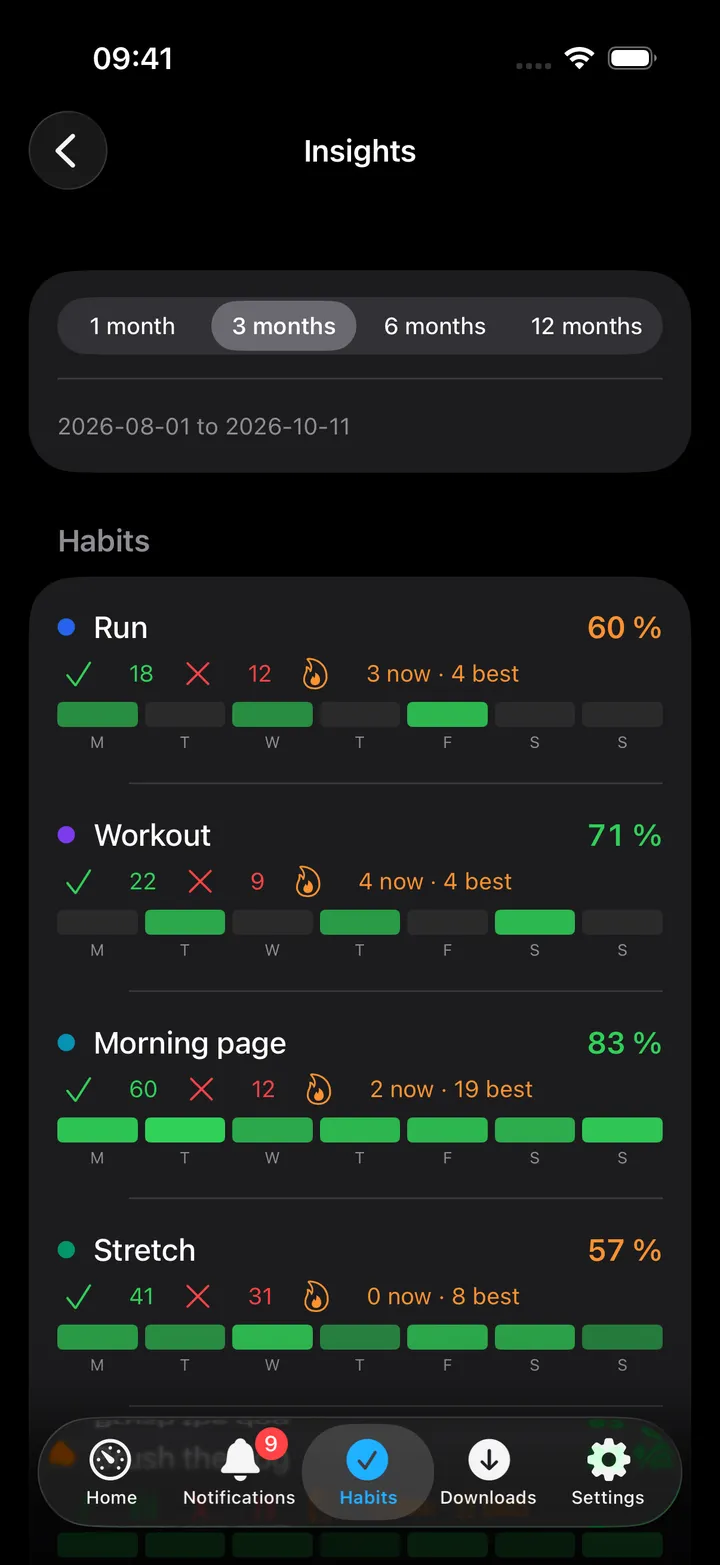
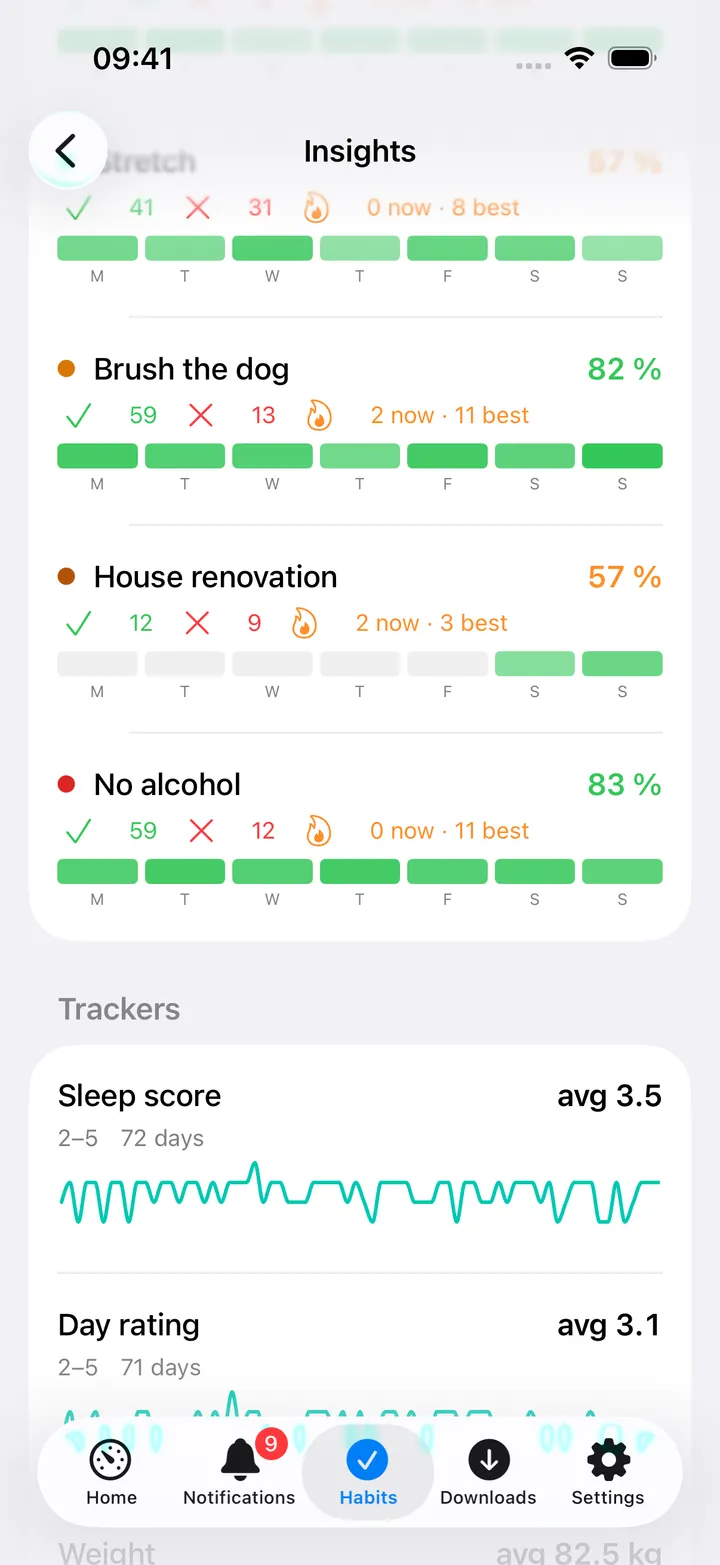
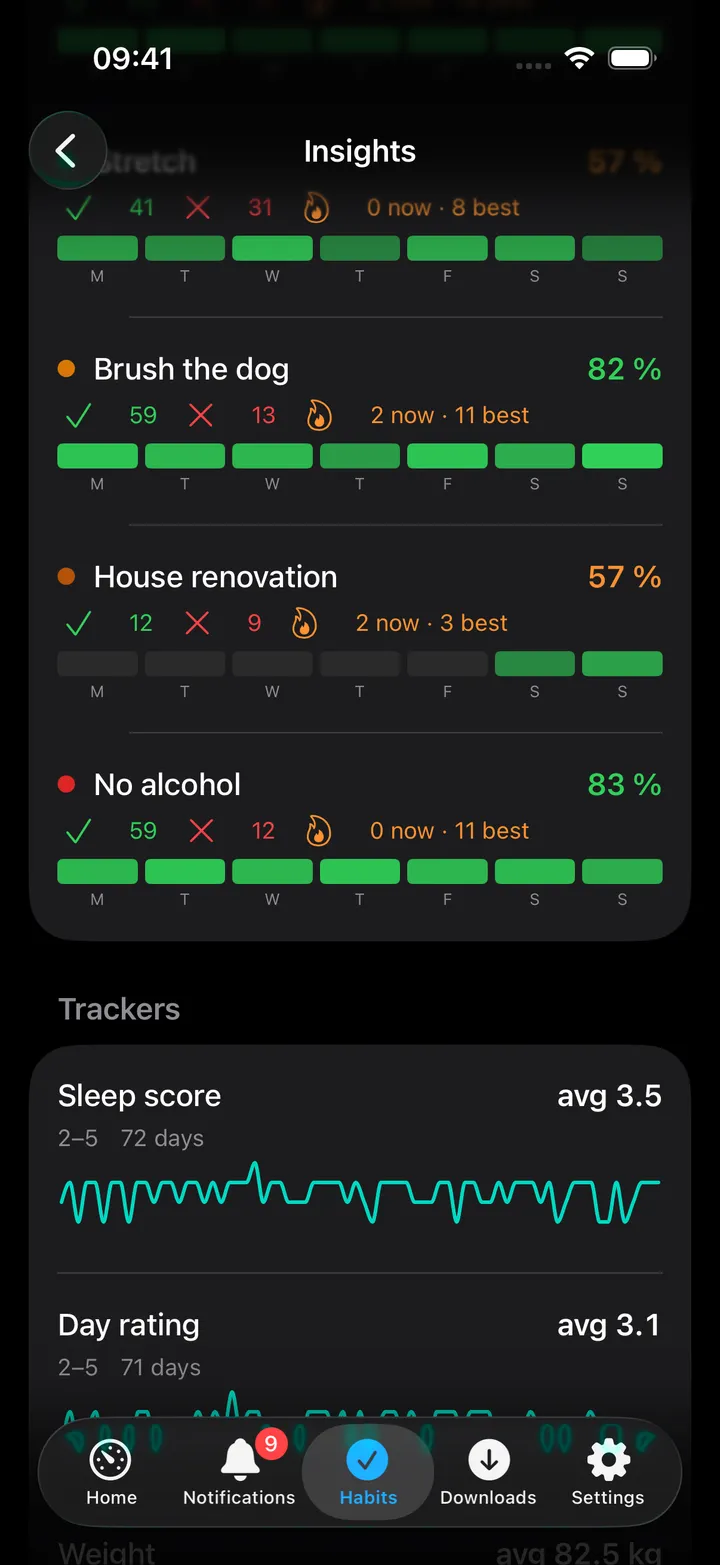
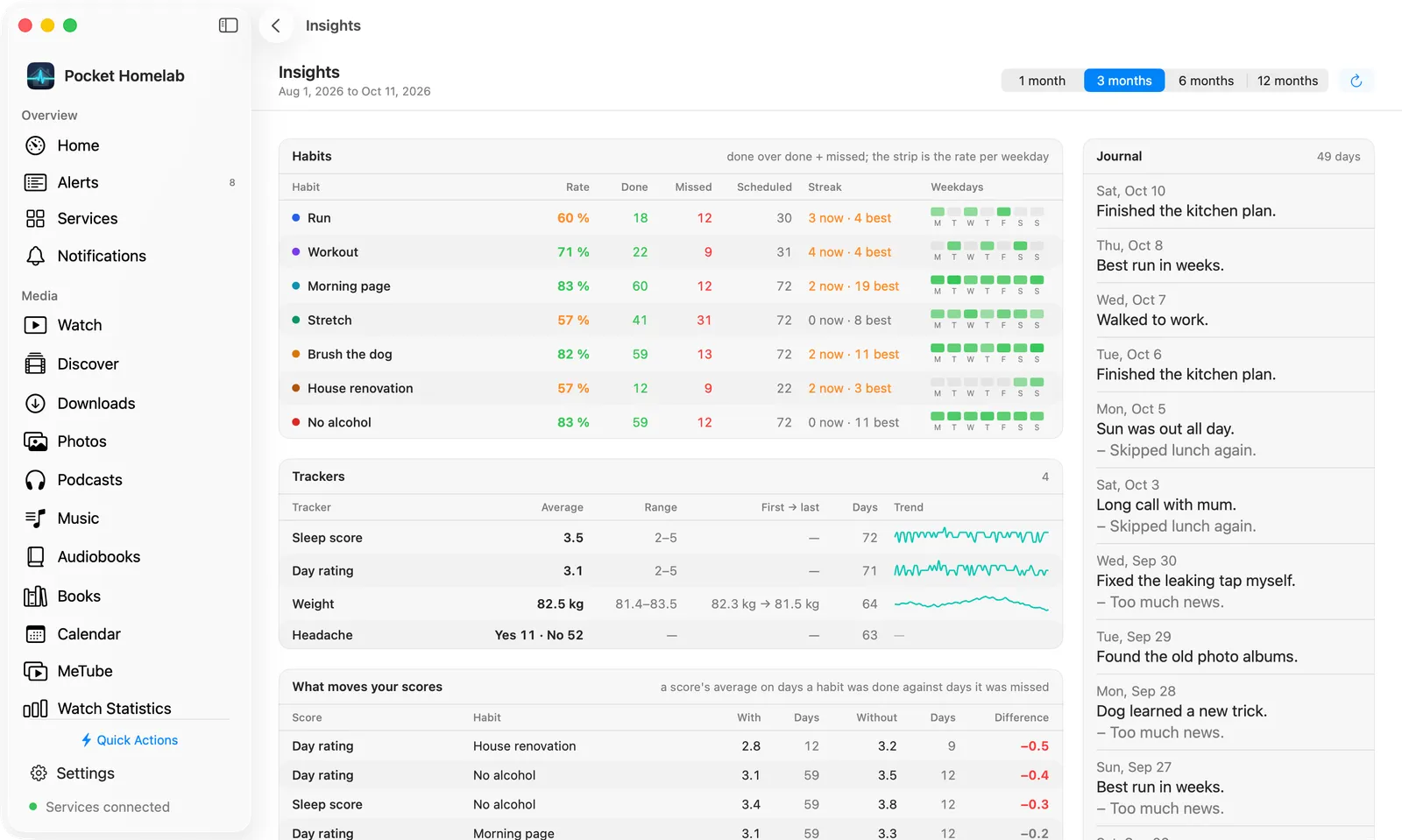
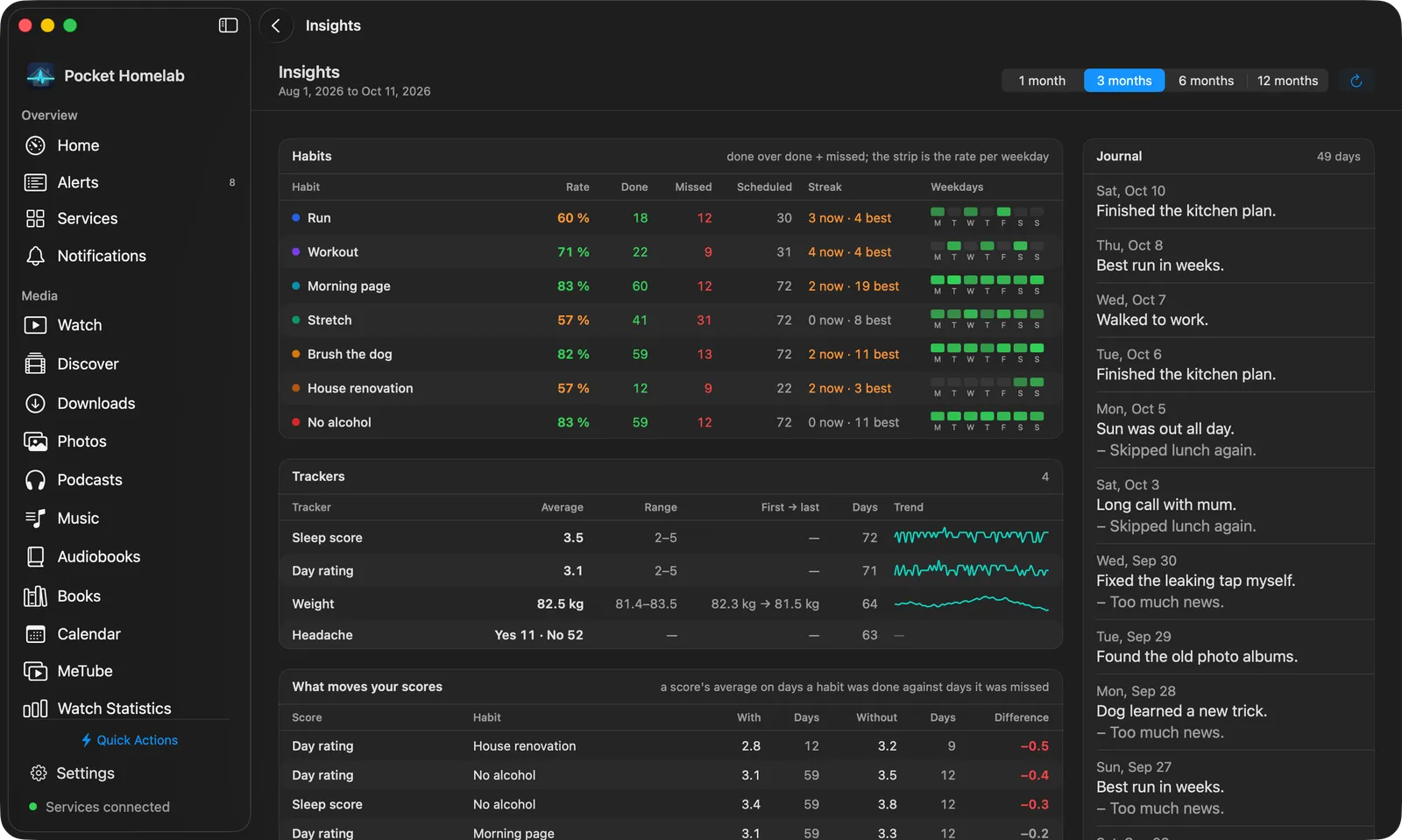
Insights looks at 1, 3, 6 or 12 months: for every habit its rate, done and missed, the current and best streak and a weekday strip (the darker, the more often it sticks on that day); for every tracker the average, range, first and last value and a sparkline; What moves your scores, a score’s average on days a habit was done against days it was missed (or a yes / no question answered yes against no), biggest difference first; and the journal lines of the period.
The weather
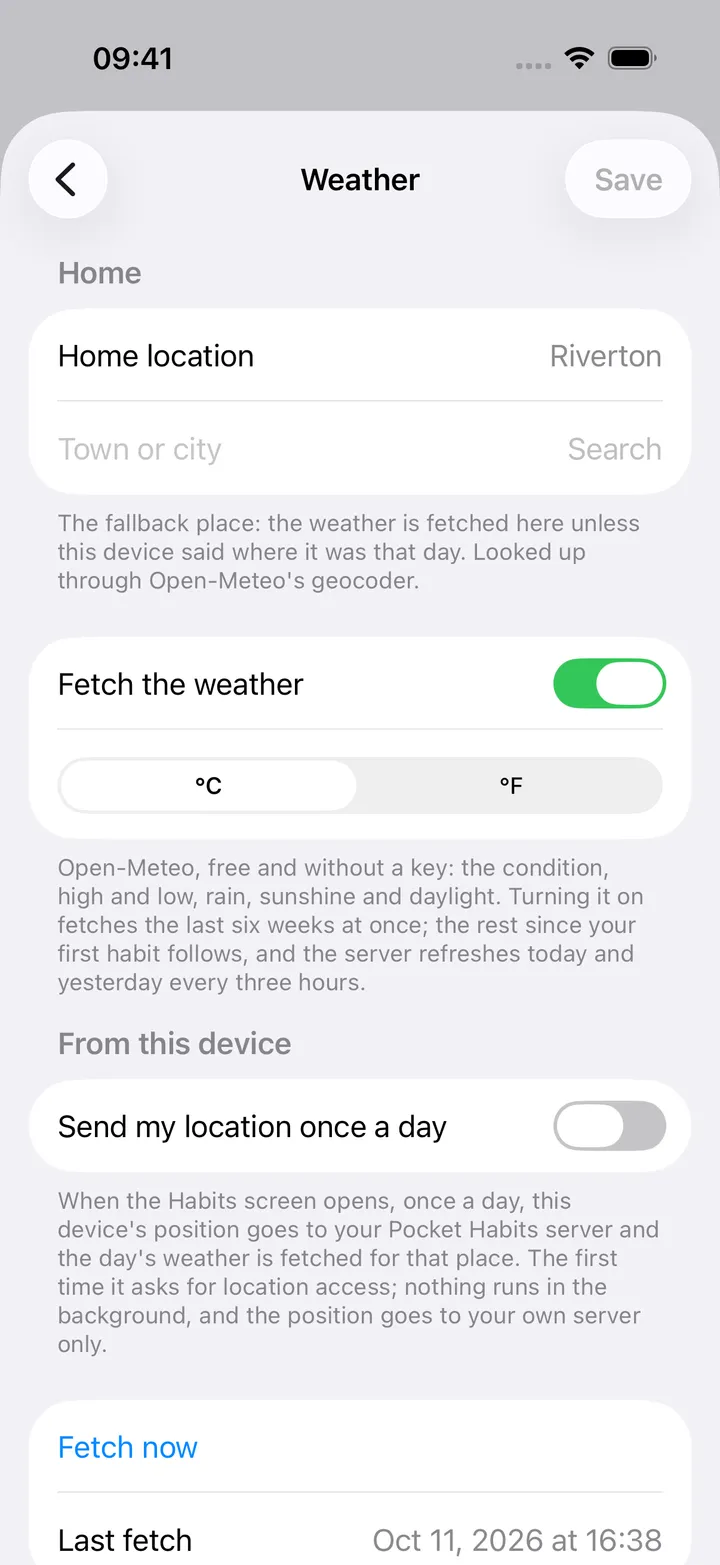
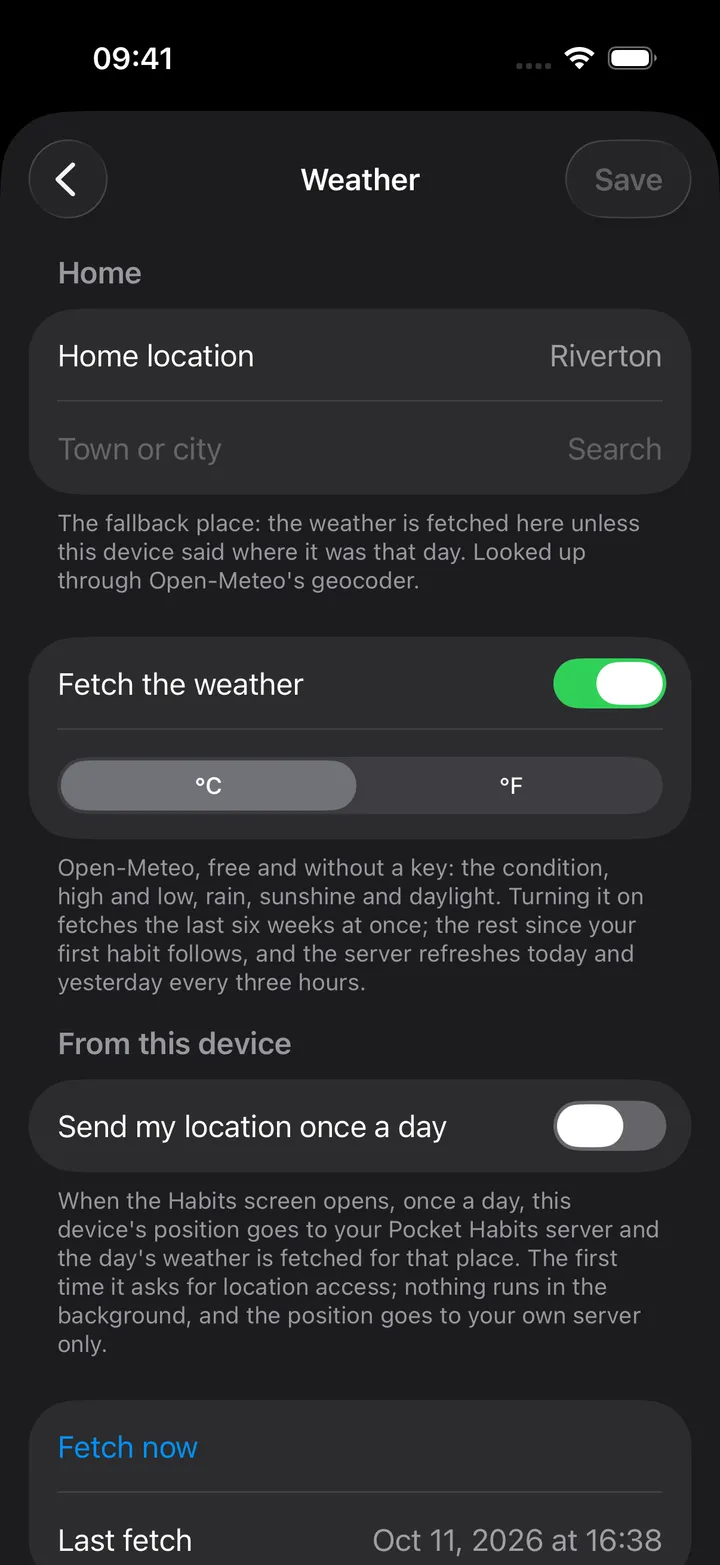
Pocket Habits can fetch the day’s weather itself, from Open-Meteo (free, no key): the condition (clear, partly cloudy, overcast, fog, rain, snow, thunderstorm), the high and low, rain, sunshine and daylight hours. Turn it on under Habits settings → Weather with a home location (type a town and pick it; the last six weeks are fetched at once and the rest since your first habit follows). The server refreshes today and yesterday every three hours.
- The check-in shows the day’s line under the date (“Rain · 9–14 °C · 1.2 h sun · 10.4 h daylight”).
- The month grid gets a weather strip under the day numbers, an icon and the high per day. Tap a day’s weather to set the condition by hand, for days you were elsewhere or the station was wrong.
- Insights gets Weather and your scores: each score’s average and how often habits were green on clear days against rainy and snowy ones, by temperature band and by daylight hours. The daylight rows carry the seasonal signal.
Where you were, not where you live: with Send my location once a day on (the same page; the app asks for
location access the first time), opening the Habits screen sends the phone’s position to your server once a day,
and the weather for that day is fetched for that place. Travel days get their own weather; the home location is the
fallback. Nothing runs in the background and the position goes to your own server only, as POST /api/v1/location,
which a Shortcut or Home Assistant can call as well.
Habits & trackers
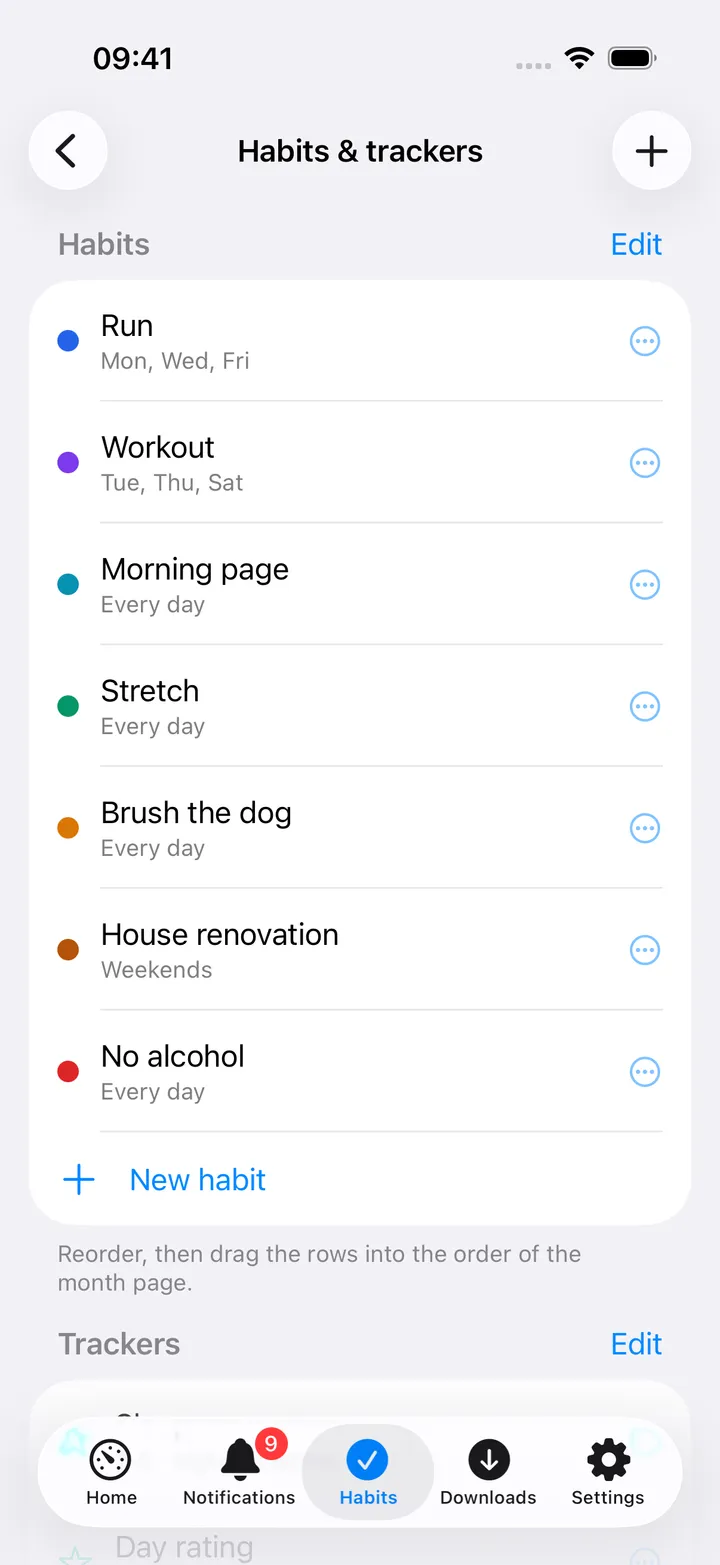
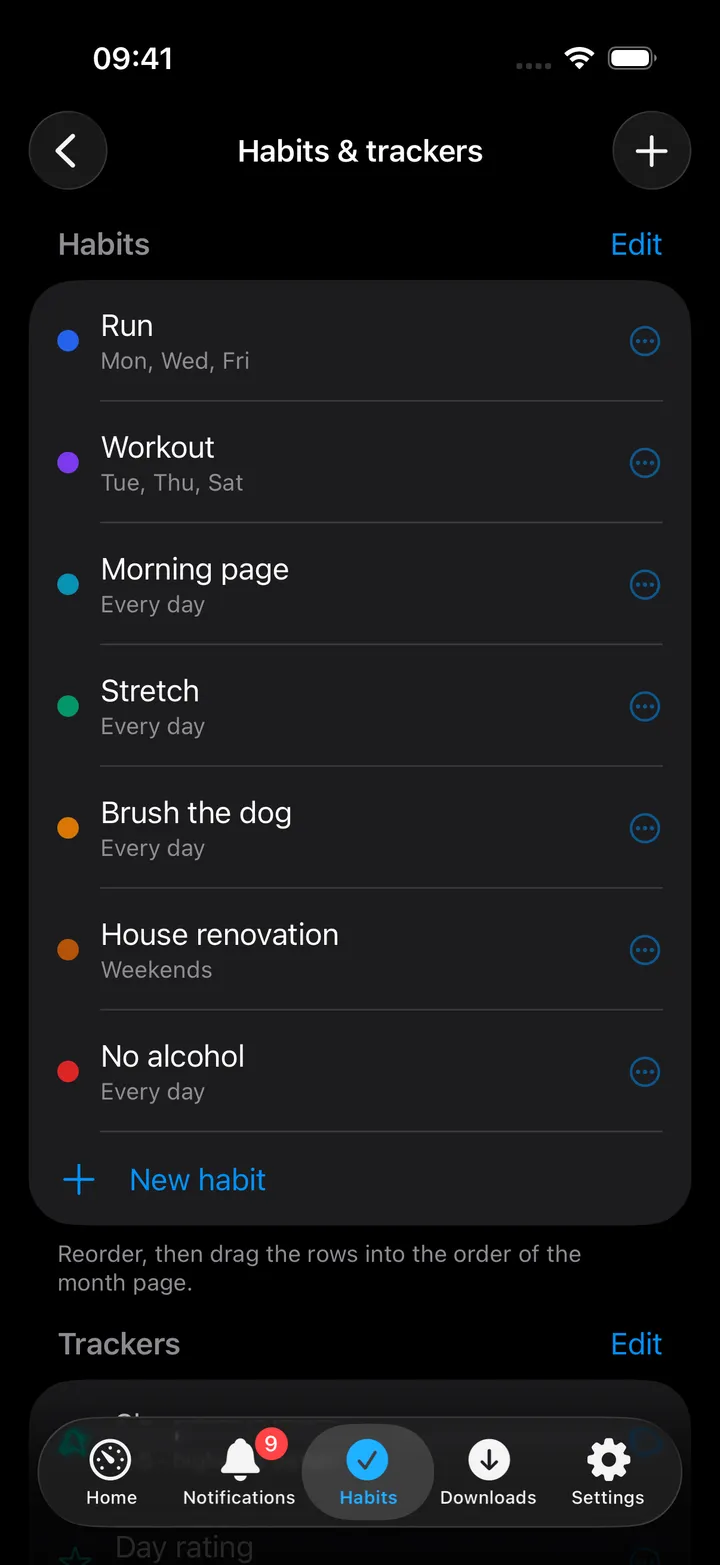
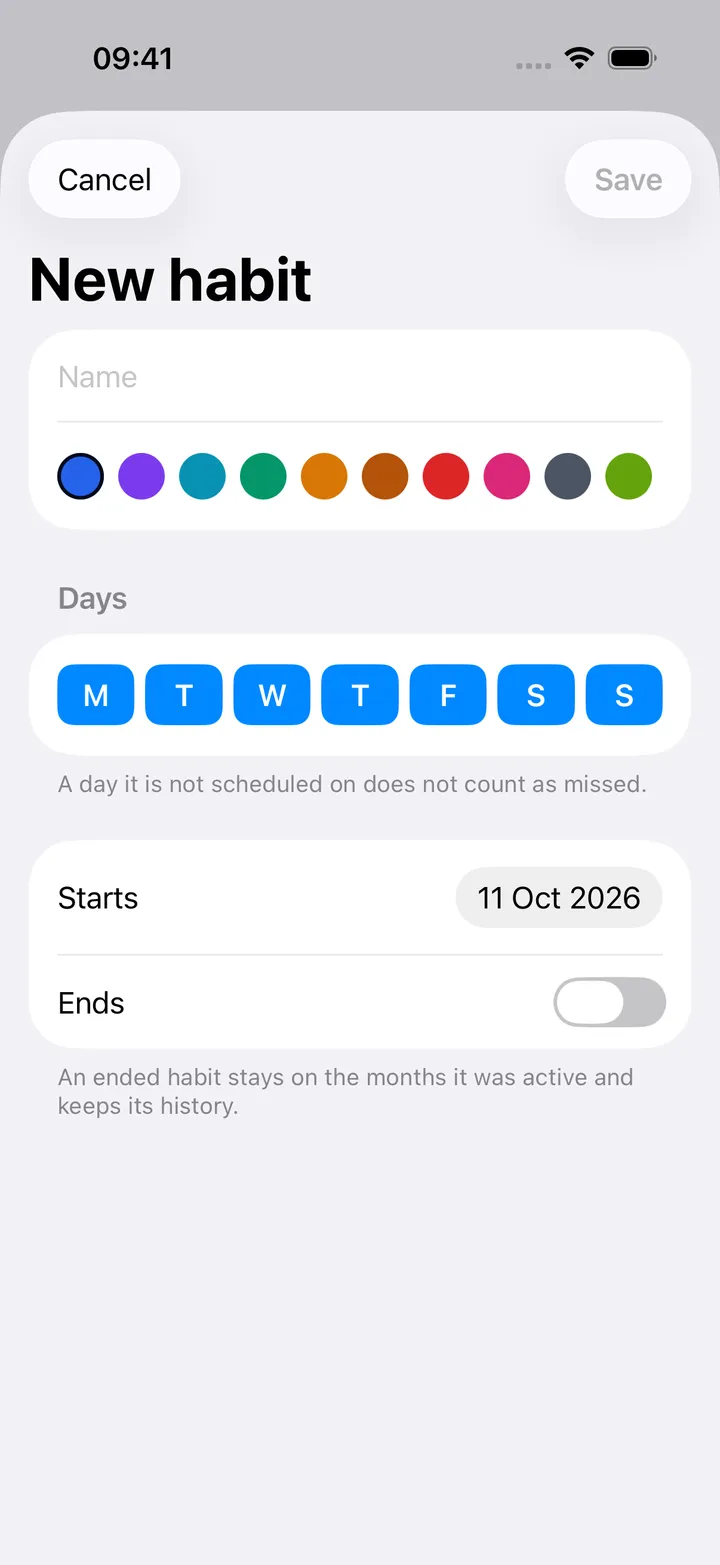
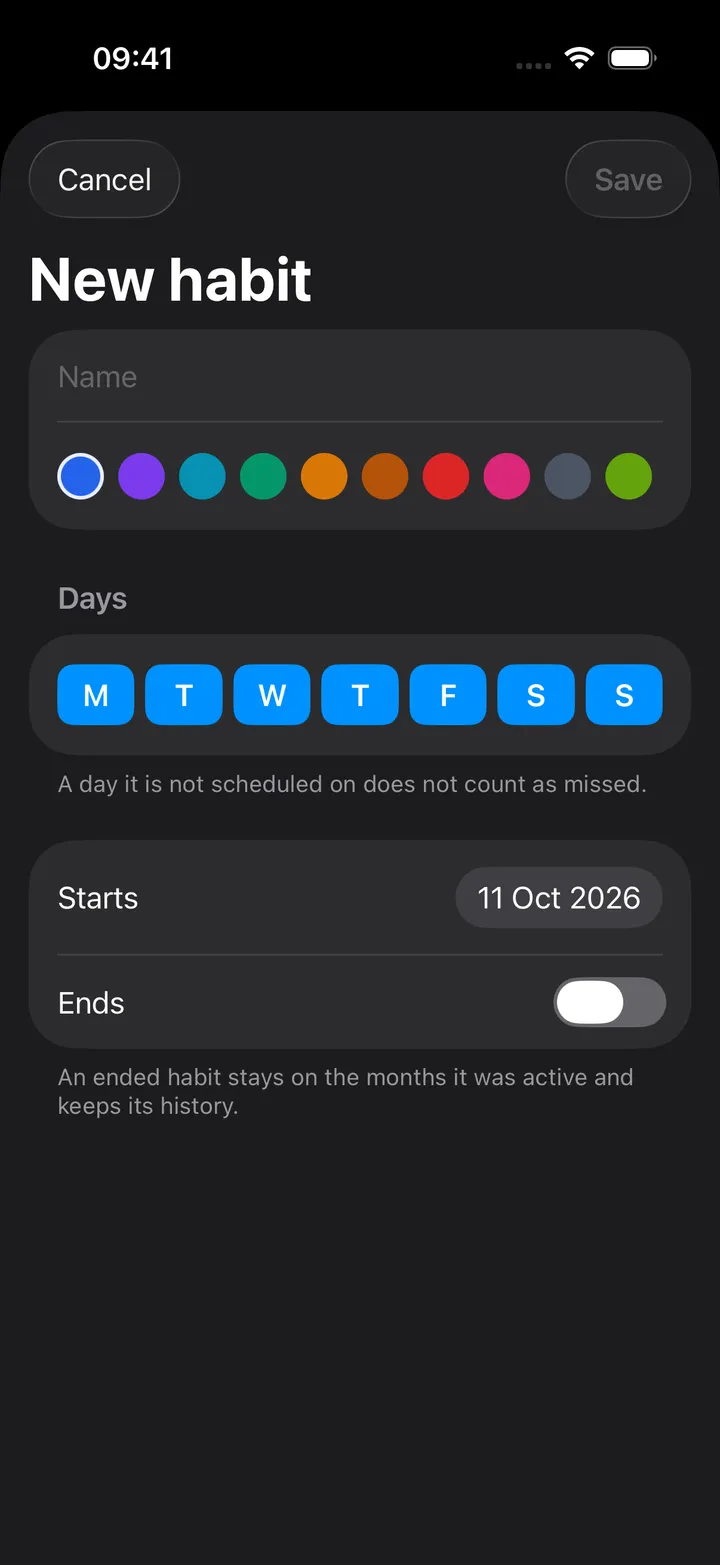
Habits & trackers manages them from the phone: a ⋯ on every row with Edit, End this month (the habit stays on this month’s page and is gone from the next; its history is kept), Resume and Delete (with a confirmation; the history goes too). Edit at the top of a section reorders the rows, which is the order on the month page. + adds a habit (name, colour from the server’s palette, the weekdays it is scheduled on, start and end) or a tracker (a score with its range and step, a number with a unit, or a yes / no question, and which end is the good one). Ended habits and trackers are listed under the active ones.
Pocket Habits settings
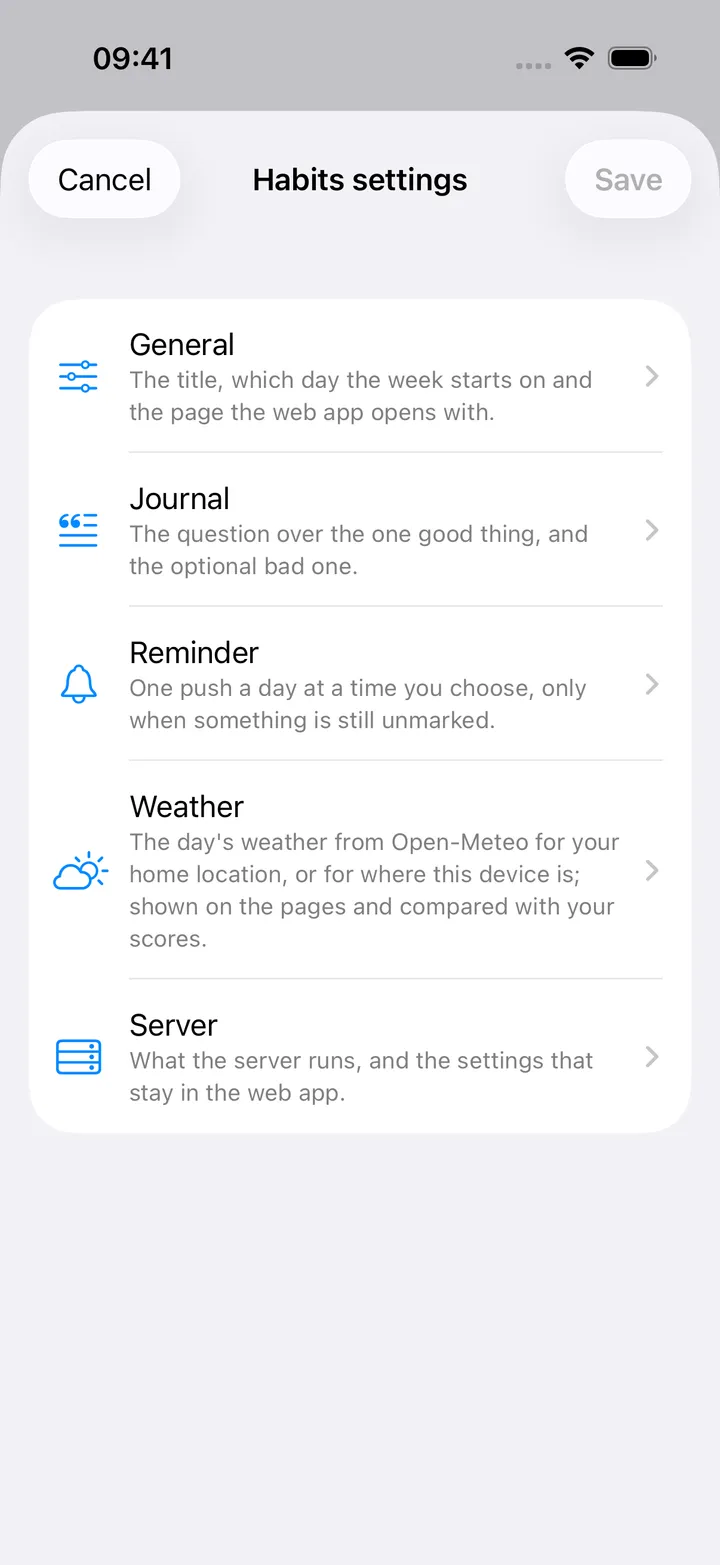
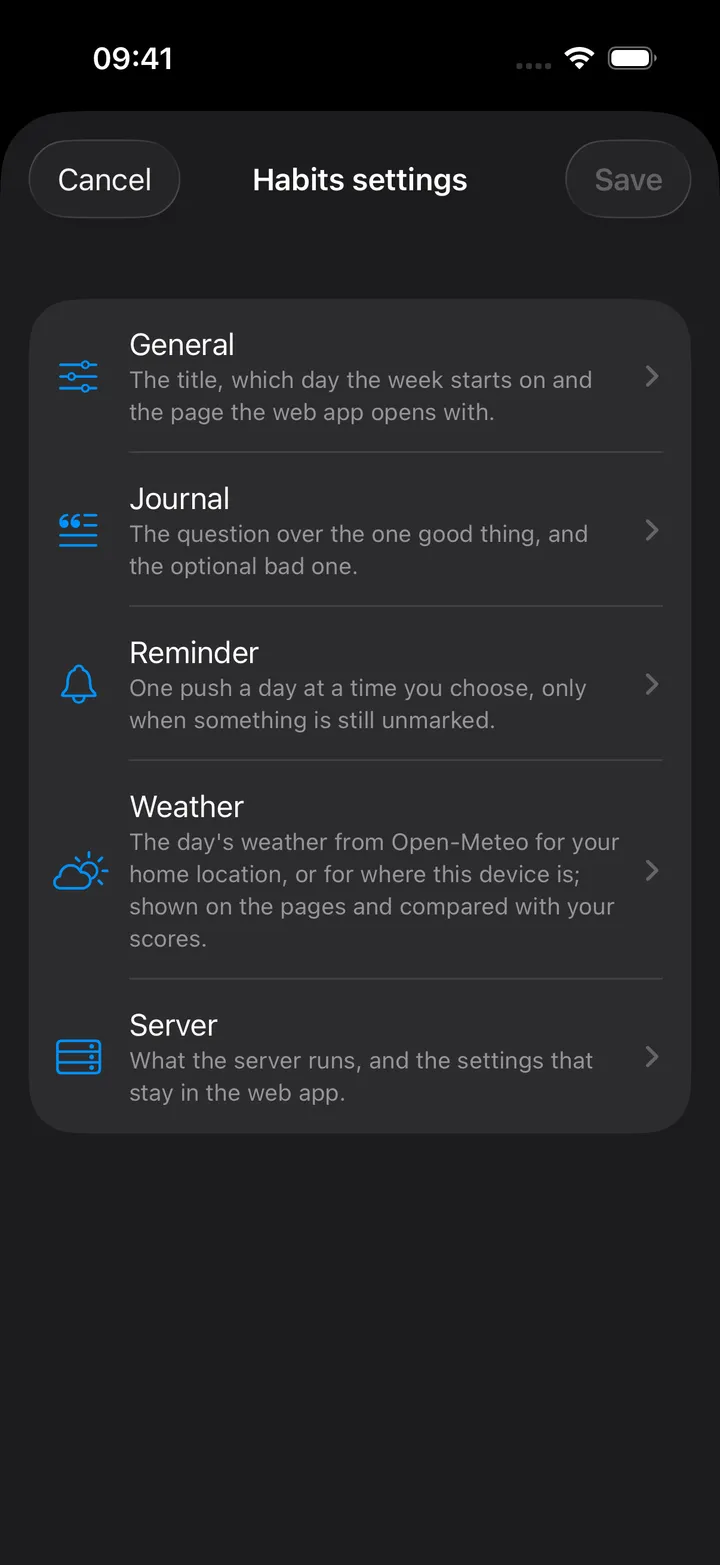
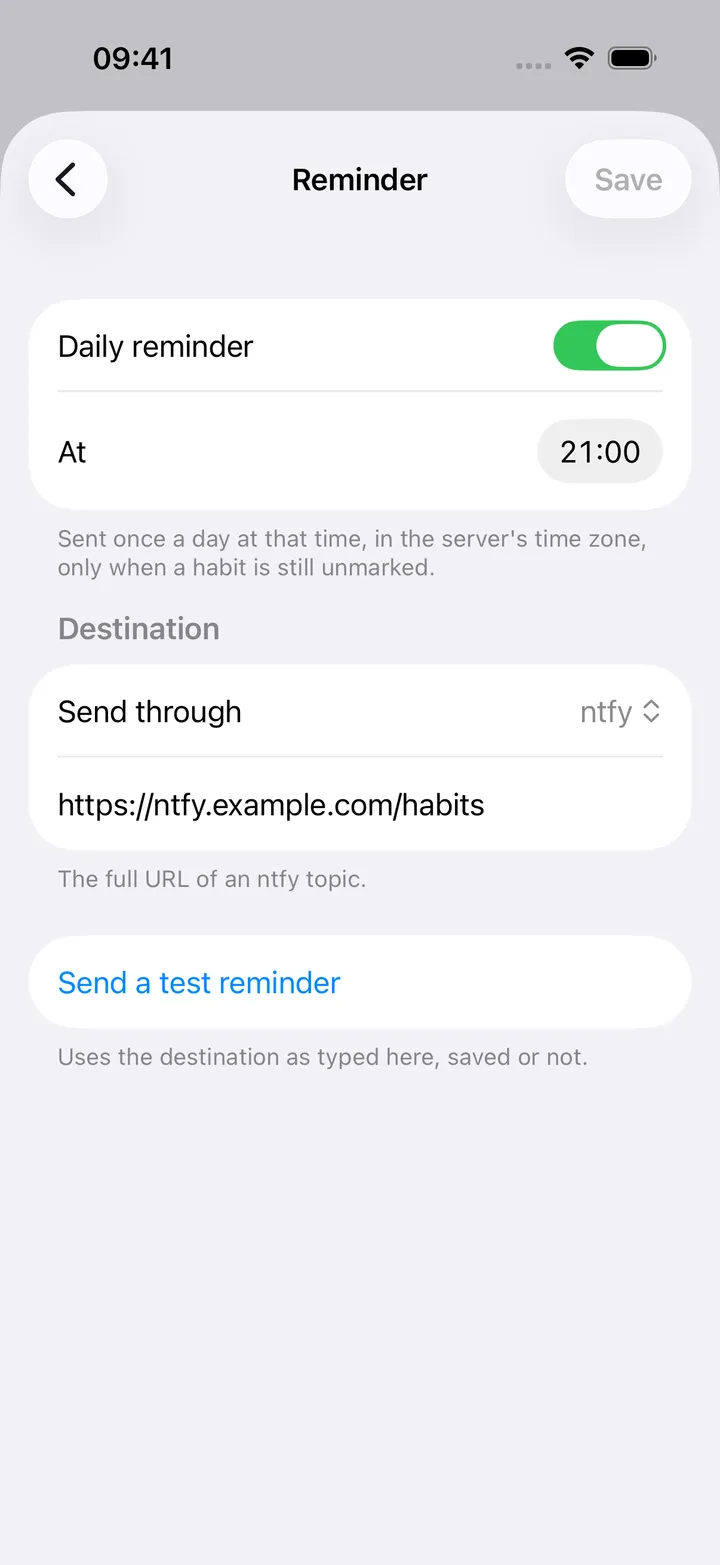
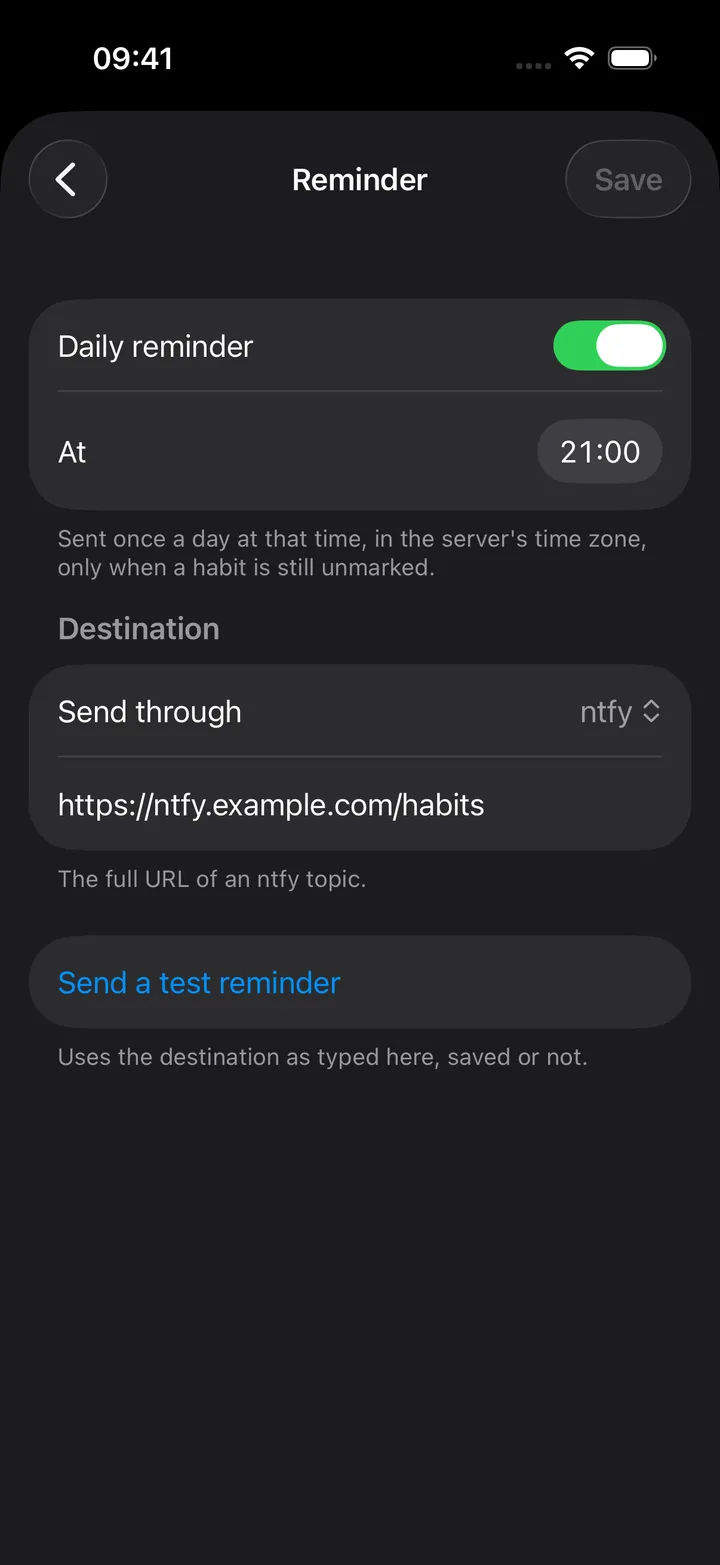
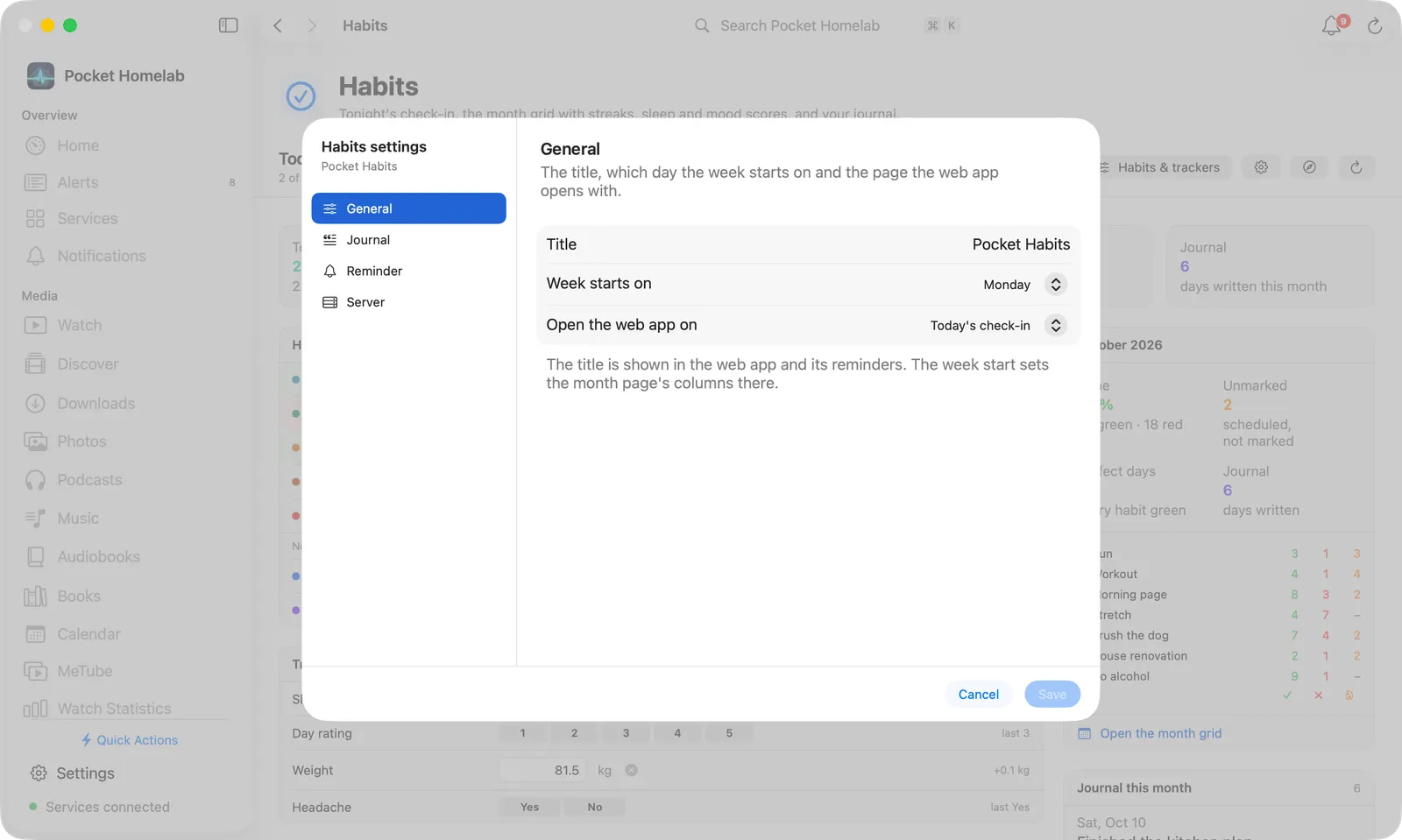
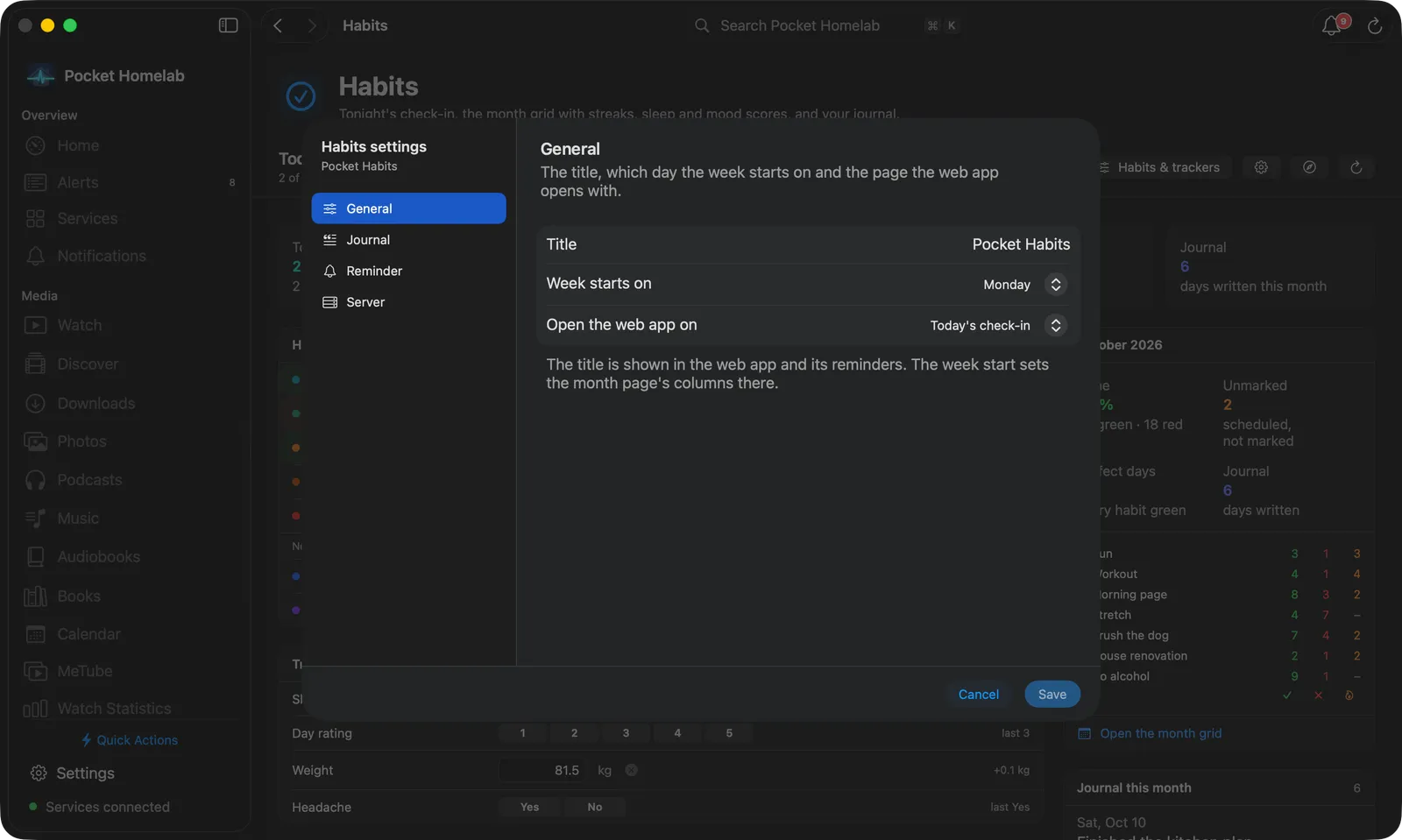
Habits settings (⋯ on the iPhone, the gear in the Mac bar, a row on Android) edits the server’s own settings, in the same pages as the web app’s Settings. On the Mac the pages sit in a sidebar beside the form, with Cancel and Save at the bottom and an “Unsaved changes” note; on the iPhone they are a list that opens each page.
- General: the title shown in the web app and its reminders, which day the week starts on, and whether the web app opens on today’s check-in or the month page.
- Journal: the question over the one good thing, and the optional bad one with its own prompt.
- Reminder: the daily reminder on or off and its time (in the server’s time zone), sent through ntfy, Apprise or a JSON webhook to the URL you give, and Send a test reminder with the destination as typed.
- Server: what the server runs (version, Go, time zone, database size, uptime, the scheduler) and the row counts, with links to the settings that stay in the web app: API tokens, backups and import, the account.
Save sends the settings back whole; the web app shows them the same way.
On the Calendar tab
With Pocket Habits set up, the Calendar tab shows every habit on the days it is scheduled, as an all-day line in the habit’s colour: ✓ Run when it was done, ✗ Run when it was missed, ○ Run while the day is still open or on a day to come. The ⋯ menu’s Habits submenu switches each habit off and on, the same way as the calendars under My calendars, with Show all and Hide all. A tap on a habit’s day opens the Habits screen.
On the Mac the calendar’s sidebar has a Habits section under Tasks: All habits, and a switch per habit in its colour (right-click it for Show Only This Habit). A click on a habit’s day opens a small popover with Done and Missed (click the active one again to clear it) and Open Habits.
Send to Notes
With Nextcloud Notes set up, Send to Notes… (⋯ and the round button on the Habits screen, the note button on the month page, the Mac bar) writes days of habits into one note: pick From and To (this month so far at first) and what to include (the period in numbers, the habits’ ✓ and ✗ per day, the trackers’ values, the journal lines), then Create note. The note opens in Notes ready to keep or edit: a title with the days, the numbers, then a section per day, newest first.
Inside a note it works the other way round too: type / and pick Days of habits from the Homelab group (or the
wrench next to the paperclip), pick the days and what to include, and the block lands under the cursor with its own
heading, like the other Homelab tools.
On Home
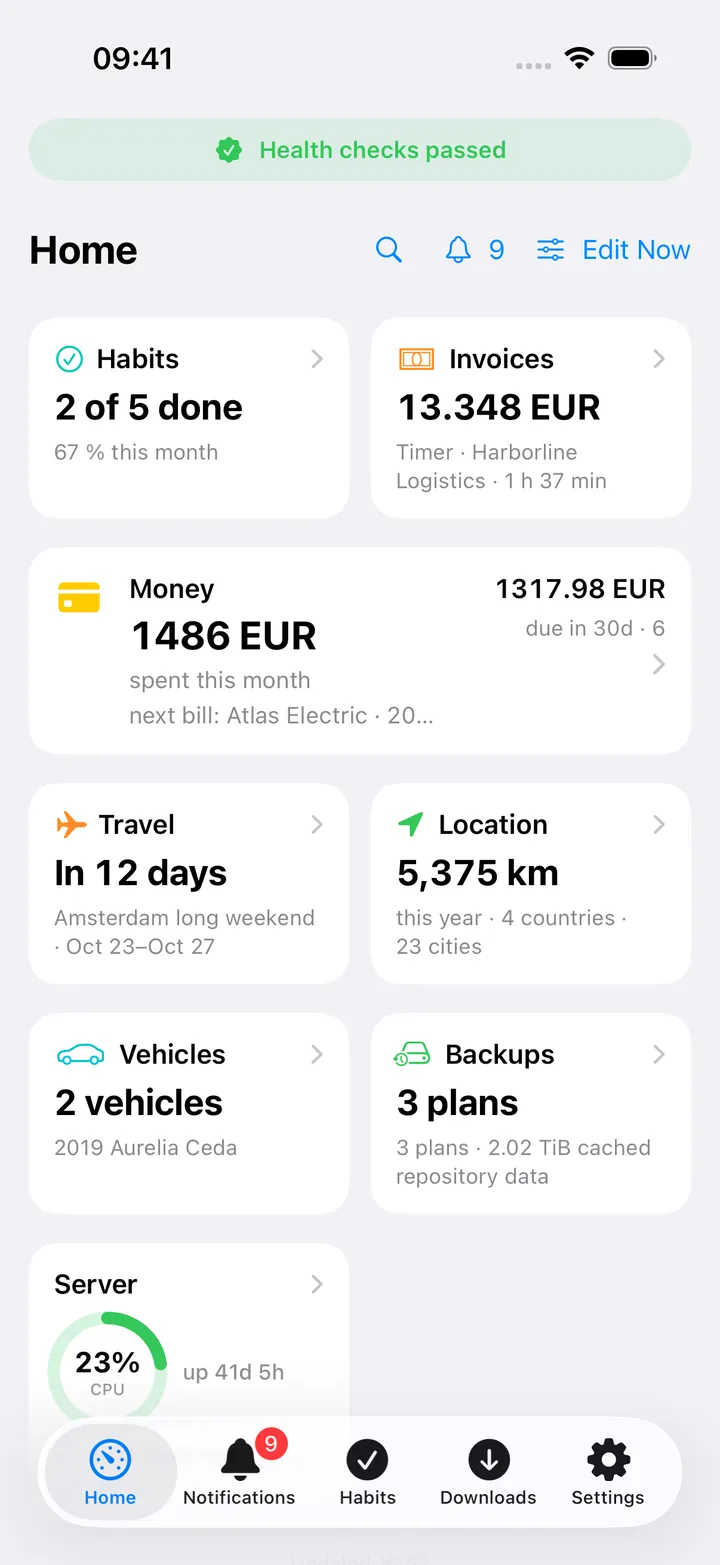
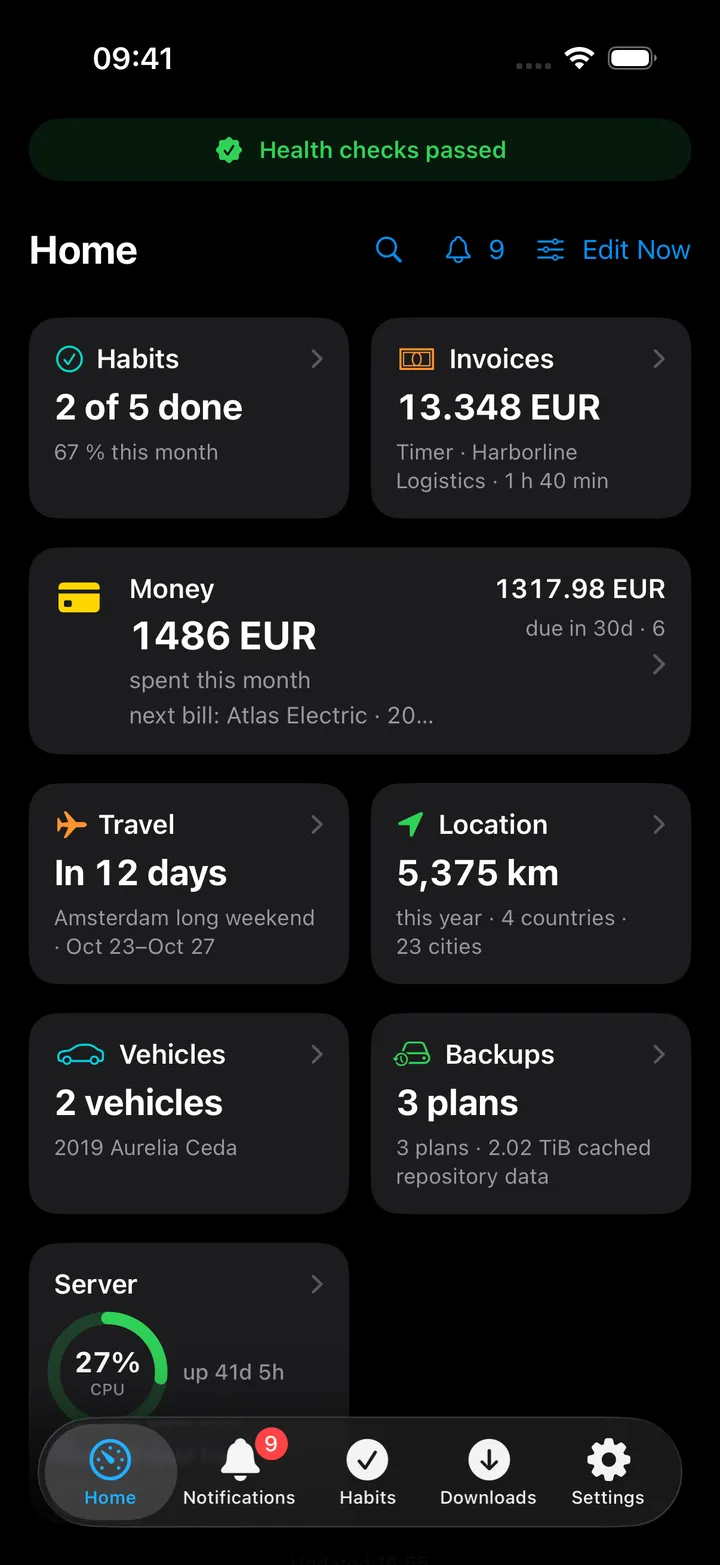
The Habits card shows today’s progress (“3 of 5 done”) with the month’s rate or the perfect streak under it; its choices are This month (the rate with done and missed) and Perfect streak (with the best habit). The Home header Today’s habits says the same in one line and turns green when every habit is done. The Mac widget adds the month’s figures and whether the journal is written.
The round button beside the + on the Habits screen carries the screen’s actions: Mark the rest done (with how many habits are still open), Write the journal line, The day before and Today, Month grid, Insights, Habits & trackers, Refresh, Habits settings and the web app. Hold it to reorder or hide them.
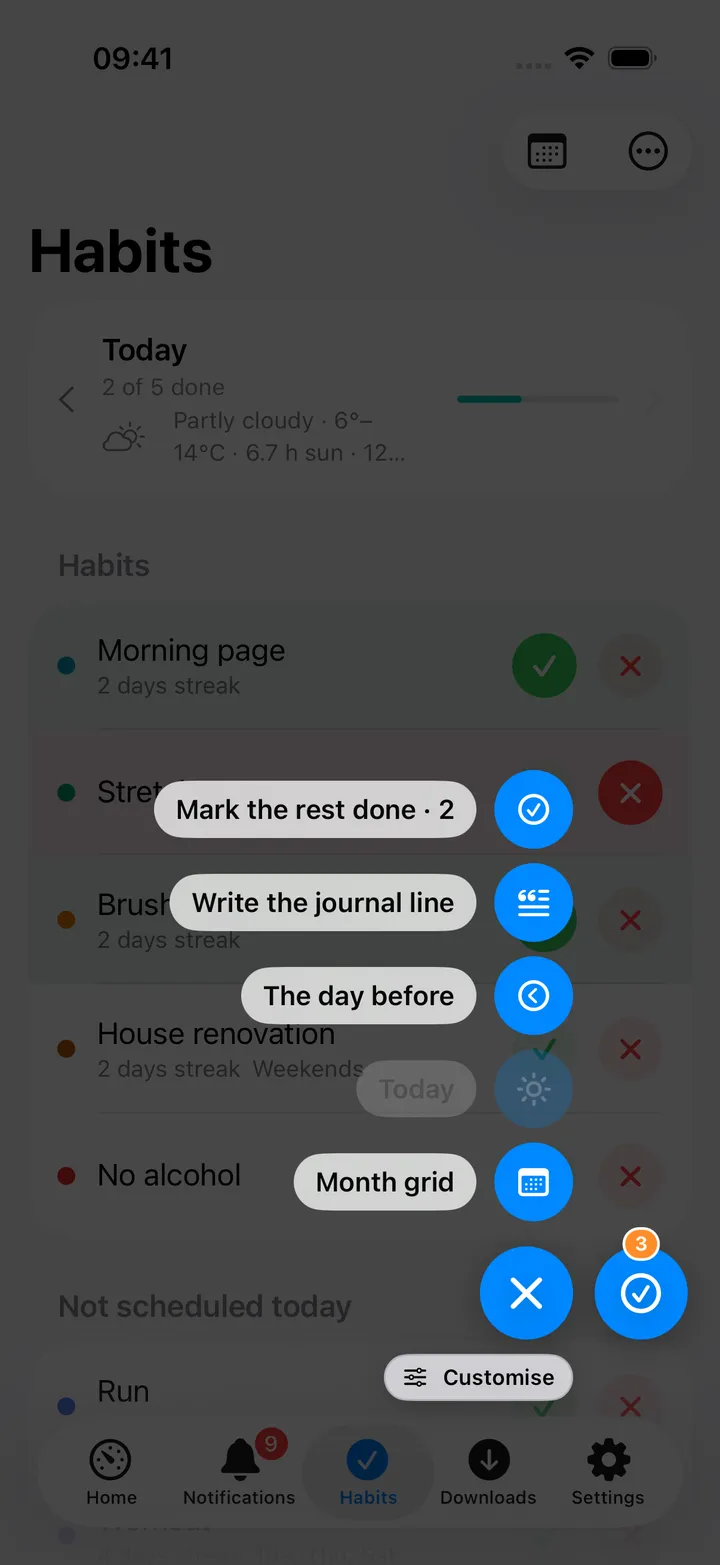
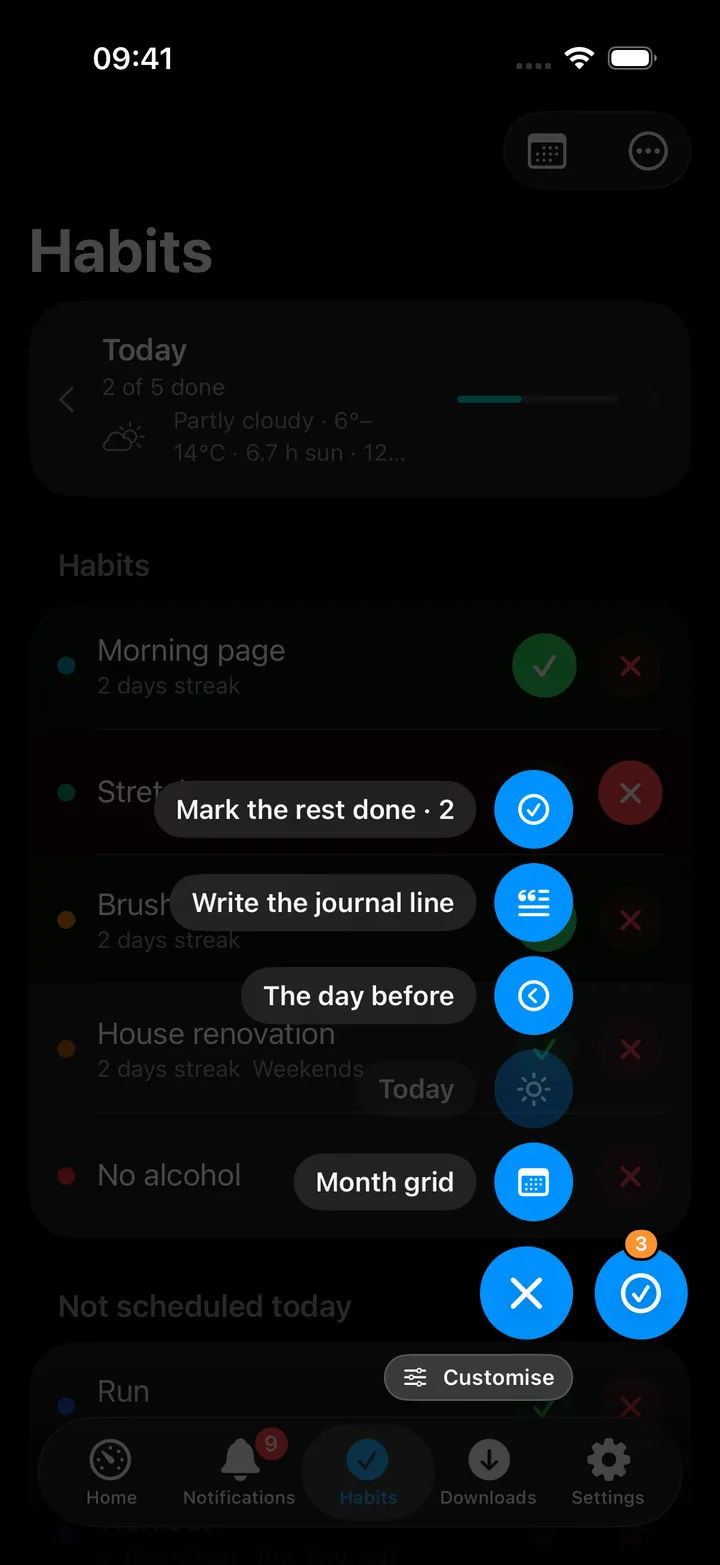
The quick action Habit check-in (floating button, Shortcuts, ⌥⌘H on the Mac) opens tonight’s check-in as a sheet; the button shows how many habits are still to mark and turns green once every one is done.
On the Mac
Habits in the sidebar opens a workspace laid out for the desktop: a bar with the day’s arrows, Month, Insights and Habits & trackers, and the web app; the day’s figures as cards; the habits as a table with a small ✓ and ✗ at the end of each row, filled while they are the day’s mark; the trackers as rows of small segmented buttons for a score or Yes / No, or a number field with its unit; the journal as a text box under the server’s prompt with Save (⌘S); and the month’s figures, every habit’s counts and streak and this month’s journal in a column at the right.
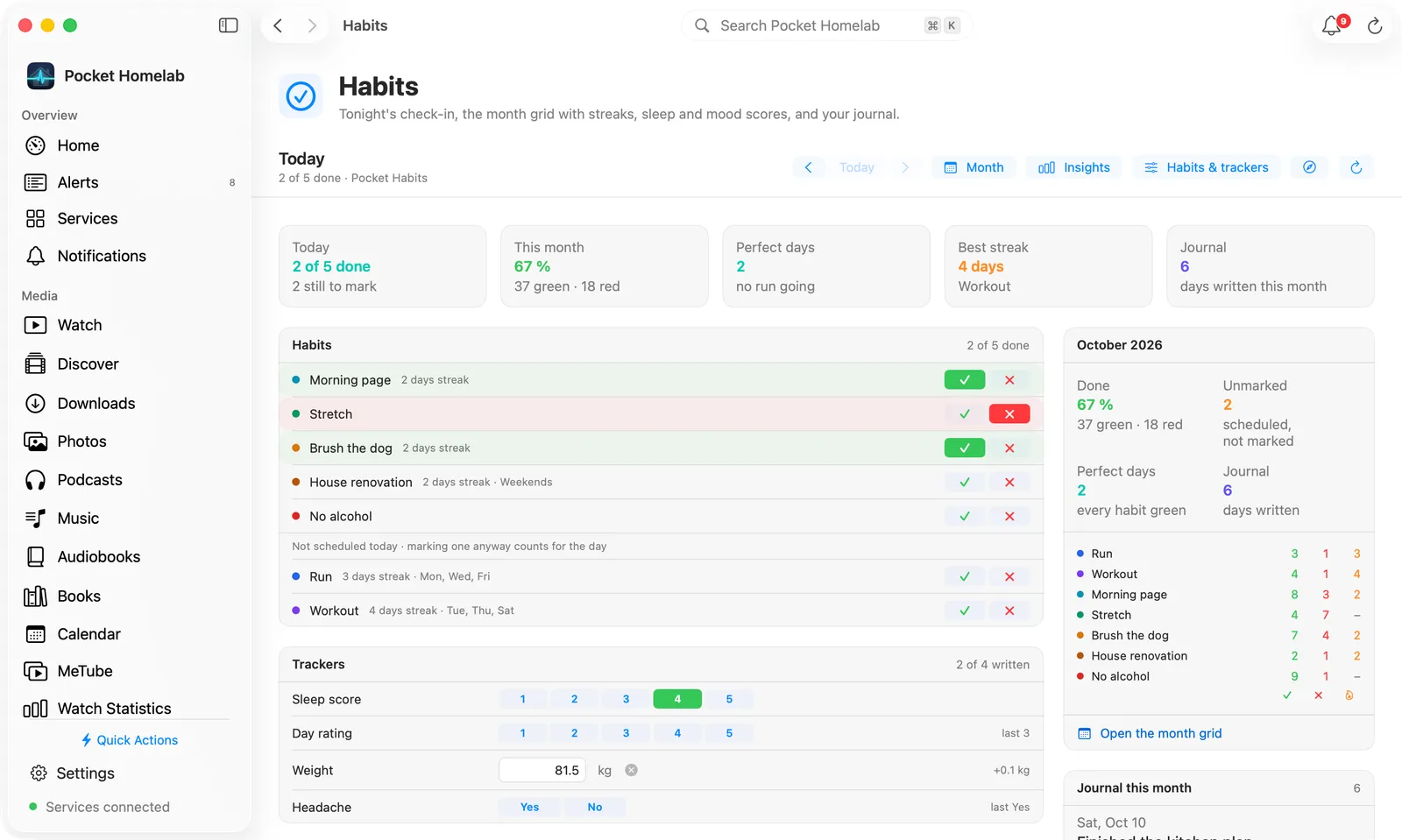
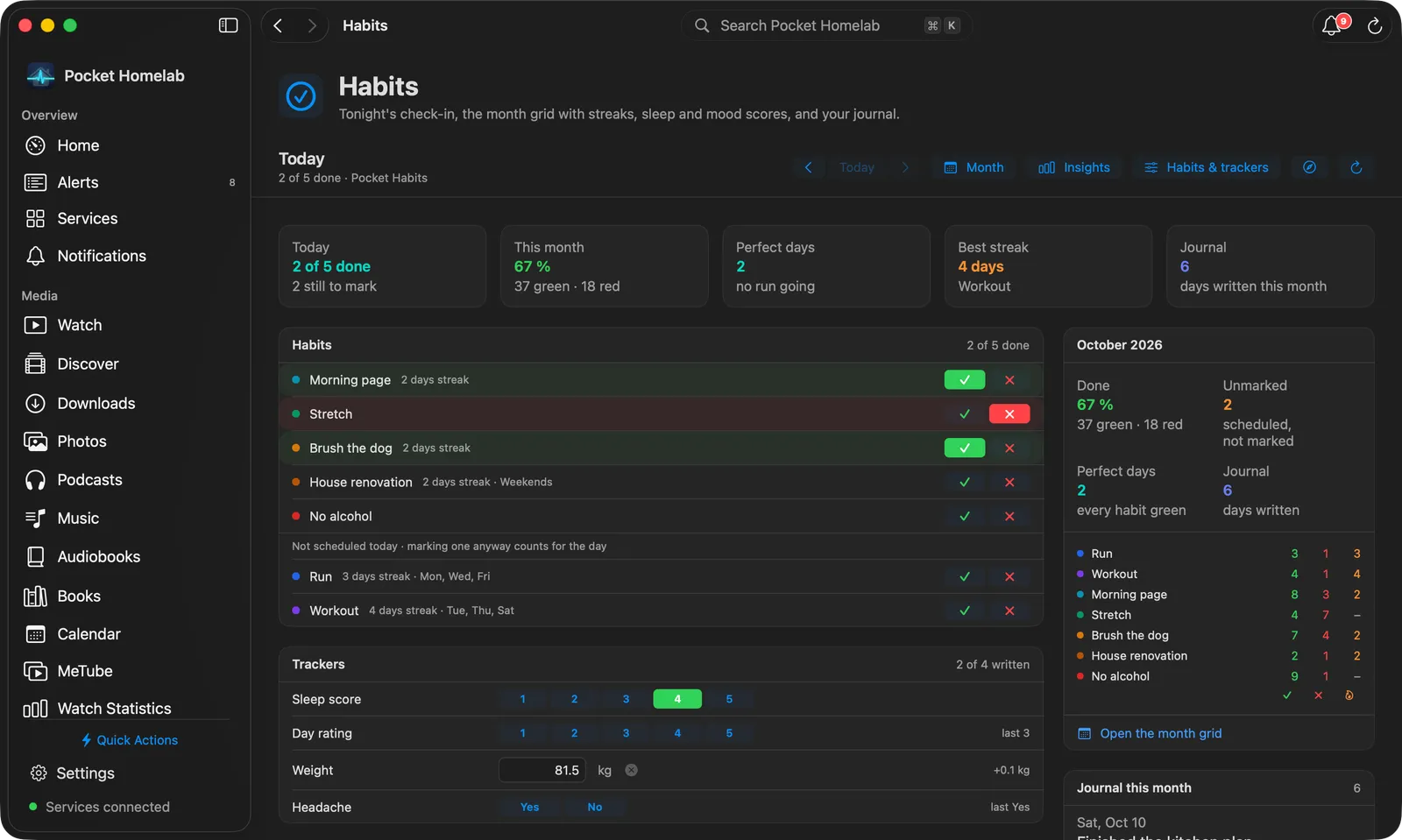
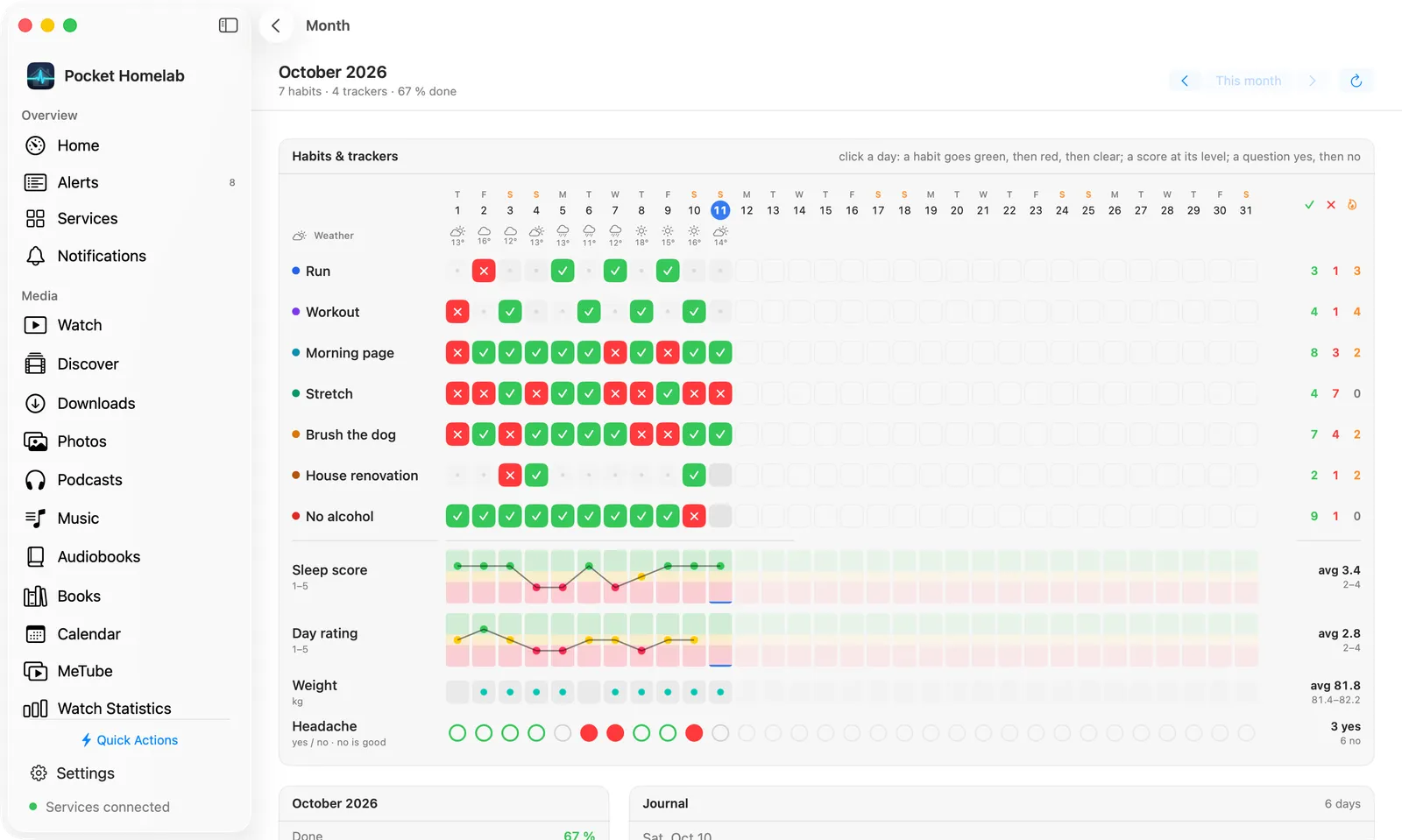
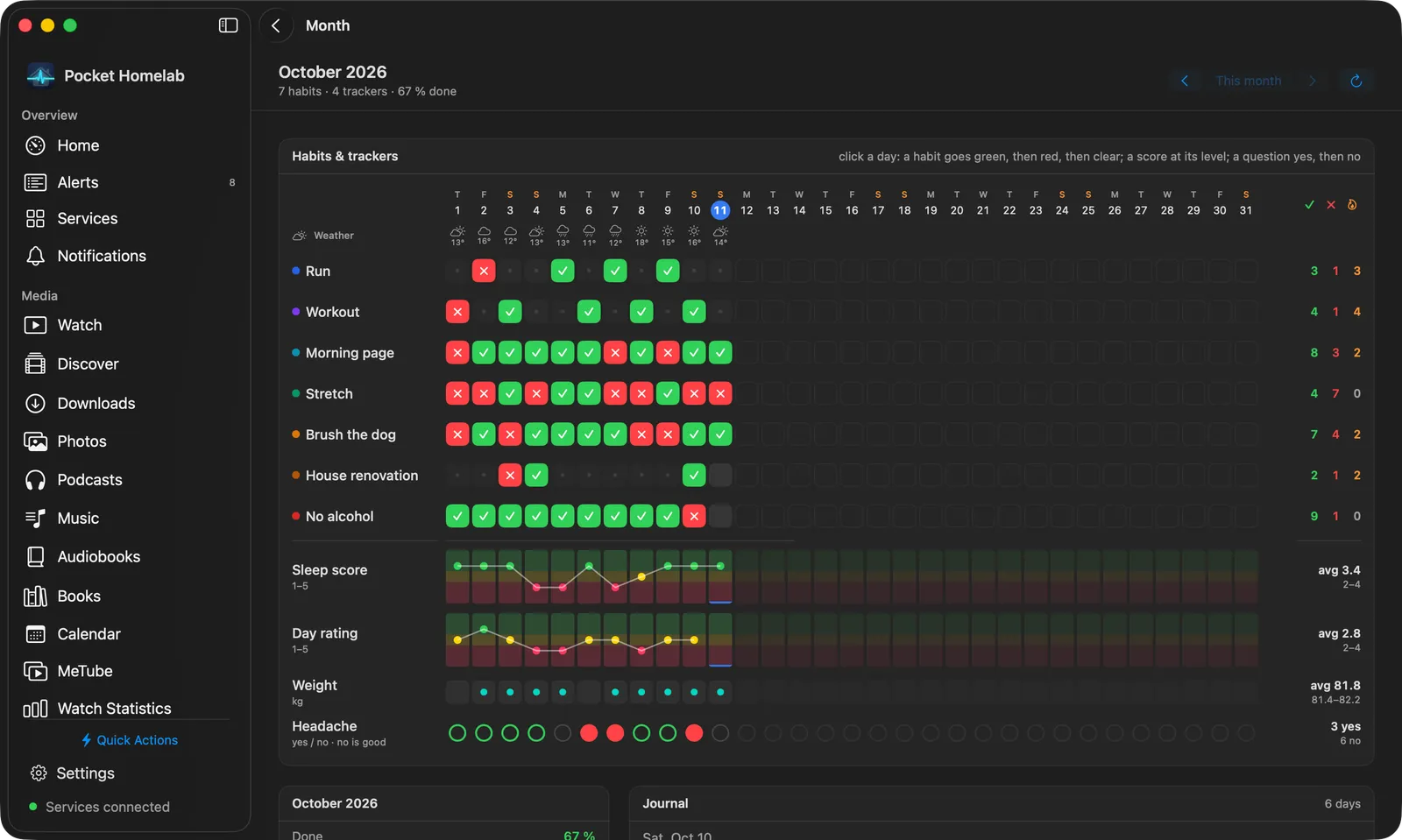
Month is the grid across the full width with every day of the month, as on the web page: a click on a habit’s cell marks it (green, then red, then clear), with the counts and streak at the end of each row; under the habits every tracker in the same columns. A score shows its levels from the top down over the three bands, the chosen level as a dot with a line through the days, and a click on a level writes it (again clears it). A yes / no question is a circle per day: a click makes it yes, then no, then clear. A number shows in its cell and a click opens a small box with the field, Set and Clear. Hovering shows what a click will do: the hand cursor over anything you can change, a badge with the value a click would set on a score’s level (× on the chosen one), and a ring with a faint preview on a habit’s day, a question’s circle or a number. Under the grid sit the month’s facts and journal. Insights lists the habits, the trackers and what moves the scores as striped rows, with the journal at the right.
On Android
The same check-in, month view (a sideways row of cells per habit), insights without charts, and the habit and tracker editors. The order of the rows is changed in the web app.
API
The app uses the server’s /api/v1 with the token in an Authorization: Bearer header: GET /days/{date},
/months/{month}, /dashboard, /insights, /habits, /trackers, /weather and /settings to read; POST /location to
say where the phone was; PUT /habits/{id}/entries/{date}, PUT /trackers/{id}/entries/{date} and PUT /journal/{date} to write a cell; and the
habit and tracker endpoints to manage them. Nothing is kept on the device.
Tips & troubleshooting
- Test connection says 401: the token must be an API token from Settings → API tokens (
ph_…), not your password. A deleted token stops at once. - “Cannot check in a future day”: the server’s
TZdecides what today is. Set it to your time zone. - A habit is missing from today: it is not scheduled on this weekday (see Not scheduled today), has ended, or starts later. Its days are changed under Habits & trackers → ⋯ → Edit.
- No weather on the page: it is off until a home location is set under Habits settings → Weather; the first fetch takes a few seconds, older months fill in over the next hours.
- Reminders: the nightly push comes from Pocket Habits itself (ntfy, Apprise or a webhook, under its Settings). With ntfy in Pocket Homelab it lands in the app’s Alerts inbox.