
Firefly III
A Money page with this month's spending by category, balances, bills, a full transaction ledger with editing, and a quick-add assistant.
iPhoneMacOn this page
Firefly III is a self-hosted personal-finance manager. Pocket Homelab reads and edits your Firefly ledger directly:
account balances, this month’s spend and income, where the money went by category, bills due, a full filterable
transaction list, and a fast Add Transaction assistant built on Firefly Pico templates.
An optional subscriptions.json feed adds an upcoming-bills summary without touching Firefly at all.
What you get
- Home row (“Money”): automatic overview: spend this month, next bill, bills due in 30 days; or pick a fixed headline (Total account balance, Upcoming bills).
- Home header option: “This month’s spend”.
- “Money” tab (optional, off by default): accounts and totals, transactions, bills.
- Quick action: Add transaction (the default floating quick-action button; ⌘N on Mac).
- Spotlight/palette: a Money entry under Home; on iPhone, the search sheet also finds transactions and accounts once you type 3 characters.
- Shortcuts (iPhone): Add Transaction opens the assistant with the keyboard up, from Shortcuts, Siri or the Action Button; see Widgets and Shortcuts.
- Mac: sidebar Money under Workspace (⌥⌘5), plus a system-wide ⌃⌥⌘N capture window for Add Transaction that floats over any app.
- No push notifications and no app-badge contribution.
Set up
- In Firefly III, open Options → Profile → OAuth → Personal Access Tokens and create one.
- In Pocket Homelab, go to Settings → Services → Money, keep Money app on Firefly III, paste the URL and token, then press Test connection. You should see “Firefly OK”.
- Optional: add a
SUBSCRIPTIONS_URLpointing at asubscriptions.jsonfile you publish yourself (see below) for an upcoming-bills summary that works even without a Firefly token.
| Key | Field | Required | Secret | Where to get it |
|---|---|---|---|---|
FIREFLY_URL | Firefly III URL | Optional | — | Base URL of your Firefly III instance. Leave empty to hide Firefly III features. |
FIREFLY_TOKEN | Firefly III Personal Access Token | Required | Secret | Options → Profile → OAuth → Personal Access Tokens. |
SUBSCRIPTIONS_URL | Subscriptions JSON URL | Optional | — | Optional URL of a subscriptions.json published by the companion firefly-sub-publish script (upcoming bills summary). |
On iPhone
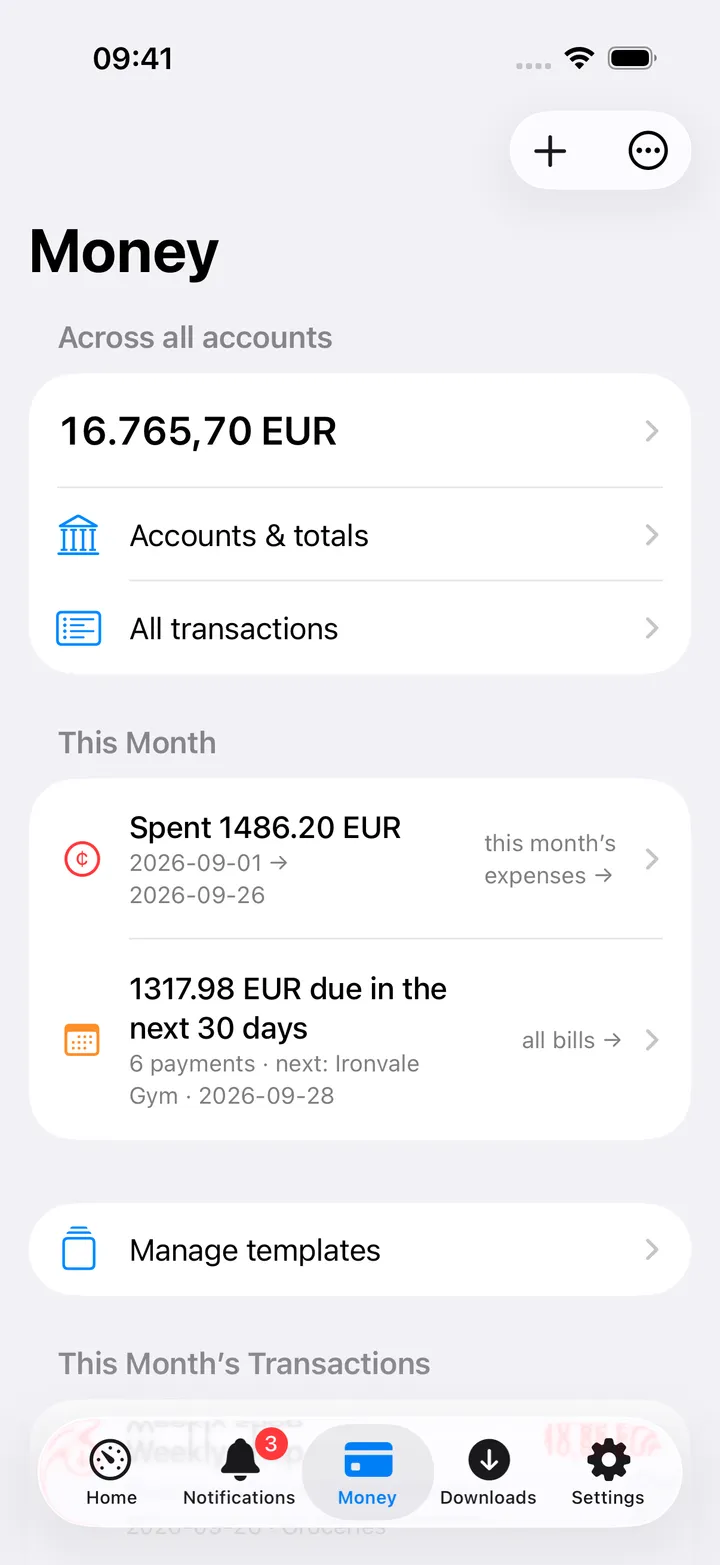
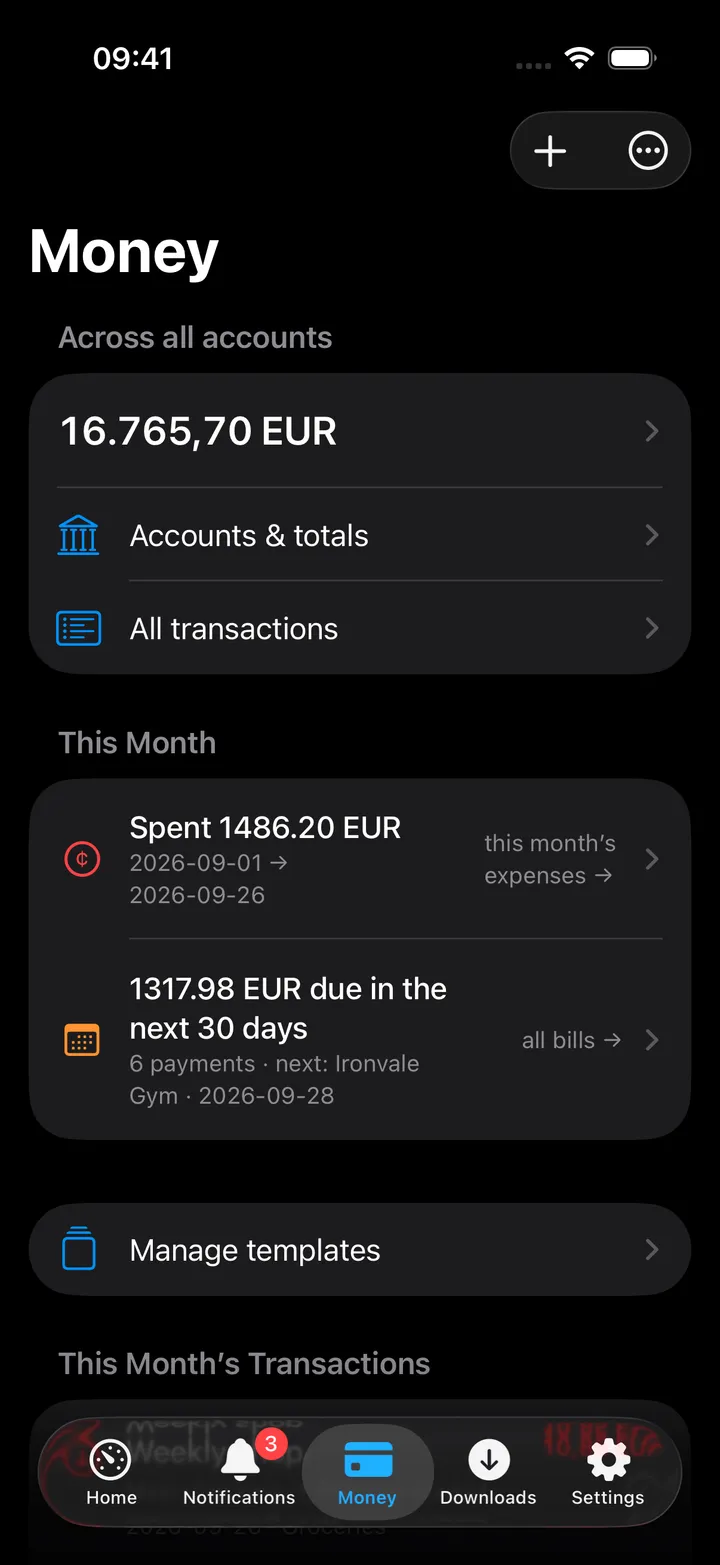
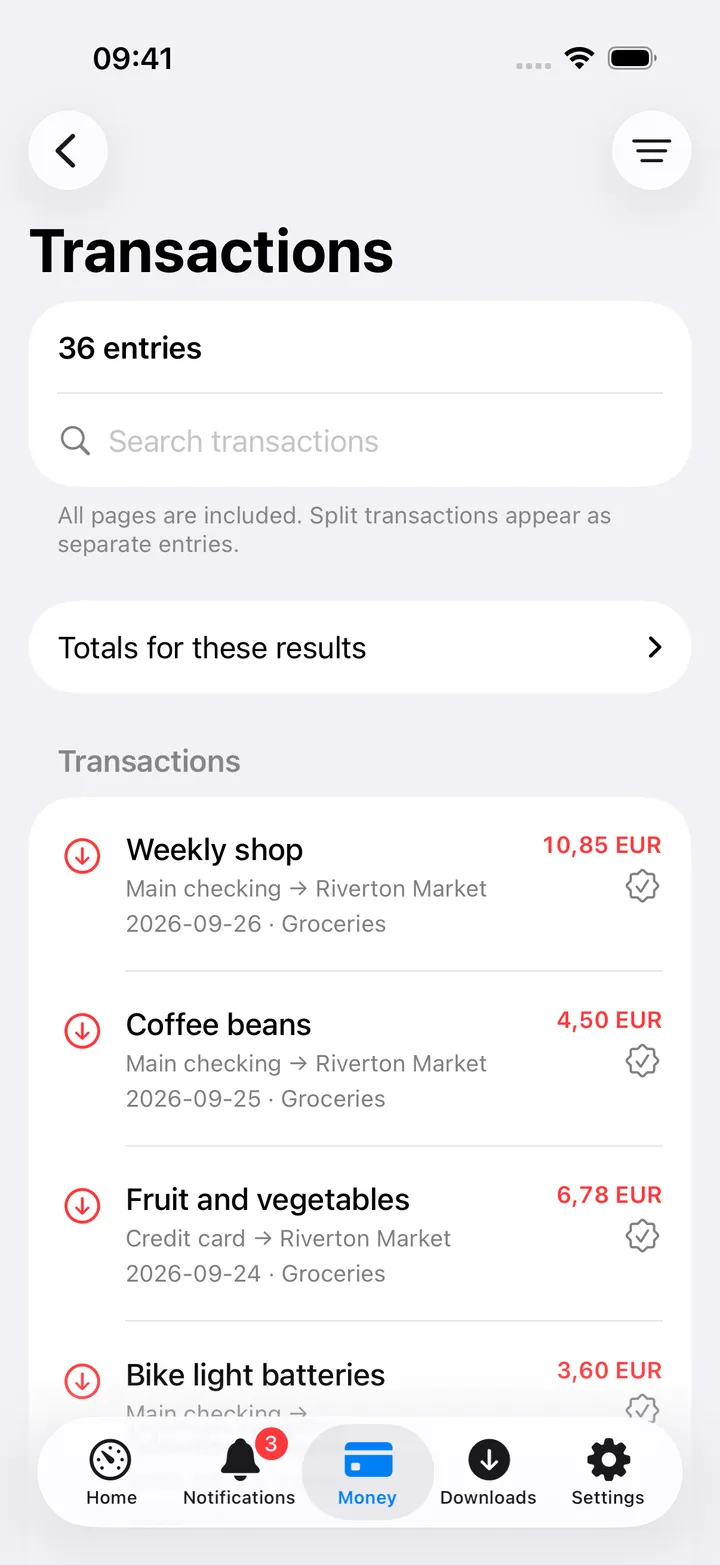
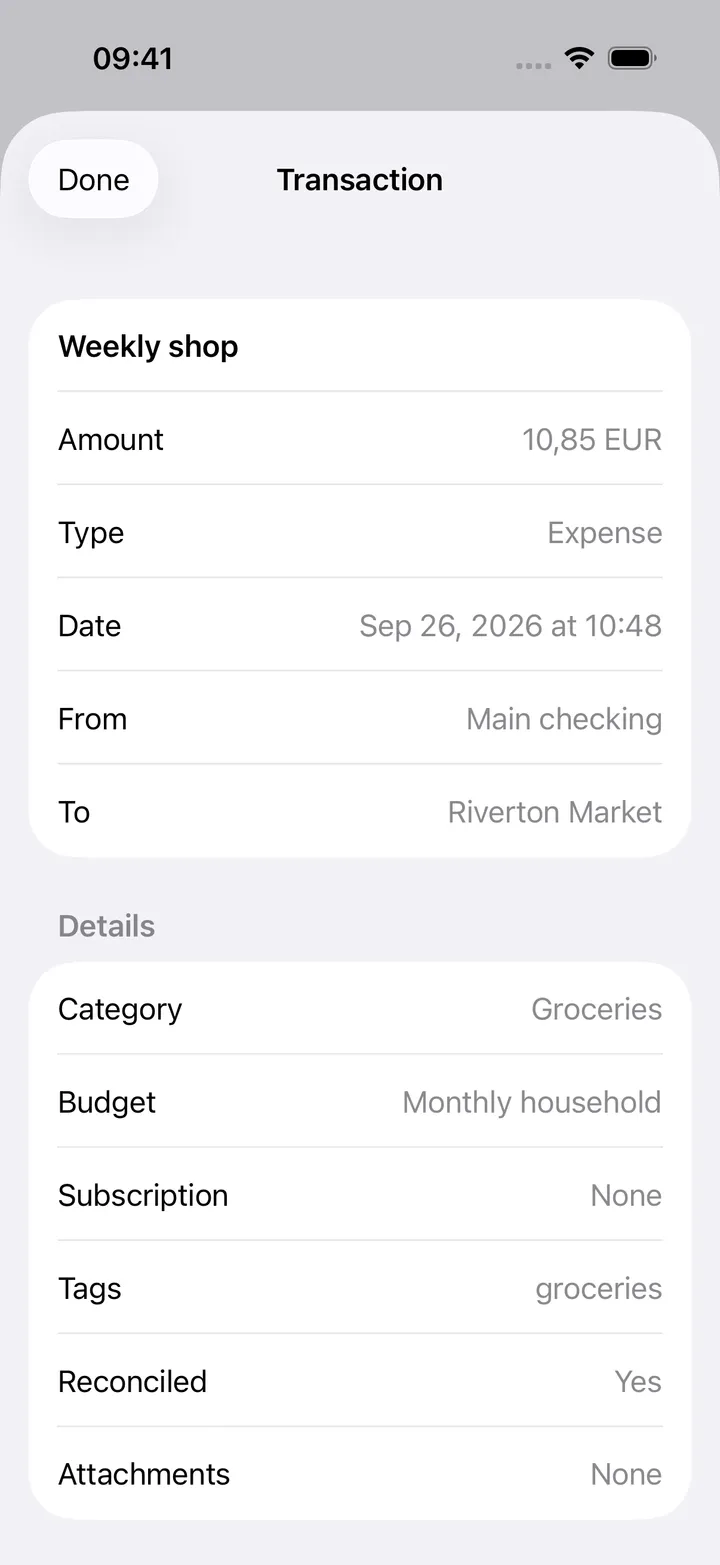
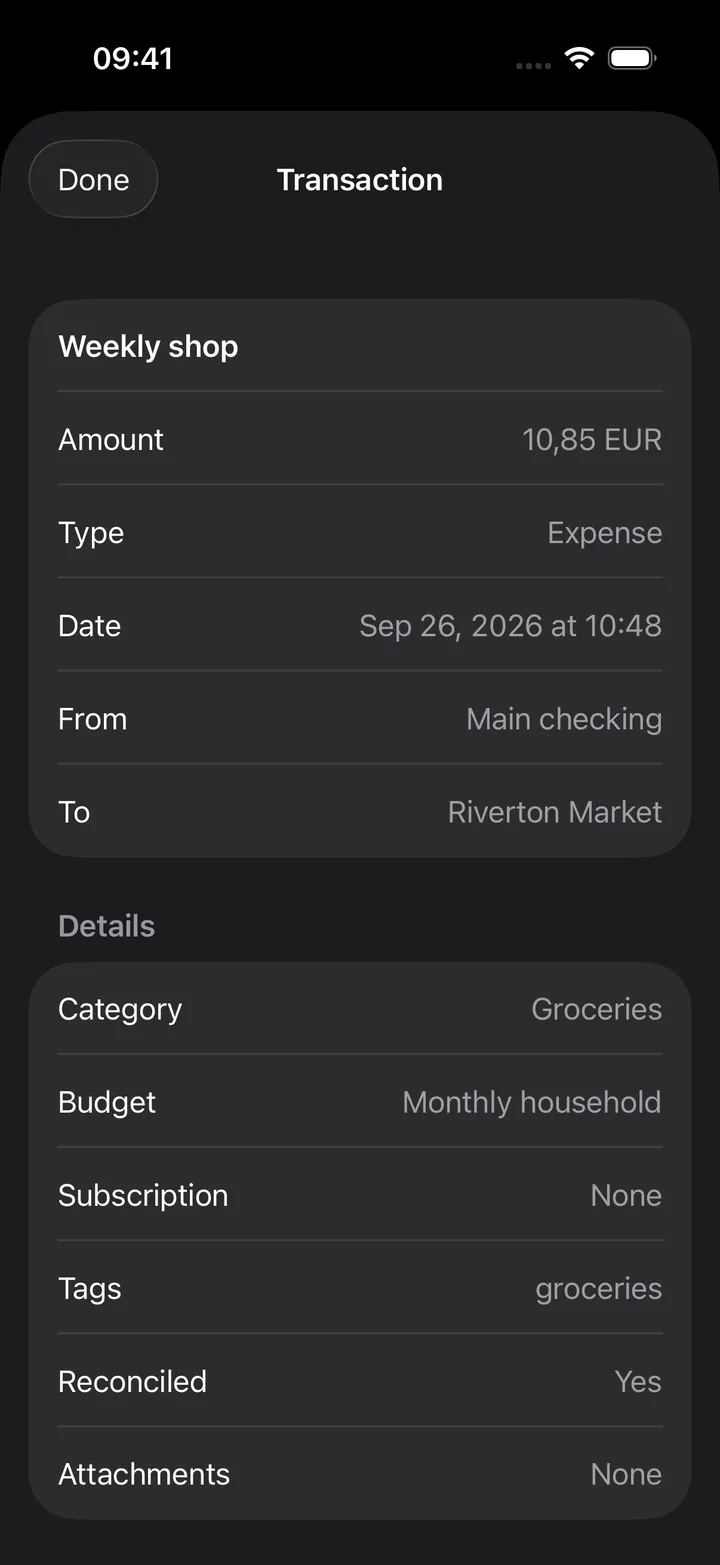
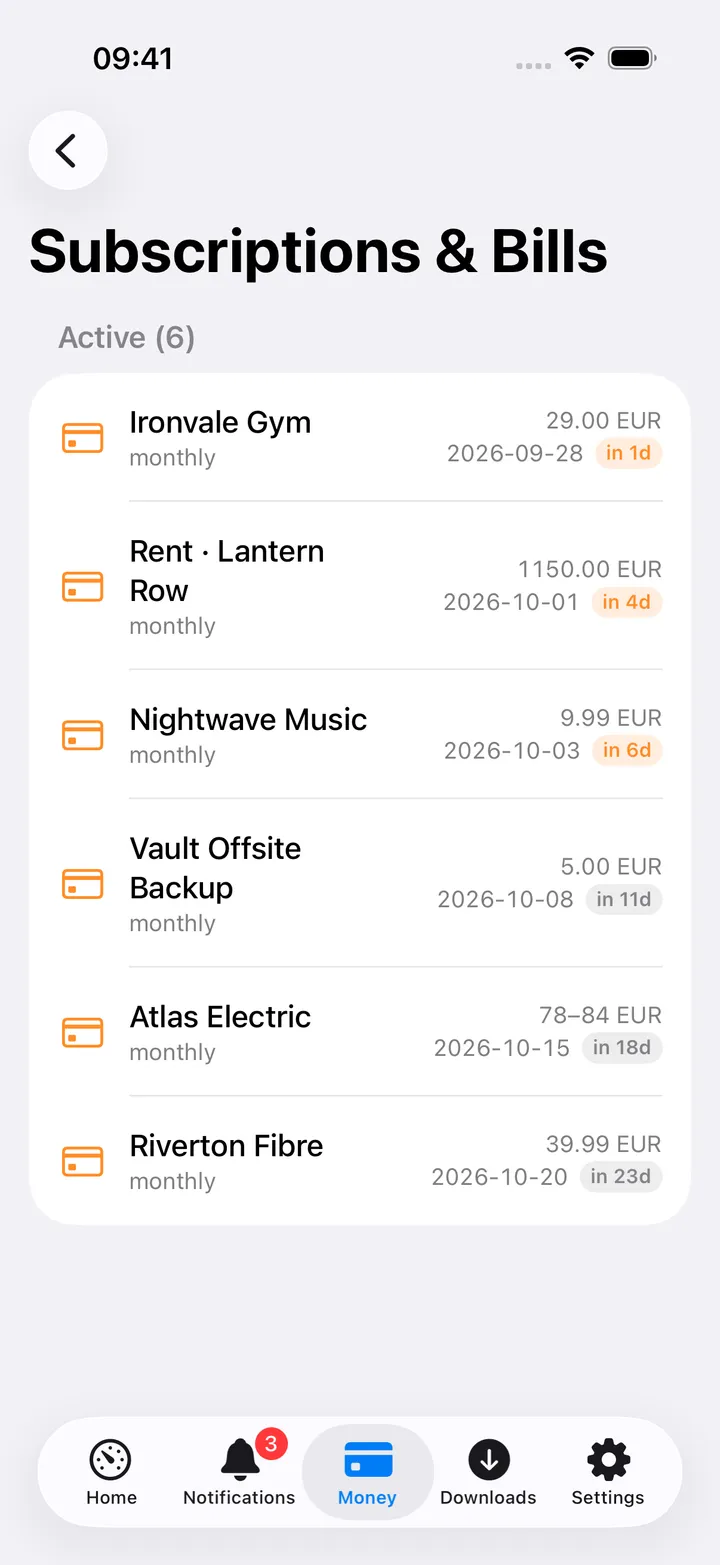
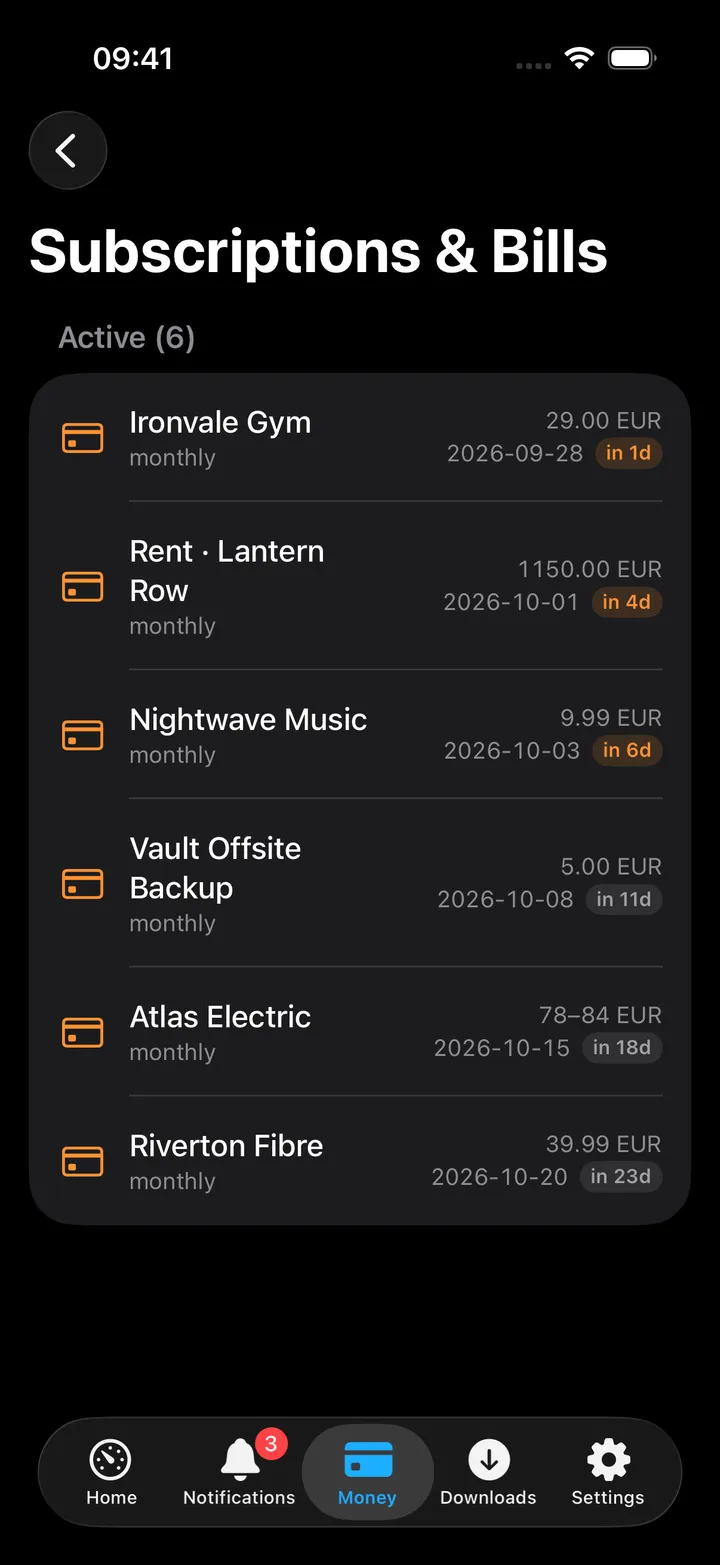
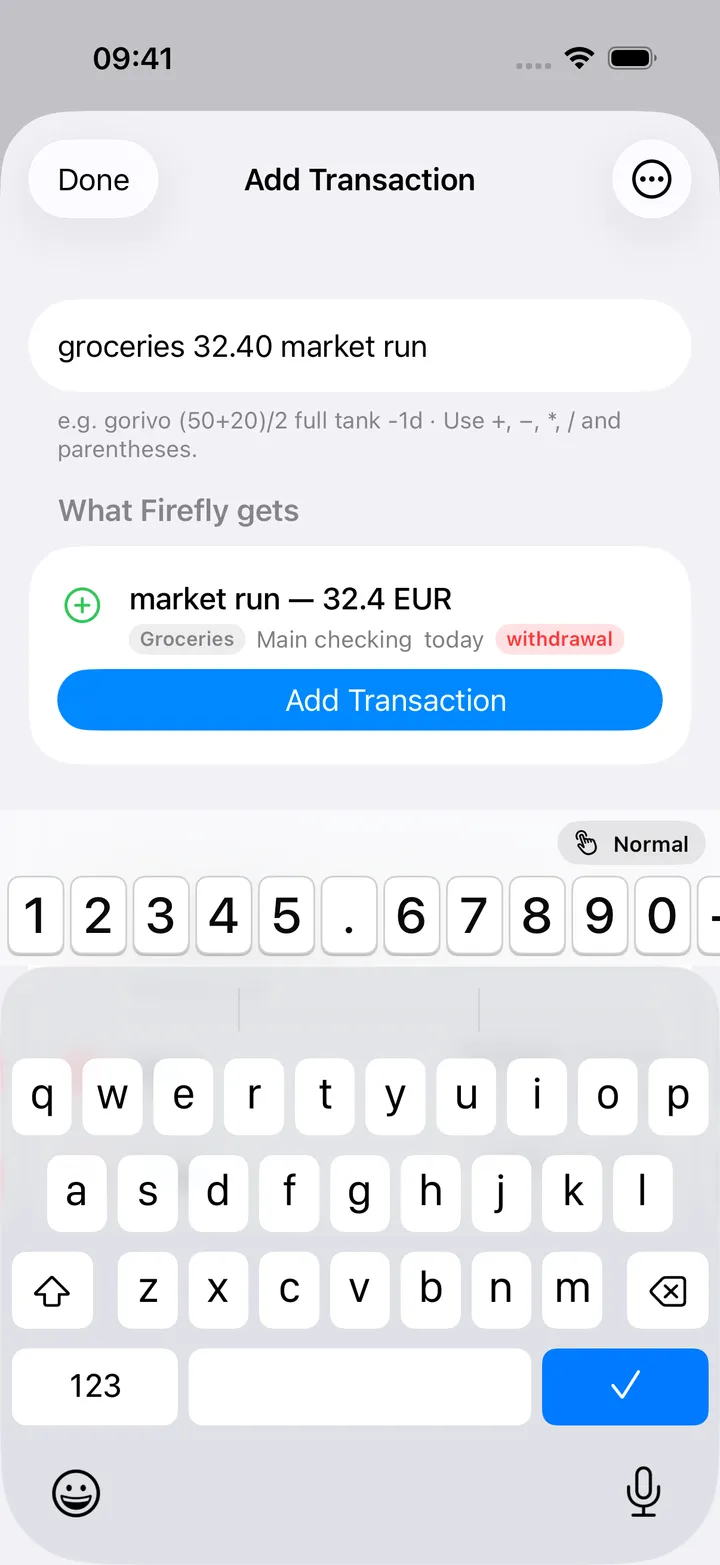
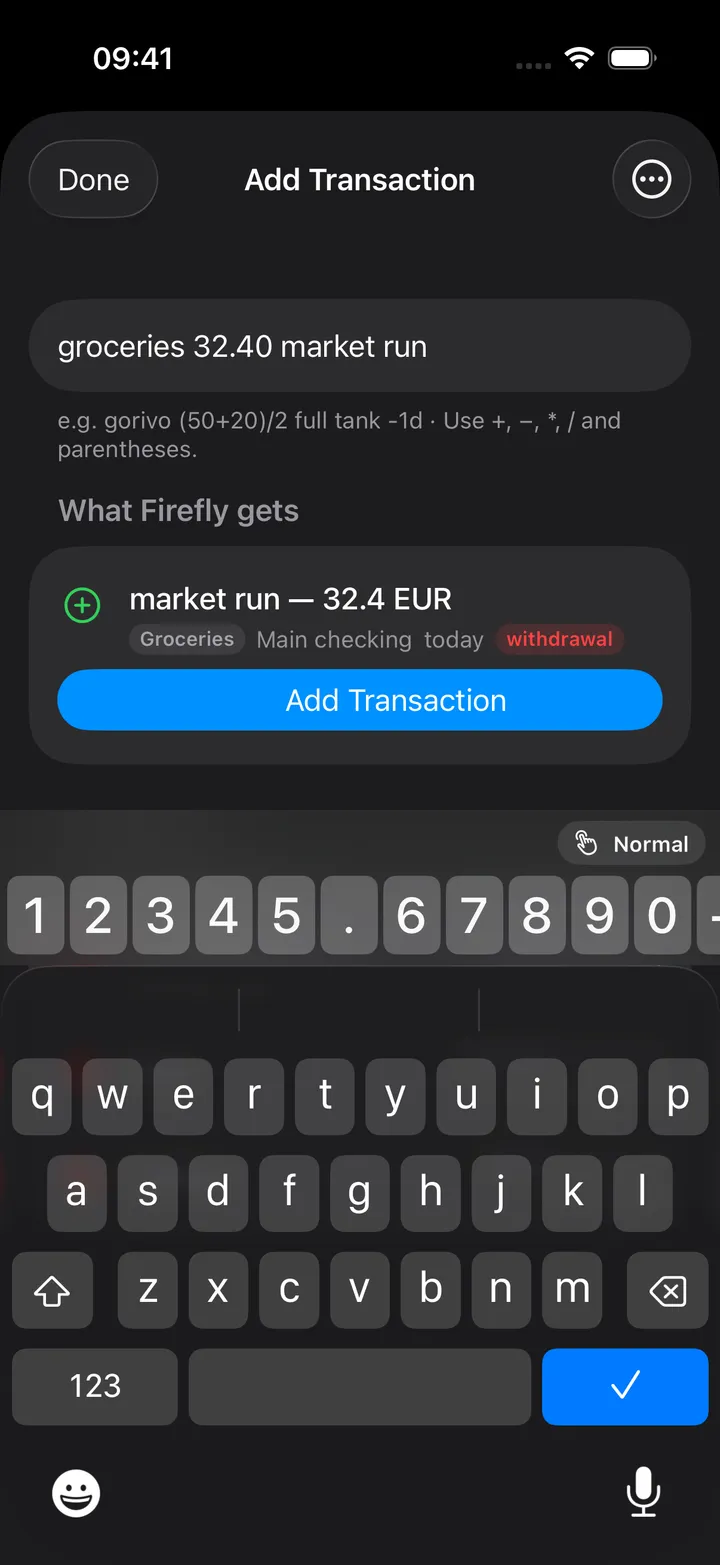
The Money screen is a list. Across all accounts shows the combined balance (per currency when Firefly cannot convert them all), with links to Accounts & totals and All transactions. This Month has the spend row (“Spent X”, opening this month’s expenses) and, with a subscriptions URL, the “due in the next 30 days” row that opens Subscriptions & Bills (without one, a plain Subscriptions & bills row opens it), and Stats by category. With Pico set up, Manage templates sits below, and This Month’s Transactions lists every entry since the 1st; tap one for its detail sheet. The + in the toolbar opens Add Transaction and ⋯ opens Firefly III or Firefly Pico in the browser.
Stats by category shows a month’s spending as a ring and a list. The arrows (or a swipe) step through the months and This month comes back; Expenses and Income carry the month’s totals and switch the view. The ring has the eight largest categories, the rest folded into Other, with the share on every slice big enough to hold it and the total in the middle; tap a slice to see that category’s name, amount and share there. The list has every category with its share as a tinted badge and its amount. Transactions without a category are Uncategorised.
Tap a category for its own page: its total month by month as a line over the last twelve months, the month you came from marked with its figure, and under it that month’s transactions day by day, each day with what came in and what went out and each transaction with its account and amount (tap one for its detail). The arrows, a swipe left or right on the days (they are pages under the line), or a tap on a point of the line pick another month; the line stays and the mark moves. This month brings you back.
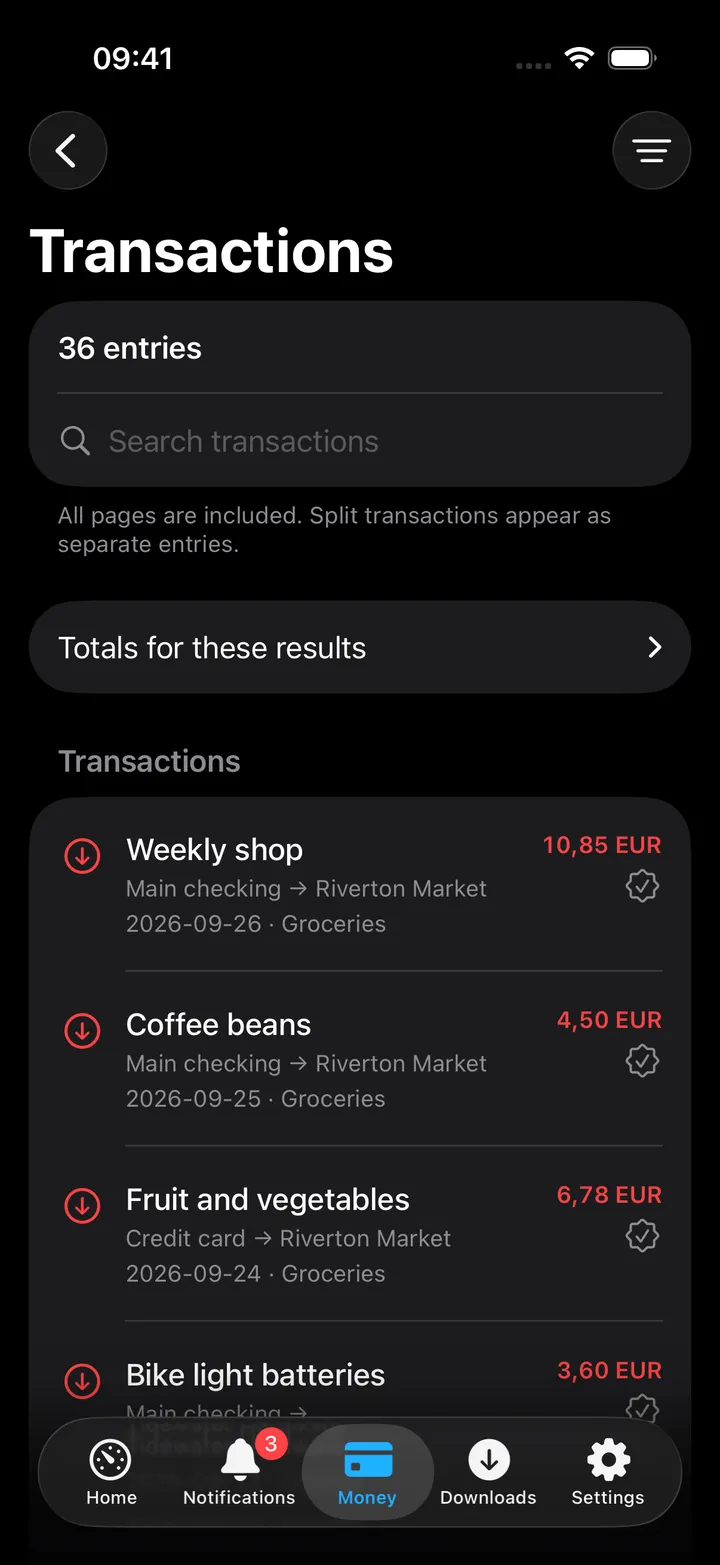
Accounts & Totals narrows by Find an account, Include (all accounts, assets and cash, liabilities, net-worth accounts) and Include inactive accounts; tap an account for its transactions. Transactions covers every page of the ledger with a search field, a folding Totals for these results section and a Filters sheet: period and sort, type and accounts, category, budget, subscription and tag, amount and currency, reconciled, attachments, notes, external ID, and an Advanced Firefly search field that takes Firefly’s own search operators.
Add Transaction parses template amount(currency) description ±Nd, for example gorivo 50 full tank -1d, and
does real currency conversion through Firefly’s exchange rates when the typed currency differs from the account’s.
A transfer between accounts in different currencies (a USD account into a KM one, say) also sends what the
destination receives, converted with the same rates: Firefly refuses such a transfer without it. The preview shows
it as 19000 USD → ≈ 33 744.00 BAM with both accounts; change it afterwards in the transaction’s Foreign amount
if the bank’s rate differed.
Offline, a transaction is saved and marked “Saved offline”; it posts automatically once the app can reach Firefly.
Under the field, What Firefly gets previews the result (description, amount, the converted amount when the
currencies differ, category, account, day and type) with an Add Transaction button. When the line matches no template, or when the sheet was opened from a note, a
The line, step by step section takes it apart into Template, Amount, What it was for and When,
ticking each part the line already has and saying what to write for the rest. The templates list then shows every
template (or the ones whose name matches what you typed); picking one keeps your words and moves the amount to
the front, so Coffee 3.50 at the station plus a Snacks template becomes Snacks 3.50 Coffee at the station.
A row of amount keys sits above the letter keyboard: 1–5, ., 6–0, and a swipe to the right + - * / ( ).
An amount or a sum like 12.5*3 needs no switch to the number keyboard, and the description carries on in
letters. Keys type at the cursor.
On the iPhone the keyboard follows the cursor: letters while you write the template’s name, the app’s own
number pad once the name and a space are there (the amount), and letters again after the amount and a space
(the description). The pad is the system’s decimal pad, 1–9 in three columns, but as tall as the letter
keyboard and on its grid, so backspace (right end of the third row) and space (bottom centre) are where
your thumbs know them from typing words. The right column, under the thumb, holds 0 on top, the decimal point,
backspace and a blue Add key where Return is; the left column has ÷, ×, −, + and a ( ) key that
opens a parenthesis, or closes the one that is open. While the pad is up, the row of switches above it also
holds your currencies as pills (€ EUR, $ USD, BAM, from your accounts and templates): a tap attaches
the code to the amount, 50EUR, a tap on the one in effect takes it off again. Above the letters the digit
row is there as before. The 123 switch above the keys turns the pad off or on for the open sheet. ••• → Keyboard decides
whether that switch is there (Switch above the keys) and how Add Transaction opens (Number pad when
opening).
On Mac
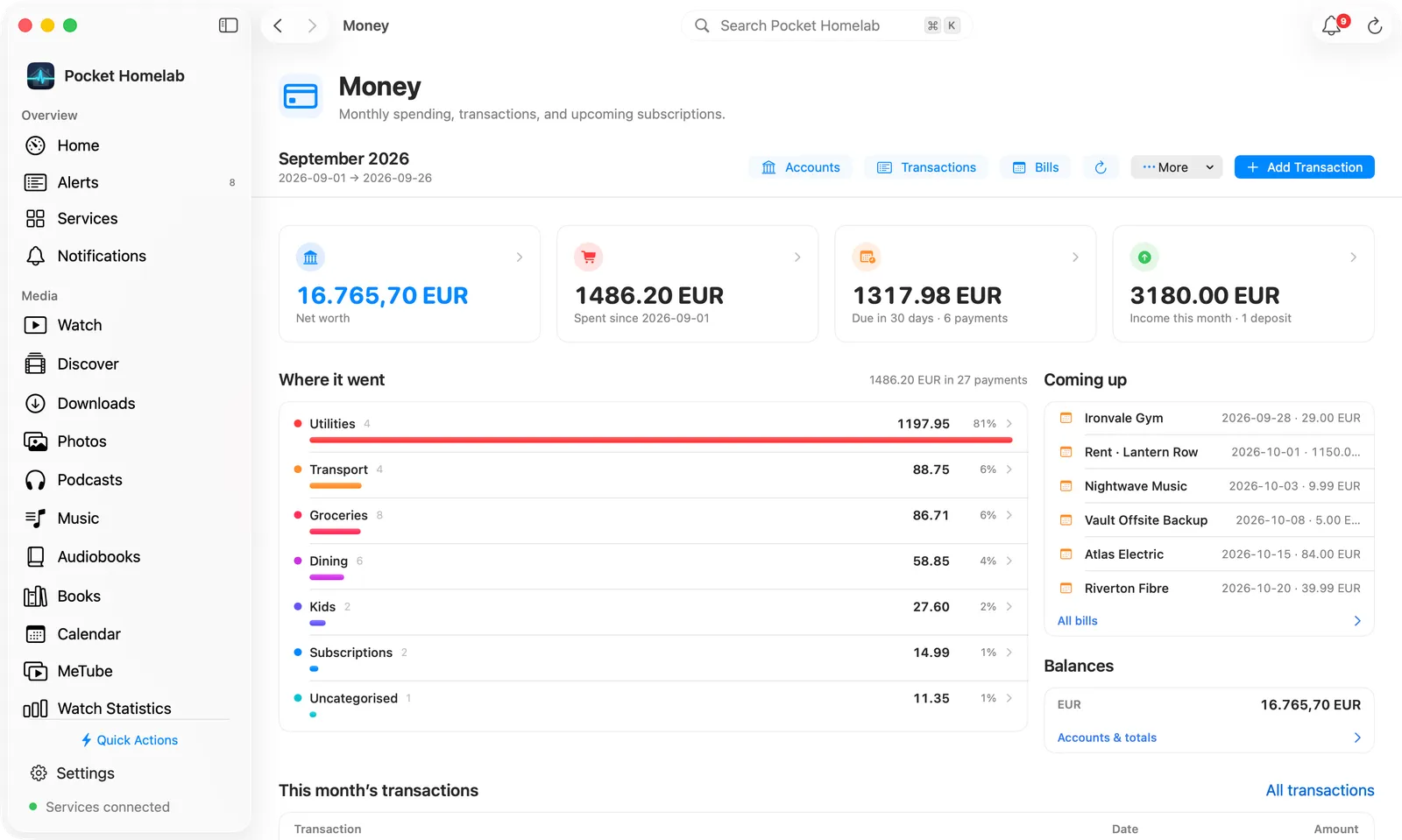
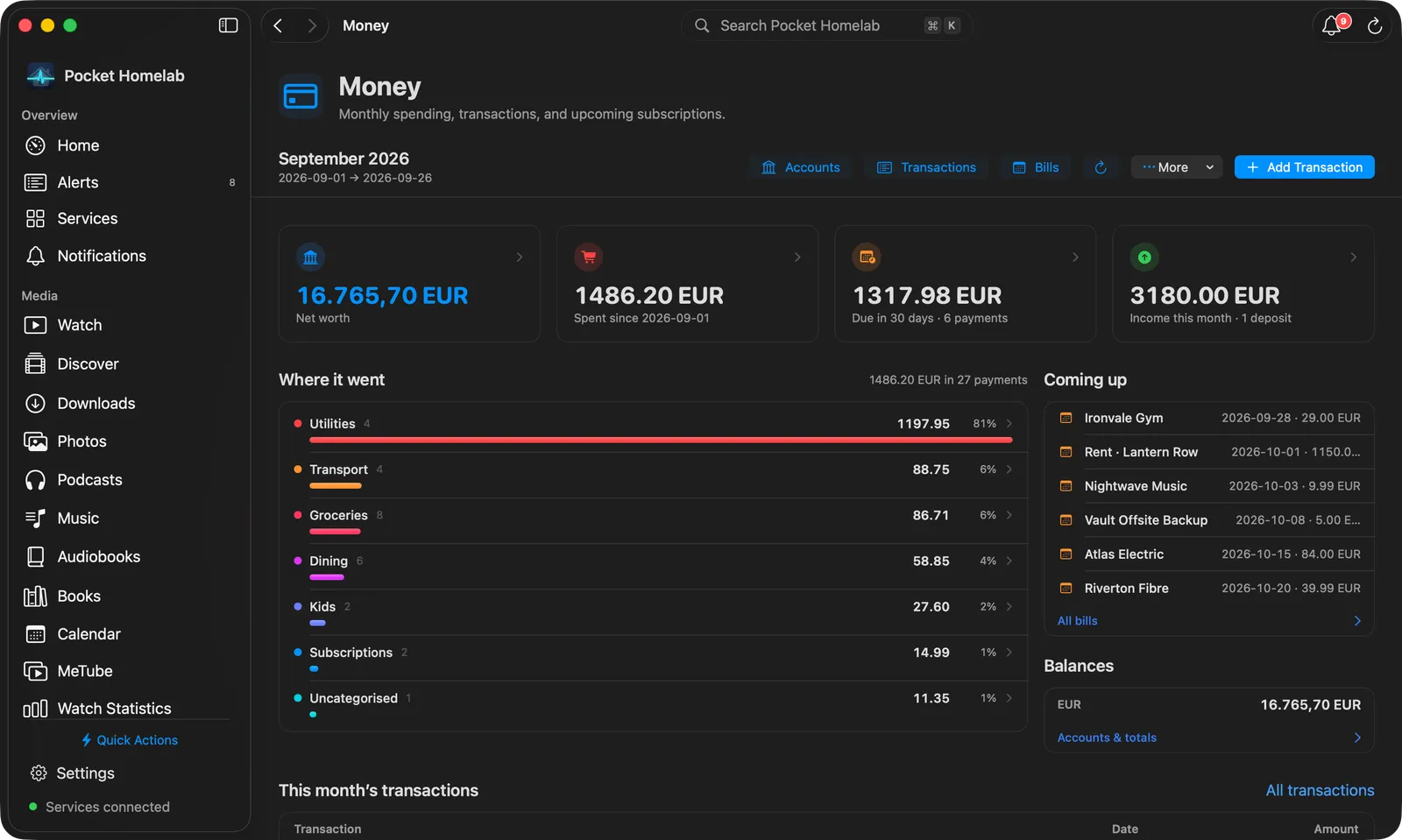
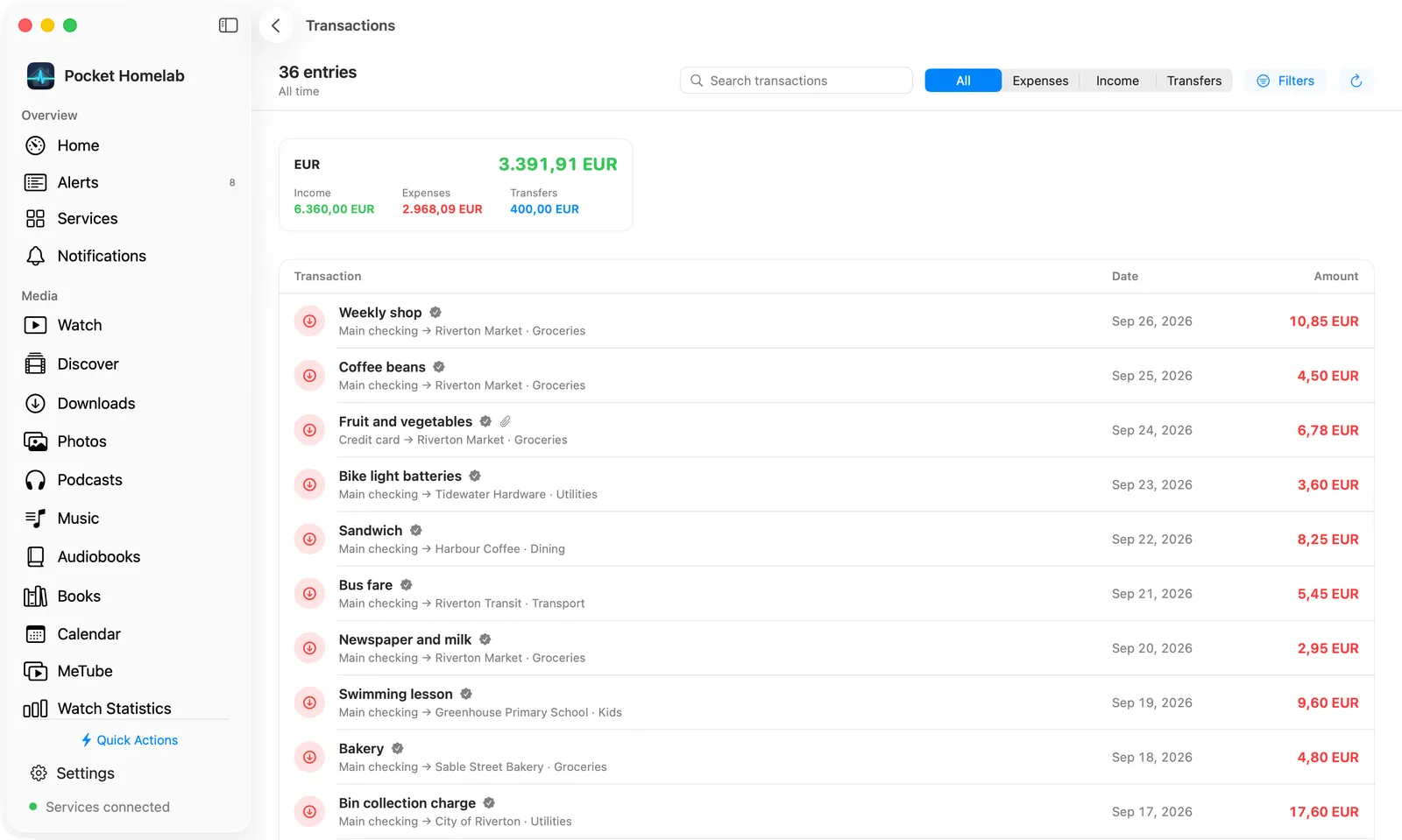
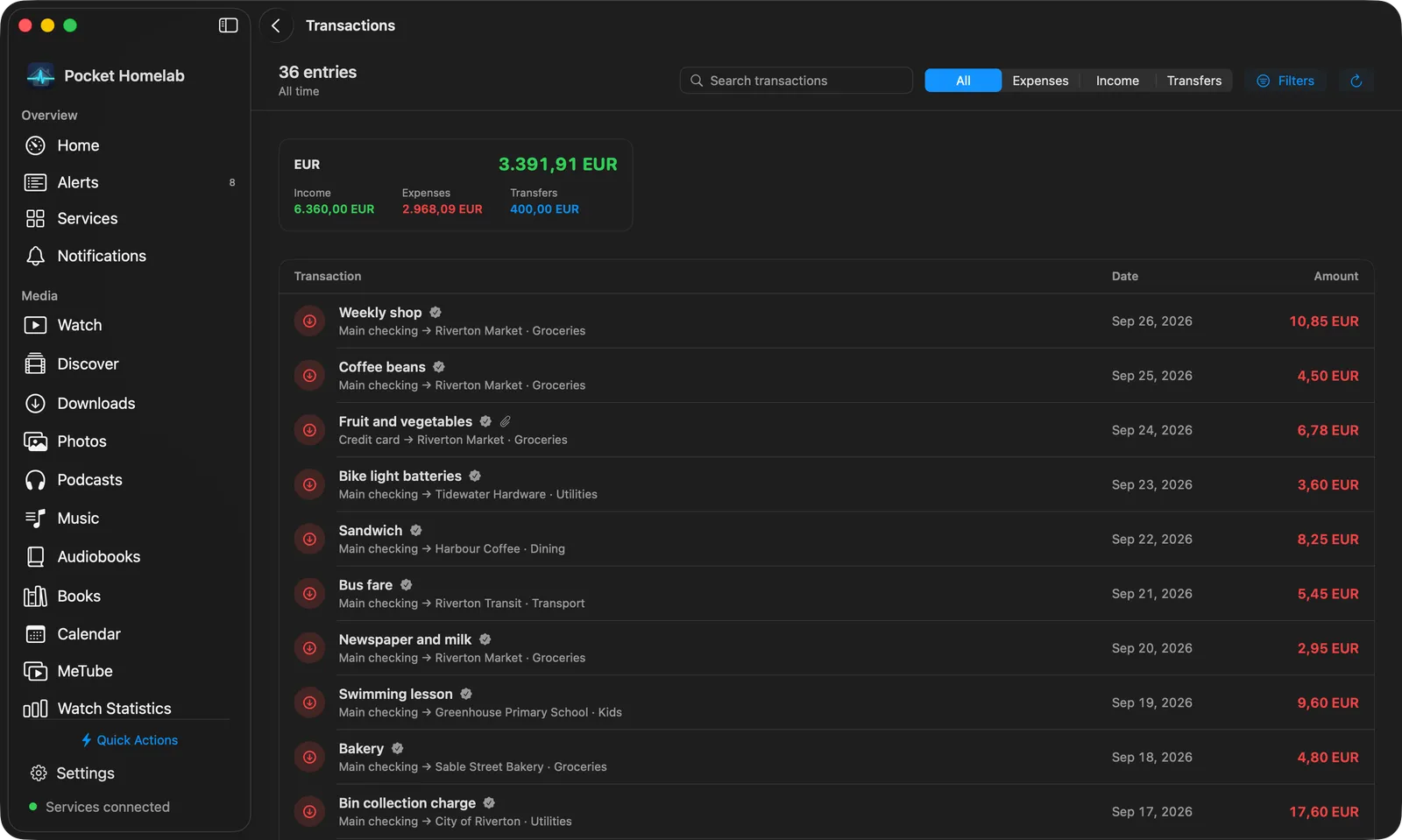
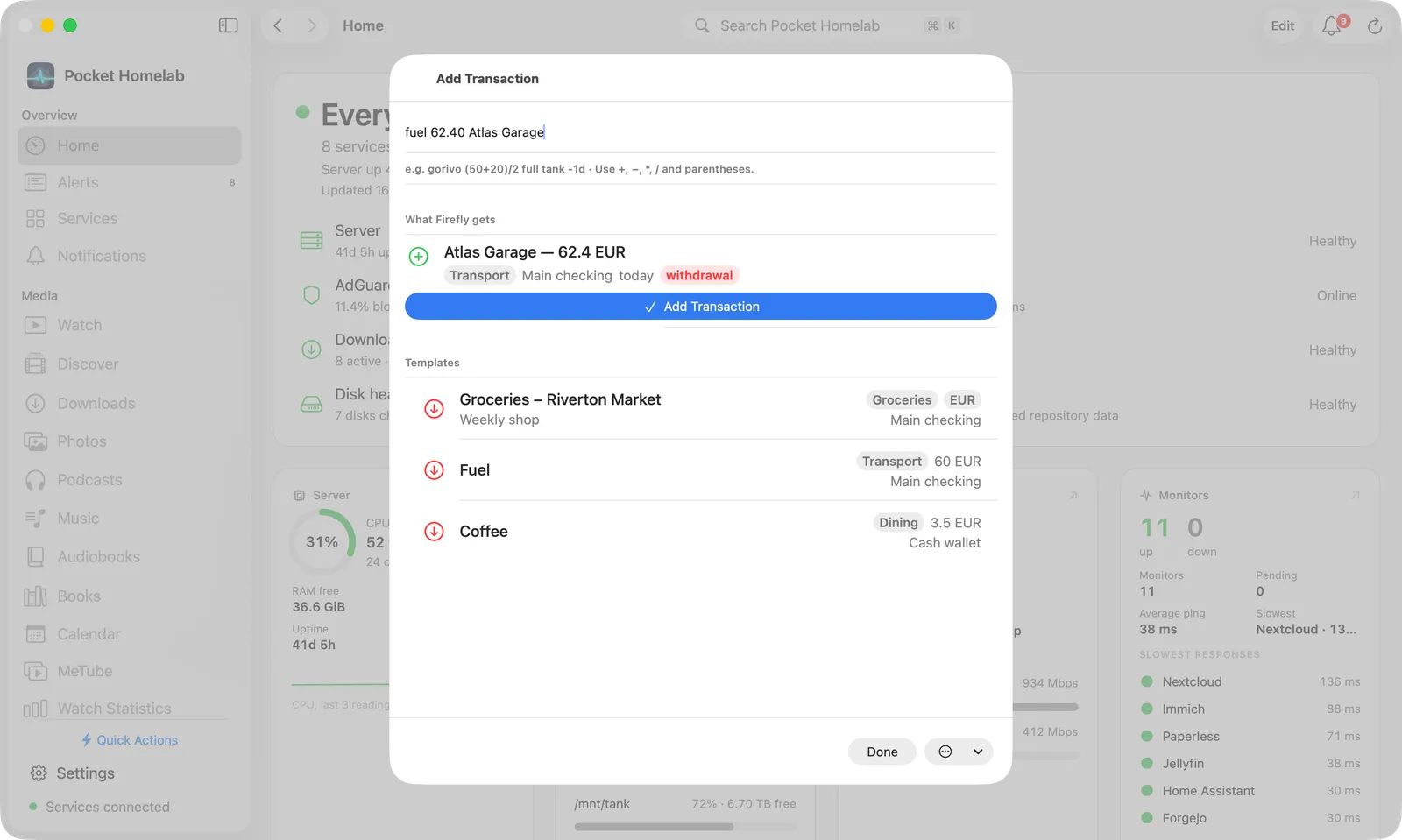
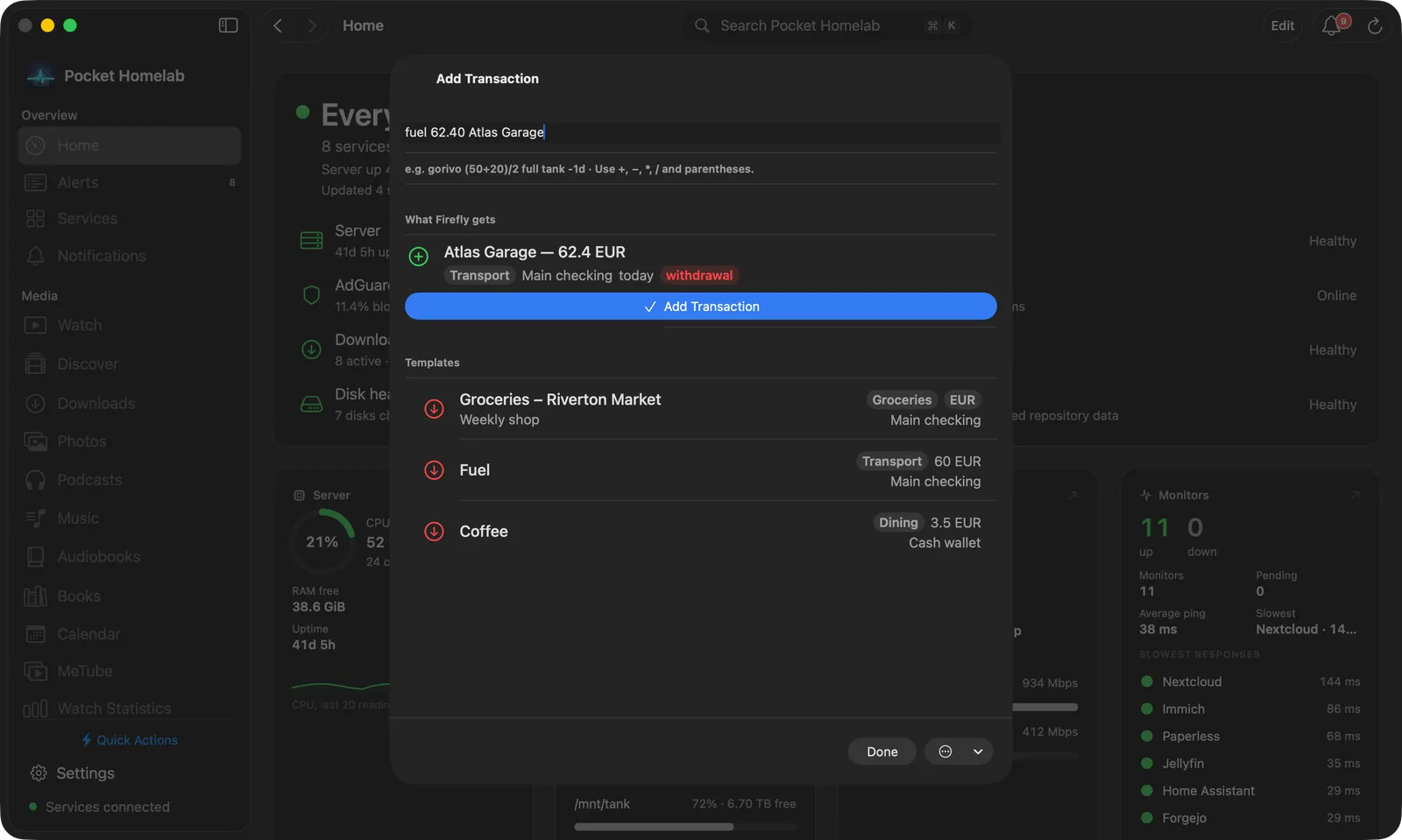
The Money page starts with a bar: the month, its date range, and buttons for Accounts, Transactions, Stats (the month’s categories as a ring and a list, as on the iPhone), Bills, refresh, More (Manage templates with Pico, Open Firefly III, Open Firefly Pico) and Add Transaction (with Pico). Below it:
- Four tiles, each opening a page: Net worth (combined with Firefly’s rates, or one figure per currency
when they cannot be combined) opens Accounts; Spent since the 1st opens this month’s expenses; Due in 30
days, from
subscriptions.json, opens Bills; Income this month opens this month’s deposits. Income is totalled in Firefly’s primary currency when Firefly reports the converted amounts, with the amount in each currency listed under it; on a server that does not convert, each currency gets its own figure. - Where it went: this month’s spending by category in the main spending currency, with the count, amount, share and a bar for each, the top eight and Everything else. Click a category to open the ledger narrowed to it for this month (Uncategorised shows the entries with no category).
- Coming up (the next eight items from
subscriptions.json, with All bills) and Balances per currency, with Accounts & totals. - This month’s transactions as a table (transaction, date, amount in the type’s colour, the original amount under it for foreign-currency entries), with All transactions. Click a row for the transaction sheet.
The pages it opens follow the same layout:
- Accounts & Totals: a find field, All / Assets / Liabilities / Net worth, an Inactive checkbox, a Total tile and one tile per currency, then a card per account (kind, Net worth and Inactive pills, balance, converted amount). A card opens that account’s transactions.
- Transactions: a search field, All / Expenses / Income / Transfers, Clear and Filters (the same filter sheet as on iPhone), a card per currency with the net, income, expenses and transfers, and the entries as a table, 100 at a time.
- Subscriptions & Bills: a filter field and Open in Firefly, tiles for Active bills, Due this week, Due in 30 days and the Next bill, then the active bills as cards, soonest first, and the inactive ones dimmed. Right-click a bill to open it in Firefly or copy its name.
The transaction sheet has a bar with the type, description and date, refresh (⌘R), Delete and Edit Transaction; the amount large in the type’s colour with From and To beside it; a Details card (category, budget, subscription, tags, reconciled, attachments, references); the notes; and Open in Firefly and Copy Description.
⌘N opens Add Transaction as a normal sheet (it replaces the OS’s own File → New). Separately, ⌃⌥⌘N is a system-wide hotkey, it works even when Pocket Homelab isn’t the frontmost app, opening a small floating, non-activating panel. Escape hides it without discarding your draft; press the same shortcut again to hide it, or once more to bring it back.
Actions
- Post a new transaction from the Add Transaction assistant (queued offline if there’s no connection).
- Edit a transaction’s description, date, amount, currency, accounts, category, notes, tags, reconciled state, and foreign-currency fields (only changed fields are sent; sibling splits are preserved).
- Delete a transaction entry, with a pre/post check to avoid double-deleting. In a split transaction only that split goes; the other splits, Pico templates and linked vehicle records remain.
Bills are read-only in the app, no bill creation, editing or deletion, only browsing and a link to open one in Firefly.
Works with
- Firefly Pico: templates power the Add Transaction assistant; see Firefly Pico.
- LubeLogger: a vehicle’s fuel or expense record can be linked to a Firefly transaction; editing or deleting that transaction never touches the linked vehicle record, and vice versa. See LubeLogger.
- Nextcloud Notes: Make this line a transaction… opens Add Transaction with the note’s line already typed and the step-by-step guide showing; once the transaction is added (or saved offline), the line gets a link to Firefly. The Spending this month block writes this month’s spending by category and the five largest payments into the note. See Nextcloud Notes.
- Shares the offline outbox with Nextcloud Tasks and LubeLogger (Settings → Offline & sync on iPhone, Settings → Offline on Mac).
Tips & troubleshooting
- A malformed arithmetic expression in Add Transaction (like a bad division) is a hard stop, not a silent fallback to the template’s default amount, fix the expression and try again.
- No exchange rate between the typed currency and the account’s currency refuses the post with “No exchange rate X→Y in Firefly”, add the rate in Firefly first.
- The Home tile’s monthly-spend figure is the single currency with the largest absolute spend that month; other currencies’ spend for the same month are not shown there, check the ledger for the full picture. The same goes for Where it went on Mac, which counts only the main spending currency.