
Calendar and My Schedule
Open your calendar from any app with two global shortcuts, browse your schedule and check your camera before joining a meeting.
MacOn this page
Calendar brings your Mac’s calendar events, Nextcloud tasks with due dates and media releases into one workspace. Open the full calendar to plan your week, or use My Schedule for a compact list of upcoming events.
Two global shortcuts
| Shortcut | Opens |
|---|---|
| ⌃⌥⌘C | Calendar, the full calendar in a floating window |
| ⌃⌥⌘J | My Schedule, a compact list of the next 30 days |
Hold Control + Option + Command, then press C or J. These work from any application while Pocket Homelab is running, even with its main window closed. Opening My Schedule does not change the view selected in the main Calendar workspace.
In Settings → Quick Actions → From any application, turn on Enable system-wide capture shortcuts. Click either shortcut’s key caps to change it, or use Open beside it. If another app already owns the combination, choose another or press Retry shortcuts. These are registered system hotkeys; they do not require Accessibility permission or monitor your typing.
Your calendar accounts
Allow Calendar access when prompted to show events from accounts set up in macOS Calendar. Use the calendar filter to choose what appears. Nextcloud tasks and media releases come from the services you have configured, and with Pocket Habits every habit shows on the days it is scheduled (✓ done, ✗ missed, ○ still open), each habit switchable in the sidebar’s Habits section; a click on a habit’s day marks it Done or Missed.
Switch between Day, Week, Month, Agenda and Schedule. Search for an event, use Today to return to the current date, or browse with the previous and next controls. In Day and Week, scroll sideways with two fingers on the trackpad to move through the days: the next or previous days slide in as you scroll, and when you let go the calendar settles on the nearest day or week (a quick flick goes on to the next one). A mouse’s sideways wheel, or Shift with the wheel, turns one day or week at a time. The Refresh button beside search reloads calendar events, tasks and releases.
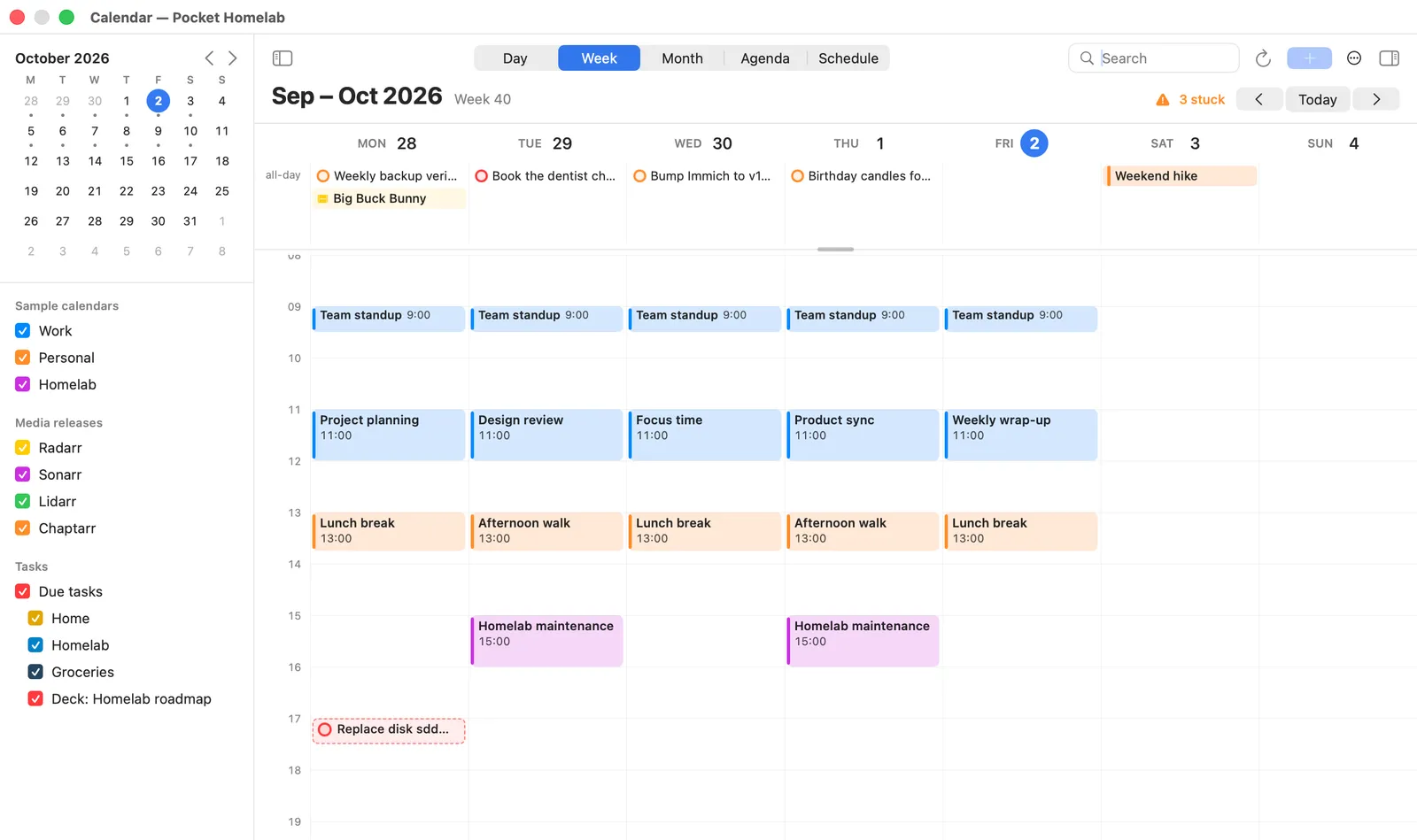
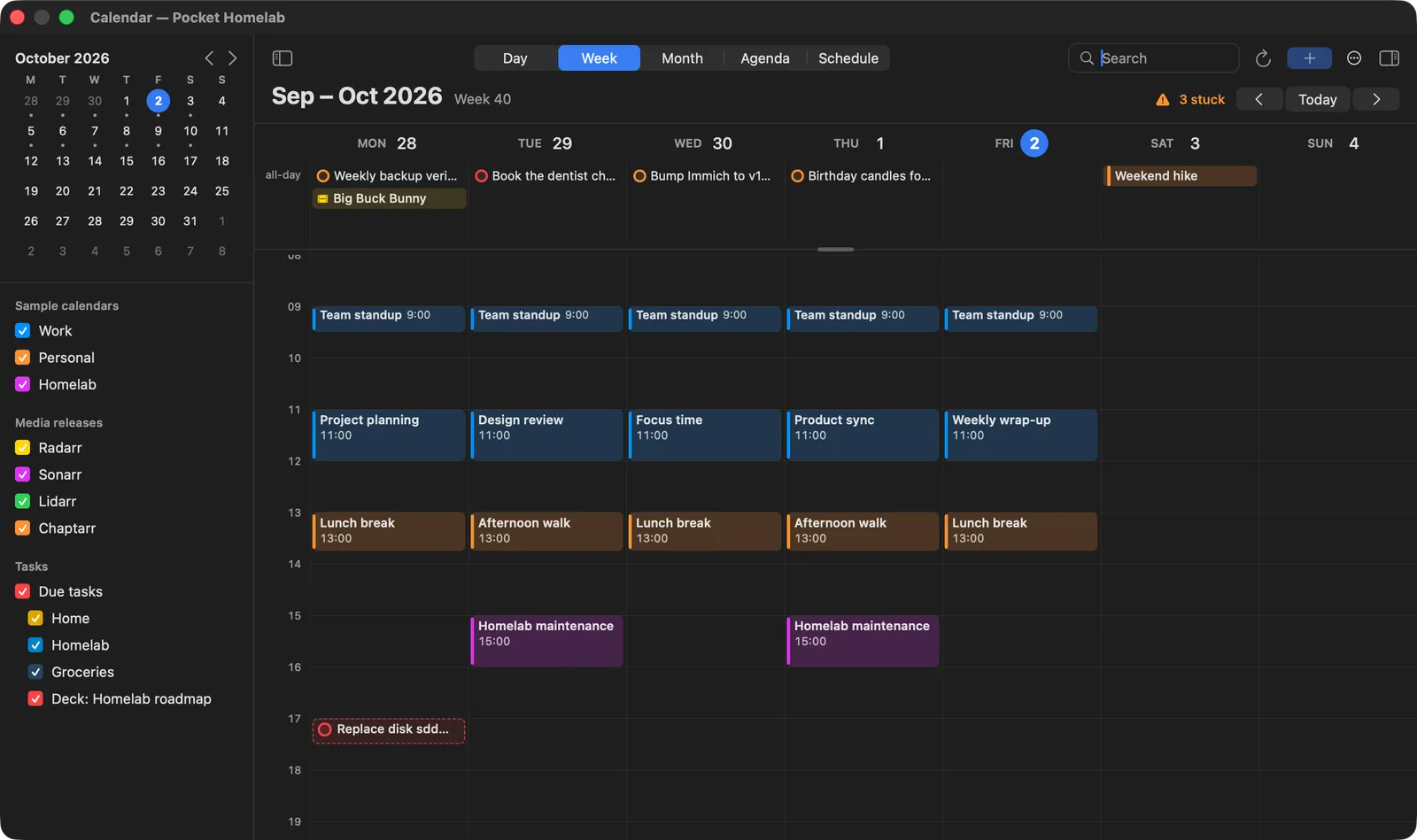
You can create and edit personal events, drag them to another time, resize their duration and delete them. For recurring events, choose which occurrence to change. Media releases open their title details.
Invitations
An invitation nobody has answered yet is drawn ghostly: no fill, diagonal hatching in its calendar’s colour and a dashed outline, in the grid, the month and the agenda. The tray beside + in the toolbar (and in My Schedule’s footer) shows how many are waiting; click it for the list, each with when, who sent it and which calendar and account it landed in. ⊗ takes one off the list without answering. The same answer row sits in the event’s detail box.
- On your Nextcloud: Decline, Maybe and Accept answer right here. Pocket Homelab writes the answer to the event on your Nextcloud, which tells the organizer; the calendar shows it after its next sync. This needs the Nextcloud service set up with the account the invitation came to.
- Google: press Sign in with Google once under the tray’s Google account and Google invitations are answered right here too, the way BusyCal does it: Pocket Homelab talks to Google itself, and Google tells the organizer. Google’s own sign-in window opens; the app asks only to see and change your calendar events. Tokens stay in your Keychain; Sign Out forgets them here and at Google. See Privacy. (A build without a built-in Google client asks for a client ID from your own Google Cloud project instead.)
- Other accounts (iCloud, Exchange, or Google before signing in): macOS lets no app but Calendar answer those, so a button opens Calendar on the event, where its own Accept, Maybe and Decline are, and the row says so.
The event’s detail box has the same three buttons under My status, your answer so far filled in. Pocket Homelab knows which attendee is you from the address your accounts are named after; if an invitation came to another address, add it under the tray’s Your addresses.
A notification arrives for each new invitation while Pocket Homelab is running, and the calendar asks macOS to sync your accounts whenever it is shown or refreshed, so a moved meeting shows its new time without waiting for the account’s own interval. On iPhone the tray appears in the Calendar’s toolbar when something is waiting; a row opens the system’s event screen, which answers for every account.
My Schedule
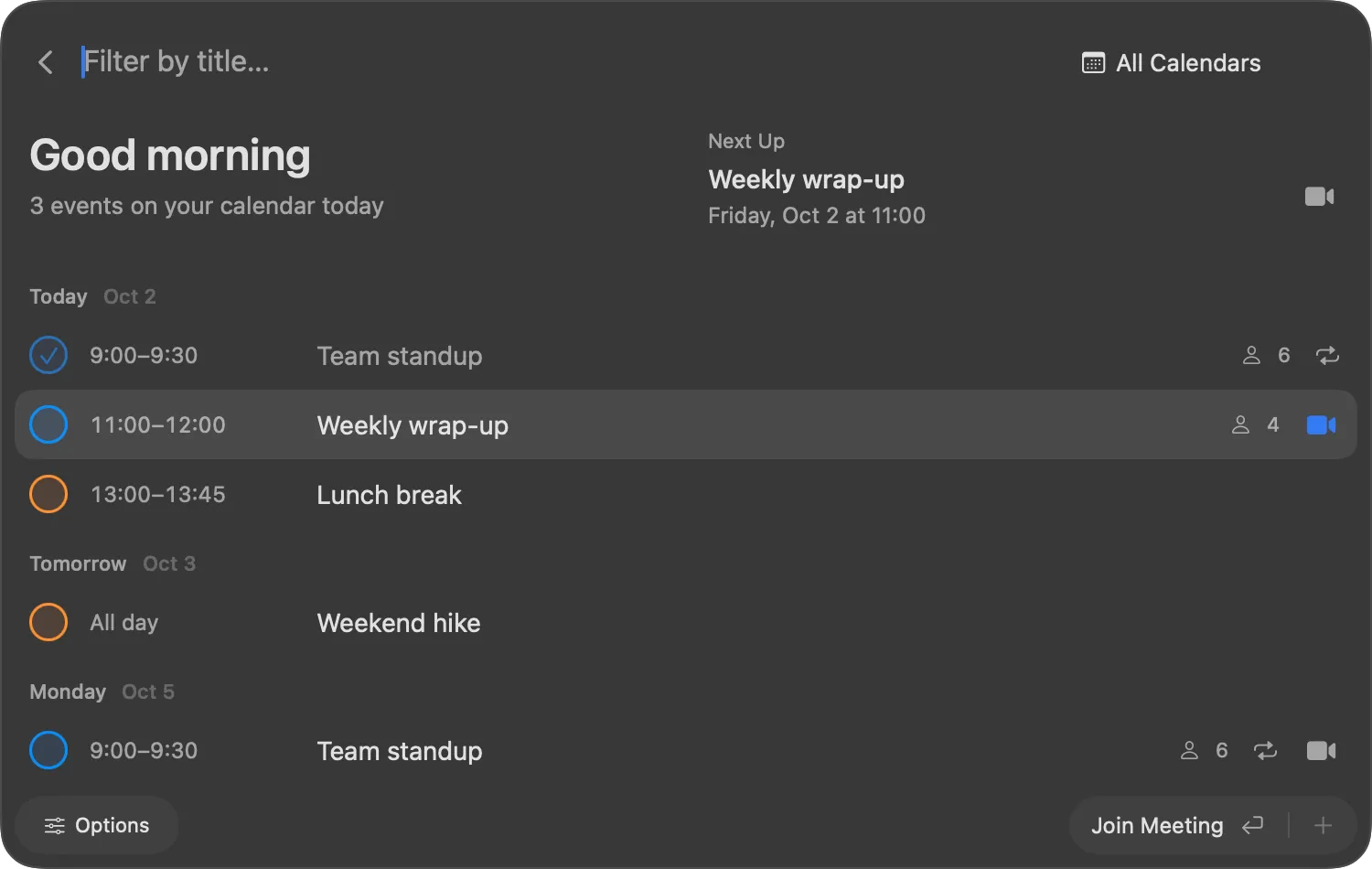
The floating schedule groups events by day and shows what is next, with calendar colours, meeting links, attendee counts and recurring-event indicators. Filter by title or calendar to narrow the list.
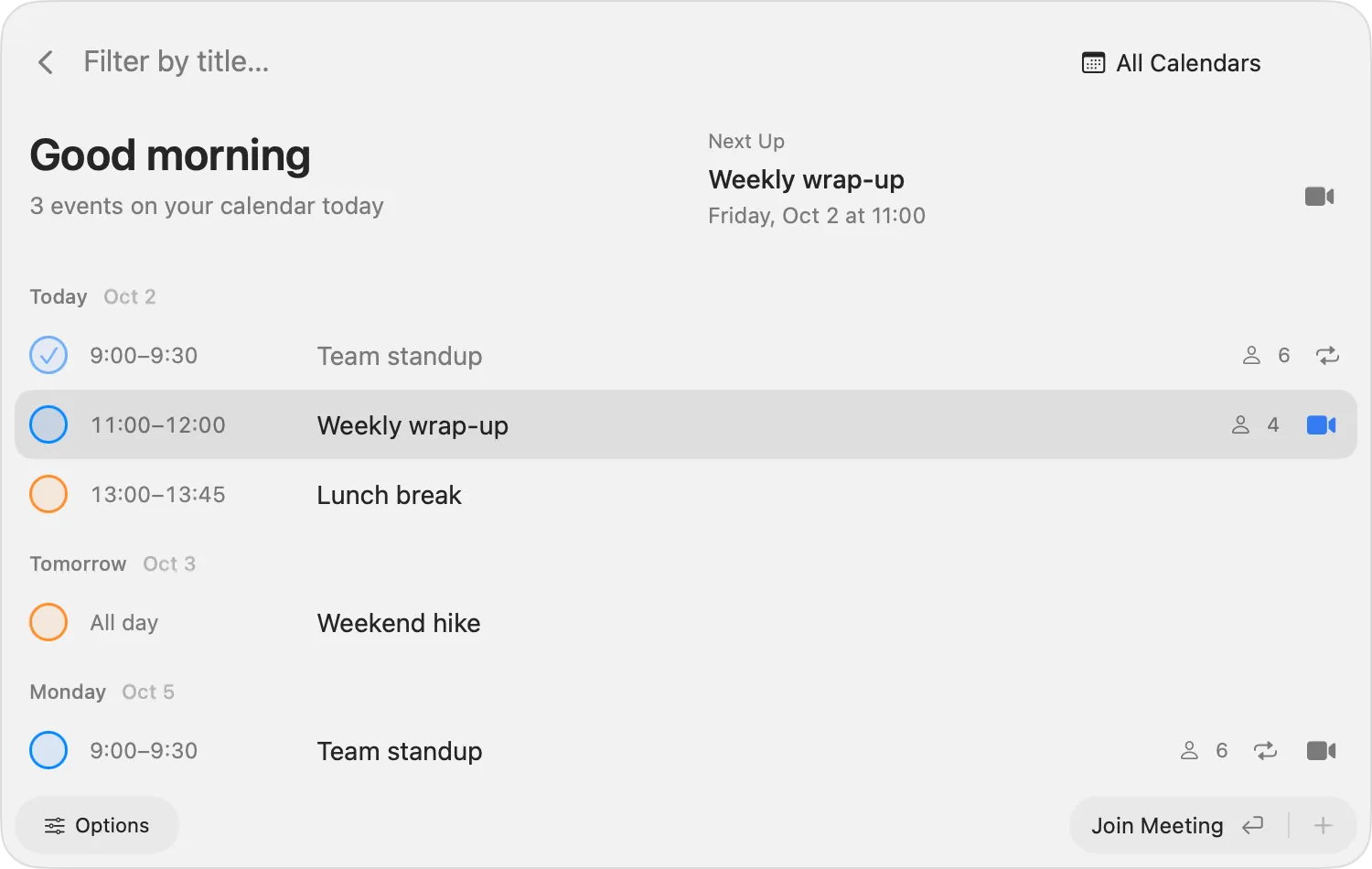
| Key | Action |
|---|---|
| ↑ / ↓ | Select the previous / next event |
| ⌘K / ⌘J | Select the previous / next event while the list has focus |
| Return | Open the selected event, or its camera check when a meeting can be joined |
The Command shortcuts above are local list controls, distinct from the global shortcuts that open the windows. Scrolling behaves like a regular list; keyboard navigation scrolls only enough to reveal the selected row.
A note about an event
When your Nextcloud has the Notes app, an event’s detail has a Note button, and the right-click menu
Add a Note: the text is written inside the detail, no sheet, and added as a bullet with the time to one note
per event occurrence, <event> – <day> in the Calendar events folder (Settings → Notes → Folders). See
Nextcloud Notes.
Check your camera before joining
Choose Join on a meeting to open a camera preview. It opens only when you choose to join, never automatically before an event. Allow Camera access when prompted. The preview uses no microphone and records no video.
Use the back arrow to return to the calendar, or open Actions with ⌘K:
| Action | Shortcut |
|---|---|
| Join Meeting | Return |
| Join in Browser… | ⇧⌘O |
| Copy Photo to Clipboard | ⌘Return |
| Toggle Mirroring | ⌥⌘Return |
| Switch Camera | ⇧⌘S |
| Enable / Disable Shutter Sound | Actions menu |
Search the actions, select with ↑ and ↓, and press Return to run one. Switch Camera lists available built-in, external and Continuity cameras. Copy Photo captures a still to the clipboard only when requested; the app does not save a photo file or keep a photo history. A brief message confirms actions.
Esc or Backspace goes back through the camera picker, Actions and preview. In a search field, Backspace deletes the text first.
Join the meeting
Press Join Meeting when ready. Pocket Homelab releases the camera and opens the meeting link, preferring the installed Microsoft Teams or Zoom app for supported links. Google Meet and other web meetings open in your browser; a web link is also the fallback when the native app is unavailable.
Which browser
With several browsers installed, choose the one web meetings should open in under Options → Open Web Meetings In, in the floating Calendar, My Schedule or the Calendar workspace. The list shows the system default and every installed browser; the choice is kept on this Mac only, and a browser that is later removed falls back to the system default.
For one meeting, pick Join in Browser… (⇧⌘O) in Actions and choose a browser from the list. That join goes straight to the chosen browser, even for a Teams or Zoom link, and does not change the default. Pocket Homelab remembers the choice for that meeting link: from then on a plain Join of the same link (a recurring meeting, for instance) opens there, and the Join button’s tip says so. The browser a plain Join would use carries a checkmark. The first row, Default, forgets the link’s browser and joins as Options says.
Chrome profiles
With two Google accounts in two Chrome profiles, a link handed to Chrome opens in whichever profile’s window was last active. Both lists can name the profile instead: Google Chrome · Work, Google Chrome · Personal, one entry per profile, and the meeting opens in that profile’s window.
Pocket Homelab reads the profile names from Chrome’s own folder, which it may only do with your permission: choose Options → Open Web Meetings In → Read Google Chrome’s Profiles… once, and allow the folder the panel proposes. Nothing else in the folder is read, and the permission is kept on this Mac. The same works for Brave, Microsoft Edge, Chromium and Vivaldi.
Profiles are offered only in a build that can pass the profile on to Chrome. The Mac App Store build runs in Apple’s sandbox, which strips the arguments one app gives another, so there the list has Google Chrome alone and a meeting opens in the profile whose window was last active.
After a successful handoff, the camera preview and floating Calendar or My Schedule window close. Joining from the main Calendar workspace closes the preview and leaves the workspace open.