
Pocket Inventory
Your home inventory from Pocket Inventory: what you own, how many and where, with − and + on every row, the one-line quick add, the shopping list that fills itself from alert levels, whose each thing is, and the places and categories, from the phone, the Mac or Android.
iPhoneMacAndroidOn this page
Pocket Inventory is a free, open-source (MIT), self-hosted home inventory for households: what you own, how many, where it is and whose it is. One Go binary, one SQLite file, a REST API with personal tokens. It is made by the author of Pocket Homelab as its inventory companion, around the three things you actually do: add something in one line, tap − when you use one and + when you buy more, and know whose it is. Pocket Homelab is the inventory in your pocket: the items with their − and +, the quick add, the shopping list, an item’s page and editor, the places and categories and the activity feed. Users, API tokens, photos, backups and import stay in the web app.
Install Pocket Inventory
If you do not run it yet, the project on GitHub has the setup for Docker and bare metal. The shortest way is the container:
mkdir pocket-inventory && cd pocket-inventory
curl -O https://raw.githubusercontent.com/abjelosevic88/pocket-homelab-inventory/main/docker-compose.yml
docker compose up -d
Open it in the browser, create your account, add the rest of the household under Settings → Users, and set
TZ: it decides what “today” is for expiry dates.
Set up
- In Pocket Inventory, open Settings → API tokens and create a token. Copy it: it starts with
pi_and is shown once. - In Pocket Homelab: Settings → Services → Pocket Inventory, paste the base URL and the token, then Test connection. It reads the dashboard and answers with the items, what is low and expiring and the total value.
- Turn on the Inventory tab in Settings → Tabs if you want it in the tab bar, and add the Inventory card to Home under Settings → Home layout.
| Key | Field | Required | Secret | Where to get it |
|---|---|---|---|---|
INVENTORY_URL | Pocket Inventory URL | Required | — | Base address of your Pocket Inventory server, for what you own, how many and where, the shopping list and whose it is. Leave empty to hide it. |
INVENTORY_API_KEY | Pocket Inventory API token | Required | — | A token from Pocket Inventory → Settings → API tokens (starts with pi_). Stored in the Keychain. |
The items
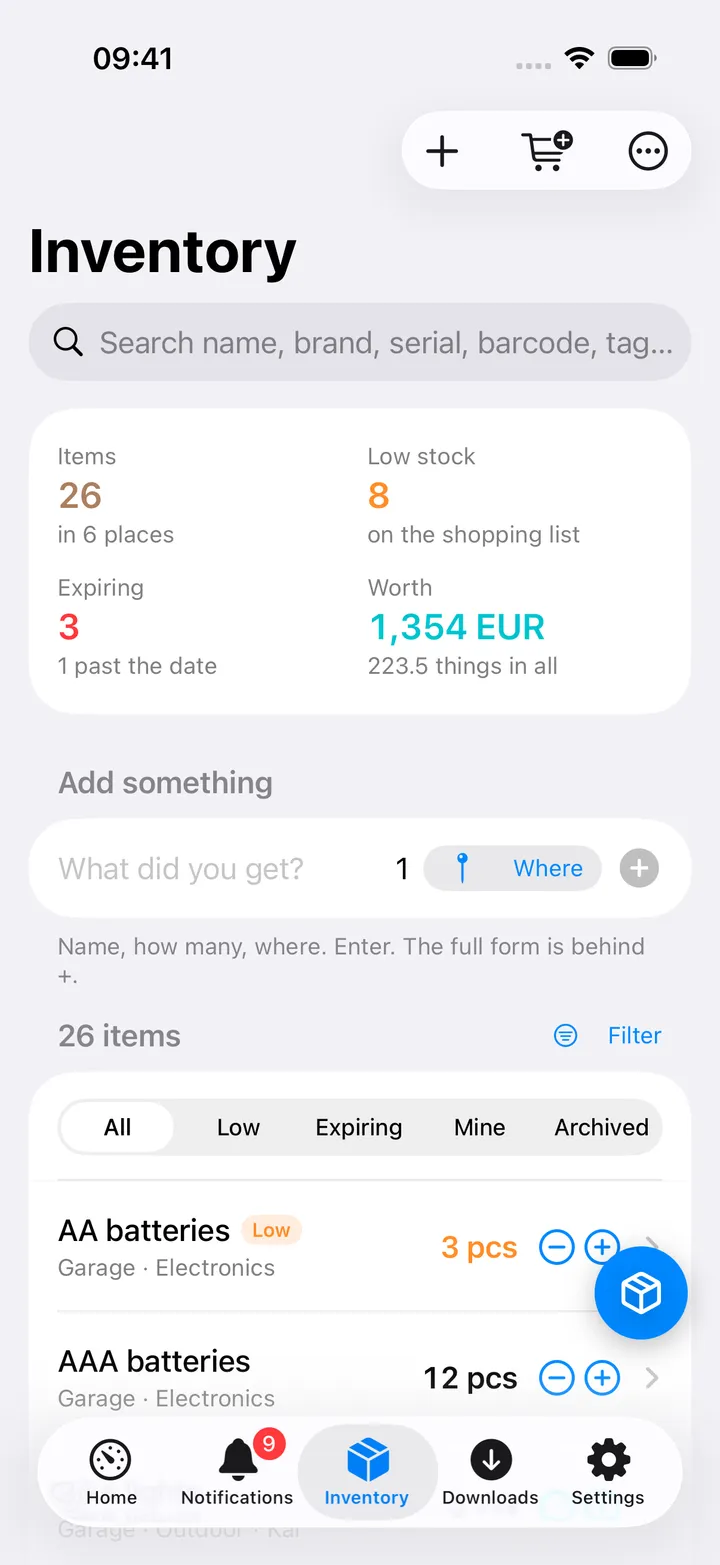
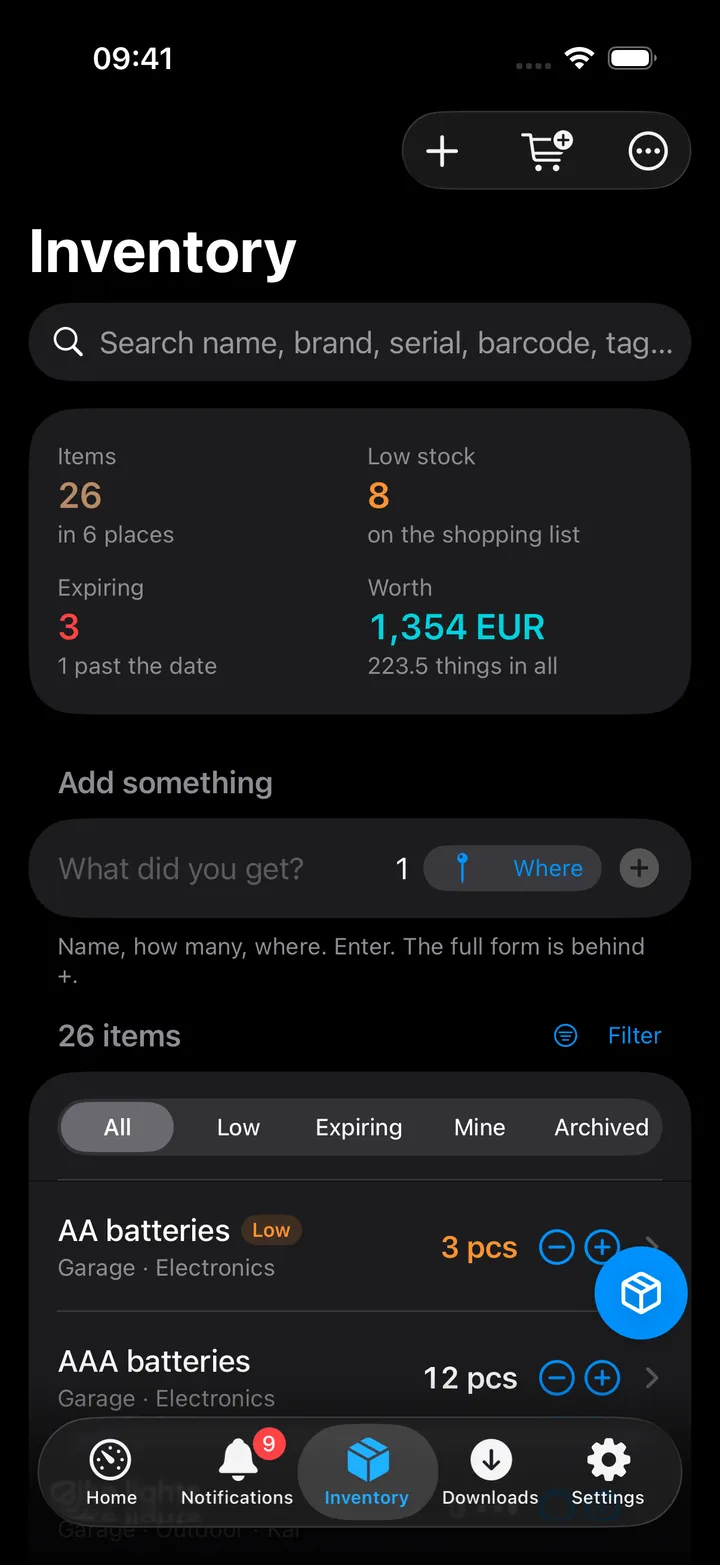
The Inventory screen opens on the list, as the web app’s Items page does:
- The figures at the top: items and places, what is running low, what is expiring (and past its date), and what it is all worth in the server’s currency.
- Add something: the one-line quick add. A name, how many, and where from the places you have (a name the server does not know makes the place). Enter. Done. The full form is behind +.
- The items by scope: All, Low (at or below the alert level), Expiring (within the server’s warning window, or past the date), Mine (linked to you) and Archived. A place and a sort (name, recently changed, recently added, lowest quantity, place, expiry) are in the header’s filter, and the search field looks through names, brands, models, serials, barcodes, tags, places, categories and notes.
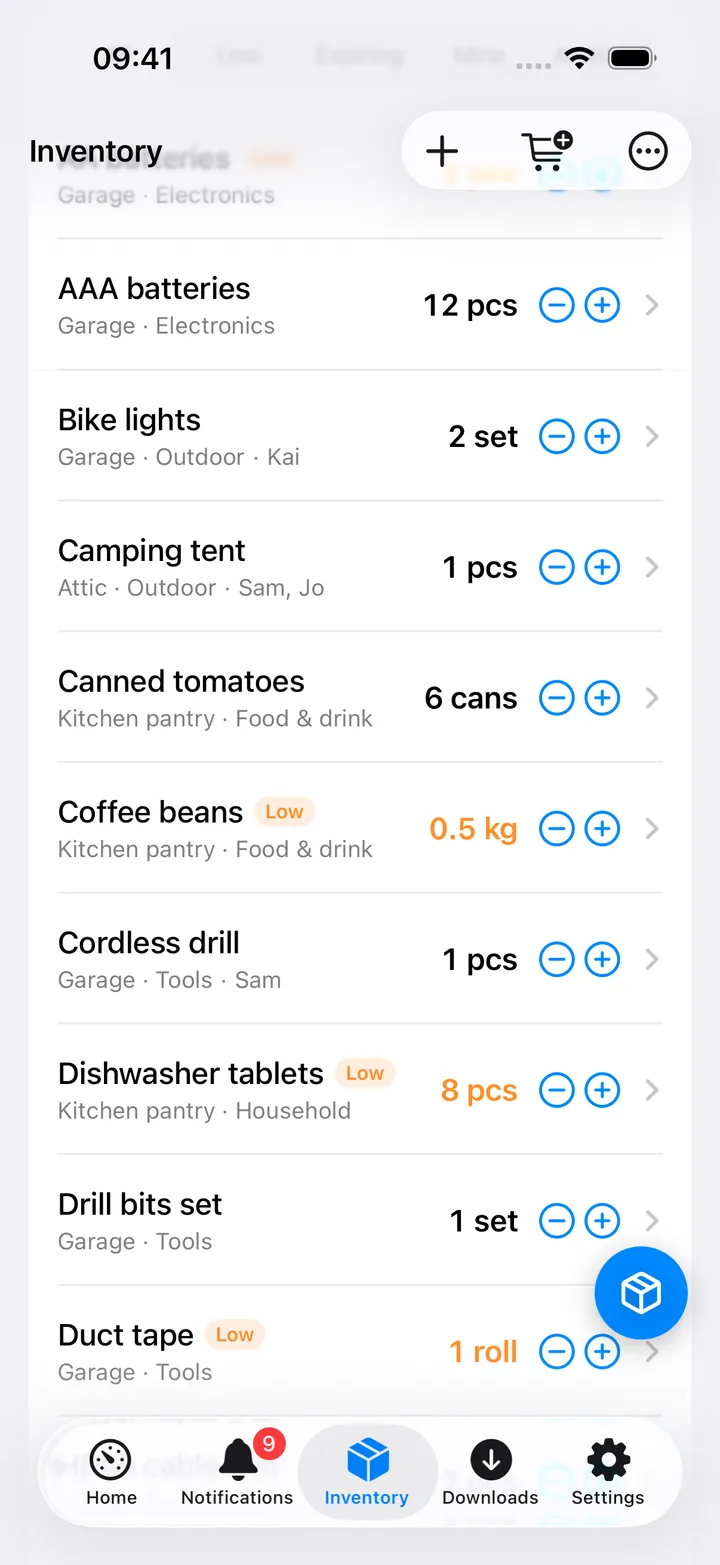
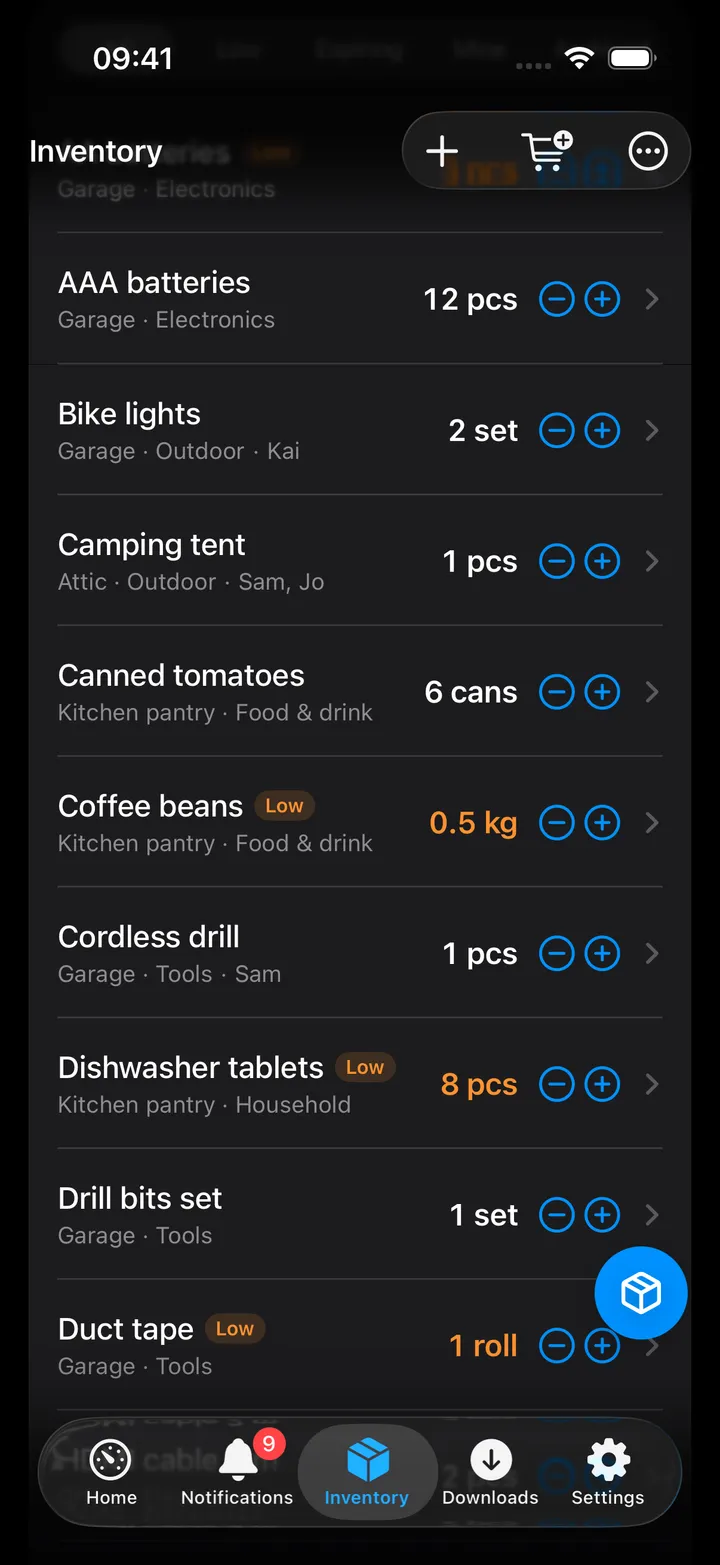
- − and + on every row: used one, bought one. The row changes at once and goes back with a message if the server refuses. Low and expired items carry a tag; whose it is stands under the name.
An item
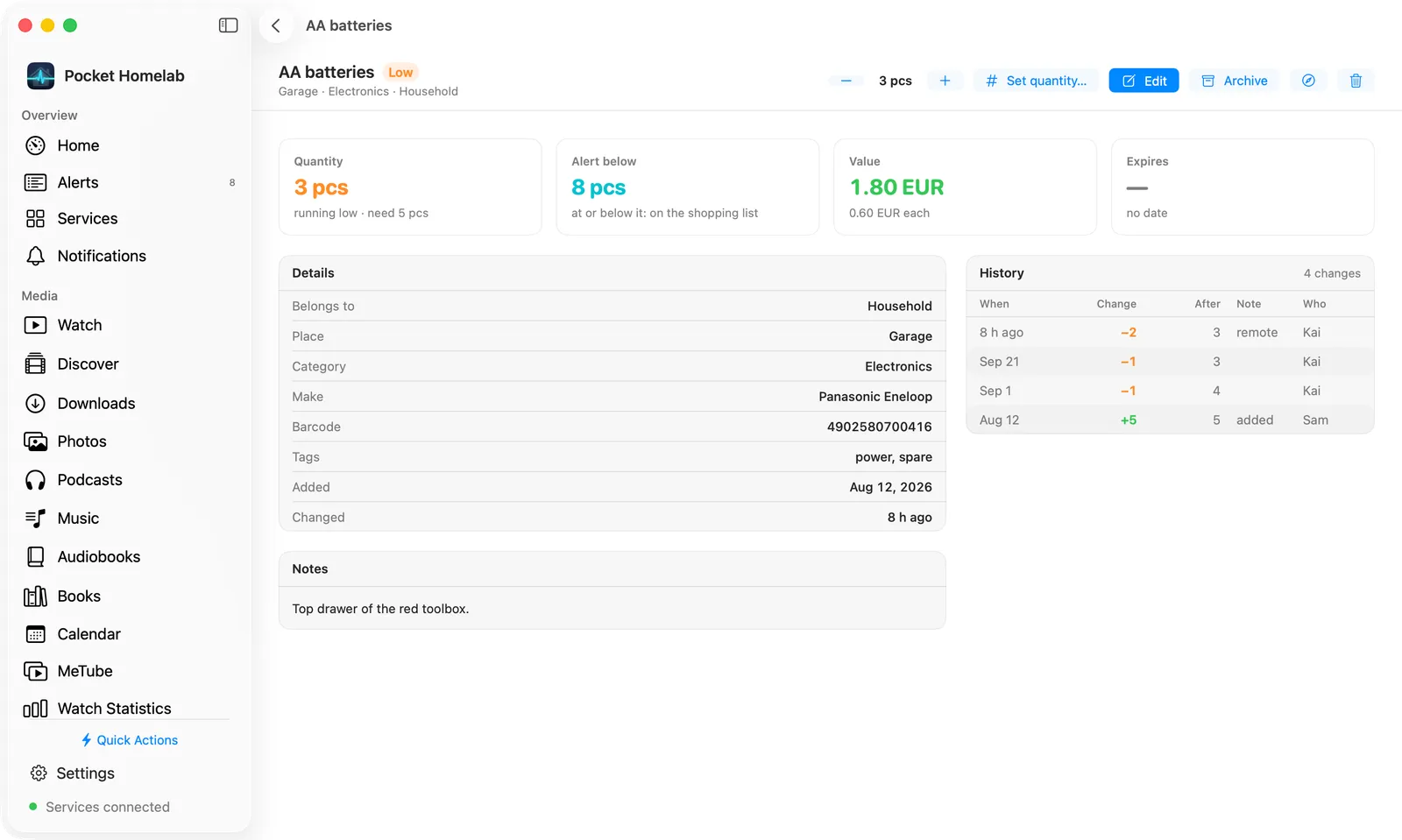
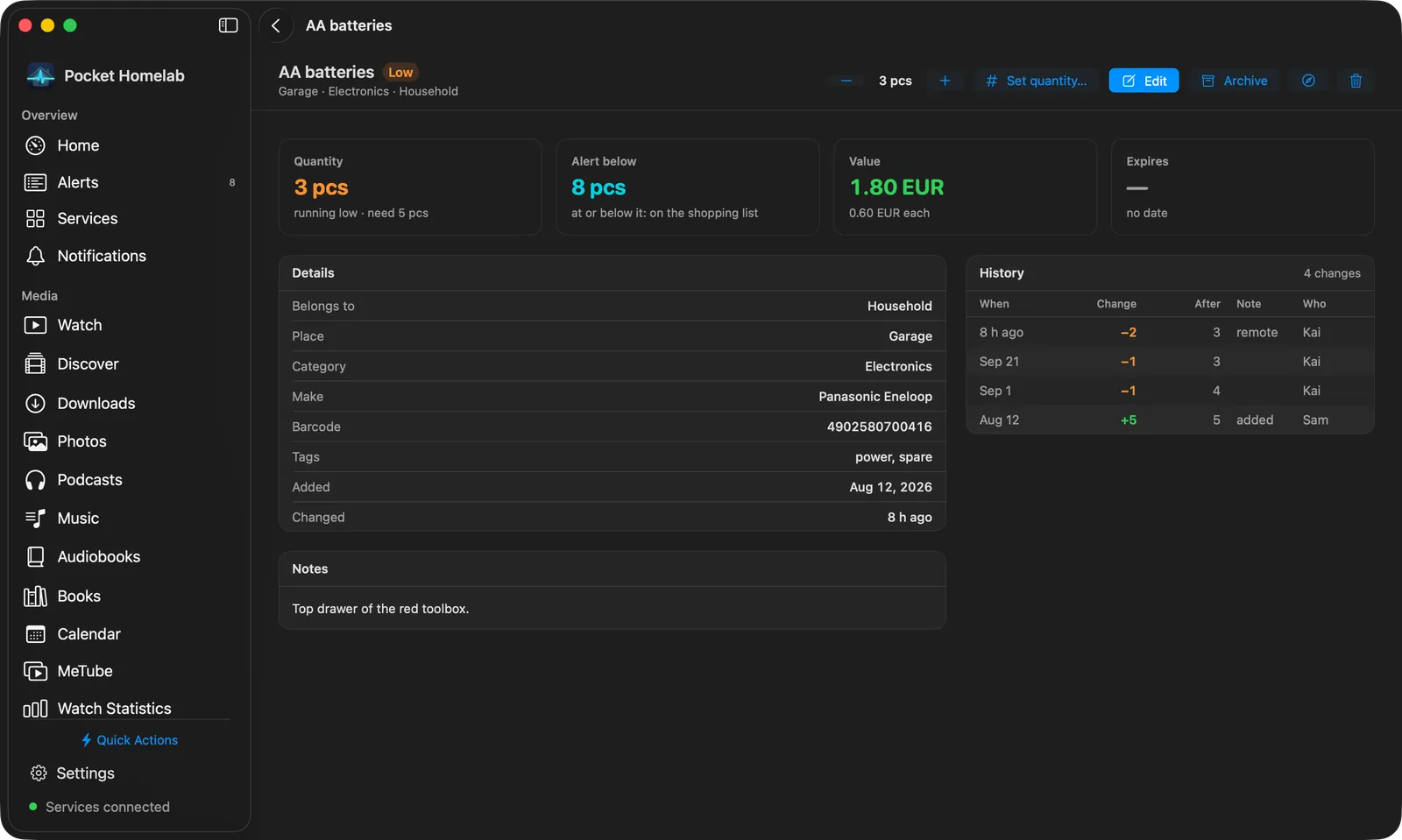
An item’s page has its photo, the quantity in large with − and + and Set quantity… (a number and a note, for a stock-take), the alert level and what it means right now (running low and how many are needed, expiring in so many days or expired), the details (whose it is, brand and model, serial, barcode, price and value, purchase and expiry dates, link, tags, notes), the history of every quantity change with who made it and when, and the actions: Edit, Archive (or Restore), Open in Pocket Inventory, Delete.
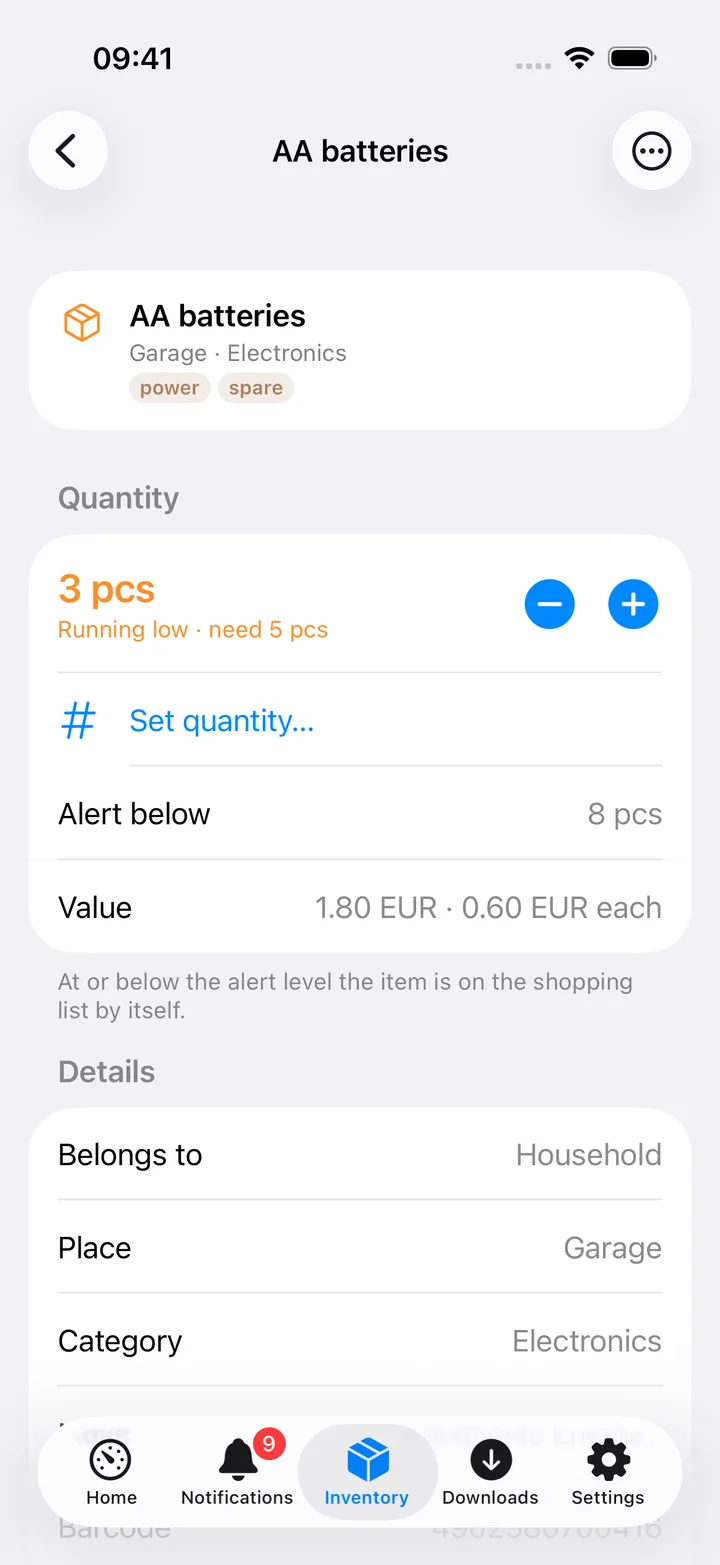
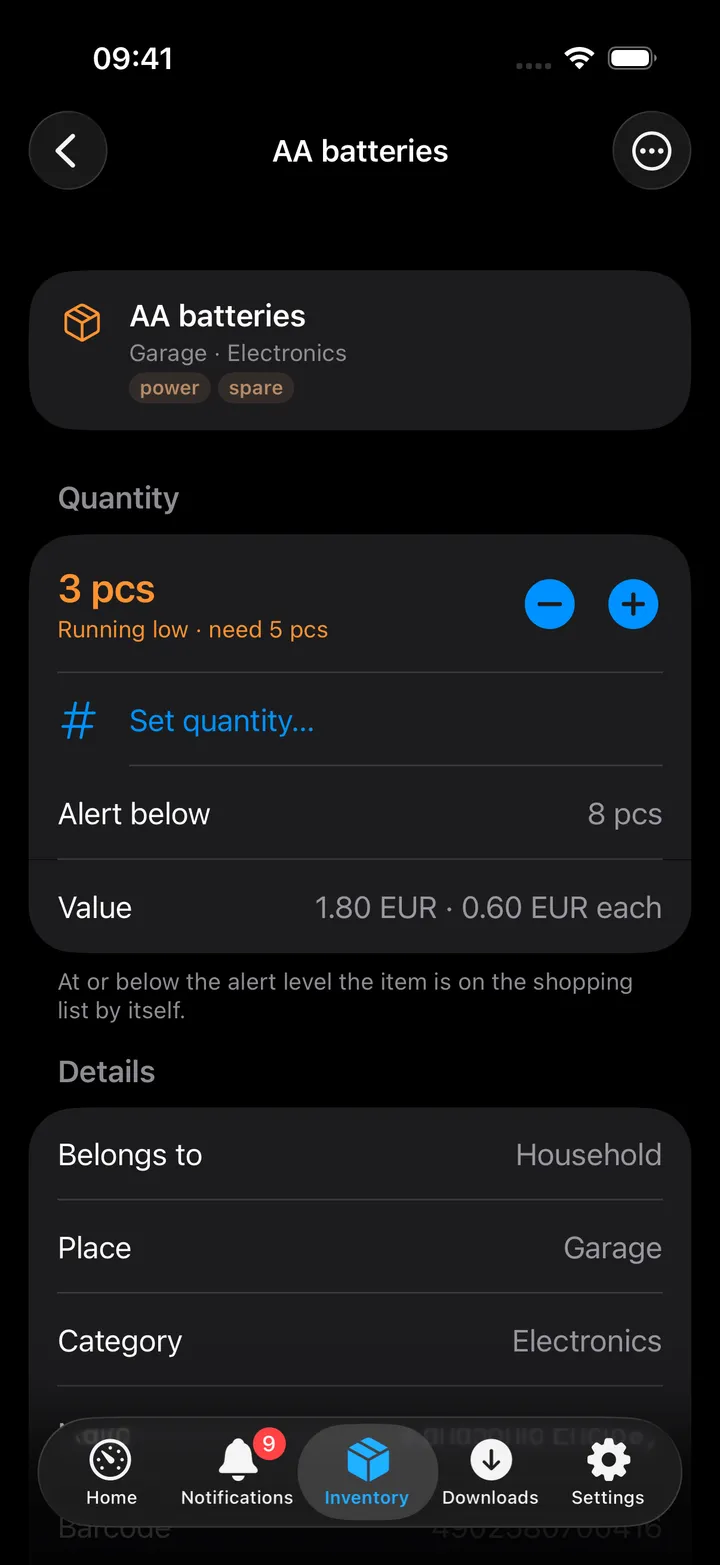
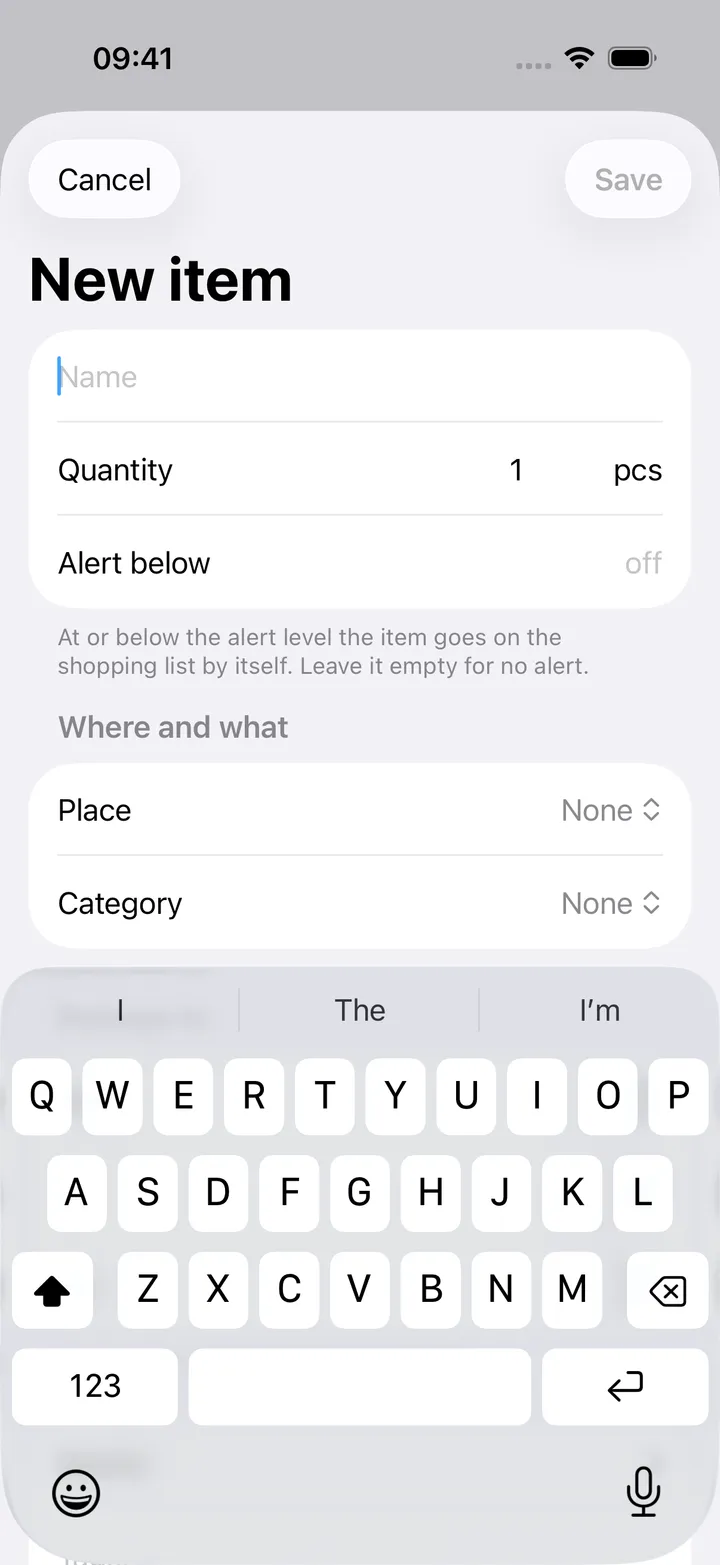
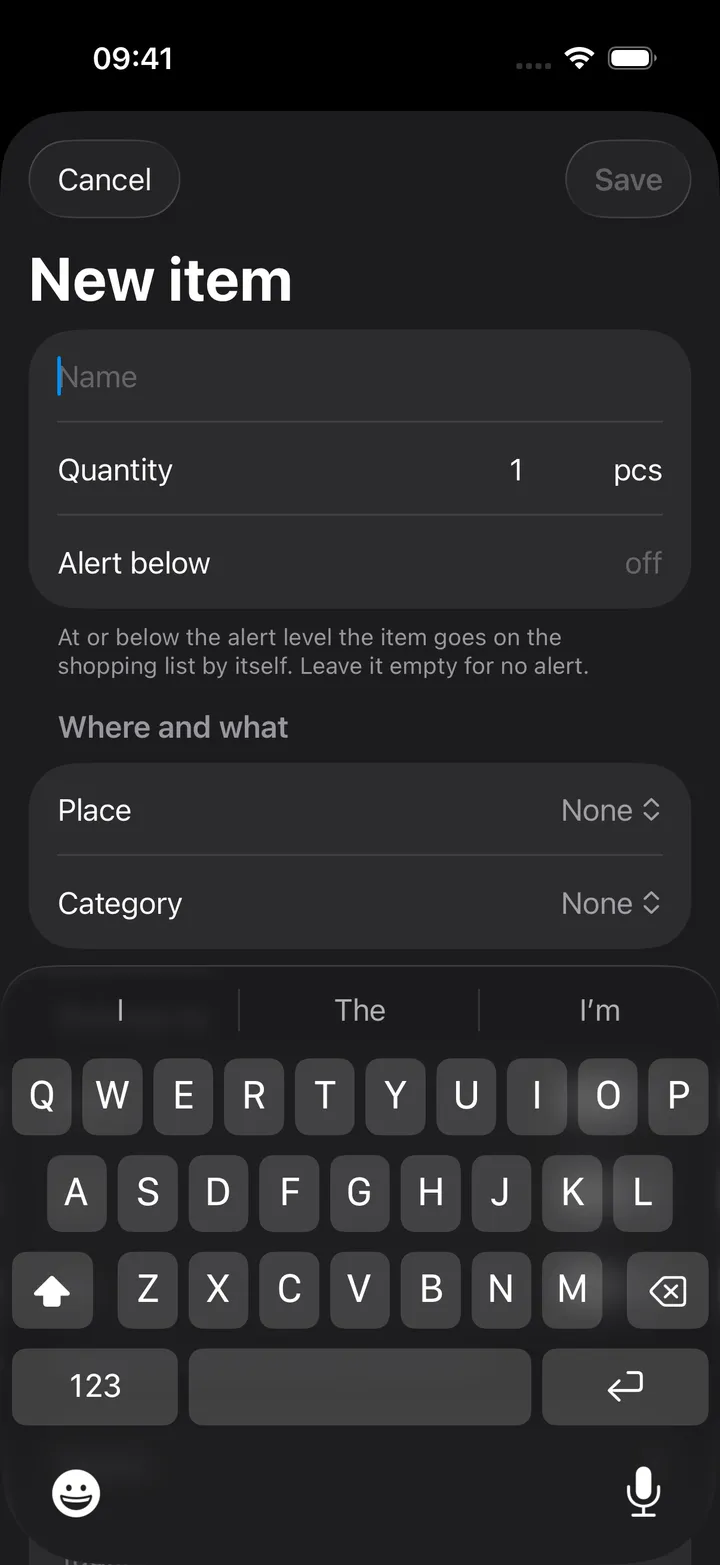
Edit (and + for a new item) is the full form: name, quantity with its unit, the alert level, the place and category pickers each with a New… choice that makes one on the spot, who it belongs to (nobody picked means the whole household), and the details folded away: brand, model, serial, barcode, price, purchase date, expiry or warranty date, link, tags and notes.
The shopping list
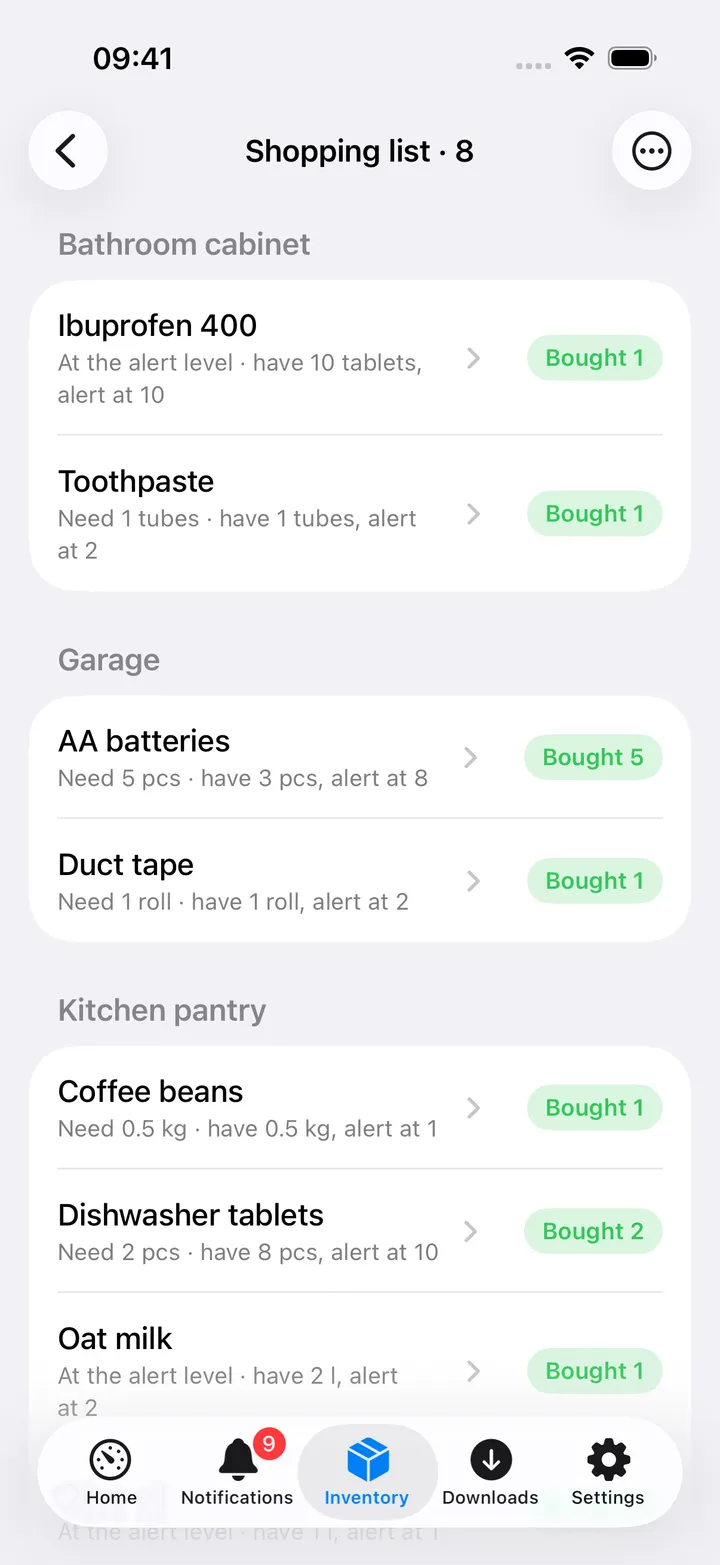
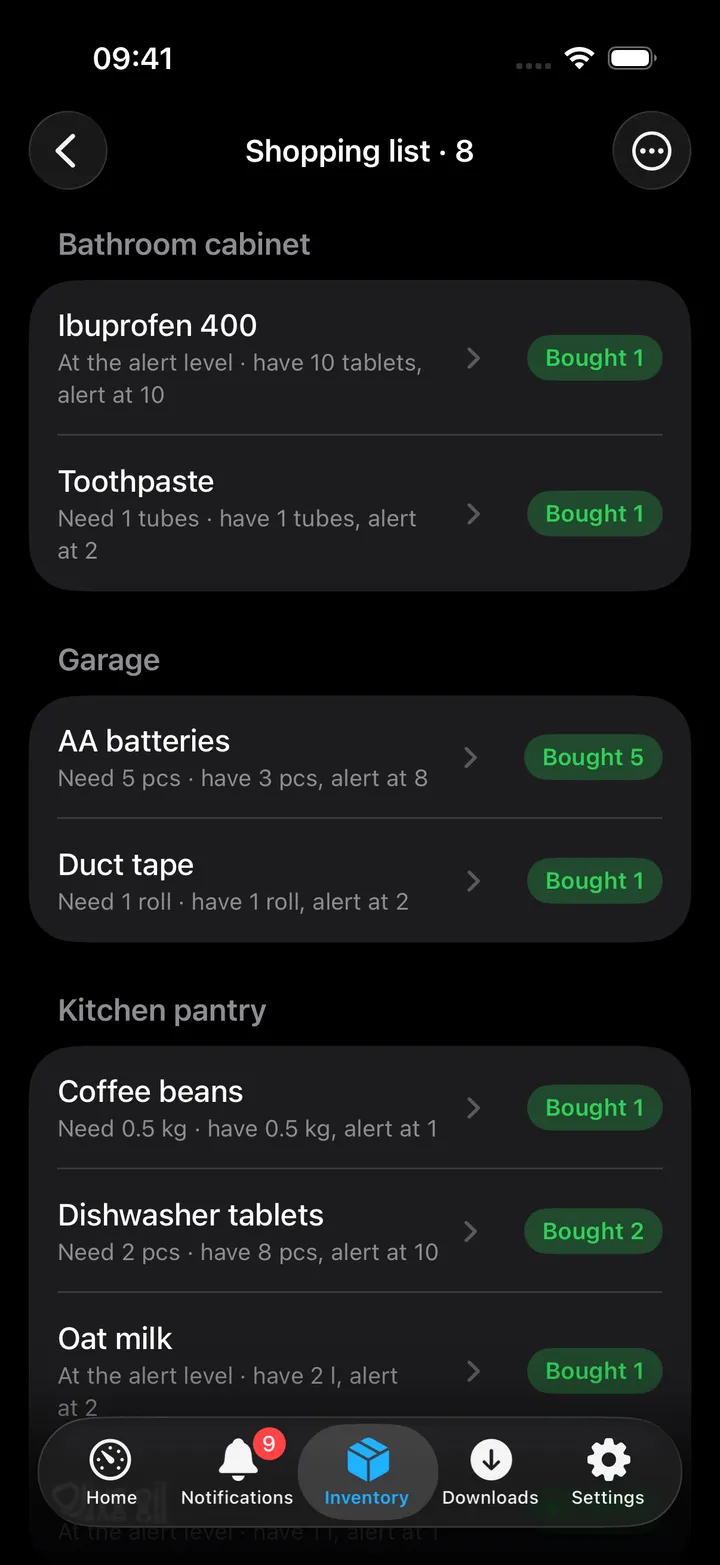
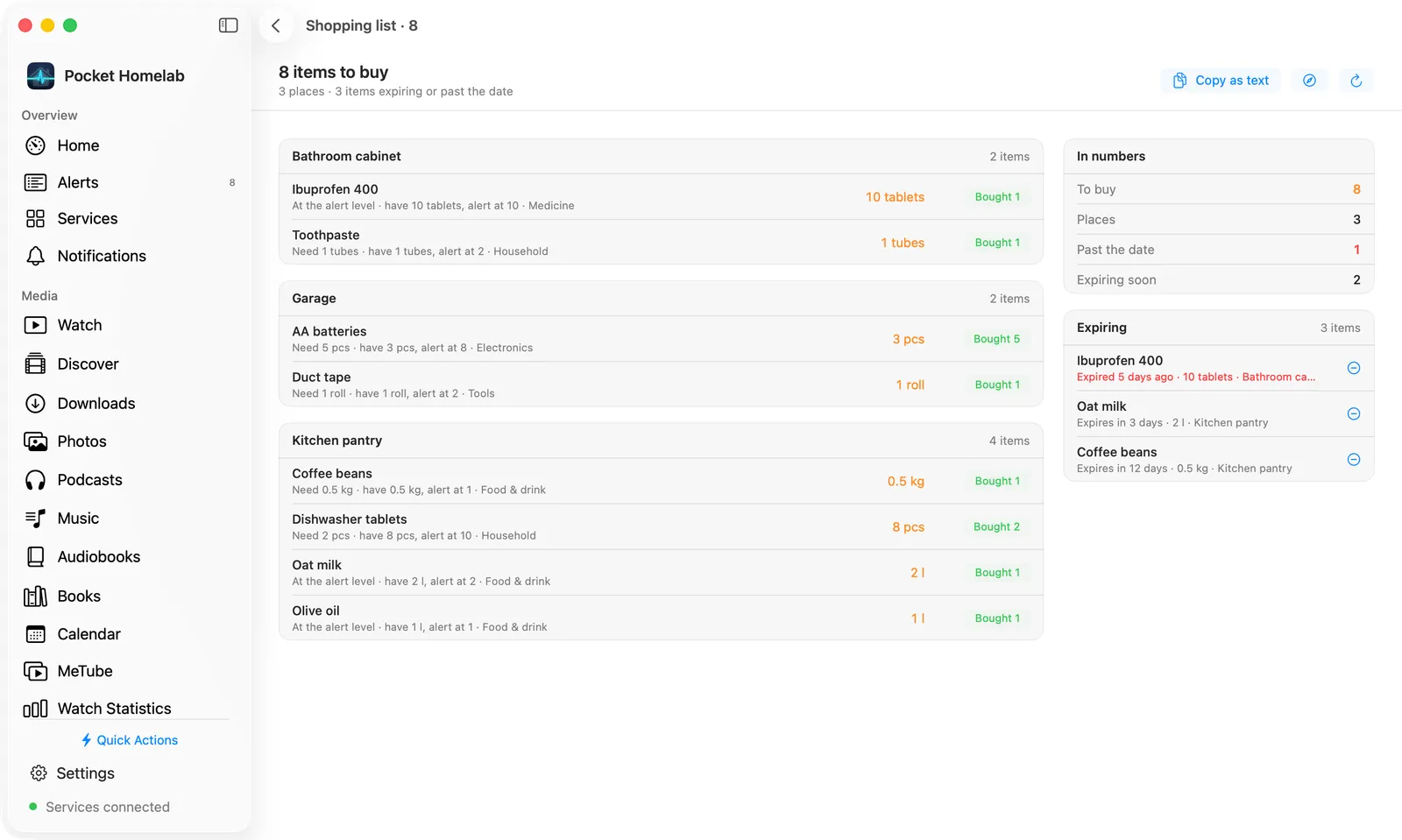
Shopping list (the cart in the toolbar) is everything at or below its alert level, grouped by place, each row with what it needs and a Bought button that adds what was missing and notes it as bought; the row leaves the list. Under it the items past or near their date, with a − to use one. Copy as text puts the list on the clipboard for a message. The quick action and the Home header carry the count.
Places, categories and activity
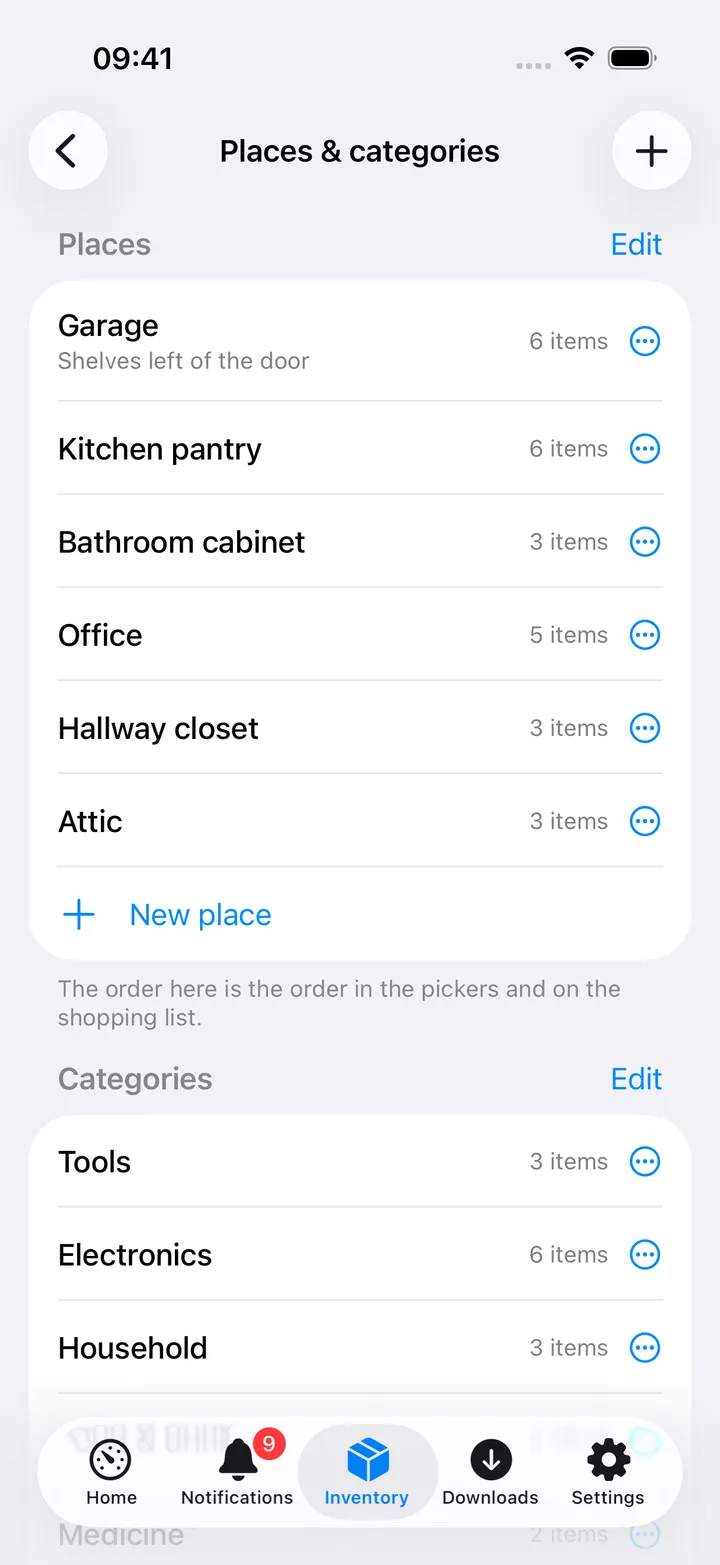
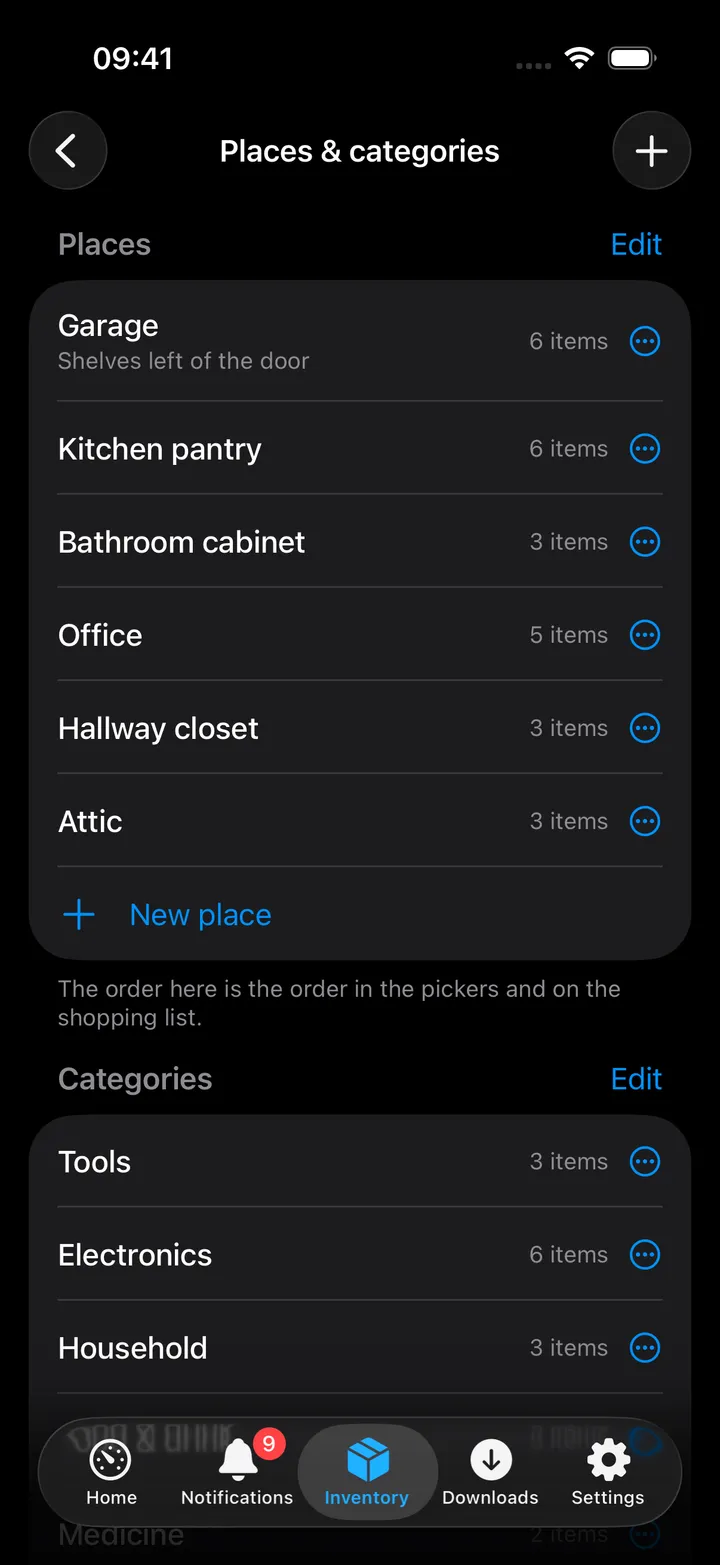
Places & categories (under ⋯) lists both with their item counts: Edit at the top of a section reorders the rows (the order in the pickers and on the shopping list), a ⋯ on every row has Rename and Delete (its items stay and only lose the place or category), and + adds one. Activity is the feed of every + and −, stock-take and addition across all items, with who did it and the note.
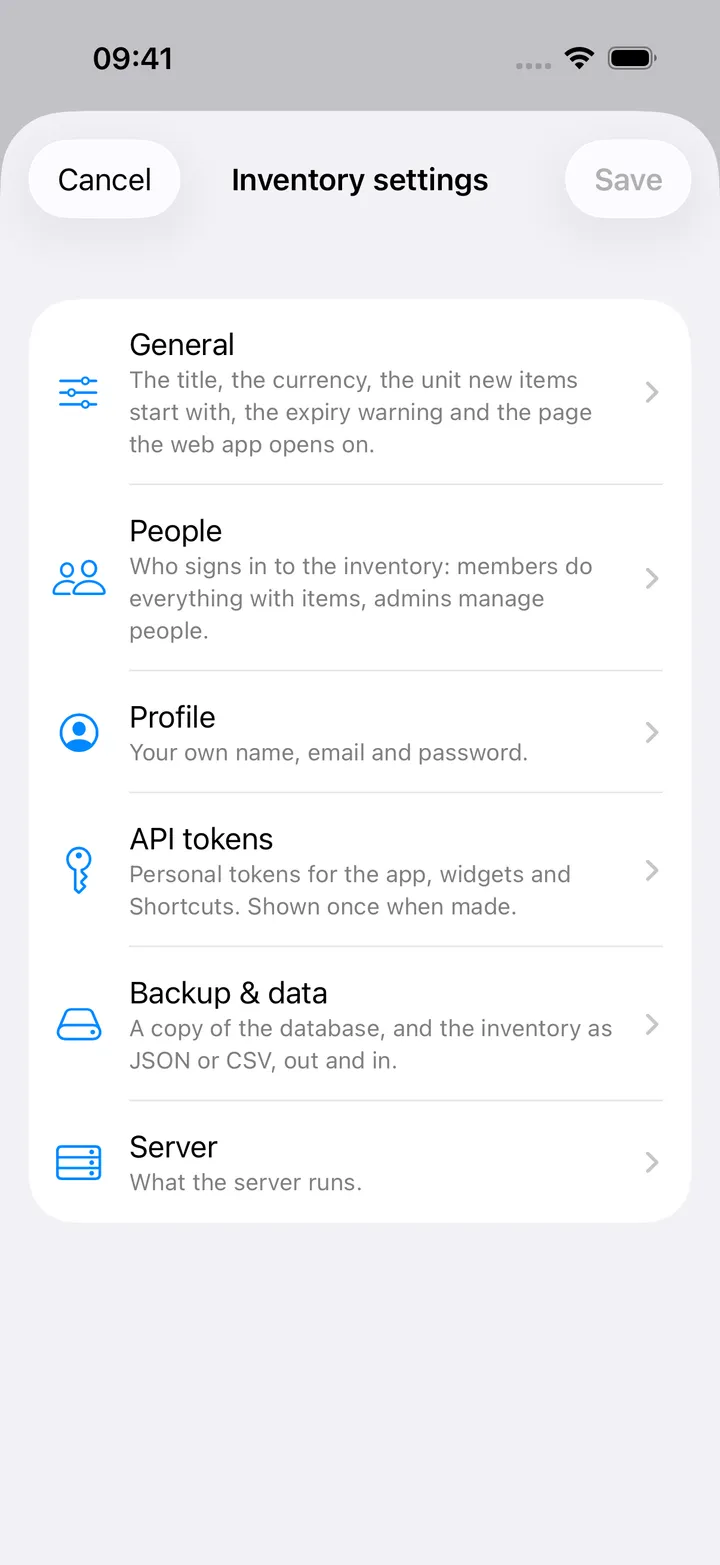
Inventory settings
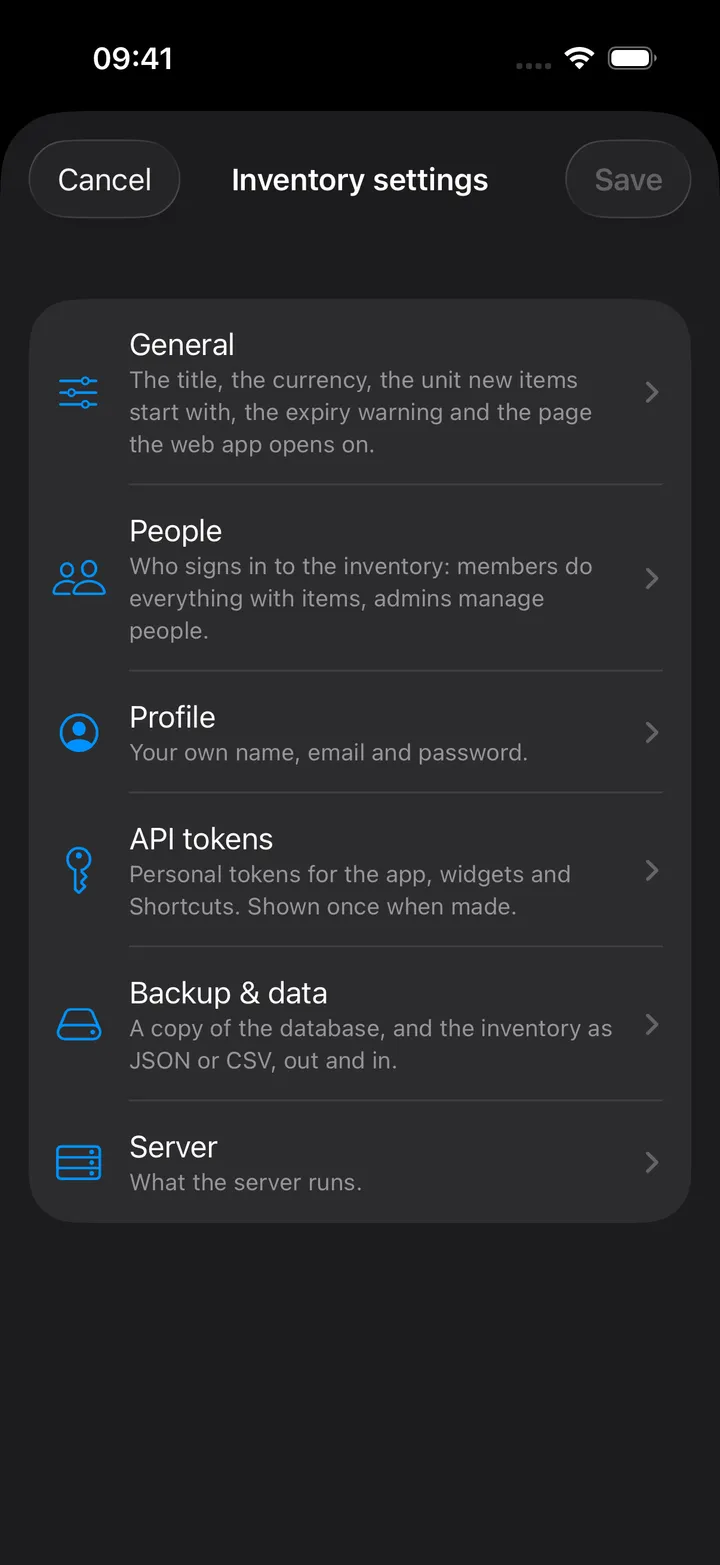
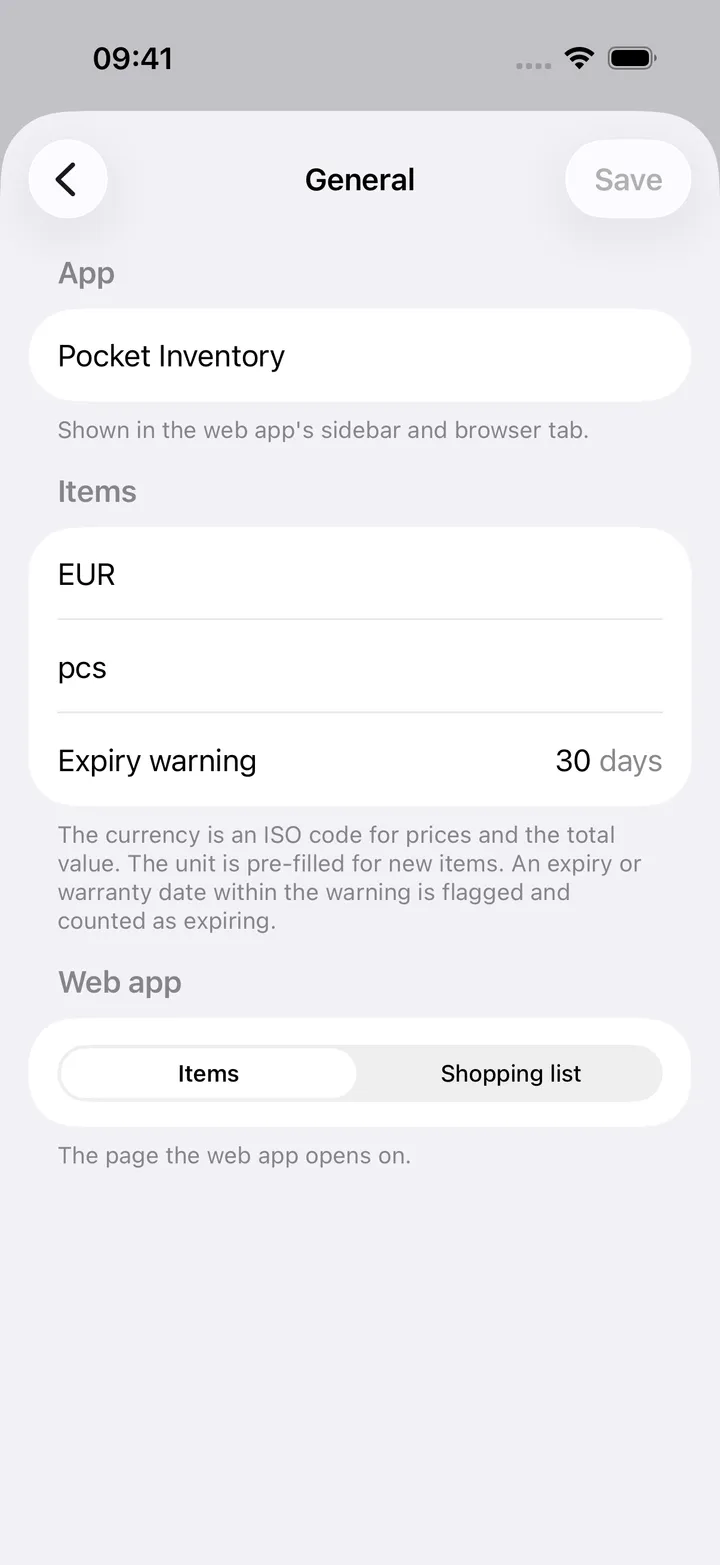
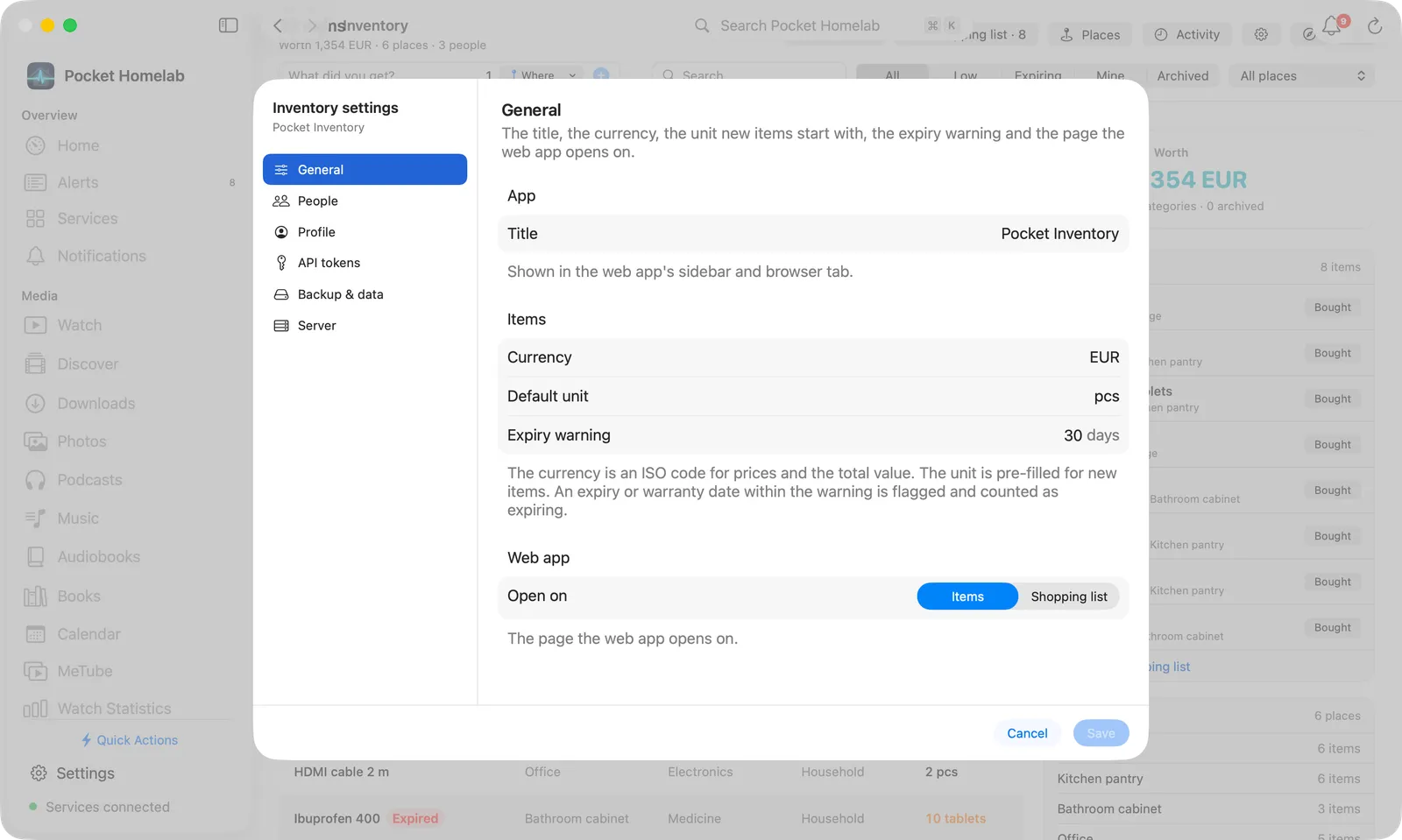
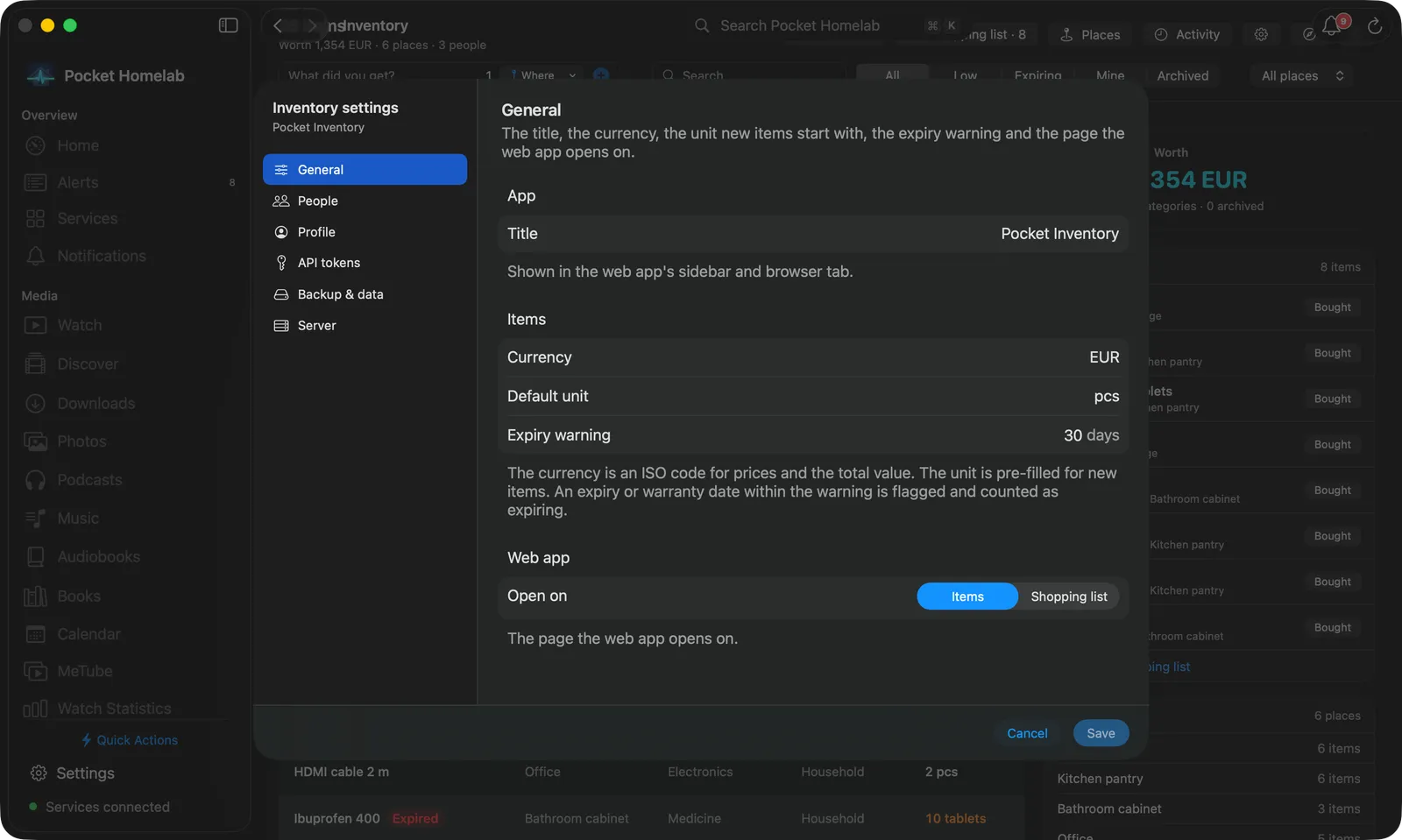
Inventory settings (under ⋯ on the iPhone, the gear in the Mac bar, and on the round button) edits the server’s own settings as the web app’s Settings tabs do, without opening the browser:
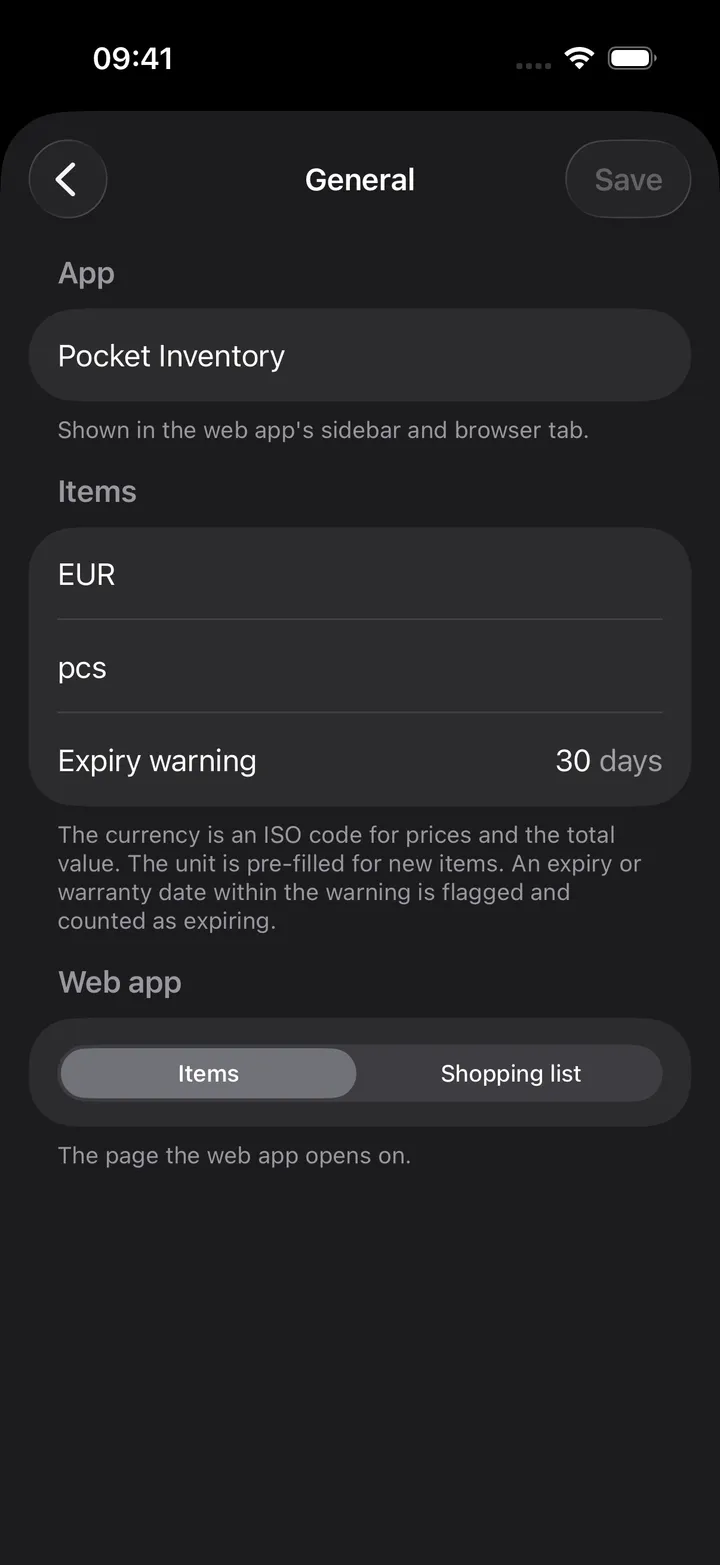
- General: the title, the currency prices are in, the unit new items start with, how many days ahead a date counts as expiring, and the page the web app opens on. Save sends them.
- People: who signs in to the inventory. An admin adds a person (name, email, password with local sign-in, member or admin), edits and removes them; members see the list.
- Profile: your own name, email and password.
- API tokens: make one (it is shown once, with Copy), see when each was last used, revoke one. The token the app itself uses is among them.
- Backup & data: download a consistent copy of the database, export the inventory as JSON or CSV, import a JSON export or a CSV (an import merges: places and categories by name, items by name and place).
- Server: what it runs, its time zone and uptime, the database and photo sizes, and the way to the web app.
On the Mac the sheet is a sidebar of pages and a form; on the iPhone a list of pages that push. On Android the same settings are a page under the Inventory tab, without backup and import.
On Home
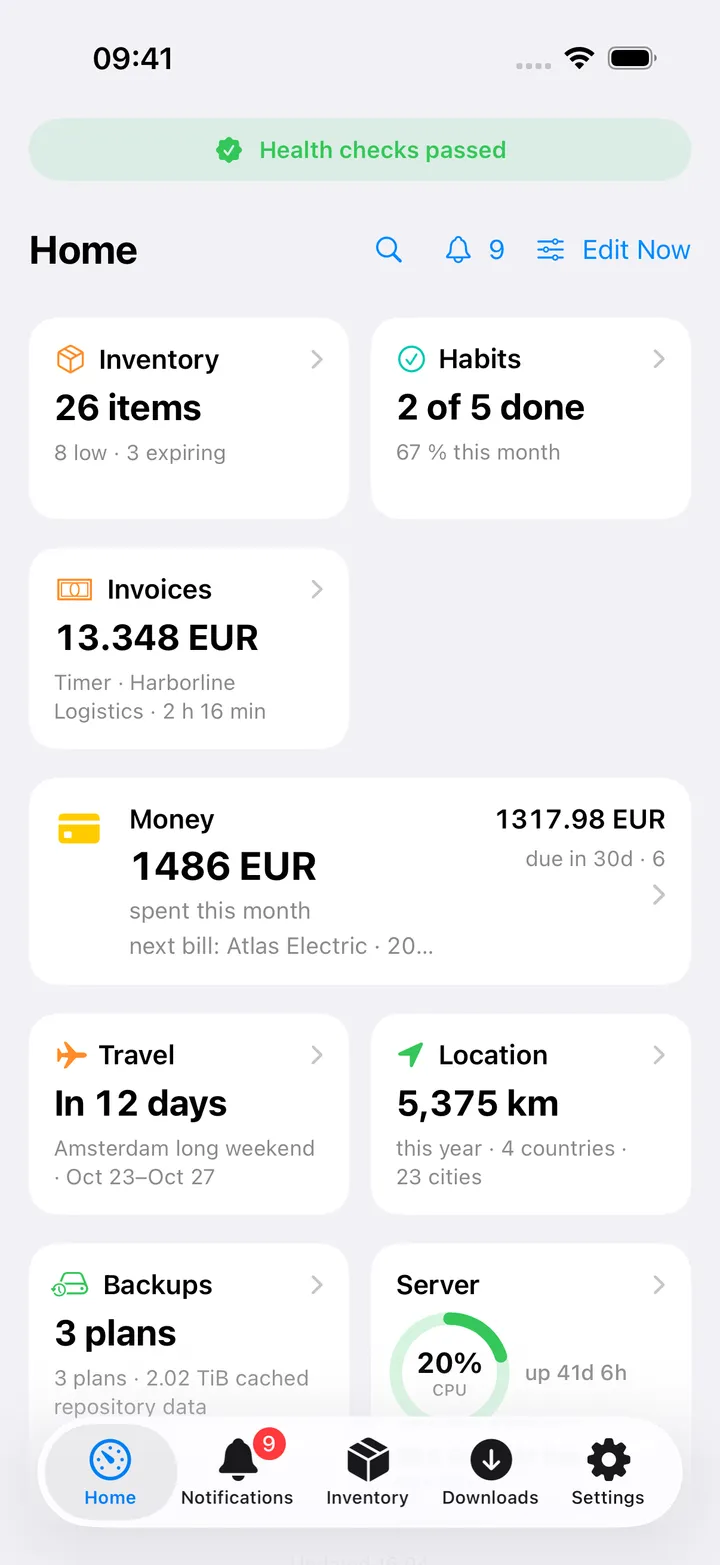
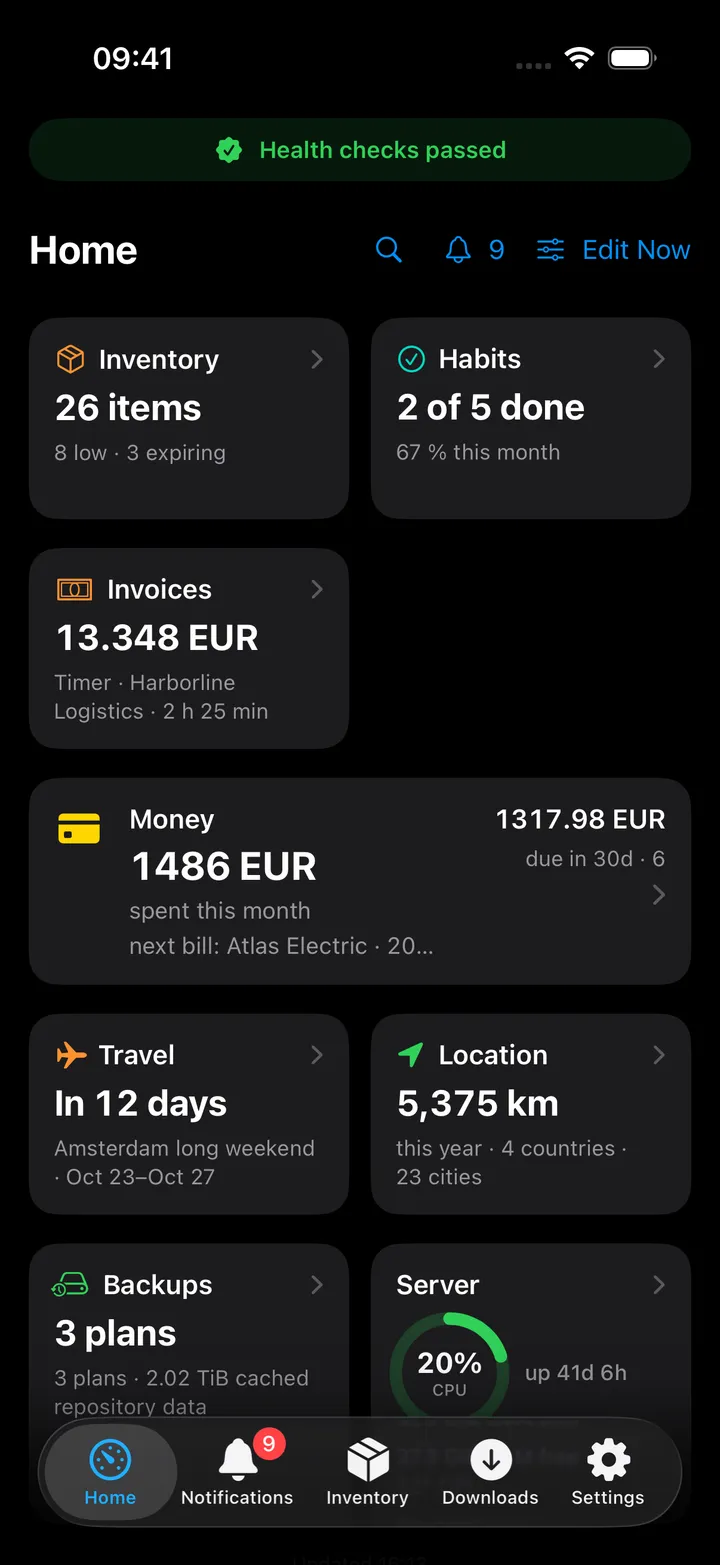
The Inventory card shows the number of items with what is low and expiring under it; its choices are Shopping list (how many to buy, with what is expiring) and Total value (with items and places). The Home header Shopping list says the same in one line and turns orange while something is running low. The Mac widget adds the value, the places and categories and what changed today.
The quick action Add to inventory (floating button, Shortcuts, ⌥⇧⌘I on the Mac) is a small sheet: name, how many, the unit, where and the alert level; the button shows how many items are running low.
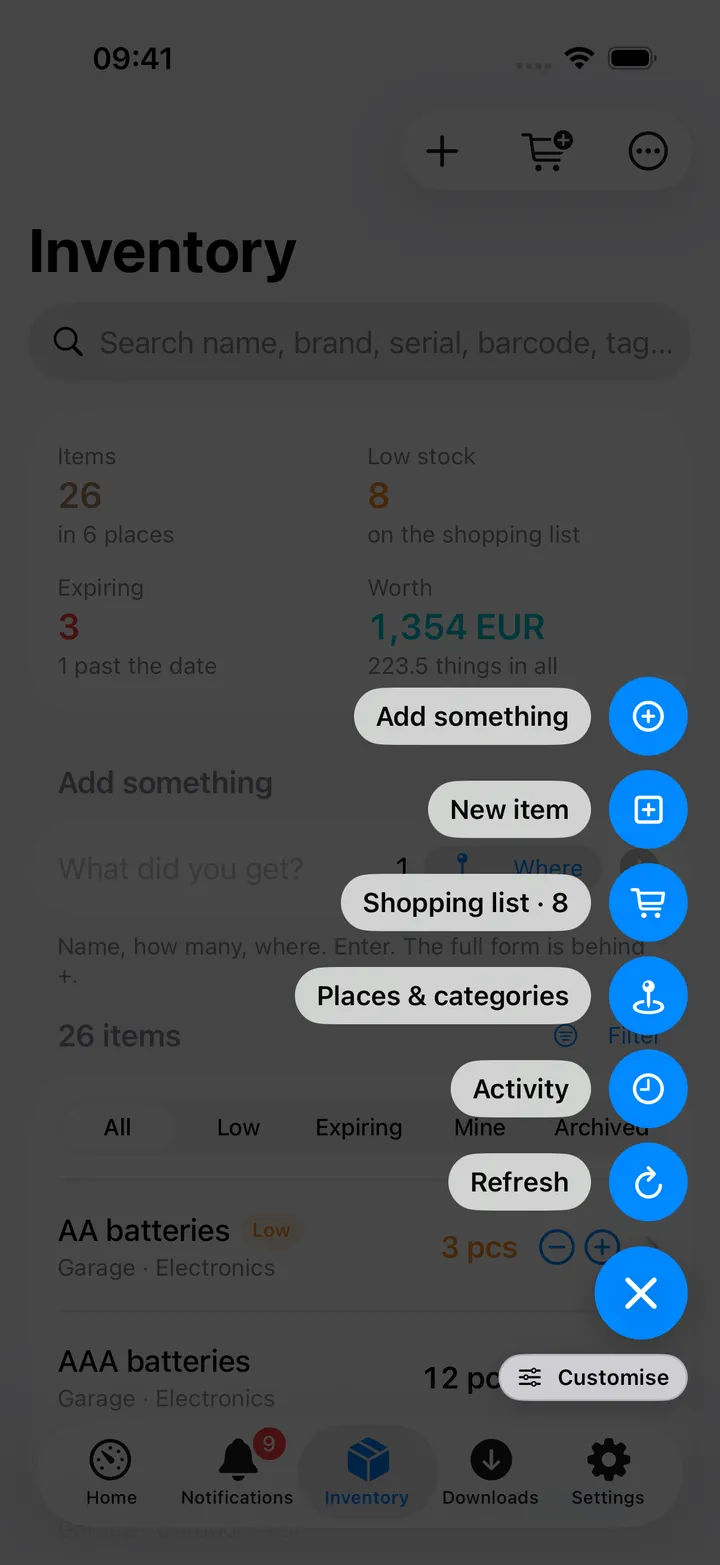
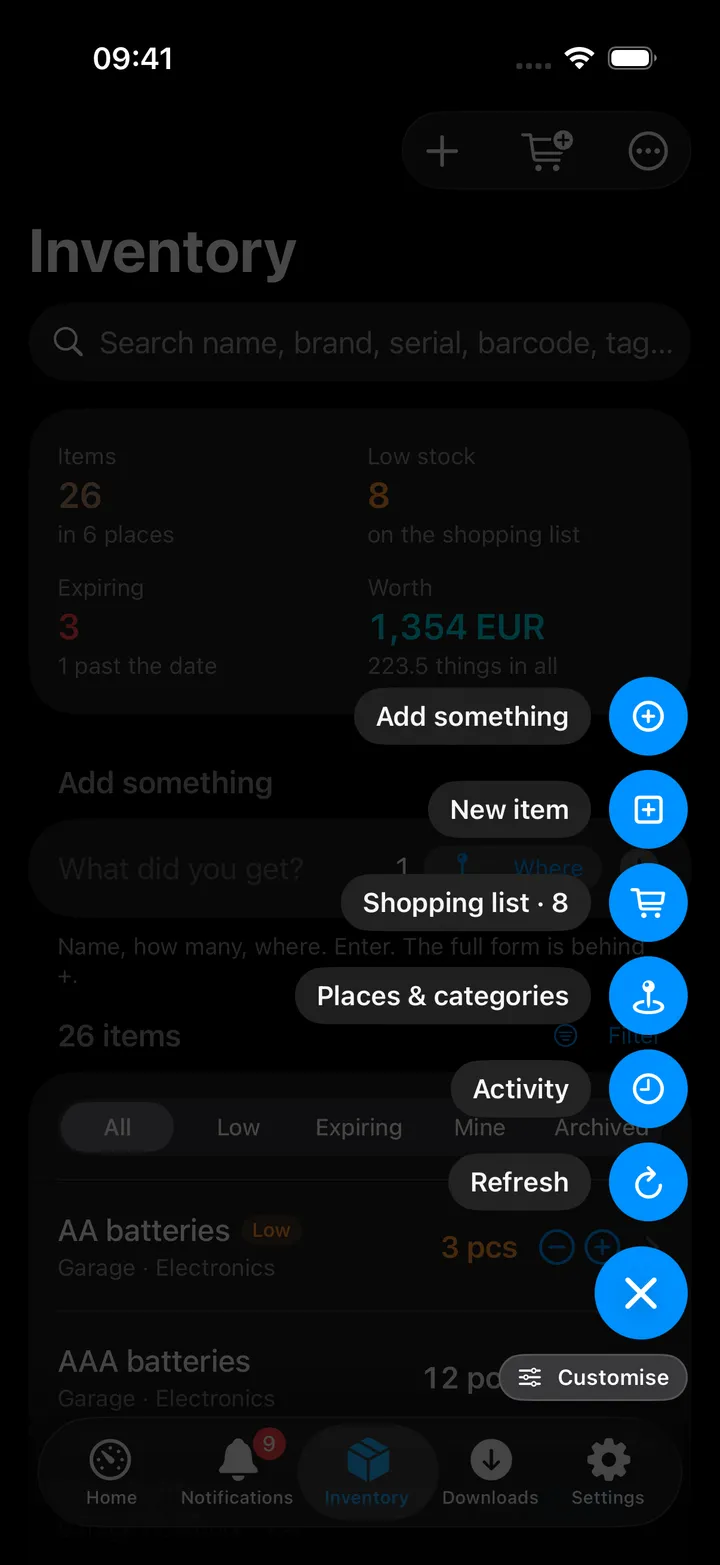
The round button beside the + on the Inventory tab opens the screen’s own menu: Add something, New item, the shopping list, Places & categories, Activity, Refresh, the five scopes, Inventory settings and the web app. Hold it to reorder the actions, as with the other round buttons; it is switched off under Settings → Round buttons.
On the Mac
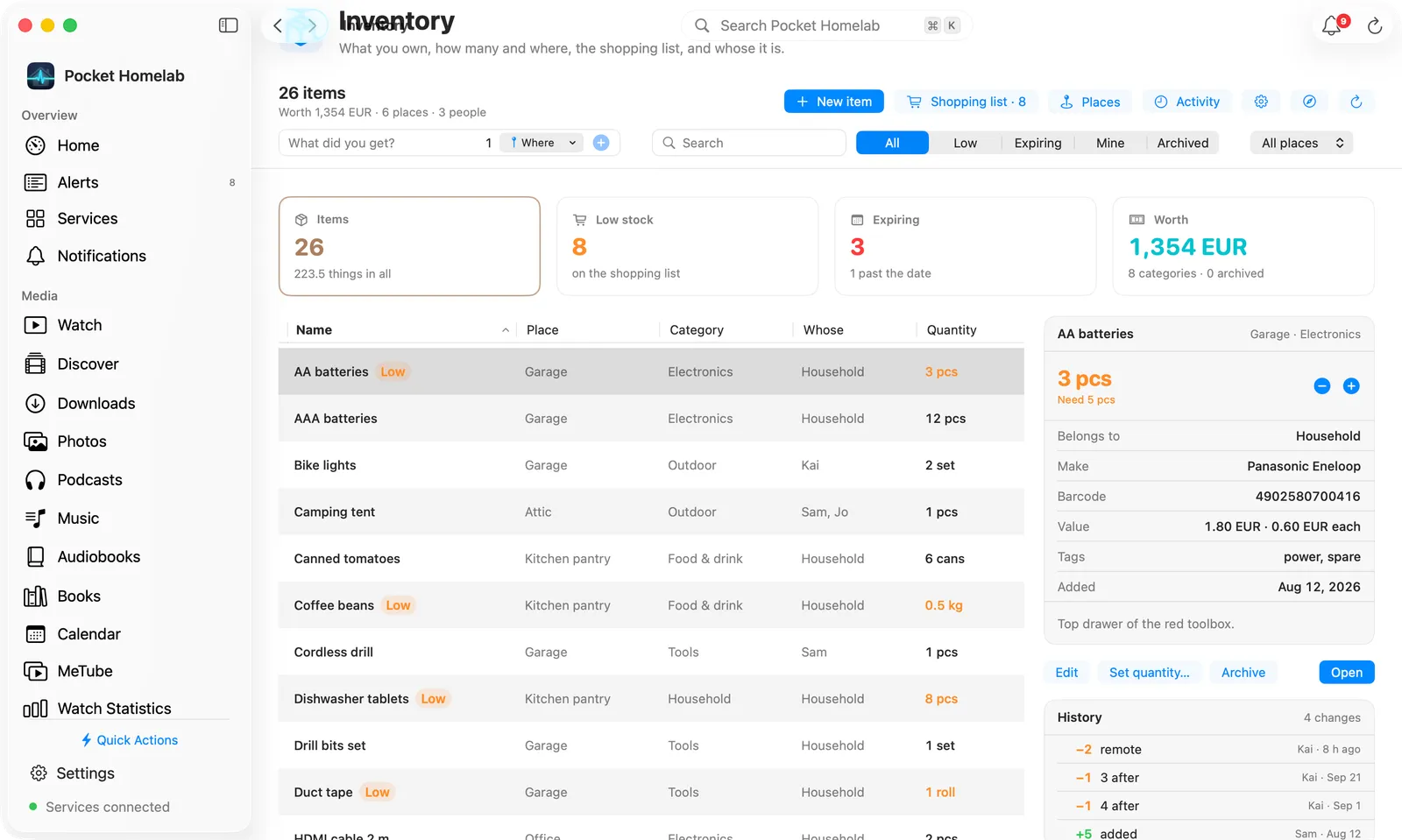
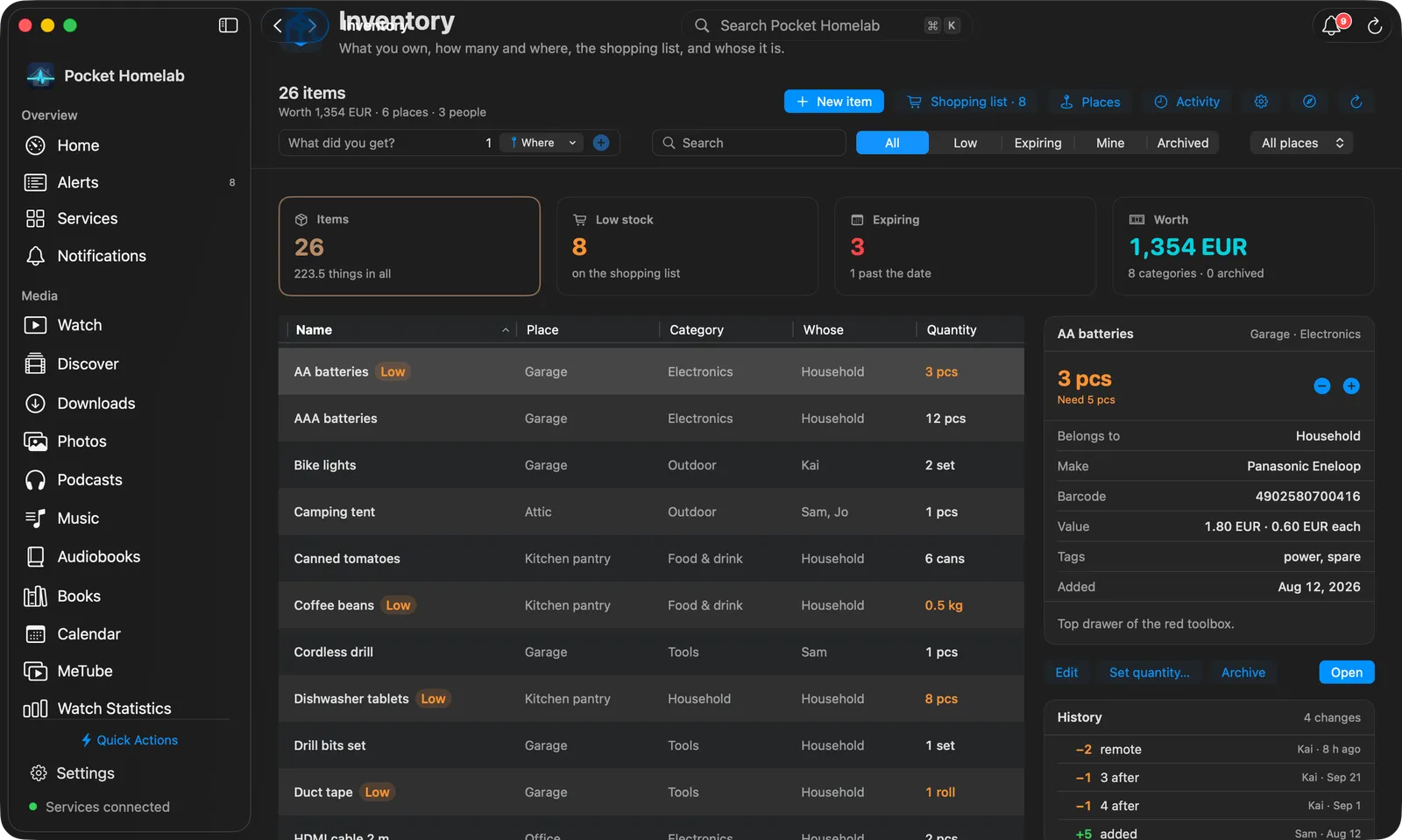
Inventory in the sidebar opens a workspace laid out for the desktop, in the Invoices page’s manner: a bar with the count and the value, New item, Shopping list, Places, Activity and the web app, then the quick add, search, the scope and the place; four figures that double as filters; the items as a sortable table with − and + in the quantity column and the alert, expiry and last change beside it; and at the right the selected item with its photo, quantity, facts, history and actions (a double-click or Open goes to its page), or the shopping list and the places while nothing is selected.
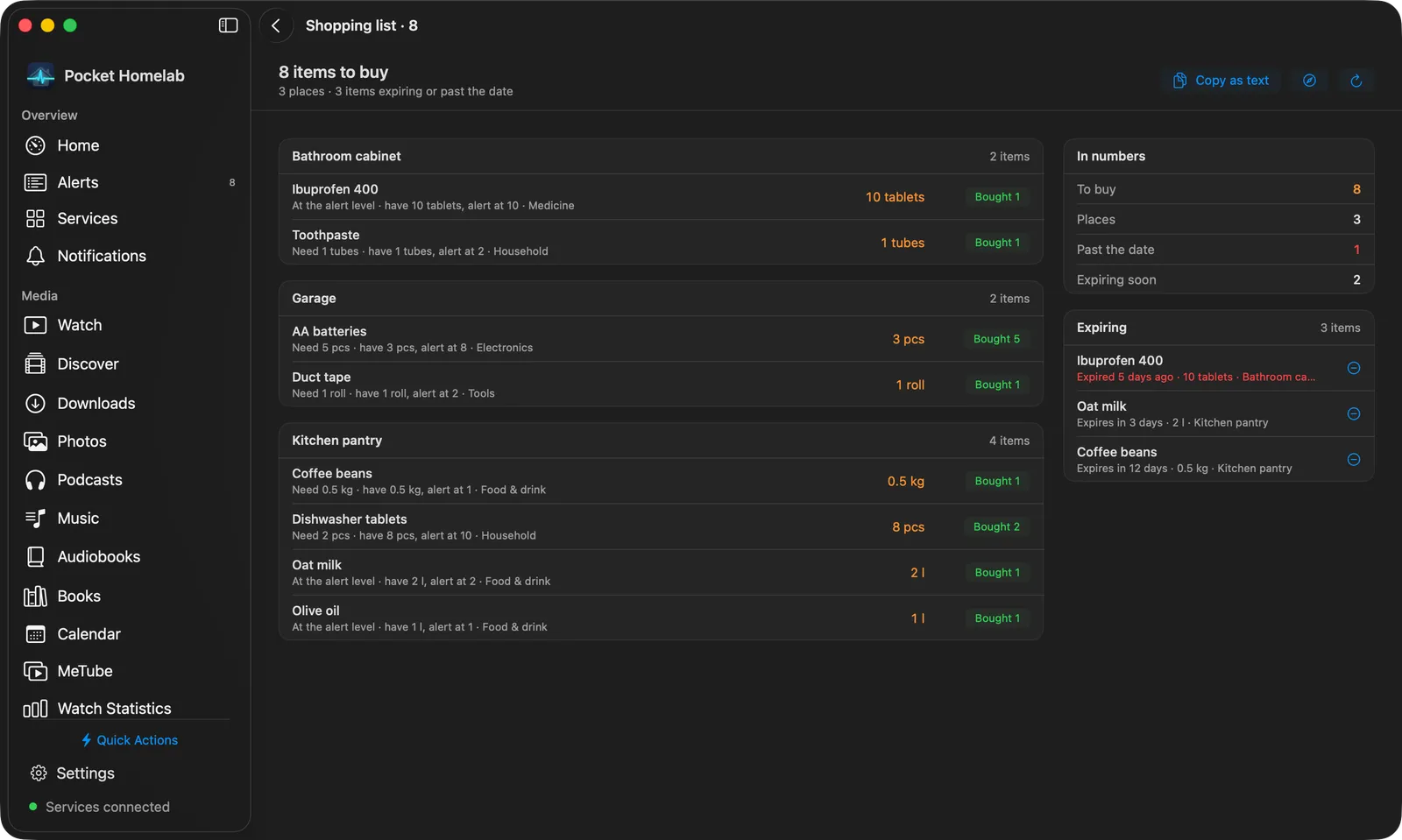
The pages behind it are desktop pages too: the shopping list as one panel per place with a Bought button on every row and the expiring items and the figures in a column at the right; Places & categories side by side, each row with its count and a ⋯, dragged onto another row to reorder; Activity as striped rows; and an item’s page with the quantity controls and actions in the bar, the figures as cards, the details and notes at the left and the photo and history at the right.
On Android
The same figures, quick add, scopes and place filter, the items with − and +, the item page with the editor and Set quantity, the shopping list with Bought, the places and categories (rename and delete; the order is changed in the web app) and the activity feed.
API
The app uses the server’s /api/v1 with the token in an Authorization: Bearer header: GET /dashboard,
/items with its filters and sort, /items/{id}, /shopping, /activity, /tags, /locations,
/categories, /users and /settings to read; POST /items, PUT /items/{id}, POST /items/{id}/adjust,
/archive and /unarchive, DELETE /items/{id} to write; and the place and category endpoints to manage them. A
photo is fetched with the token in the header. Nothing is kept on the device.
Tips & troubleshooting
- Test connection says 401: the token must be an API token from Settings → API tokens (
pi_…), not your password. A deleted token stops at once. - An item is not on the shopping list: its alert level is off (0). Set Alert below in the editor; at or below it the item appears by itself.
- “Expiring” counts something I did not expect: the server’s
TZdecides what today is, and Settings → Expiry warning in the web app sets how many days ahead it looks. - Photos: taken and uploaded in the web app; the app shows them.
- Barcodes: the server’s
GET /lookup?barcode=is made for a scanner Shortcut (see its README); the app searches barcodes in the list.