
Pocket Invoicing
Your invoicing from Pocket Invoicing: what clients owe on the Home dashboard, the work timer, open, overdue and paid invoices with their lines and payments, and marking paid, recording a payment or emailing an invoice from the phone or the Mac.
iPhoneMacOn this page
Pocket Invoicing is a free, open-source (MIT), self-hosted invoicing app for freelancers and one-person businesses: one Go binary and one SQLite file, with clients in their own currencies, time tracking, recurring invoices, PDFs, share links for clients and a REST API. It is made by the author of Pocket Homelab as its invoicing companion. Pocket Homelab shows what you are owed and what you have tracked, and does the everyday work from the phone or the Mac: it creates and edits invoices, clients and time entries, records payments and emails invoices. Invoice templates, custom fields, the mail server, the logo, the Paperless connection and API tokens stay in the web app.
Install Pocket Invoicing
If you do not run it yet, the project on GitHub has the setup for Docker, Unraid, Kubernetes and bare metal. The shortest way is the container:
docker run -d --name pocket-invoicing -p 8080:8080 -v $PWD/data:/data \
  -e BASE_URL=https://invoices.example.com \
  ghcr.io/abjelosevic88/pocket-homelab-invoicing:latest
Open it in a browser, create your account in the first-run wizard and add your company under Settings. Its README covers the configuration, reverse proxies, PDF templates and backups.
What you get
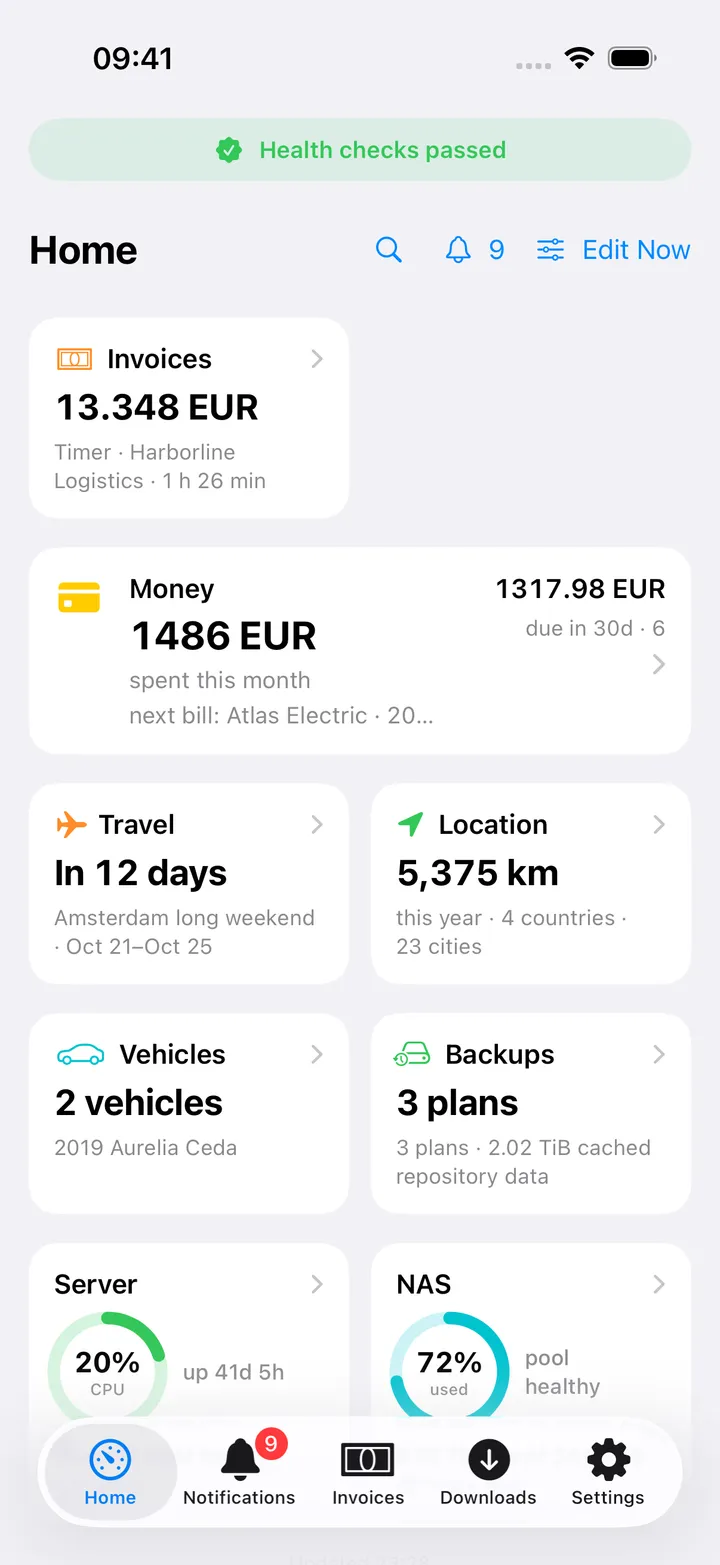
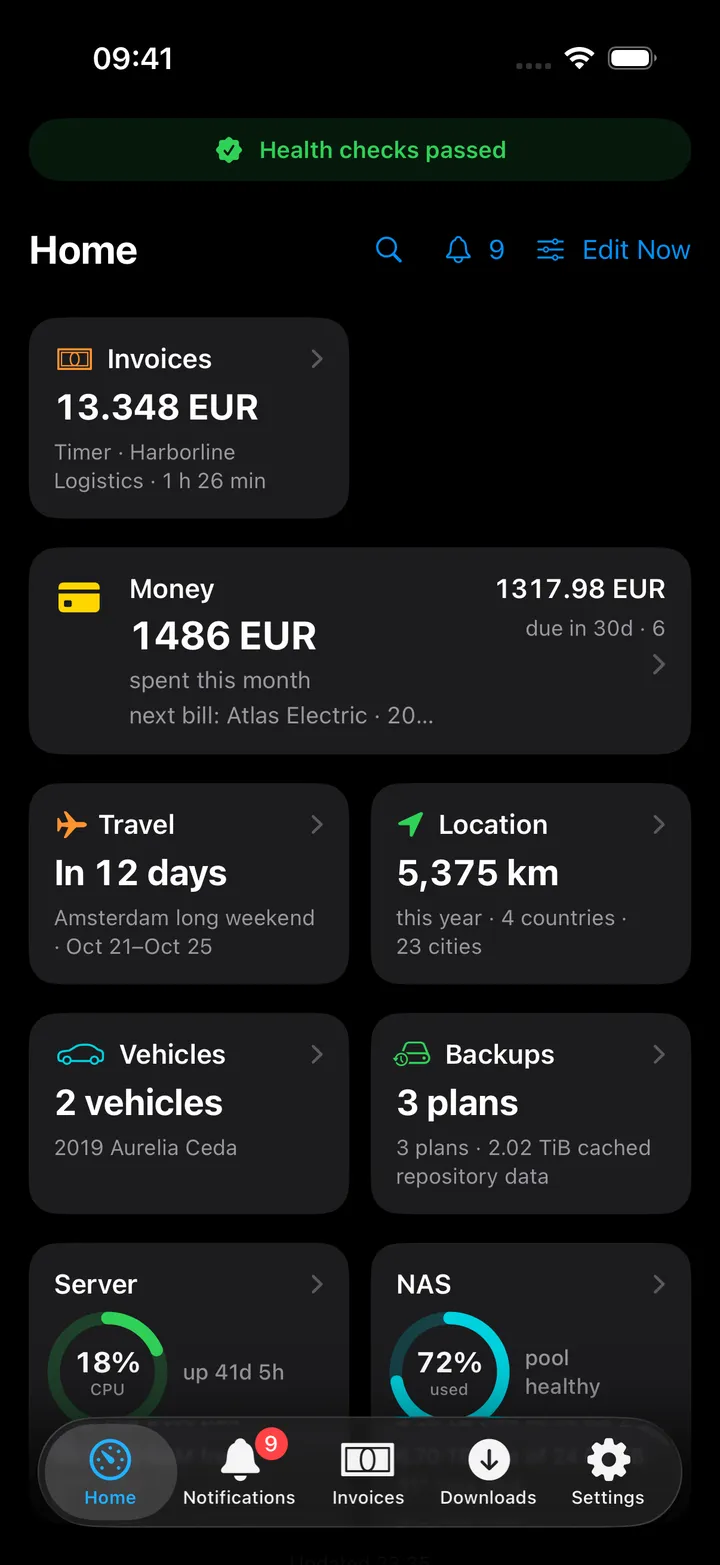
- Home tile “Invoices” (teal banknote, orange while something is overdue): what clients owe you in your base currency, with the number of open and overdue invoices, or the running timer with its client and time.
- Home header option “Outstanding invoices”: what is overdue and owed, or the running timer while one runs.
- Show on this card (in Settings → Home layout) switches the tile between Outstanding, Overdue and Paid this month (with the year so far).
- An Invoices tab (off by default; Settings → Tabs) and a Spotlight entry “Invoices”.
- Mac: Invoices in the sidebar under Workspace, laid out for the desktop: the figures as cards that filter the list, the invoices as a sortable table, and an inspector with the selected invoice and its actions (or the timer, the last 12 months and the recurring runs); and an Invoices widget for Home with what is outstanding, overdue, paid this month and this year and the time not billed yet, and, when it is wide, the overdue invoices.
- Android: the same Invoices tab. See Home and tabs.
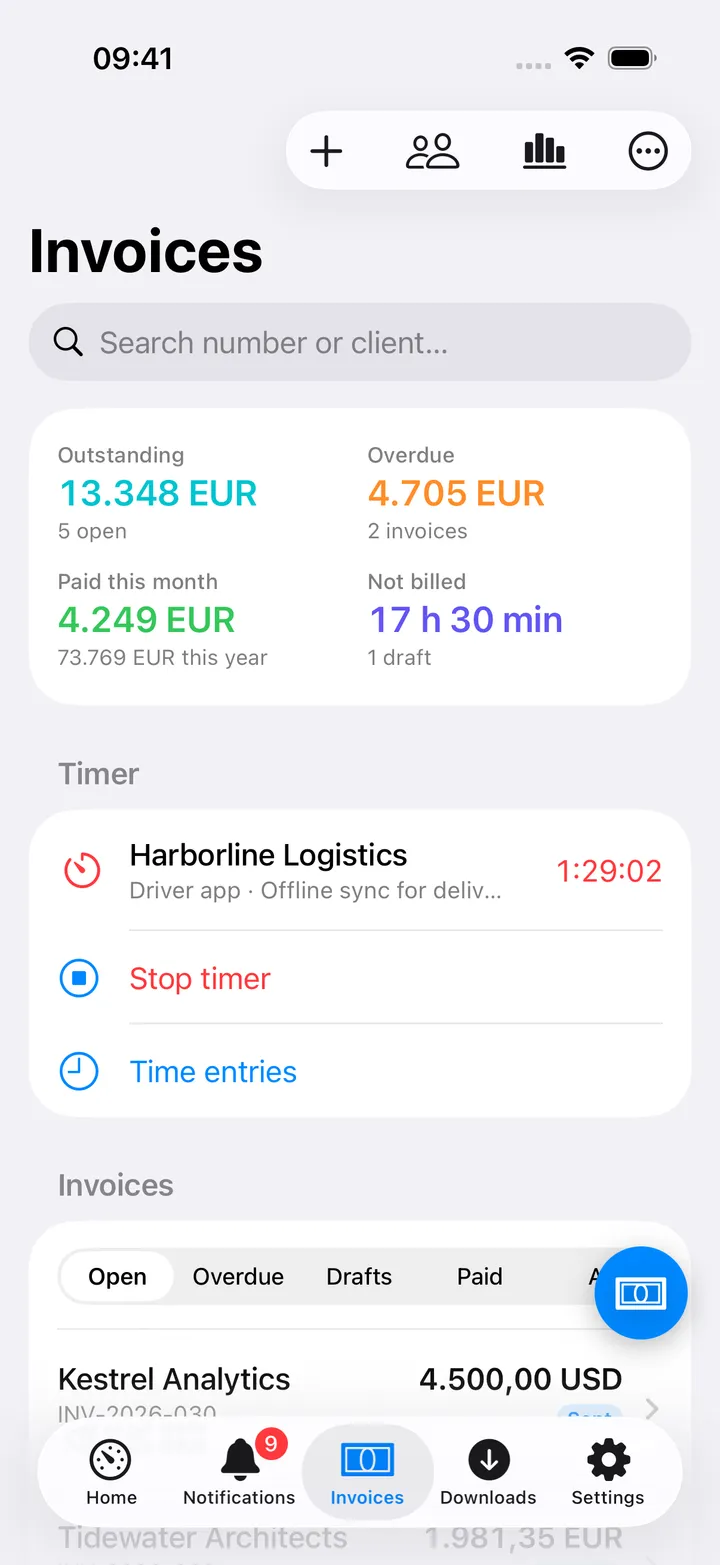
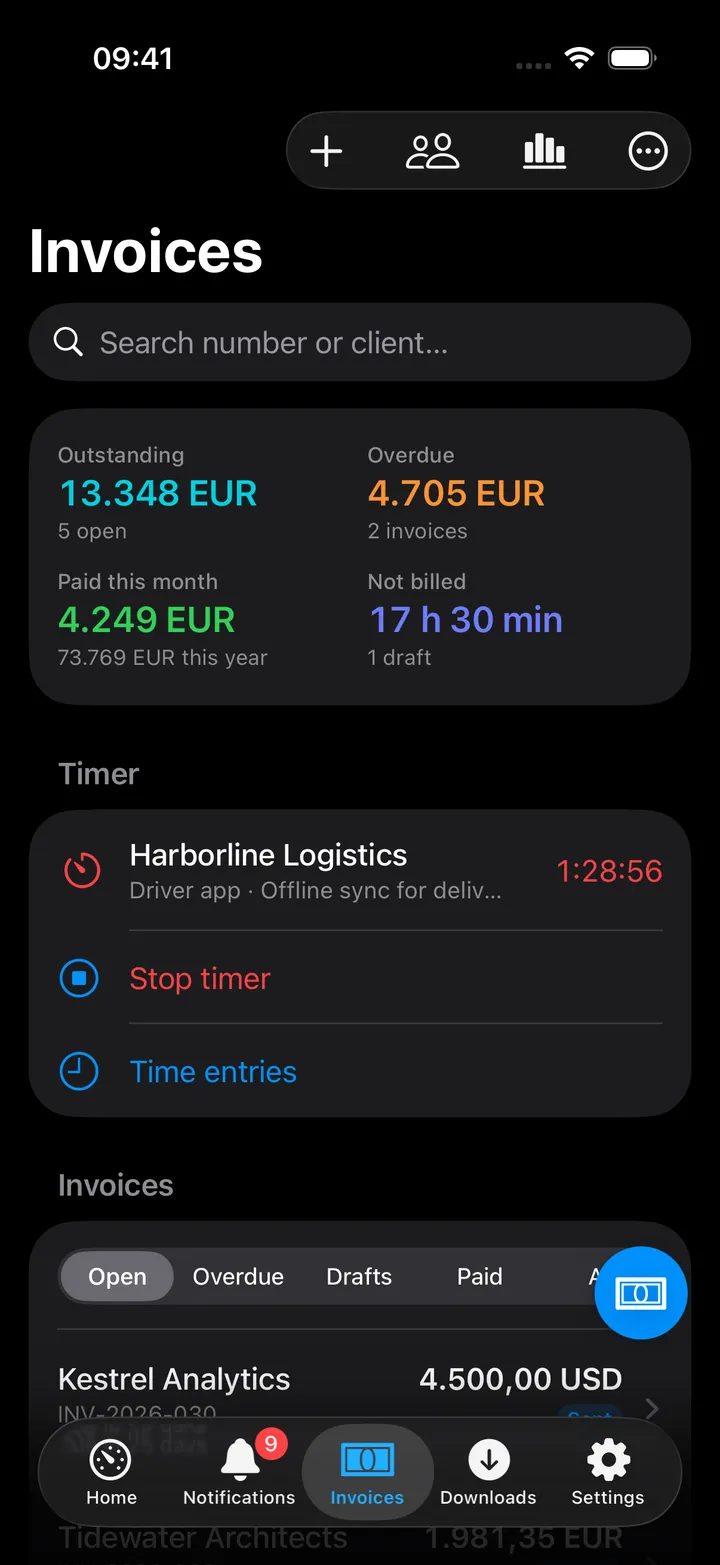
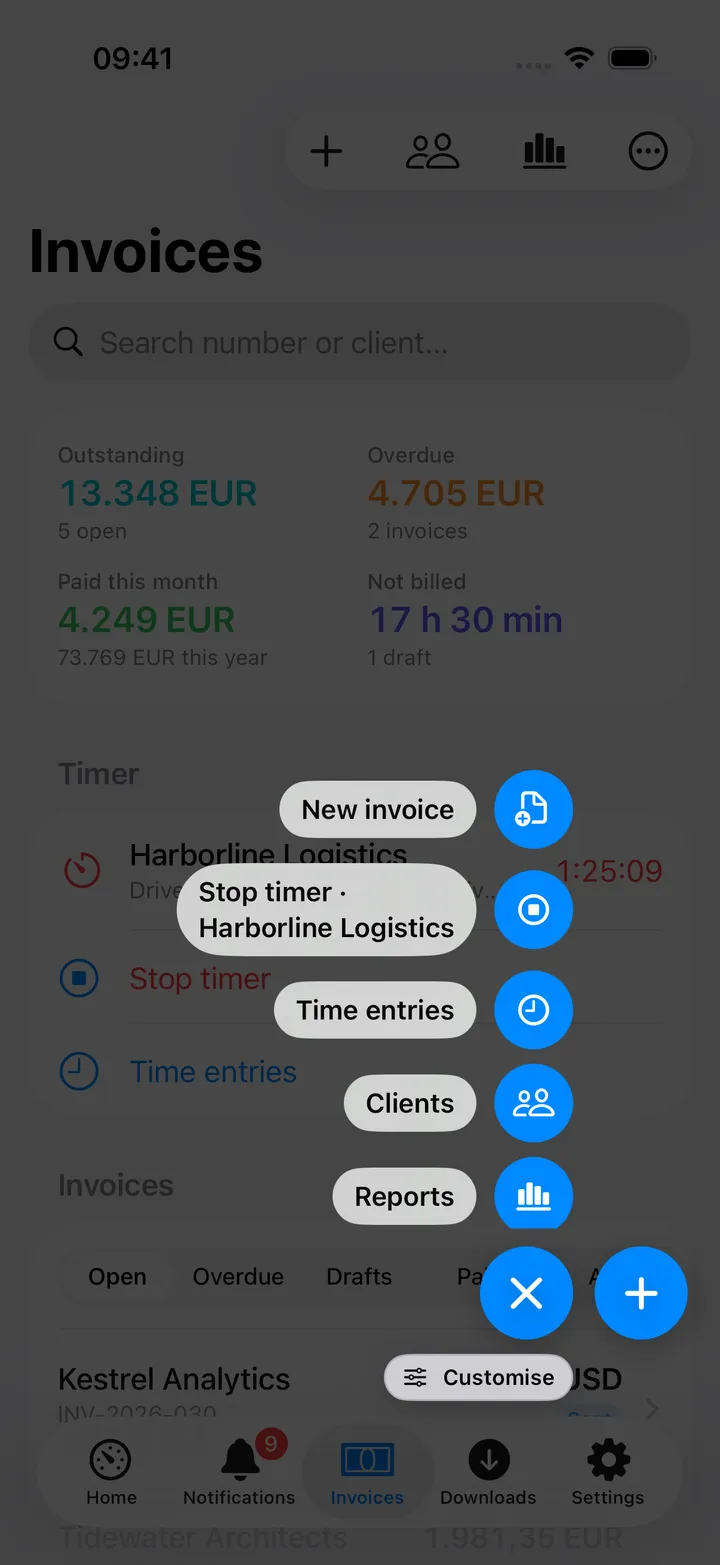
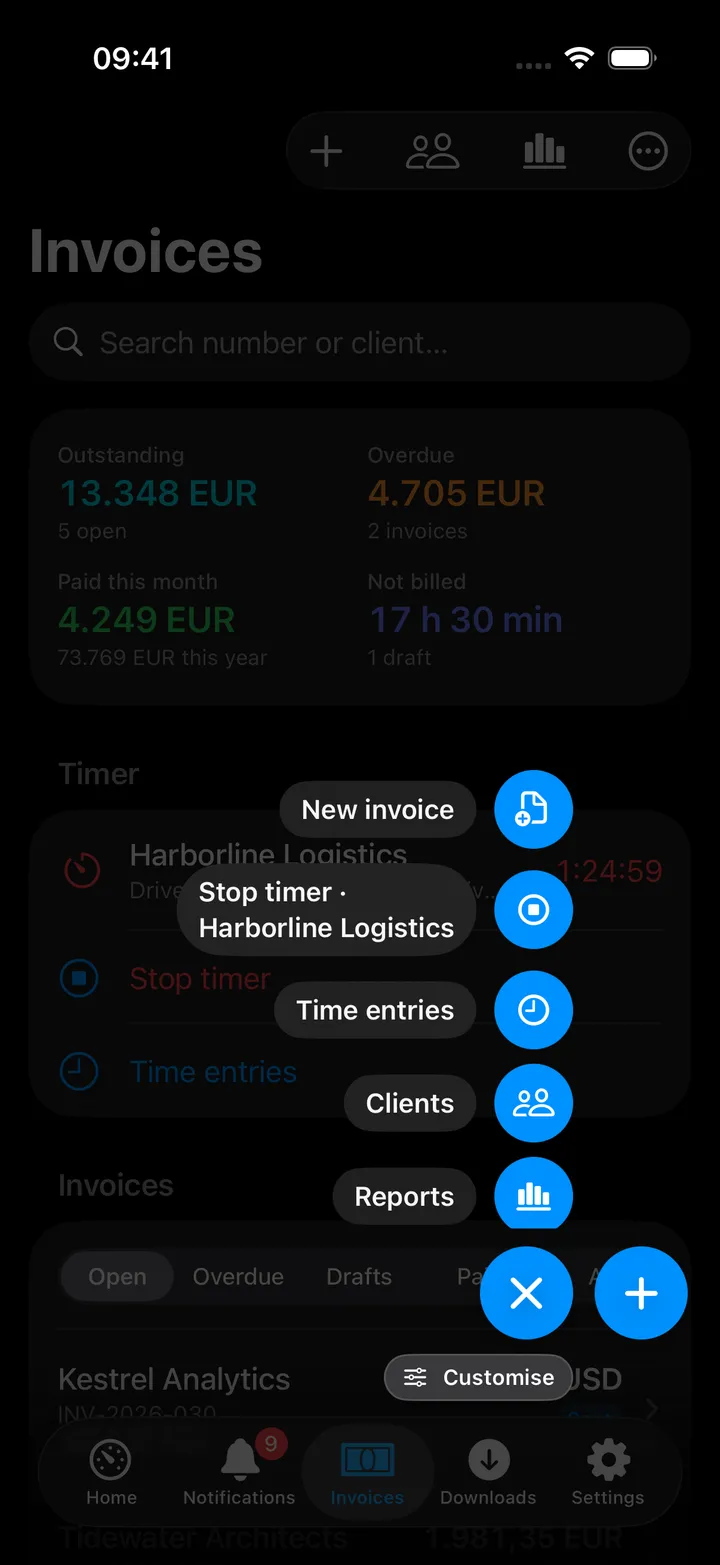
- A round screen action button beside the + on the Invoices screen (iPhone): New invoice, Start timer or Stop timer, Clients, Reports and Refresh to start with, then the filters, Invoicing settings and Open Pocket Invoicing; choose and order them with Customise, or turn the button off in Settings → App → Screen action buttons.
- Quick actions New invoice and Start / stop timer for the floating button (red with the minutes while a timer runs), the Mac (⌥⌘I, ⌥⌘T), Spotlight and Shortcuts.
- No issue chip, no notifications.
Set up
- In Pocket Invoicing, open Settings → API tokens and create a token. Copy it: it starts with
pi_and is shown once. - In Pocket Homelab: Settings → Services → Pocket Invoicing, paste the base URL and the token, then Test connection. It reads the dashboard and answers with your open invoices and clients.
- Turn on the Invoices tab in Settings → Tabs if you want it in the tab bar.
| Key | Field | Required | Secret | Where to get it |
|---|---|---|---|---|
INVOICING_URL | Pocket Invoicing URL | Required | — | Base address of your Pocket Invoicing server, for what clients owe you, your invoices, payments and the time you track. Leave empty to hide it. |
INVOICING_API_KEY | Pocket Invoicing API token | Required | — | A token from Pocket Invoicing → Settings → API tokens (starts with pi_). Stored in the Keychain. |
The Invoices screen
- What clients owe: outstanding, overdue, paid this month and the time tracked but not billed yet, in your base currency.
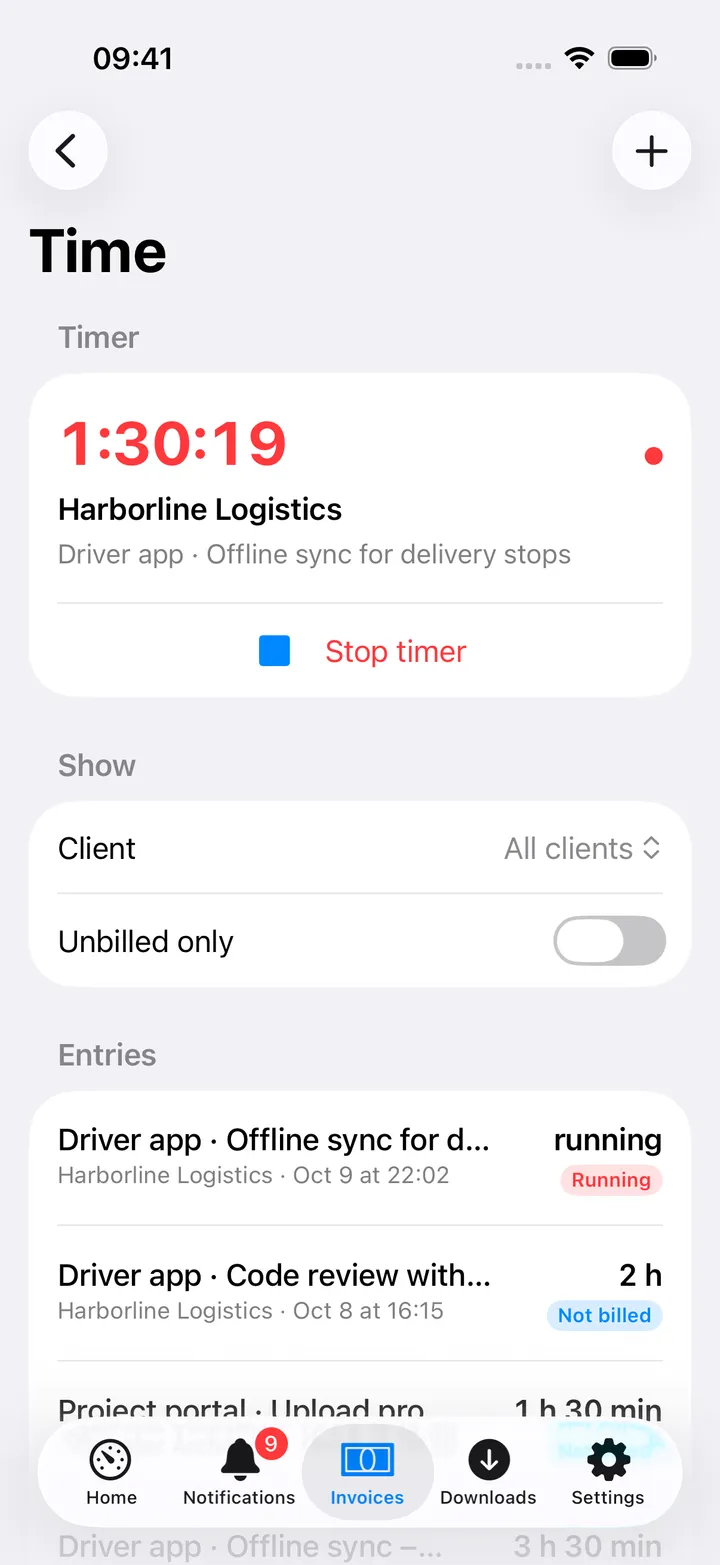
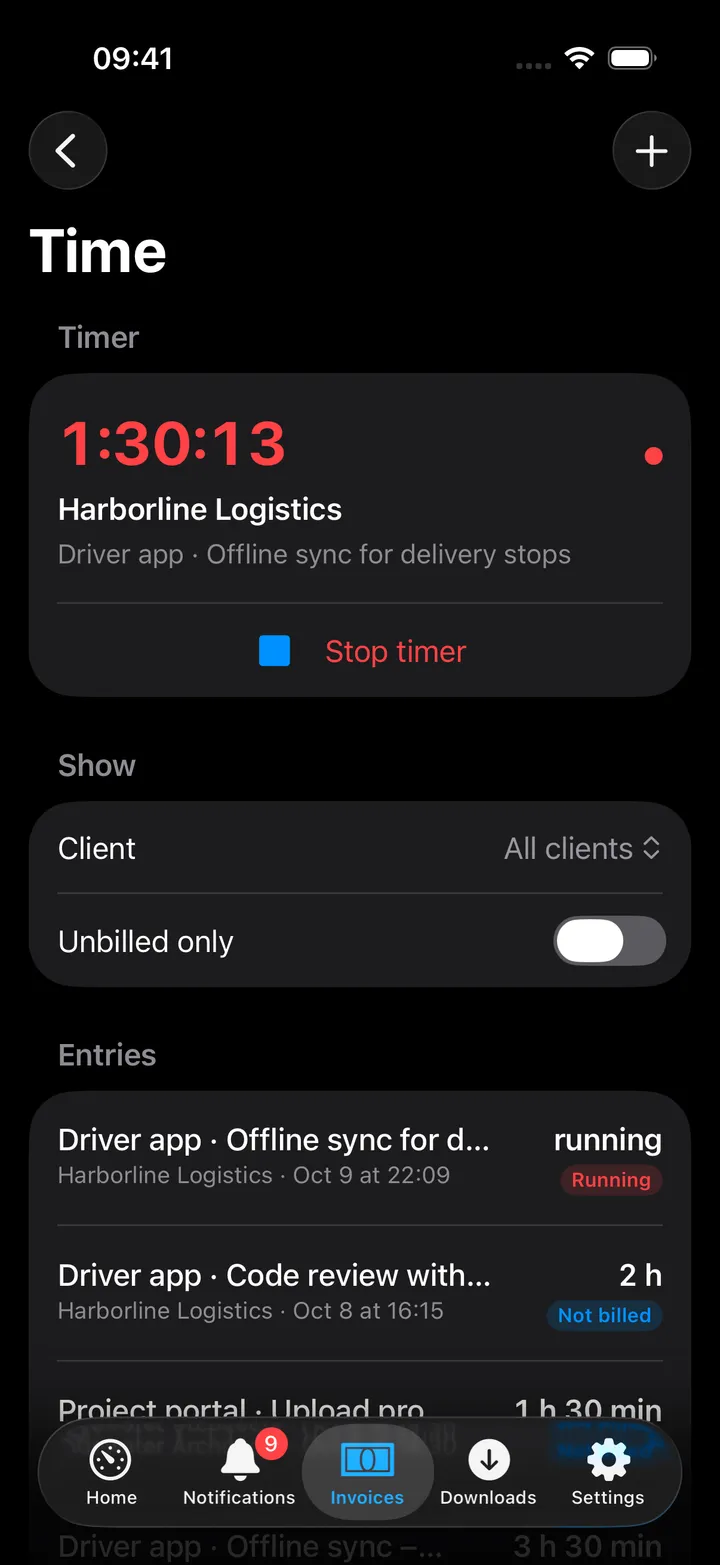
- The timer: start it for a client, stop it when you are done. The server rounds the time to its block and keeps it as unbilled time for the next invoice.
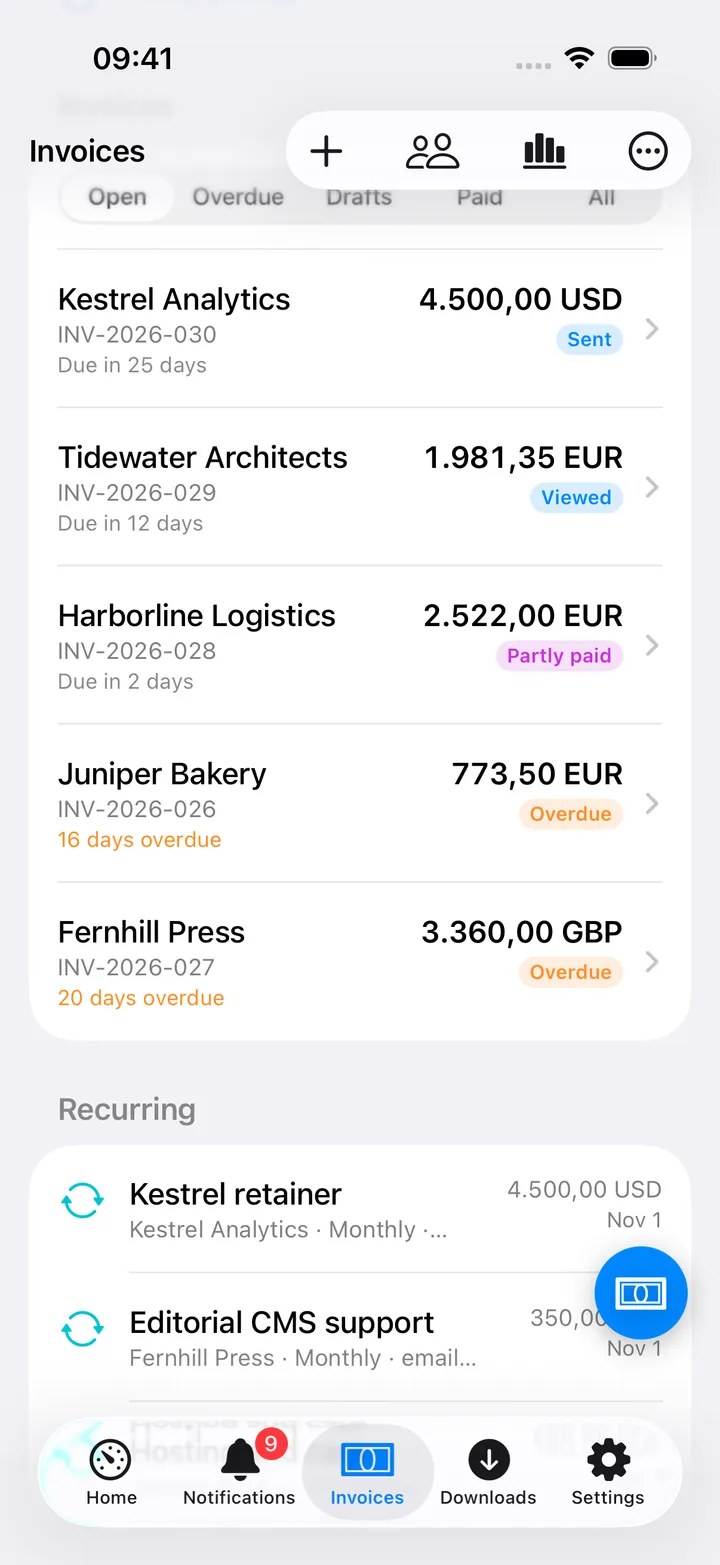
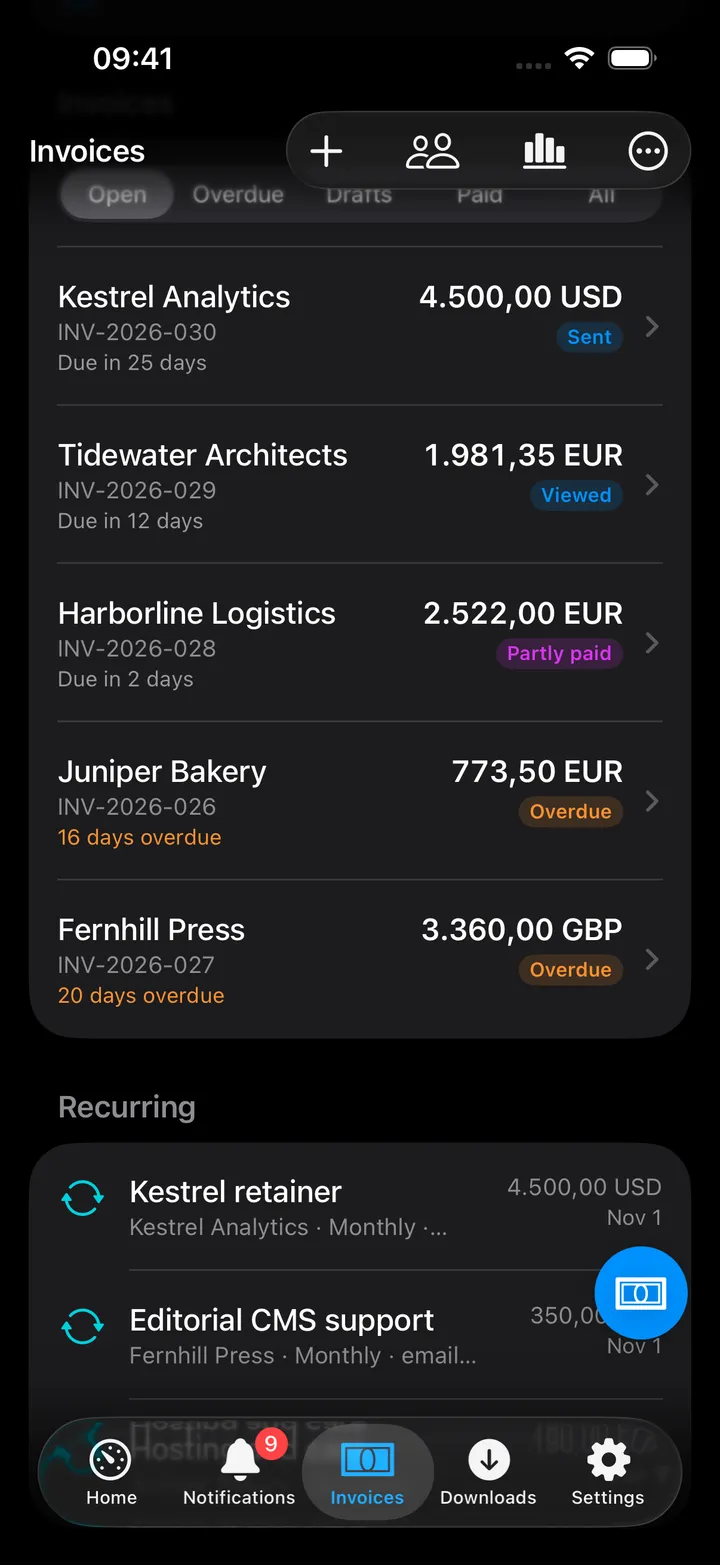
- Invoices: filtered Open, Overdue, Drafts, Paid or All, with a search. Each row has the number, the client, the amount in the invoice’s currency and its status.
- Next recurring invoices: the profiles that run next, with their client, schedule and date.
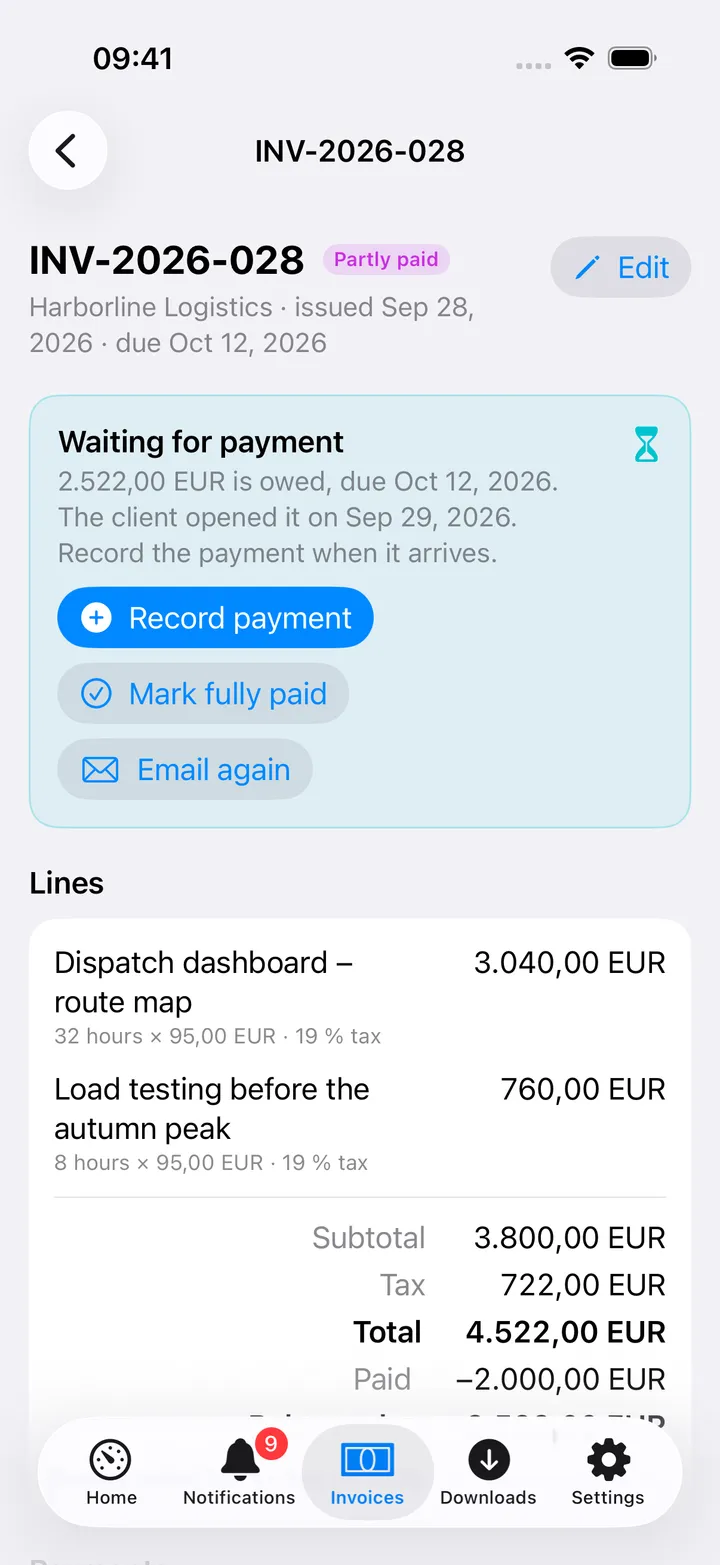
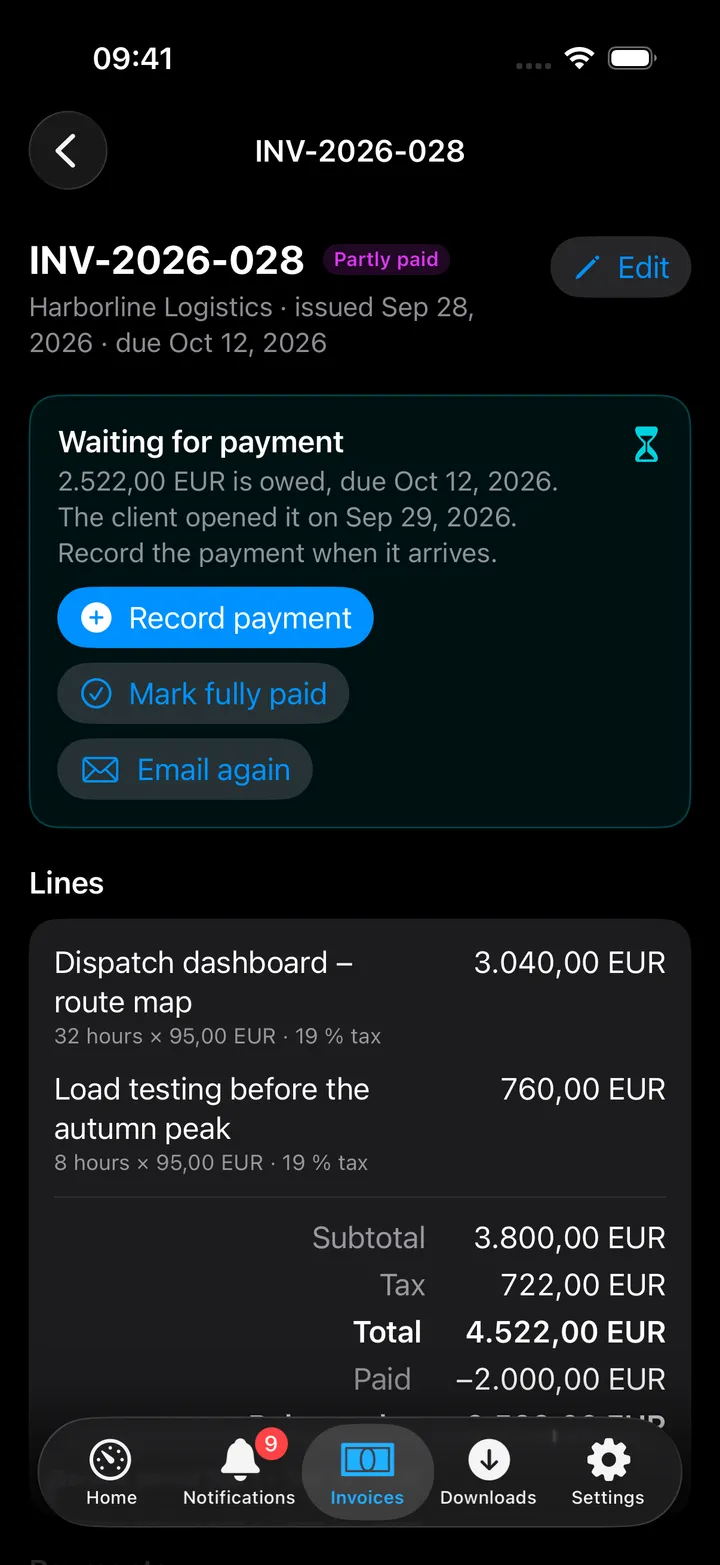
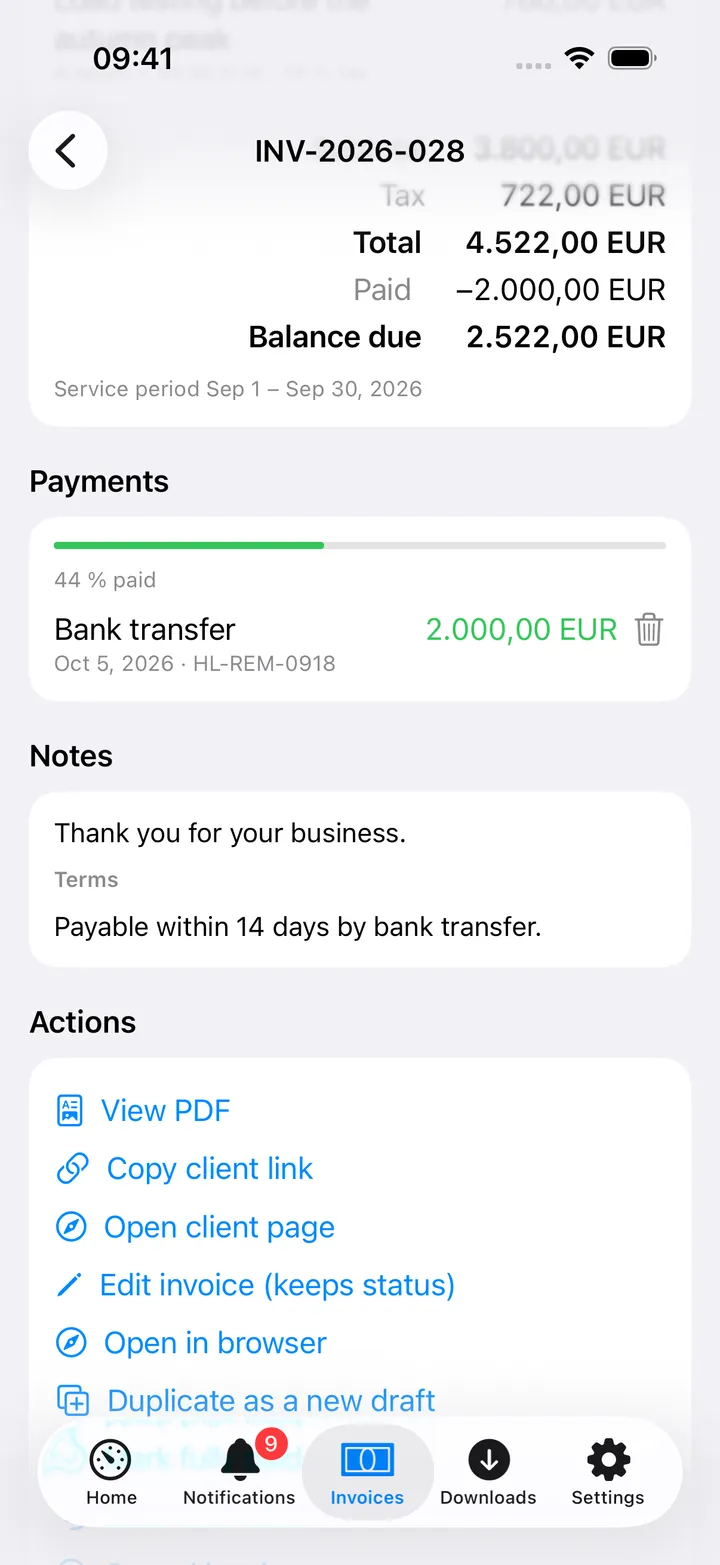
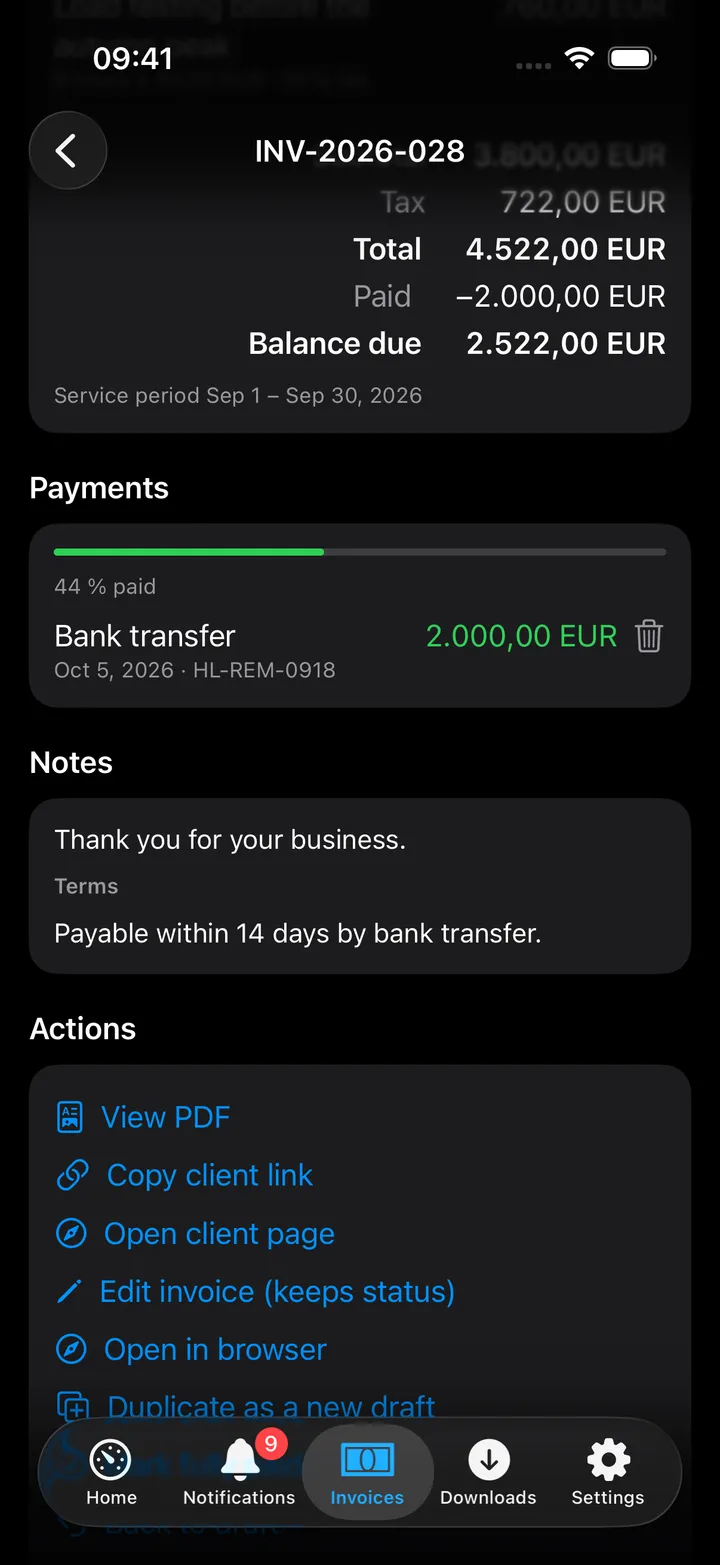
- An invoice’s page: its client, dates and status, the lines, the totals, and the payments received with the balance still due.
An invoice’s page
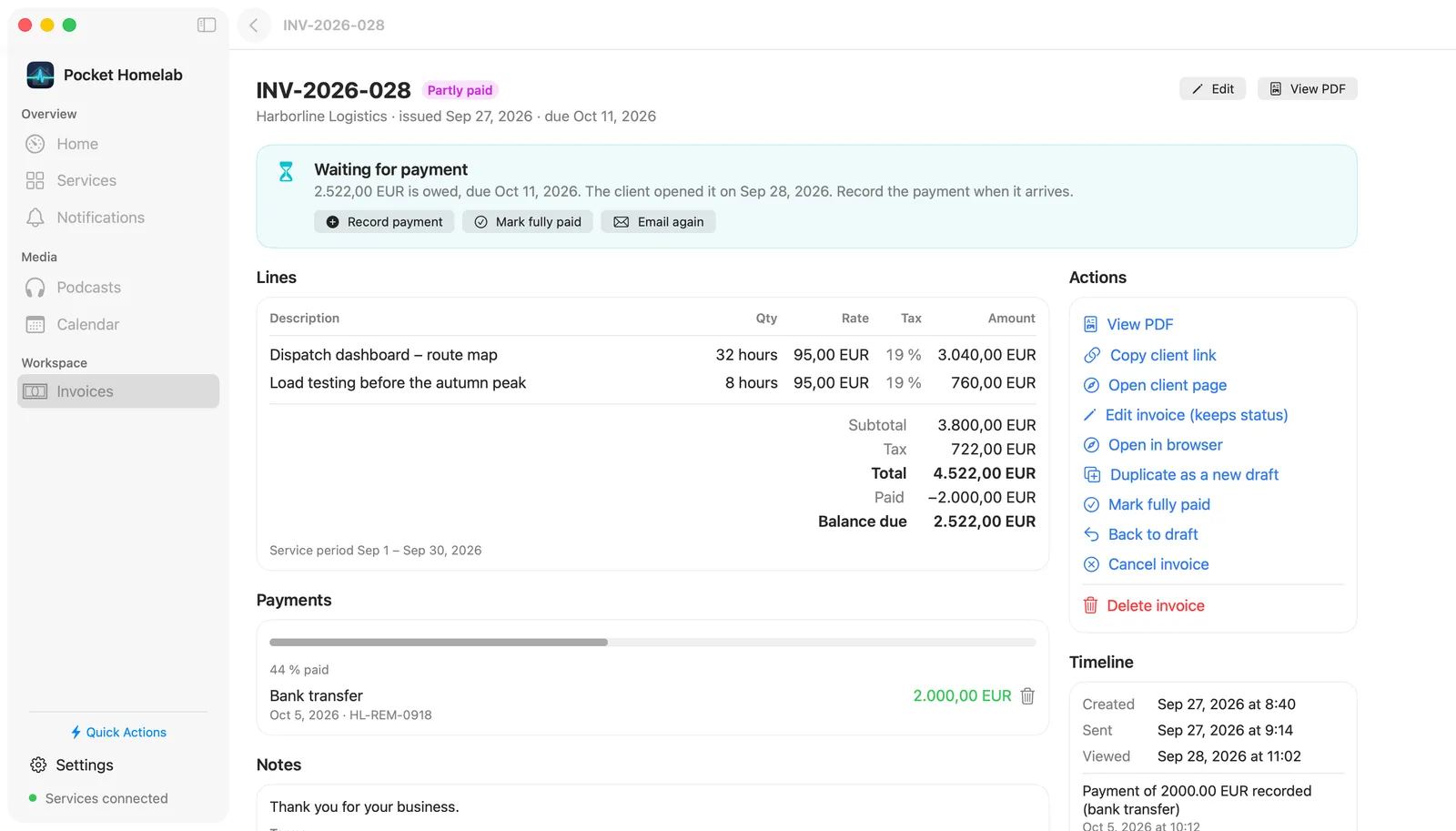
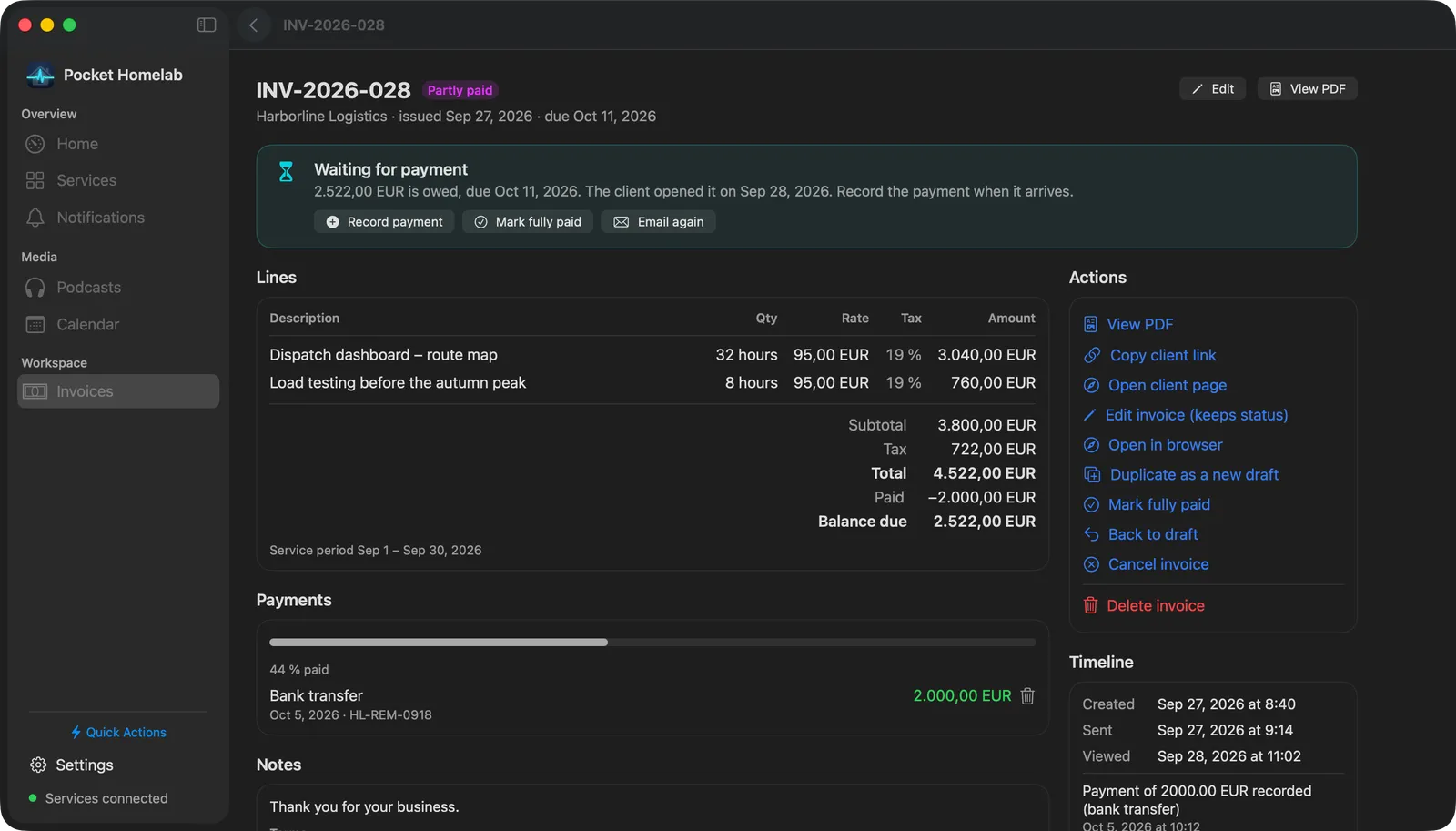
Tap an invoice (click it in the table on the Mac) to open its page. On iPhone it opens with a card: the status with when it is due (or how late it is), the client, the total (or the balance still due) in large type, and the two buttons that finish it side by side. Below come the lines and totals, Details, Attachments, Payments, notes and a folded History. View PDF and a ⋯ menu with every other action sit in the toolbar, and the round Invoice actions button beside the + lists them all too. On the Mac and iPad, Next step at the top says in plain words what finishes it and offers one main button:
- Draft: Email to client sends it with the PDF attached and marks it sent; Mark as sent if you delivered it another way; Edit to change the client, dates, lines or prices.
- Sent, viewed or overdue: Record payment when the money arrives, Mark fully paid, or Email again (Send a reminder once it is late).
- Paid or Cancelled: nothing left to do (a cancelled invoice can go back to draft).
Below are the lines and totals (with the amount in your base currency when the invoice is in another one) and the invoice’s details: service period, days worked, PO, your custom fields and the billing mode. Then the notes and terms, then Attachments: Upload adds your own files (a signed or fiscalised PDF, say; several at once); tap one to look at it, and its ⋯ has Share, Save to Files, To Paperless and Remove. Then the payments, with Add while money is owed. Last come the other actions and a timeline of what happened to it. The actions are PDF, client link, Download as Word (.docx), Archive to Paperless (when the server is connected to Paperless-ngx; Open in Paperless once archived), duplicate, back to draft, reopen, cancel and delete.
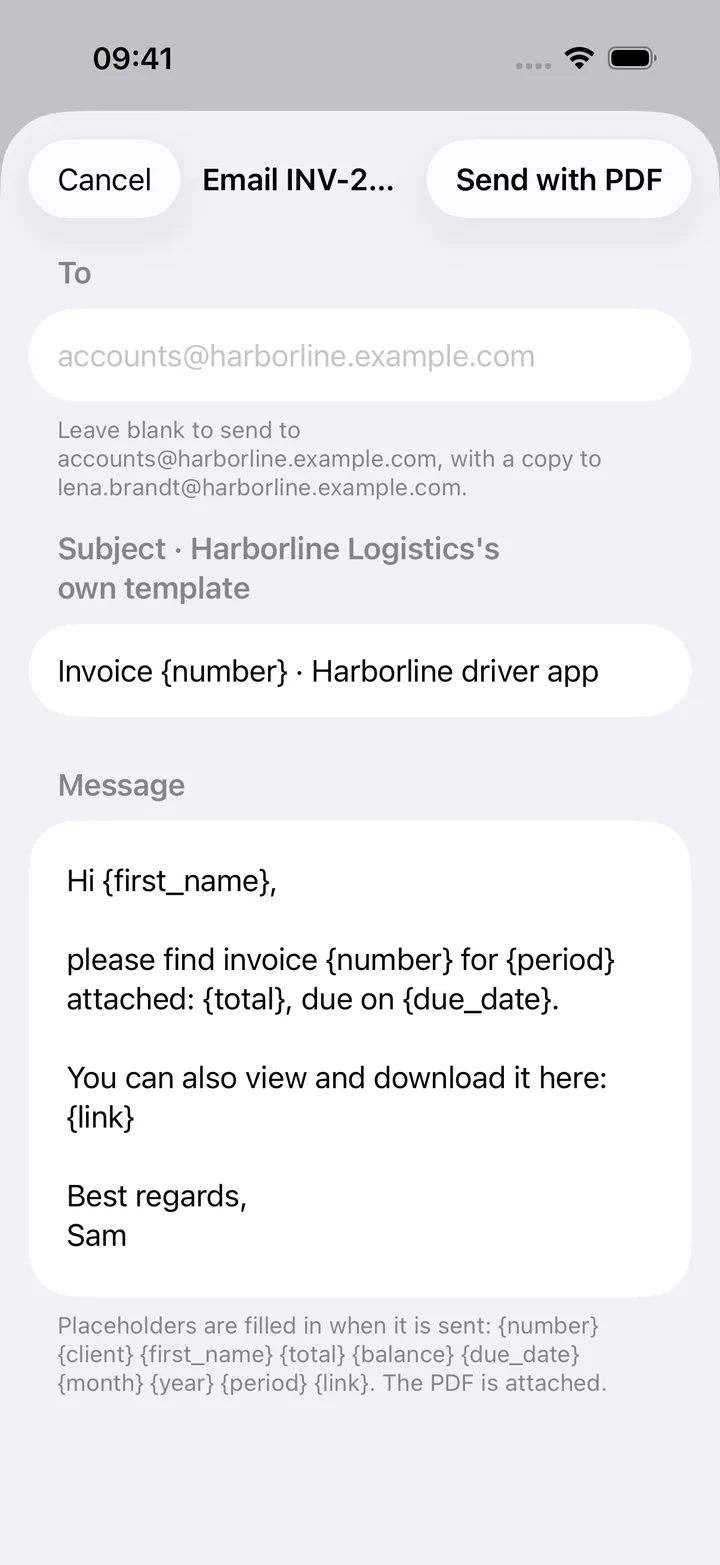
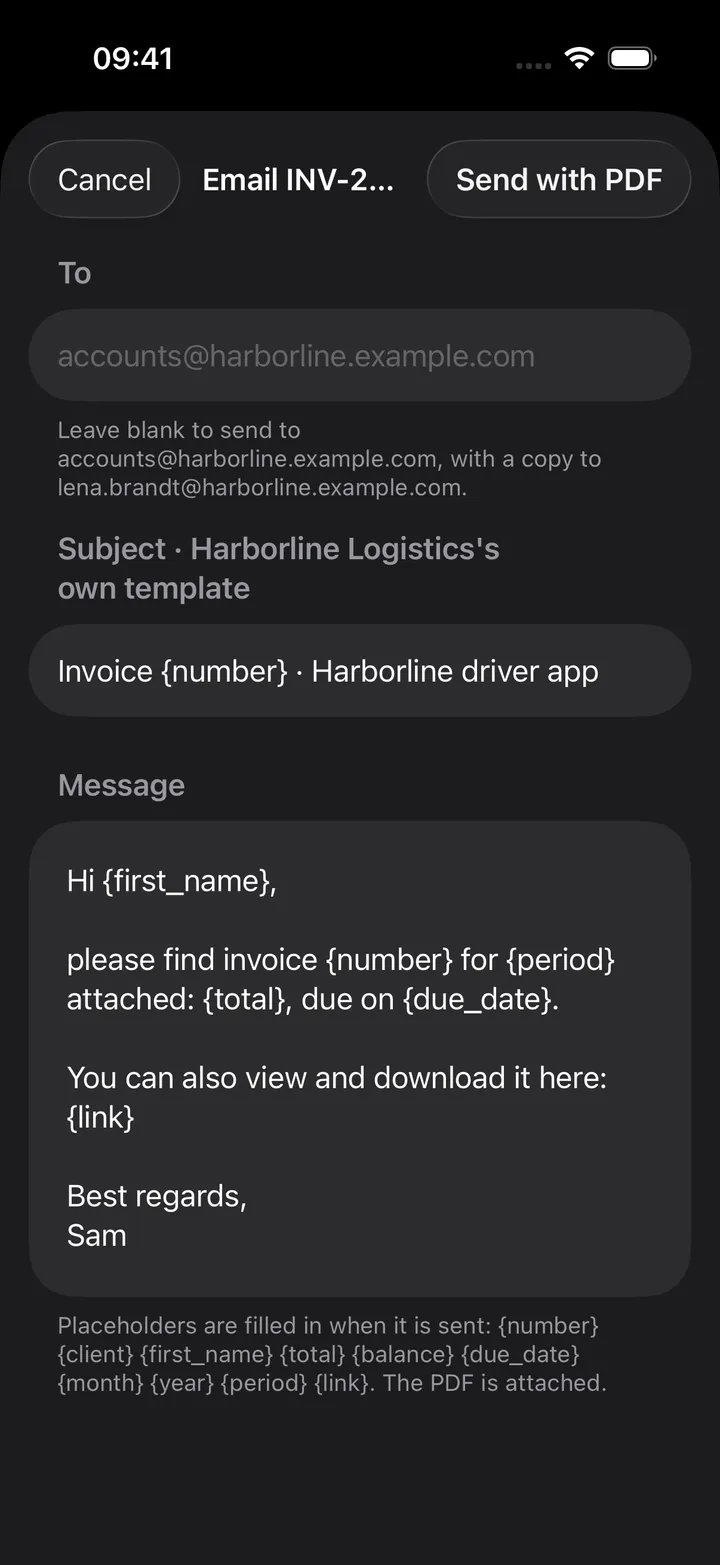
Emailing opens a form like the web app’s: To (leave it blank for the client’s address and CC), Subject
and Message filled from the client’s own template or the global one. Placeholders such as {first_name} and
{month} are filled in when it is sent. Sending needs a mail server set up in Pocket Invoicing (Settings → Email in
its web app); without one the form says so and offers the client link instead.
Editing and new invoices
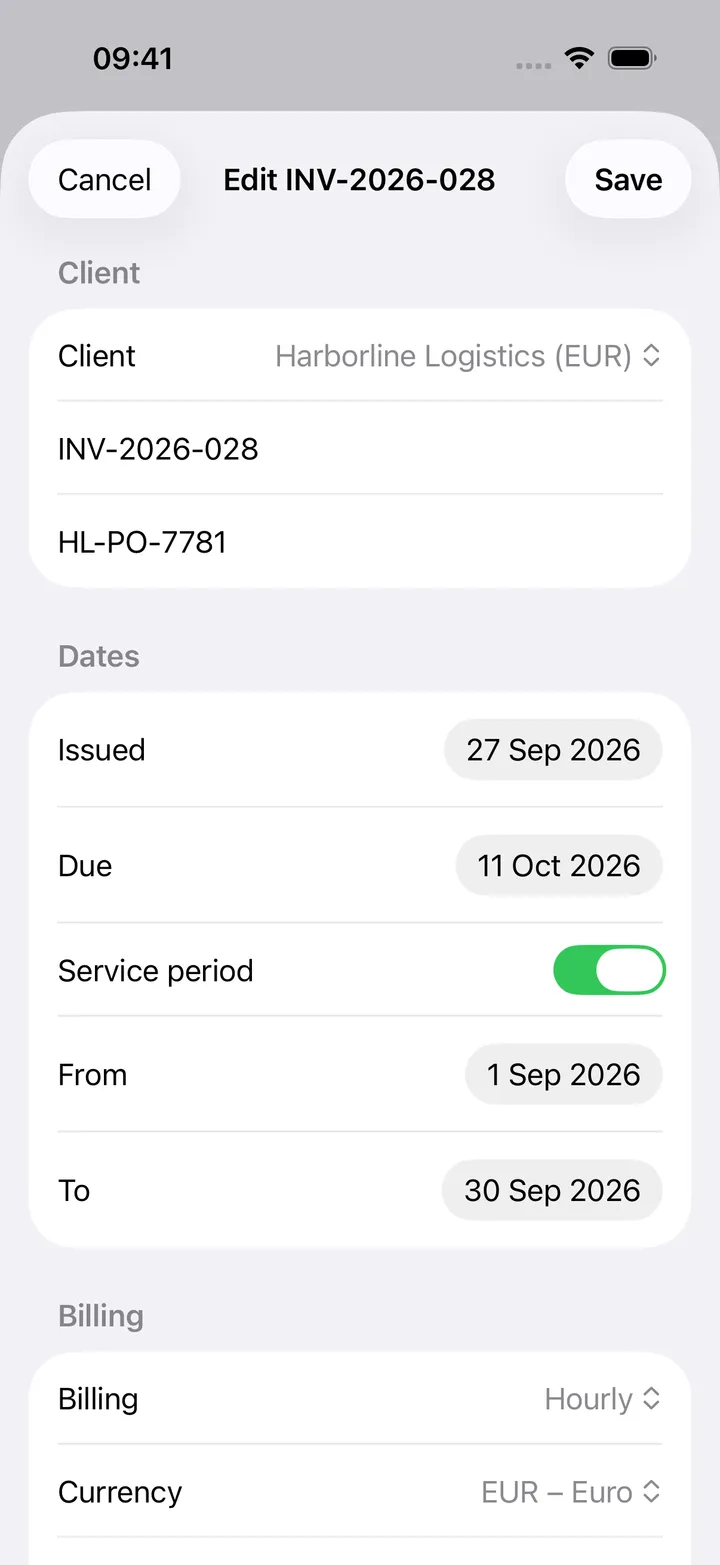
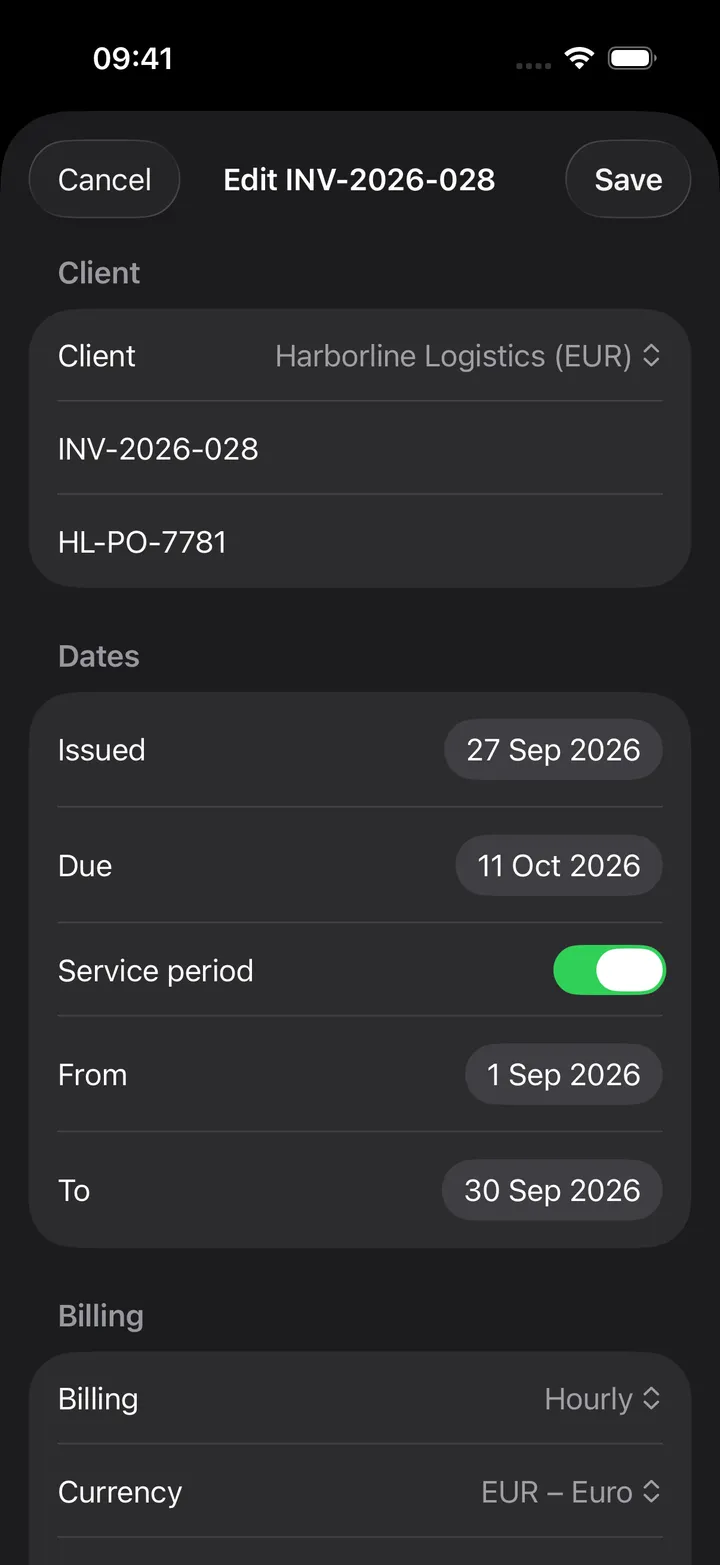
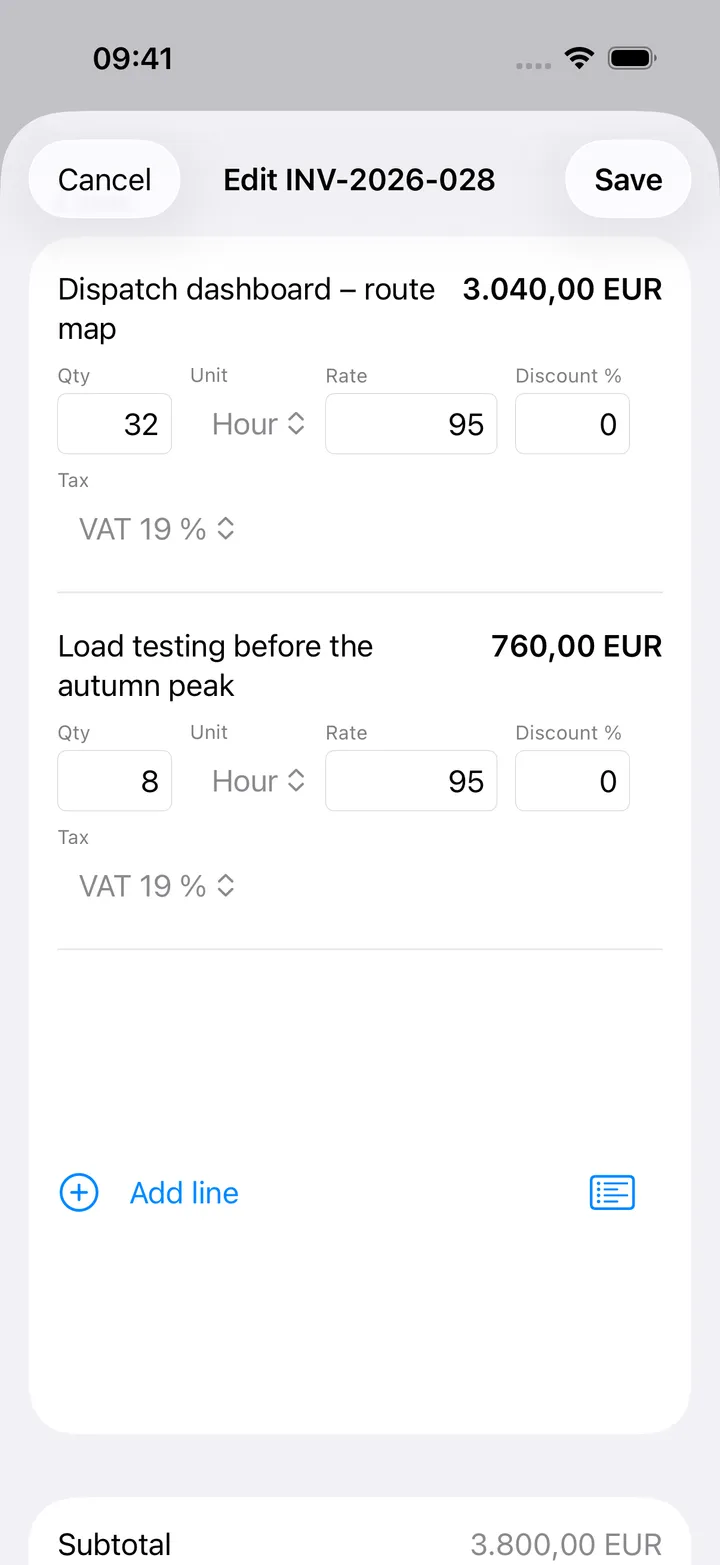
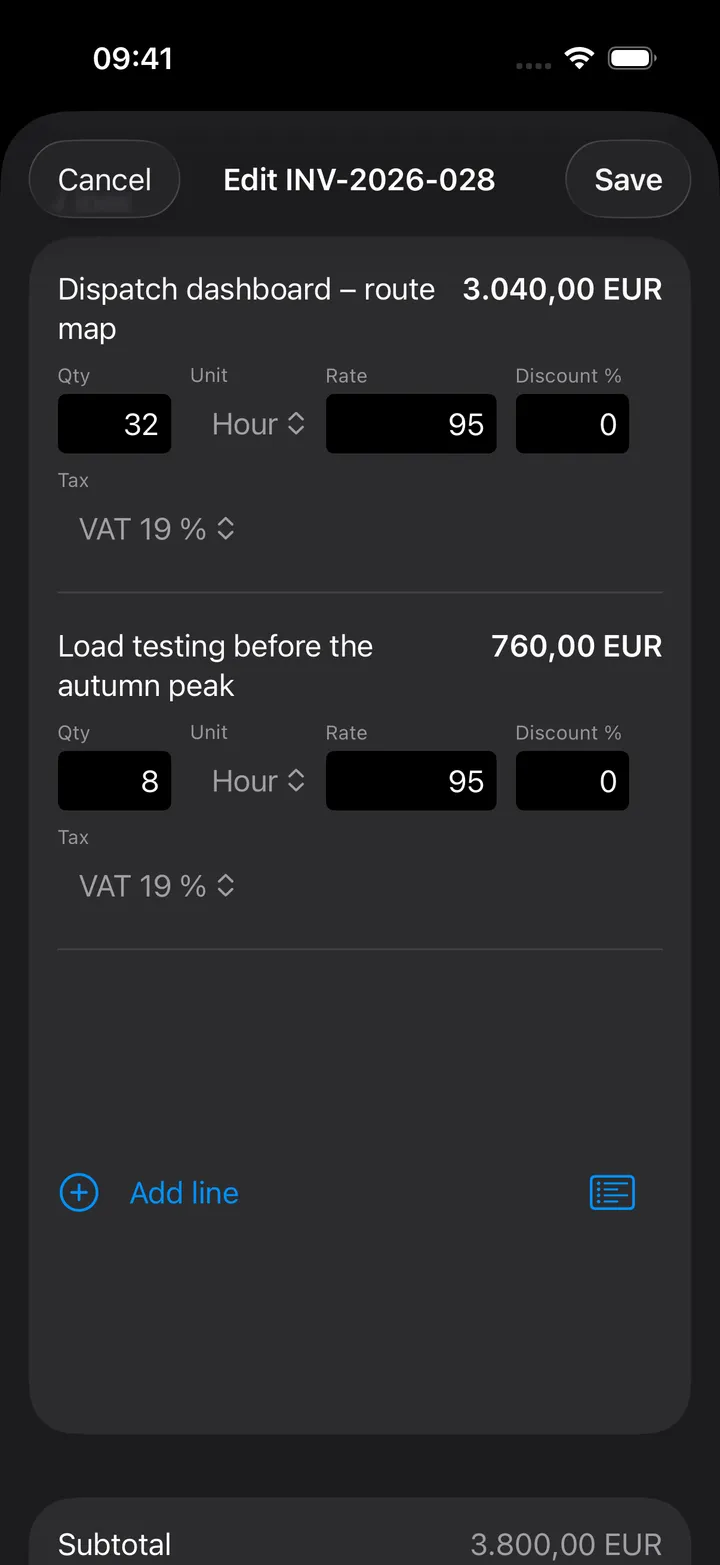
Edit (on an invoice’s page, and in a draft’s Next step card) opens the editor, with everything the web app’s editor has:
- Client, number (blank picks the next one; it turns red when the client already has that number and orange when another client does), PO, issue and due dates, service period, and your custom fields from Settings.
- Billing mode, currency and exchange rate (under it, the rate 0 would use and where it comes from), Template and a discount.
- The lines (quantity, unit, rate, discount and tax, typed or added from the catalog; hold one and drag to reorder), with the subtotal, discount, tax per rate and total worked out as you type.
- Days worked for a day or hour line: Pick days fills in the working days of the service period (or the issue month), skipping holidays; then tap a day to turn it on or off, or a week number to clear that week or put its working days back. The count sets the line’s quantity (days × hours per day on an hour line) and is saved with the invoice.
- Notes, terms and footer.
Save keeps the status and payments; Save & mark sent marks a draft sent. New invoice (+ on the Invoices screen, or on a client’s page) starts from that client’s currency, billing mode, rate and payment terms.
Clients and their documents
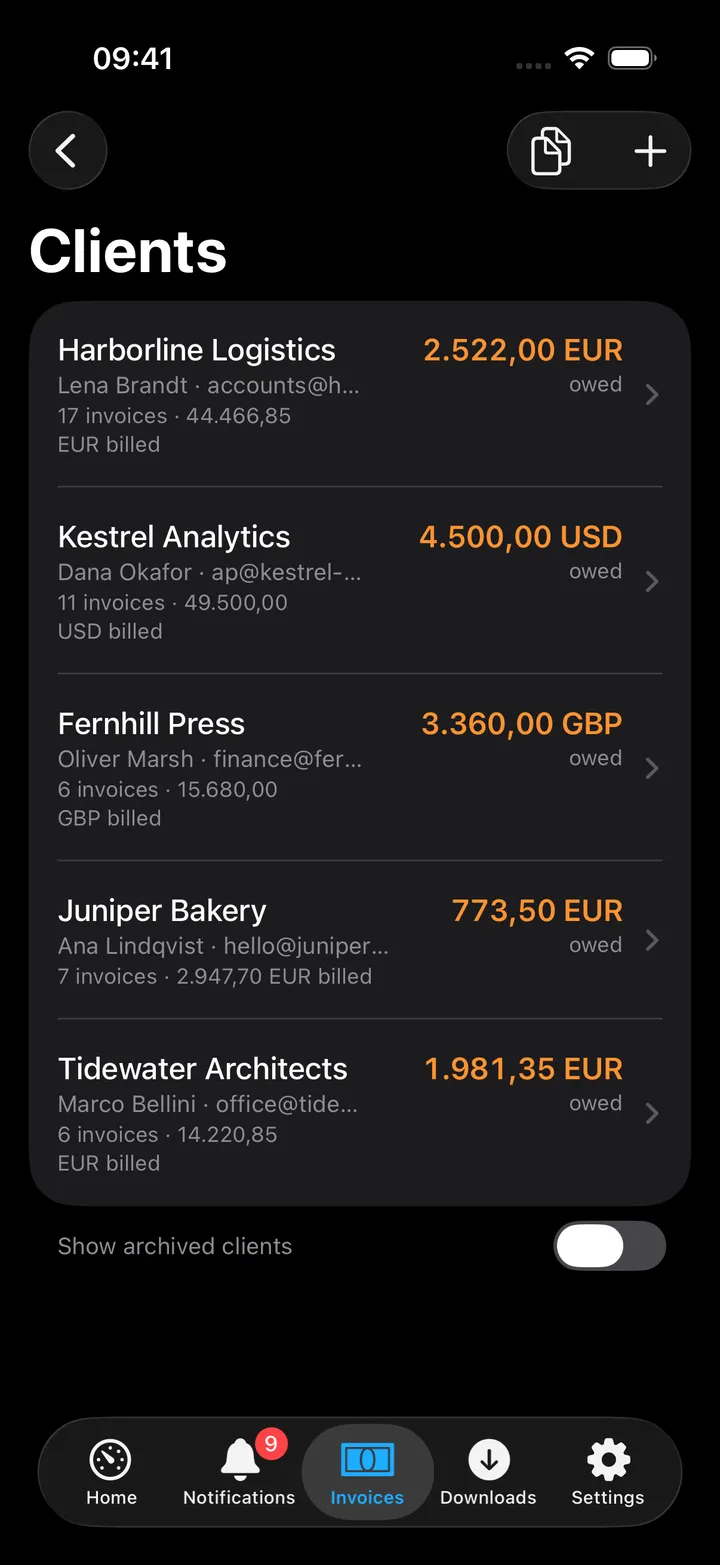
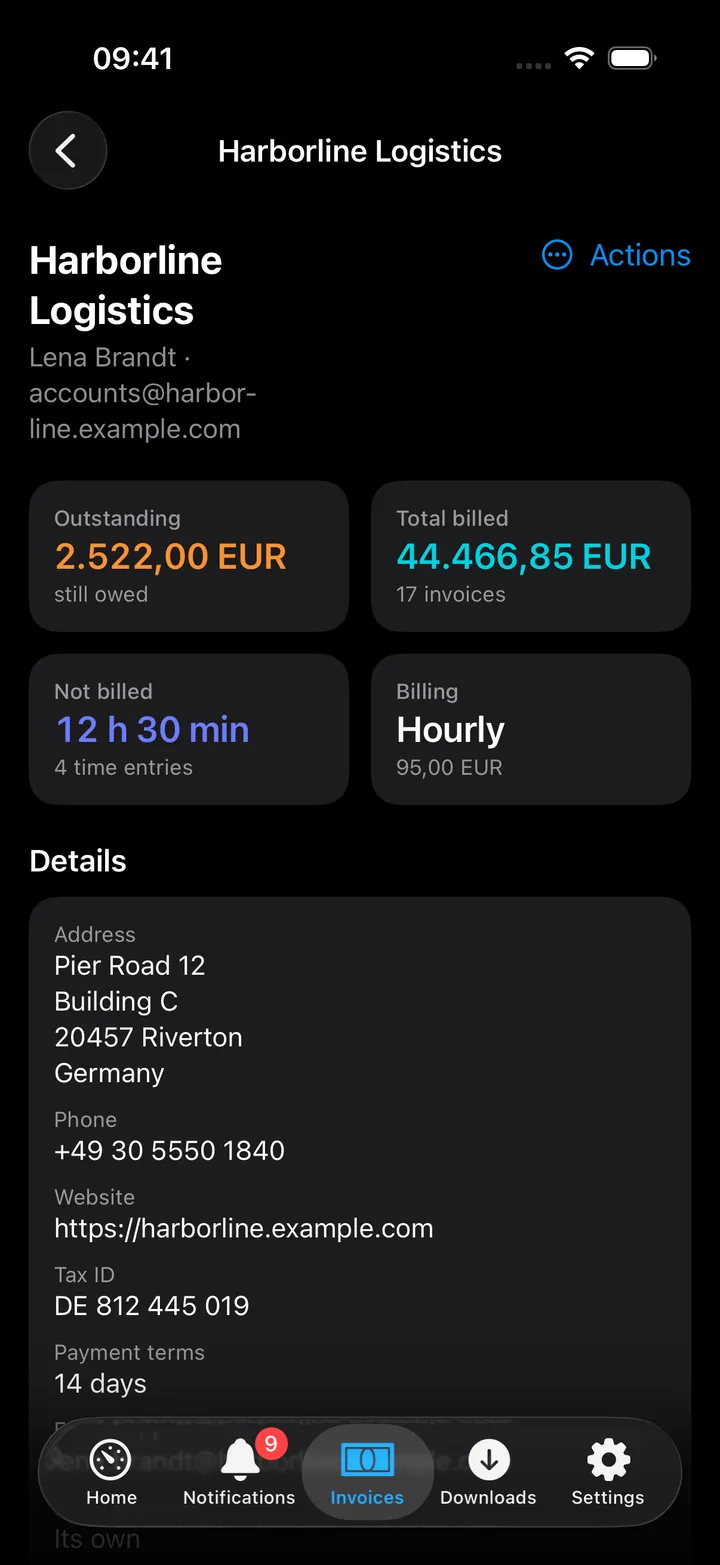
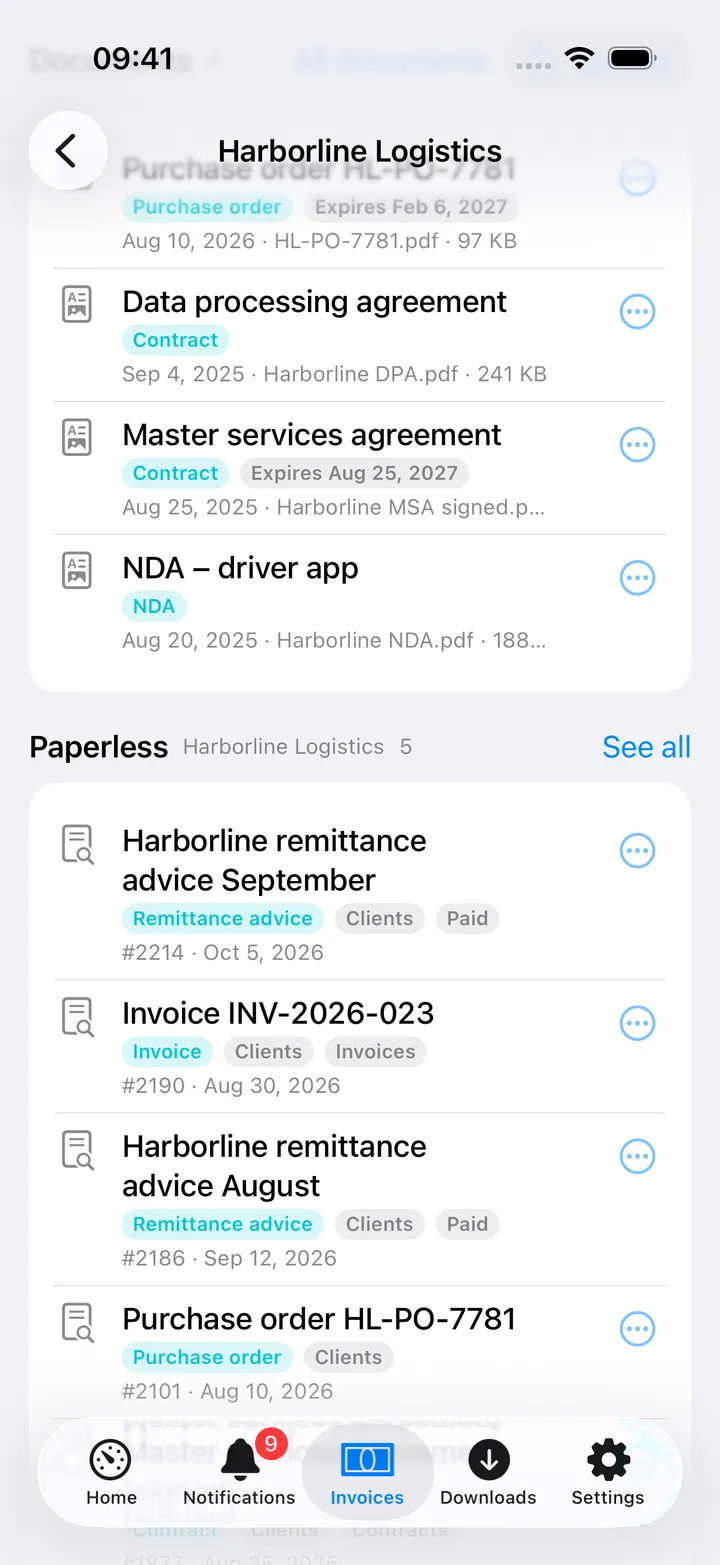
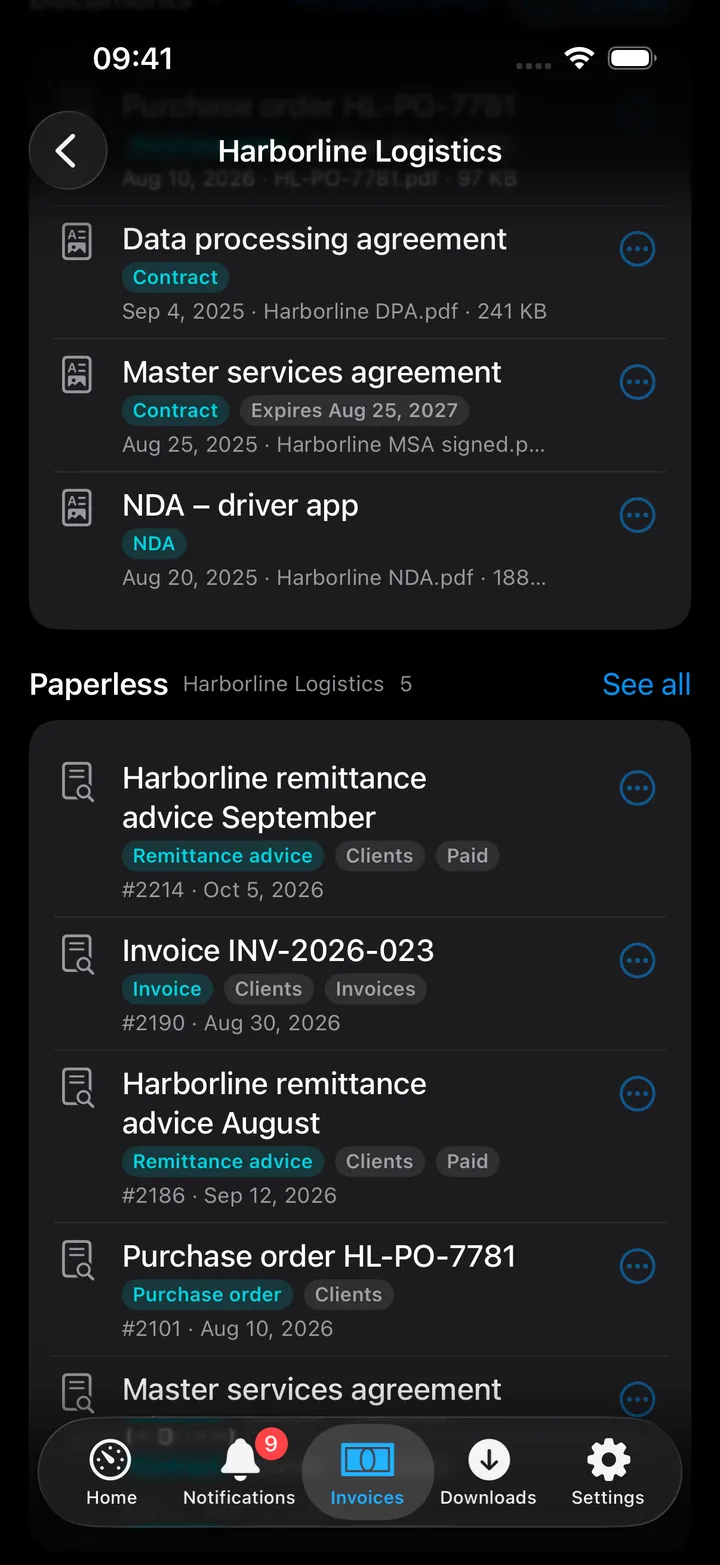
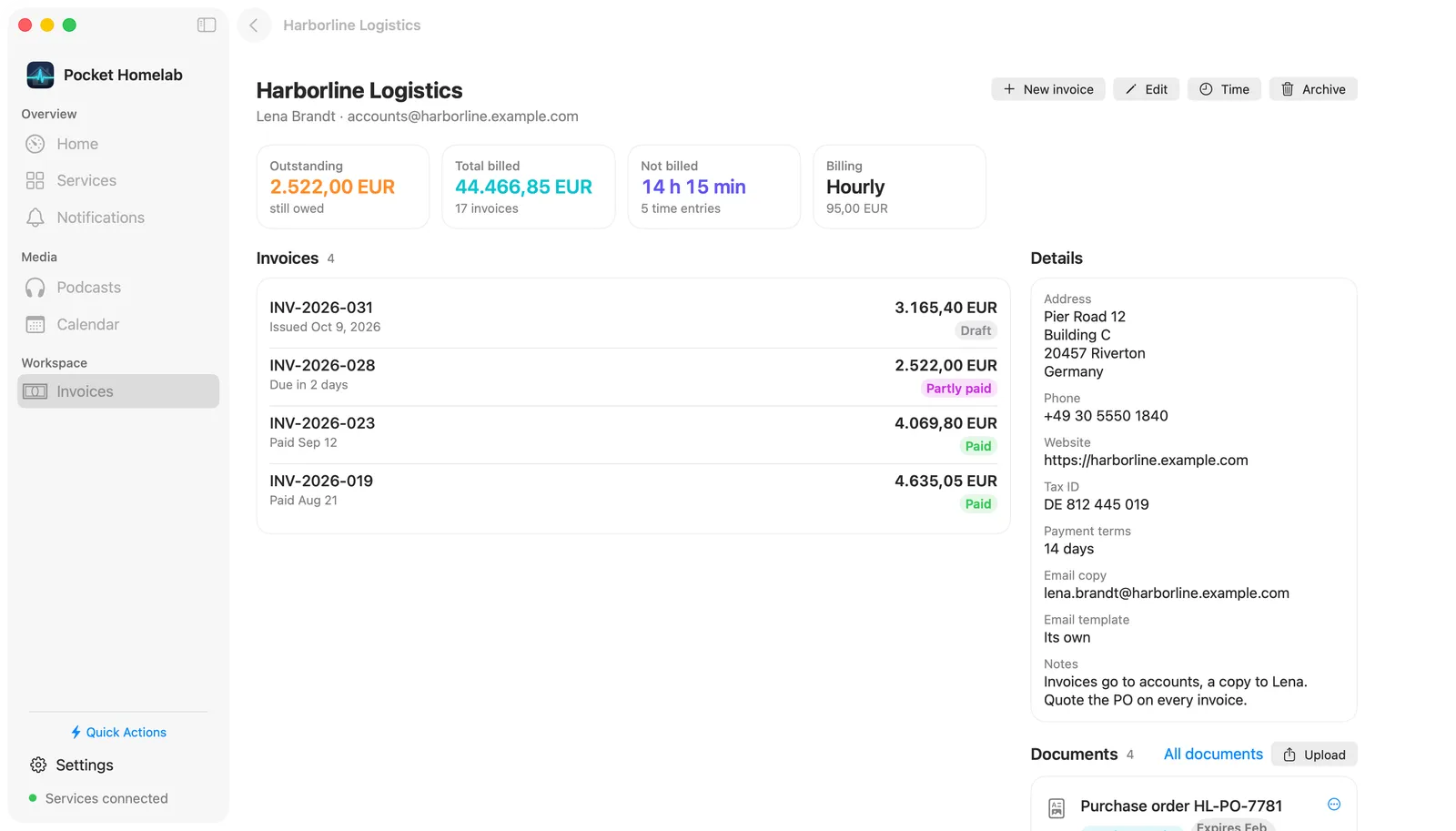
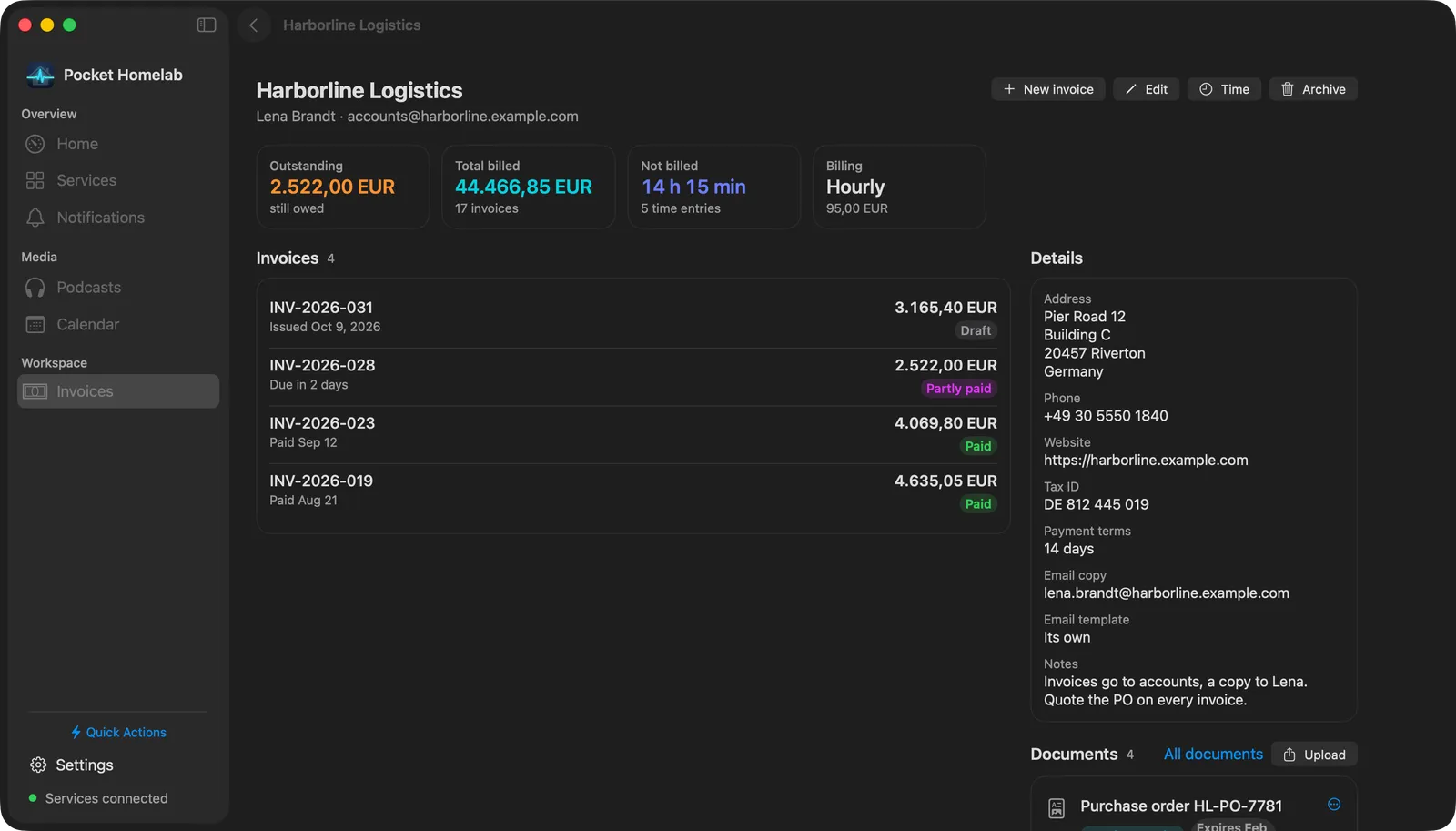
Clients (on the Invoices screen; a table on the Mac) lists every client with what they were billed and still owe. A client’s page shows those figures and the unbilled time, the address and details, the client’s invoices, recurring profiles and Documents: the contracts, NDAs and other files kept with the client in Pocket Invoicing. Tap one to open it, Upload adds a file with a title and category, and the bin deletes one. Edit changes the client’s details and billing defaults; New invoice starts one for them; a client with invoices is archived rather than deleted.
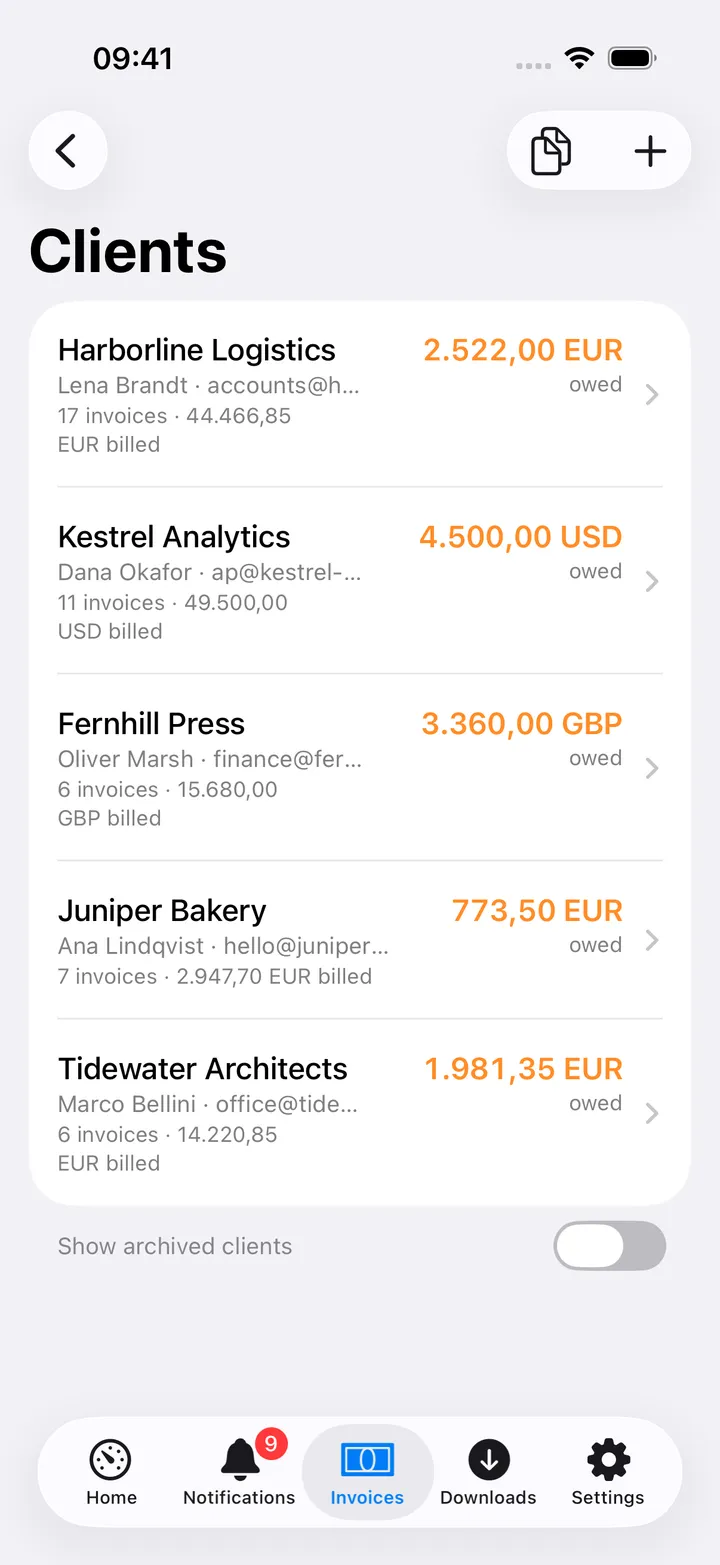
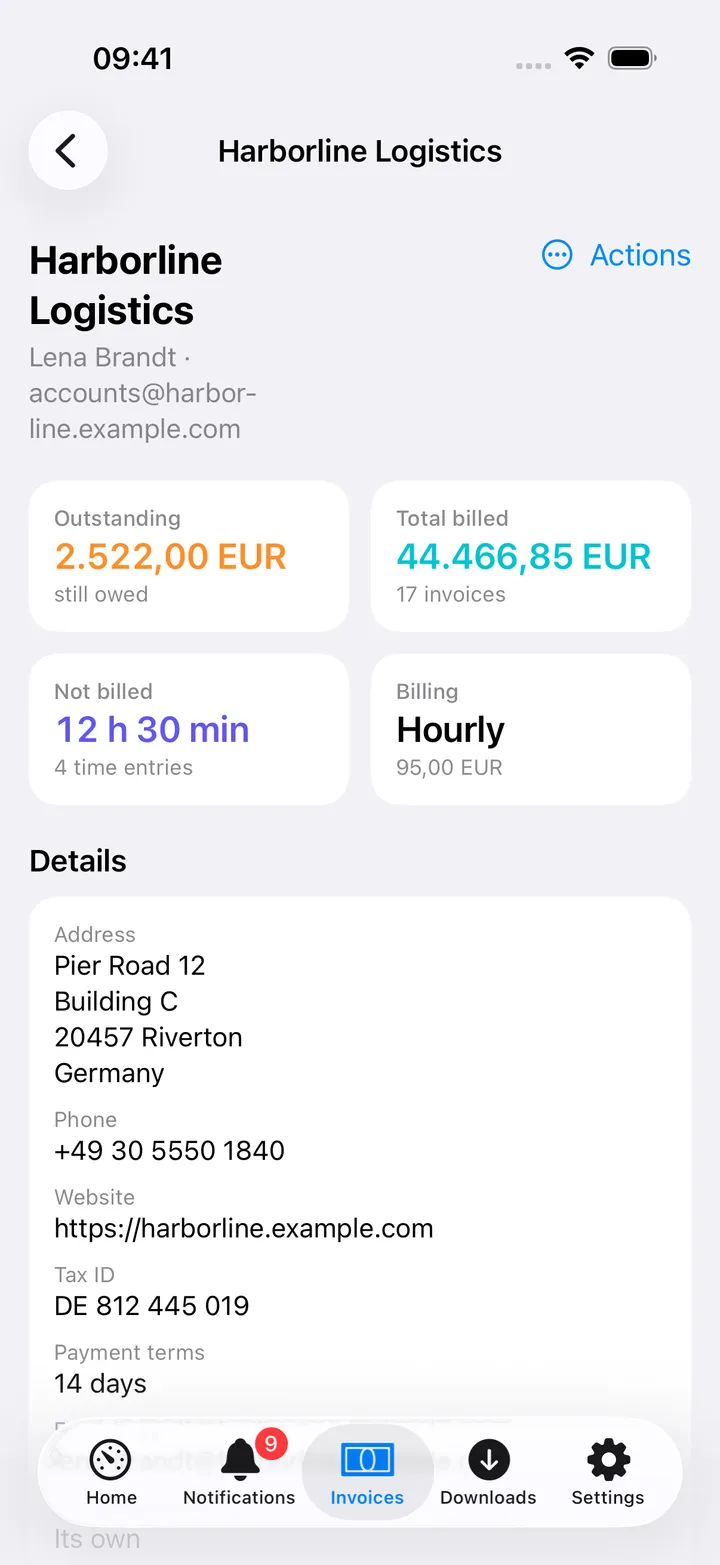
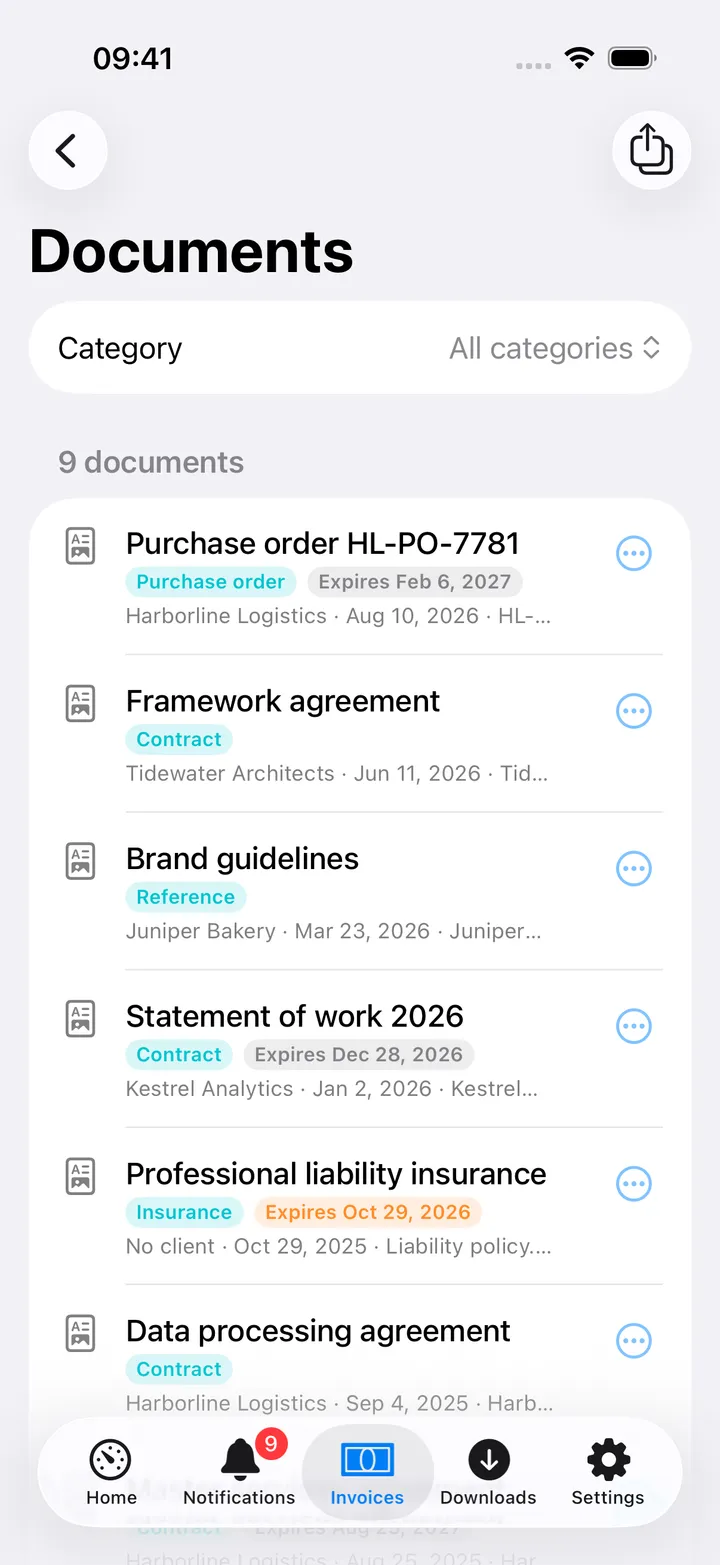
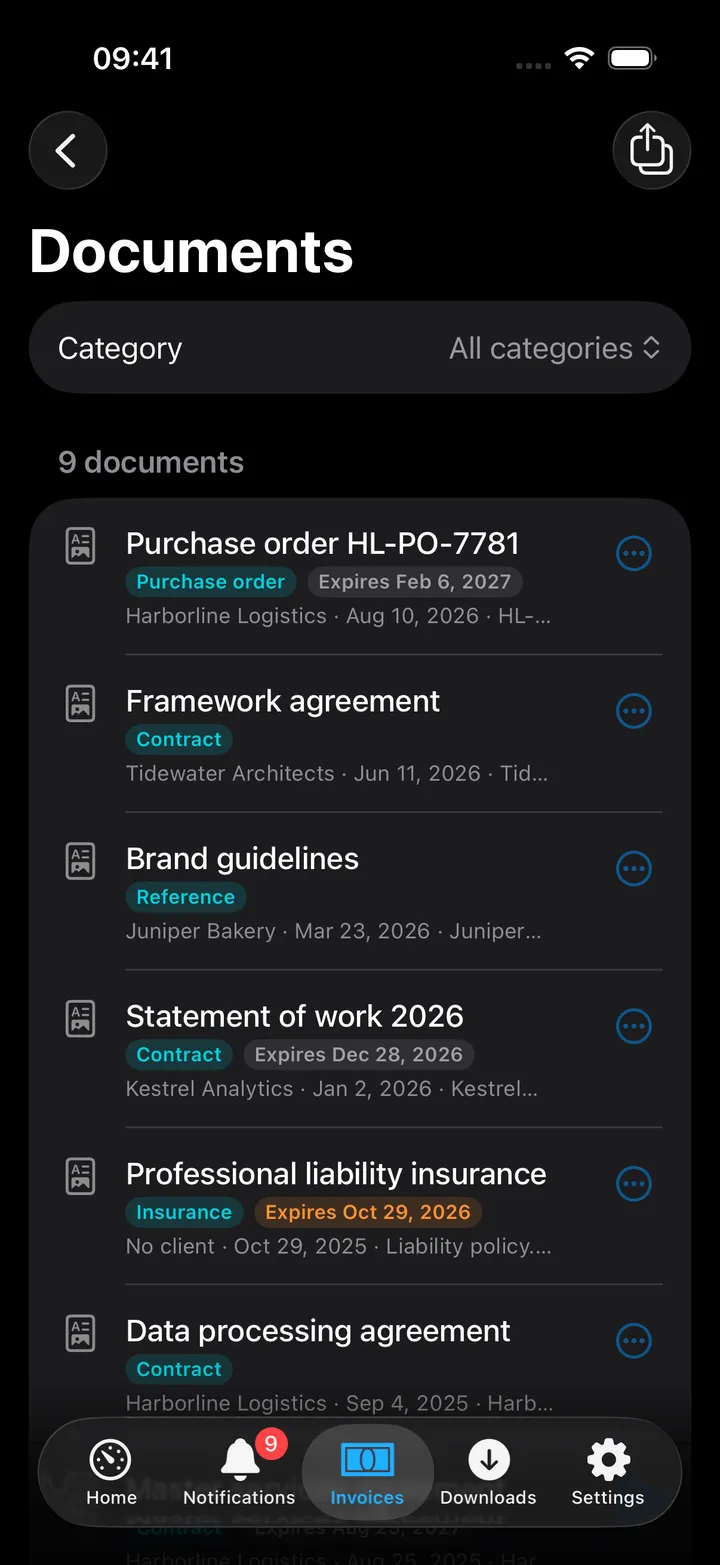
A client’s page shows documents from two places, as the web app does: the files kept with the client in Pocket Invoicing, and, when Pocket Invoicing is connected to Paperless-ngx and the client is linked to a correspondent (Clients → Edit → Paperless correspondent in its web app), that correspondent’s documents in Paperless, with type, tags and date; tap one to open it, or open it in Paperless. All documents (on the Clients screen and on a client’s page) lists every document, also the ones uploaded without a client, with search and categories; upload there with or without a client.
Every document has a ⋯ button (or long-press it) with Open, Share…, Save to Files (Download… on the Mac), Open in Paperless for Paperless documents, and Delete for the ones kept in Pocket Invoicing.
Time tracking
Time entries (under the timer on the Invoices screen, Time in the Mac bar, the round button, or Time on a client’s page for just that client) works like the web app’s Time tracking page:
- The timer: pick a client, add a project and what you are working on, Start timer; Stop rounds the time to your block in Pocket Invoicing. A timer already running stops first.
- Entries, newest first, filtered by client and Unbilled only, with how long each took and whether it is not billable, not billed yet or invoiced. Open one to change its client, project, description, start, hours and minutes, whether it is billable and its own rate, or delete it (swipe on iPhone, Edit and the bin on the Mac). Entries already on an invoice are locked, as on the web.
- Manual entry (+) logs time after the fact.
- Invoice unbilled time turns a client’s unbilled entries into a draft invoice: one line per entry, day, project or in total, billed as hours or days, at the client’s rate or one you type, with unbilled expenses if you like. The draft opens so you can check it and send it.
Reports
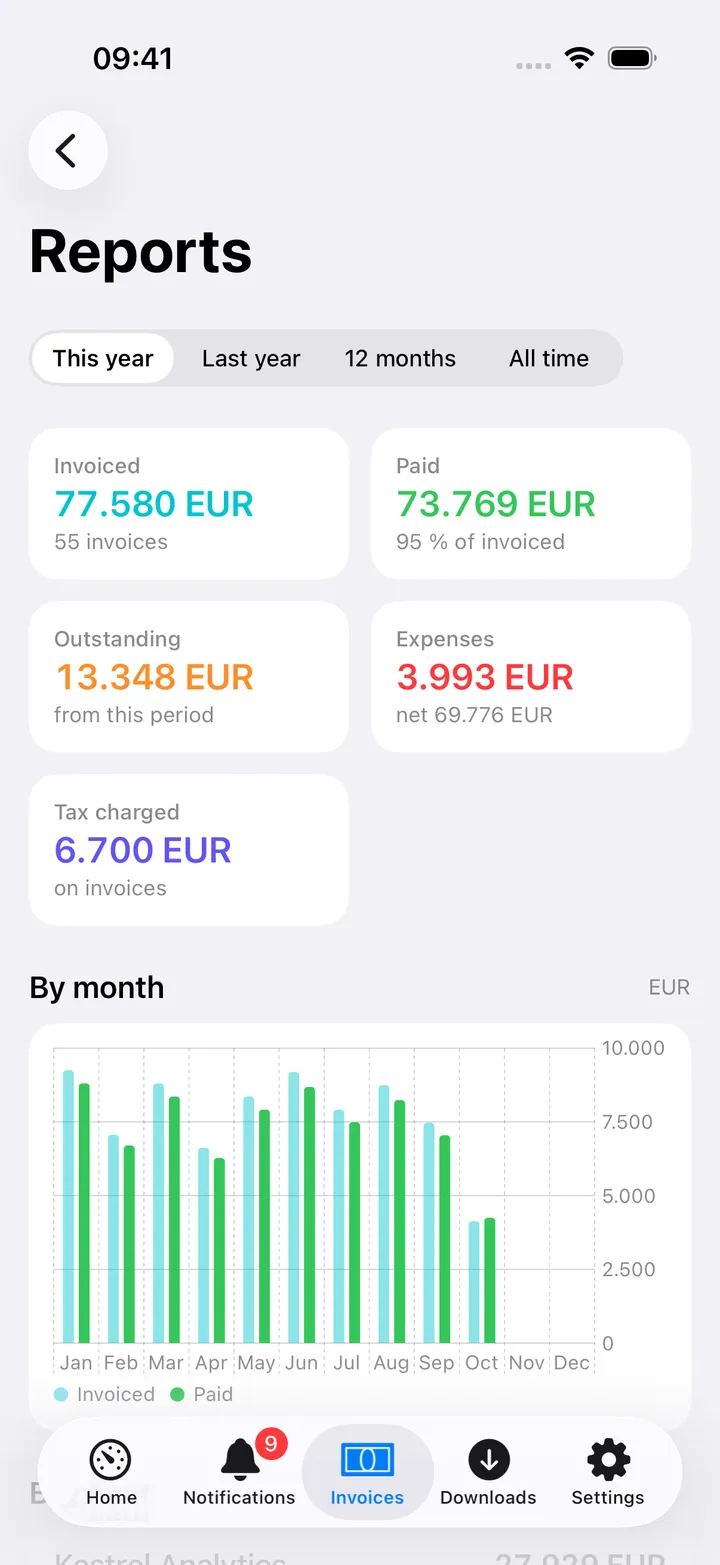
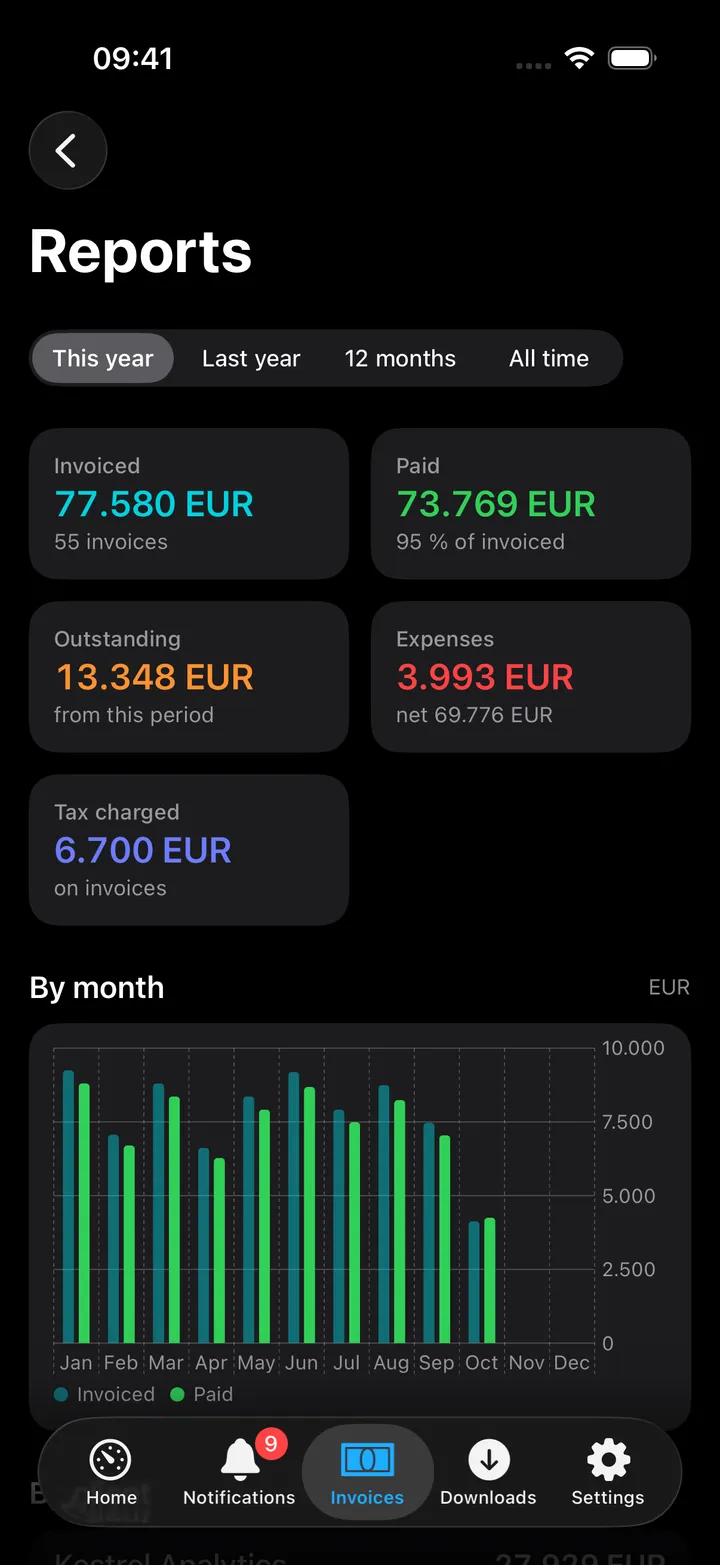
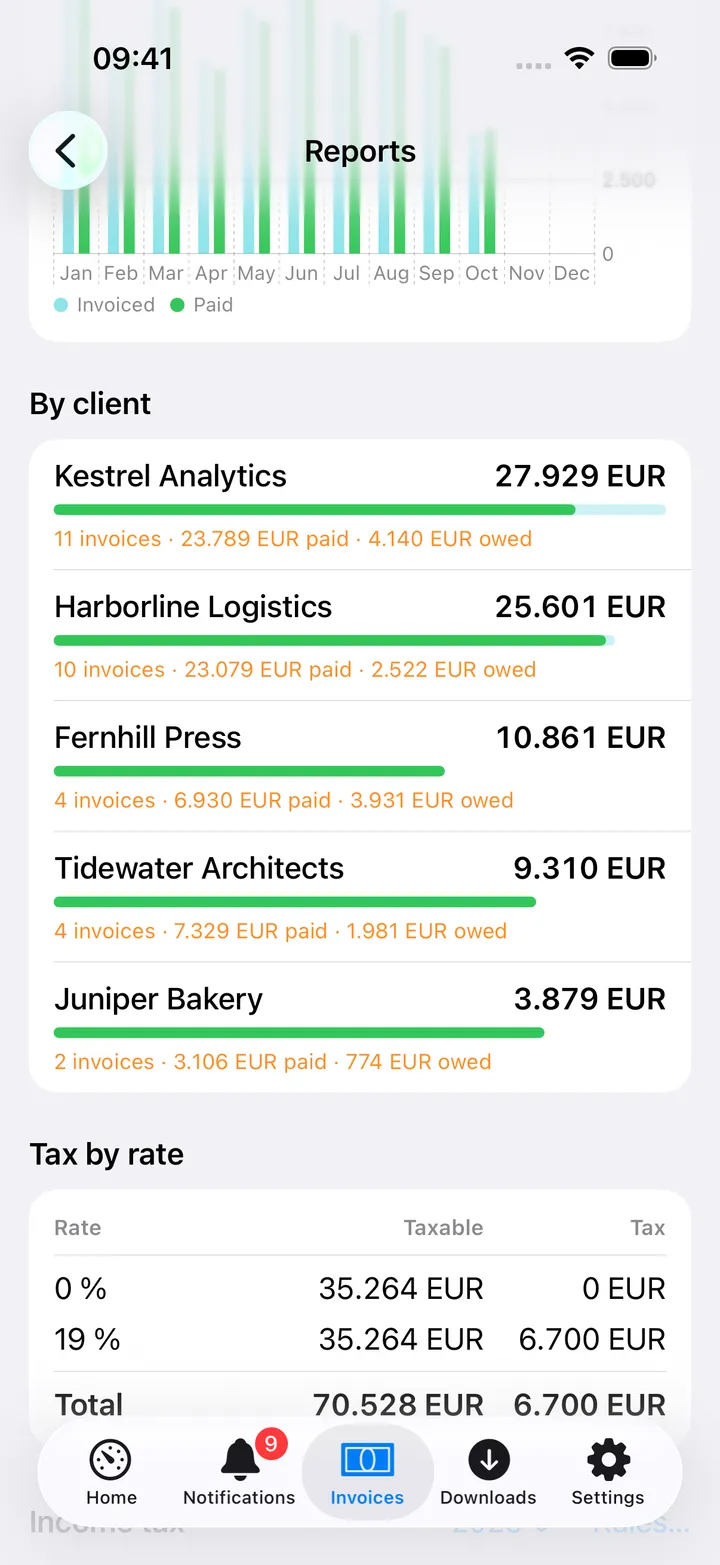
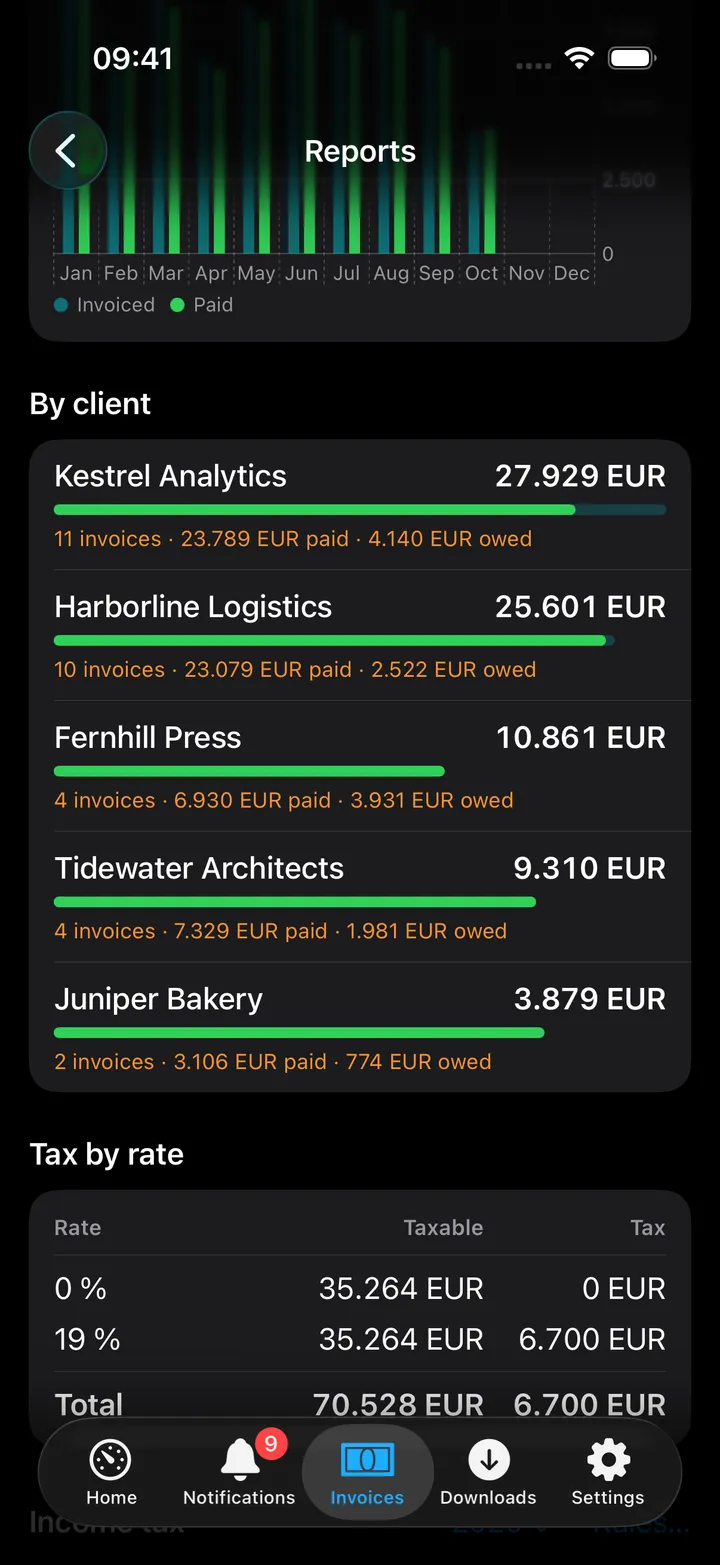
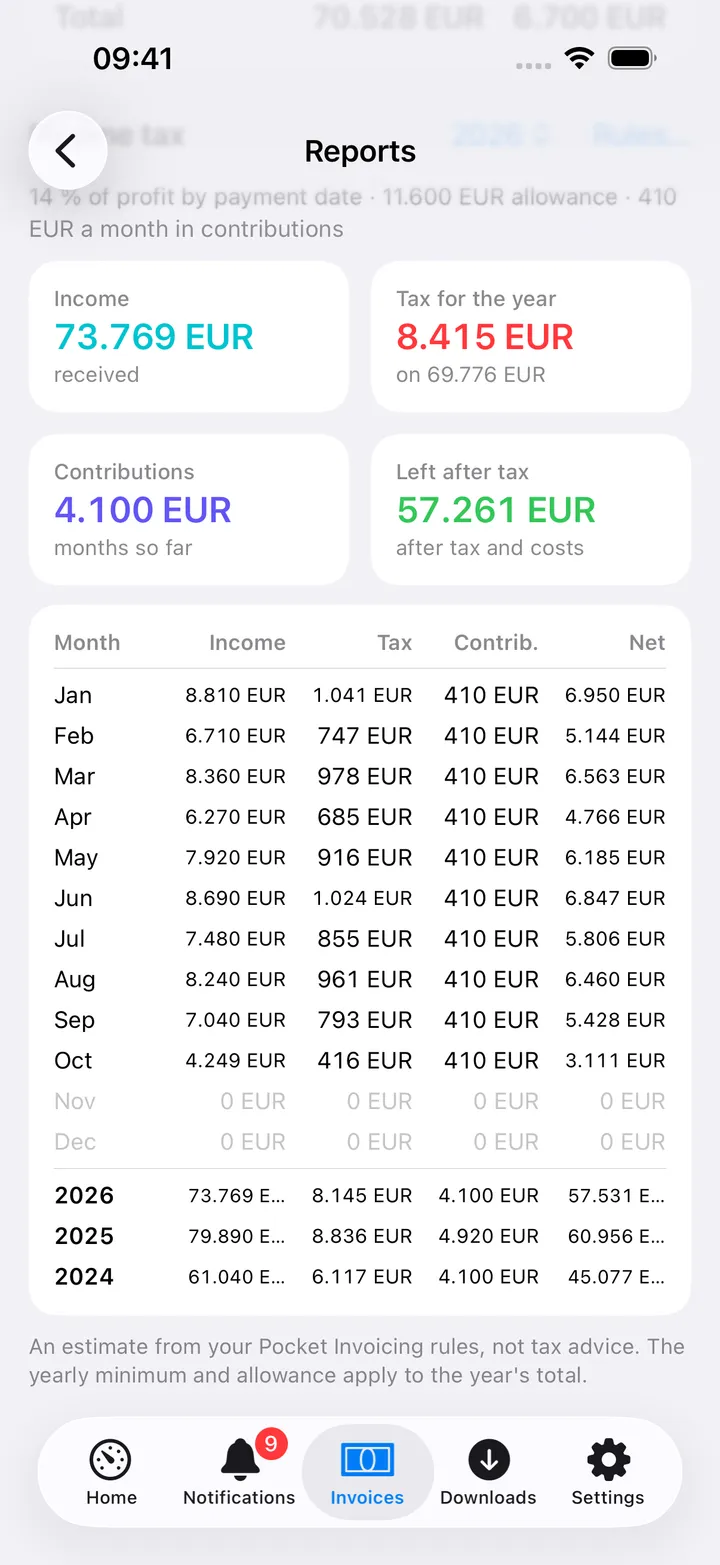
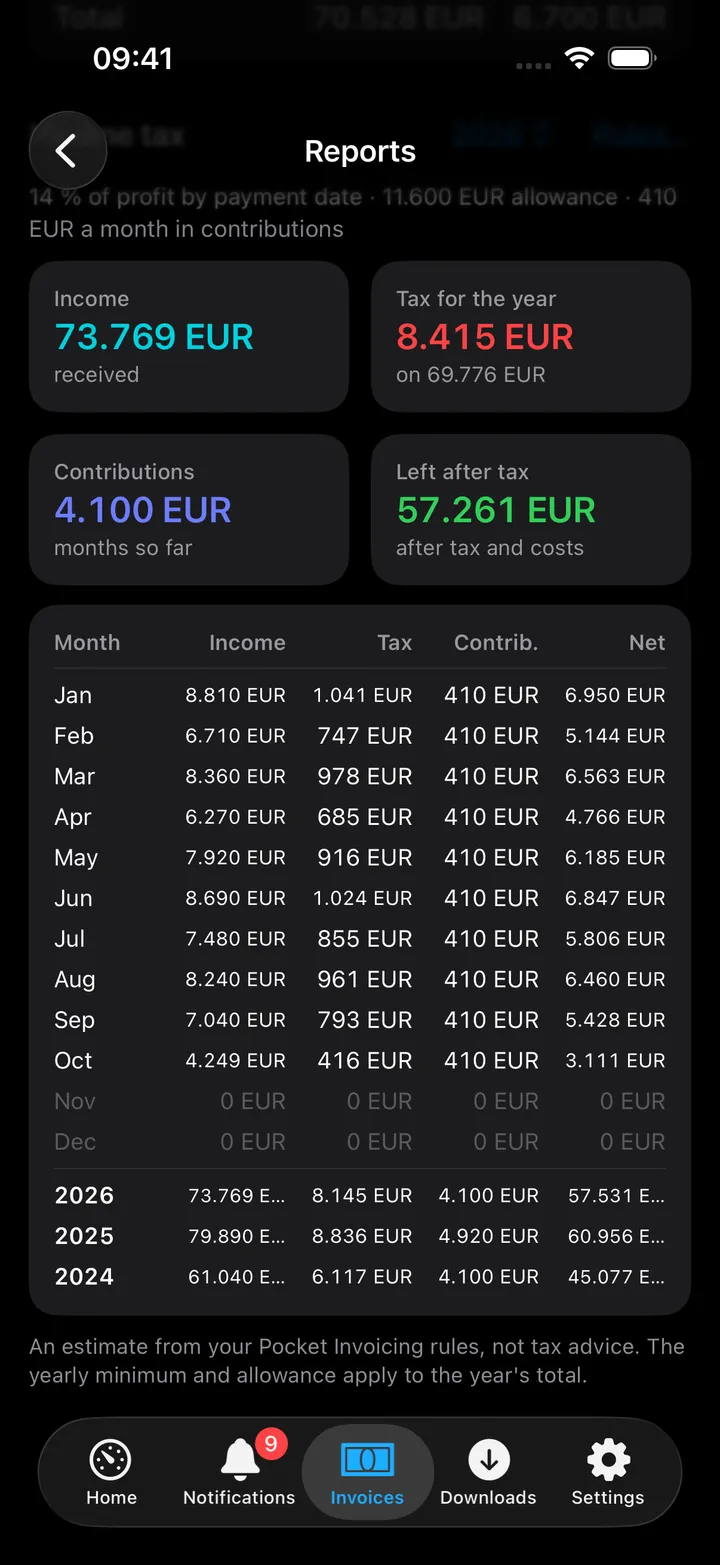
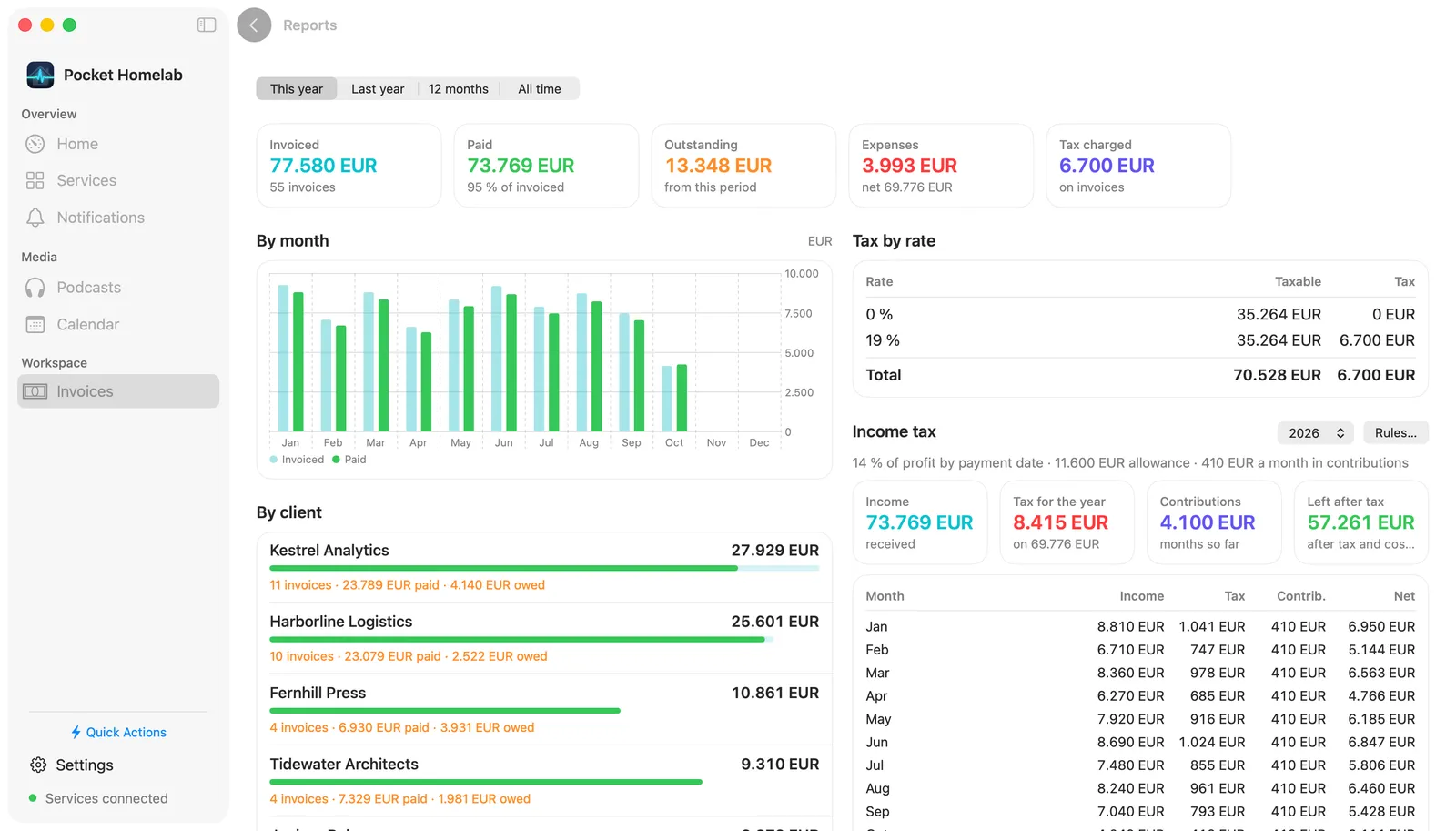
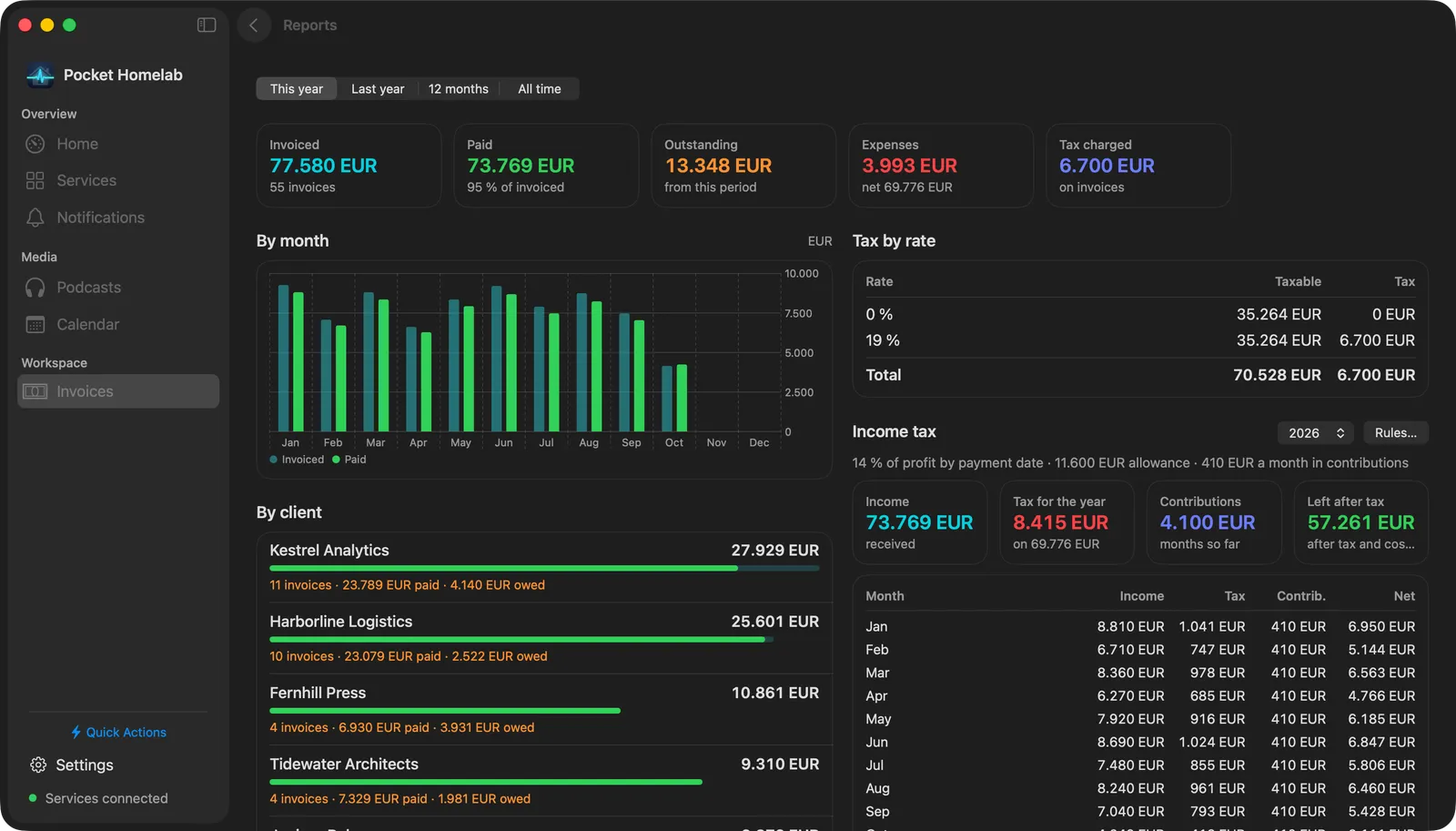
Reports (the chart button on the Invoices screen; on the Mac, in the bar) shows a period (this year, last year, the last 12 months or all time): invoiced, paid, outstanding, expenses and tax charged; invoiced and paid by month (by year for long periods); each client with how much of it was paid; tax by rate. Under Income tax, pick a year for the estimate Pocket Invoicing works out from your rules: income, tax for the year, contributions and what is left, month by month and per year. Rules… opens the settings at the income-tax rules. All figures are in the base currency.
Pocket Invoicing settings
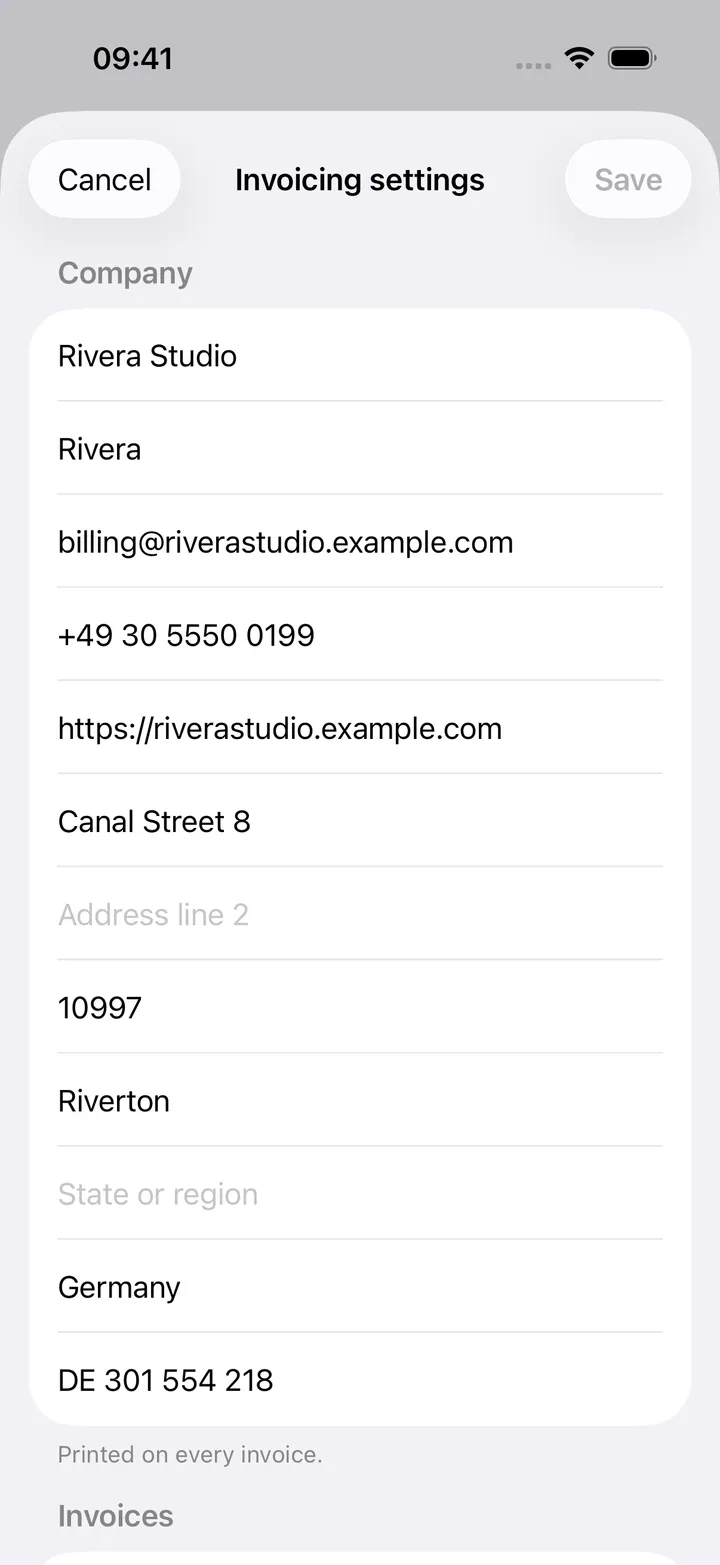
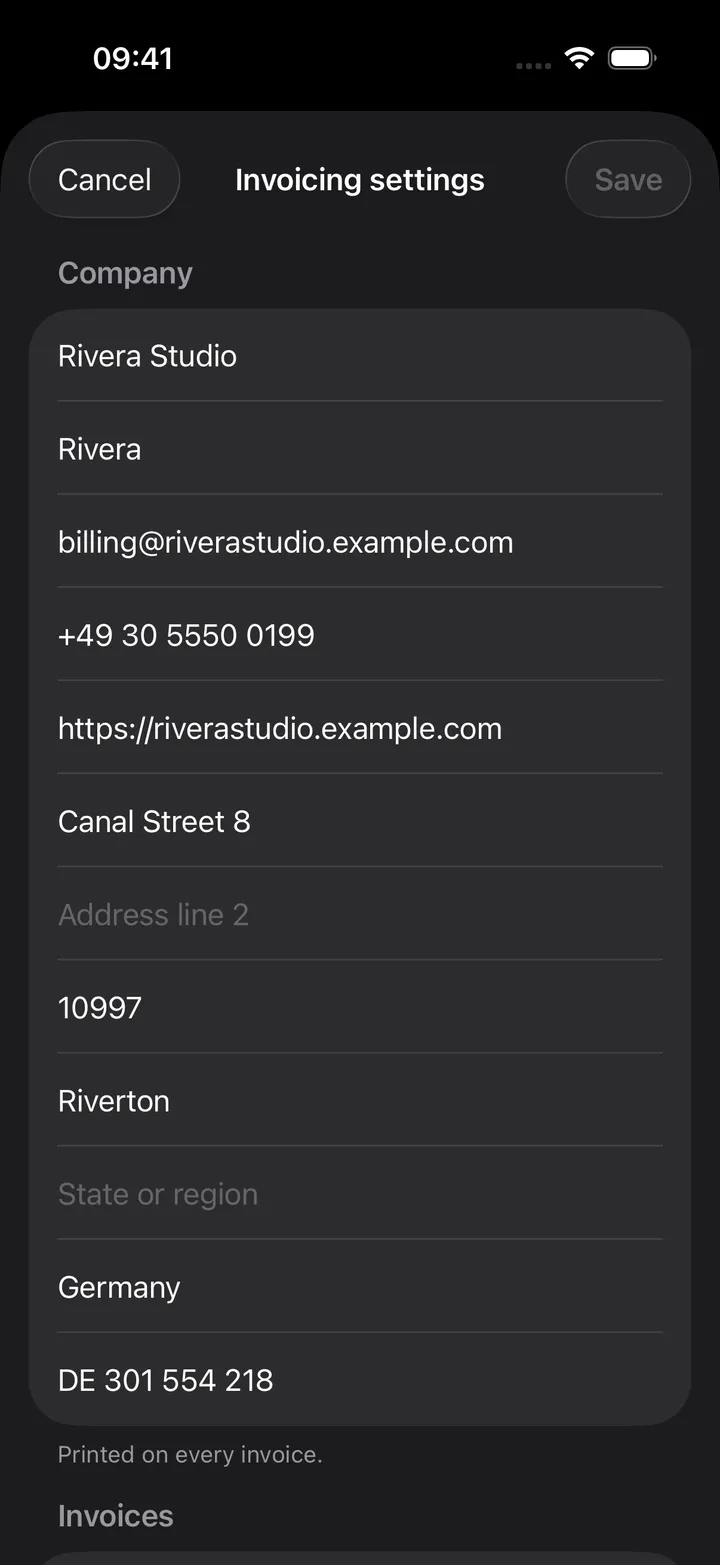
Invoicing settings (⋯ on iPhone, the gear on the Mac, a row on Android) edits the server’s own settings, in the same pages as the web app’s Settings tabs. On the Mac the pages sit in a sidebar beside the form, with Cancel and Save at the bottom; on the iPhone they are a list that opens each page.
- Company: the name, short name, tax ID, contact details and address printed on every invoice; the date format and time zone; whether a logo is uploaded (the logo itself is changed in the web app).
- Invoices: the number format and next number, with a live preview of the next invoice number; defaults for new invoices (due days, billing mode, rates, tax, hours in a day, time rounding); the standard notes, terms and footer; extra fields every invoice can carry, such as a fiscal receipt number.
- Payment details: what is printed under the totals, and a different text per currency.
- Currencies: the base currency, the rate source, the number format and the base-currency total on invoices; the stored exchange rates (add one by hand, remove it, refresh from the provider); the enabled currencies, with a search to turn another one on.
- Taxes: the tax rates charged on lines (add, make default, remove), the tax column, and the income-tax estimate.
- Email: the mail server, including the password, which is write-only and never shown; a test email; the invoice subject, message and attachment; payment reminders.
- Paperless: the connection (the token is write-only), a connection test, and what is archived and how.
- Server: what the server runs (version, PDF engine, scheduler, database size, uptime) and links to the settings that stay in the web app: templates, the catalog, API tokens, webhooks, users and backups.
Saving sends only what you changed. Rates, currencies and tax rates change the moment you add or remove them; a test button saves pending changes first.
On the Mac
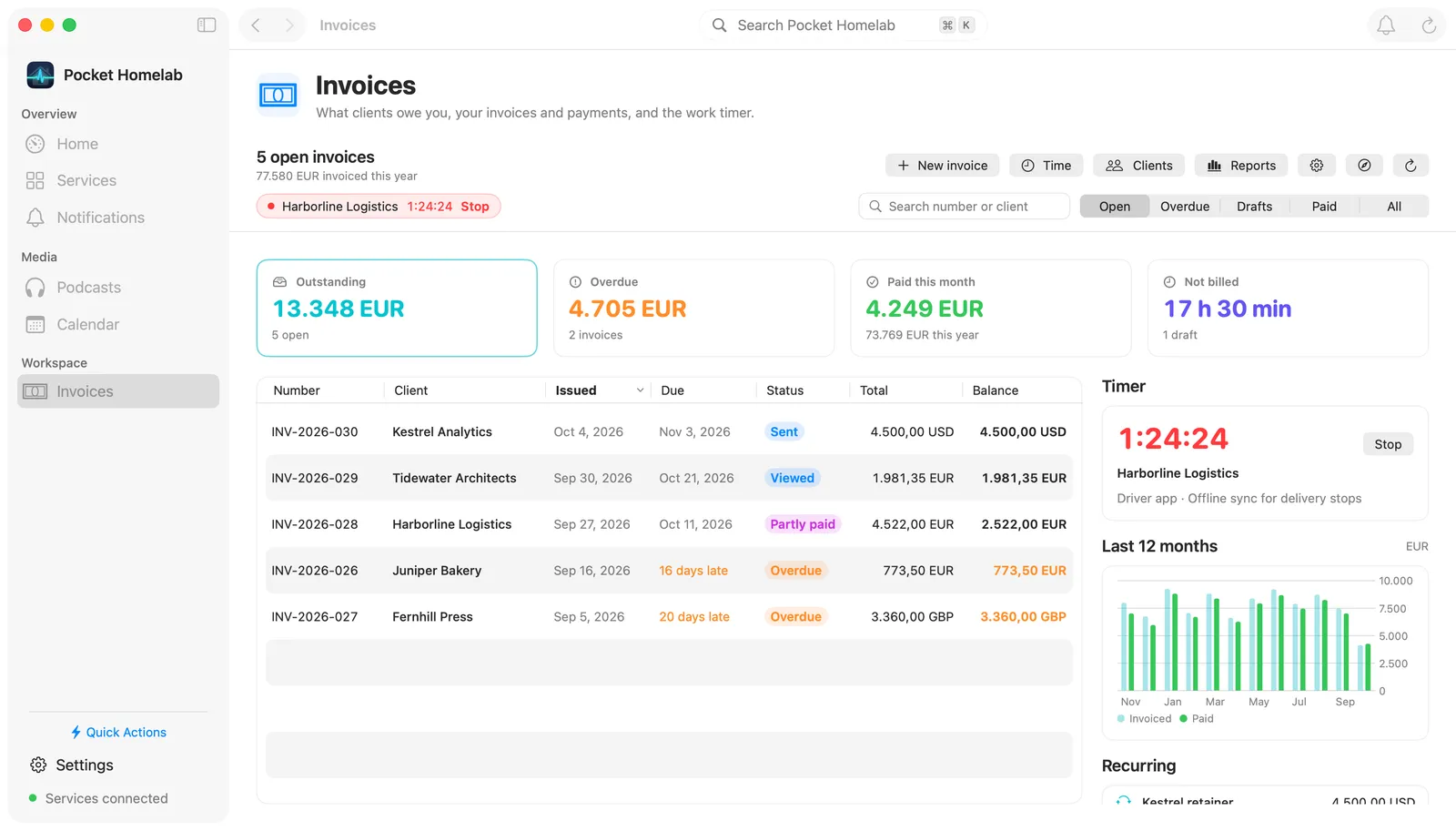
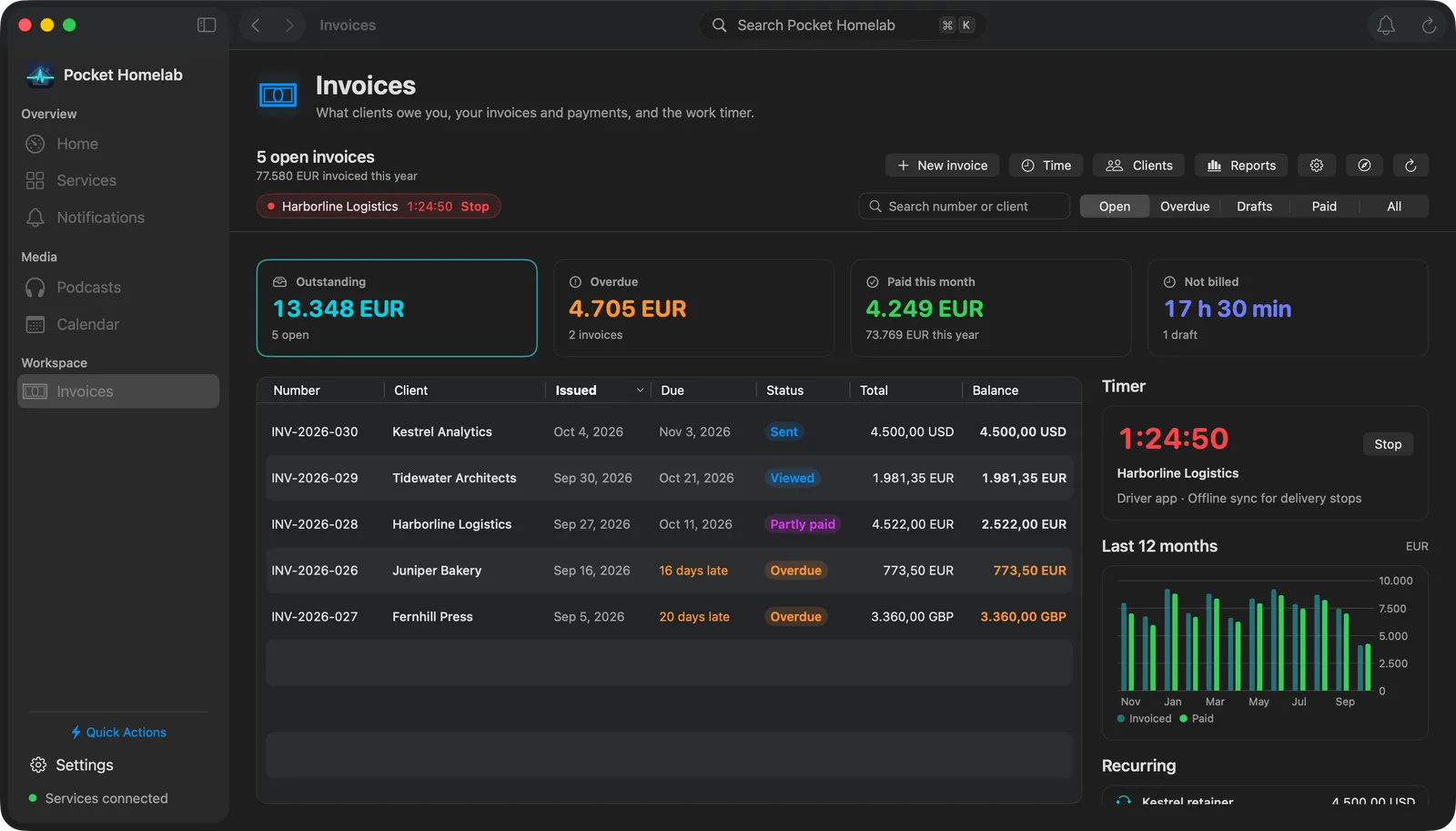
Invoices in the sidebar opens a workspace laid out for the desktop: a bar with the number of invoices shown, New invoice, the timer, a search field, the filter, Time, Clients, Reports and the settings; the four figures as cards that also set the filter; the invoices as a table you can sort by any column; and a column at the right with the timer, the last 12 months as a chart and the next recurring runs. A click on an invoice opens its page.
Actions
From an invoice’s page:
- Mark sent: a draft becomes sent (
POST /api/v1/invoices/<id>/status). - Mark paid: records the remaining balance as a payment and the invoice becomes paid.
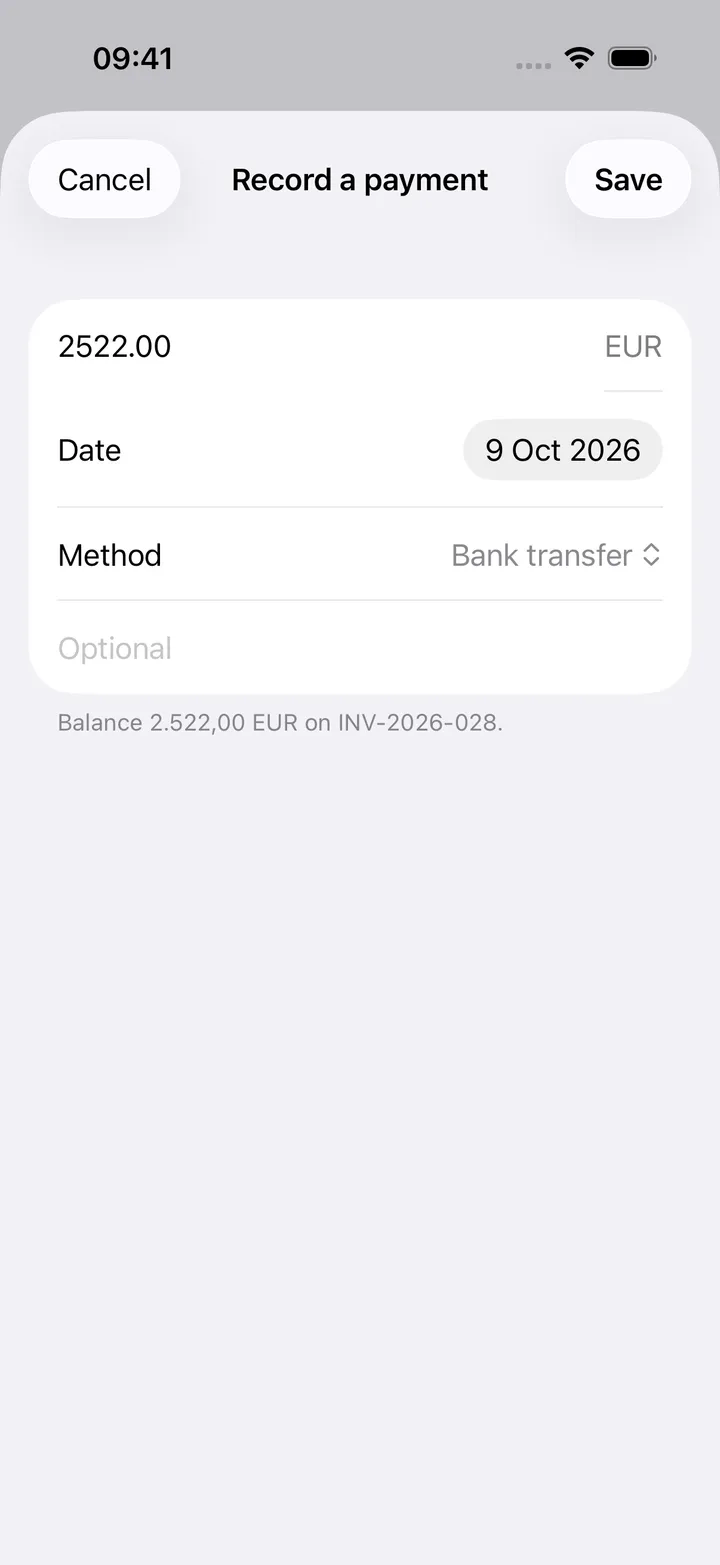
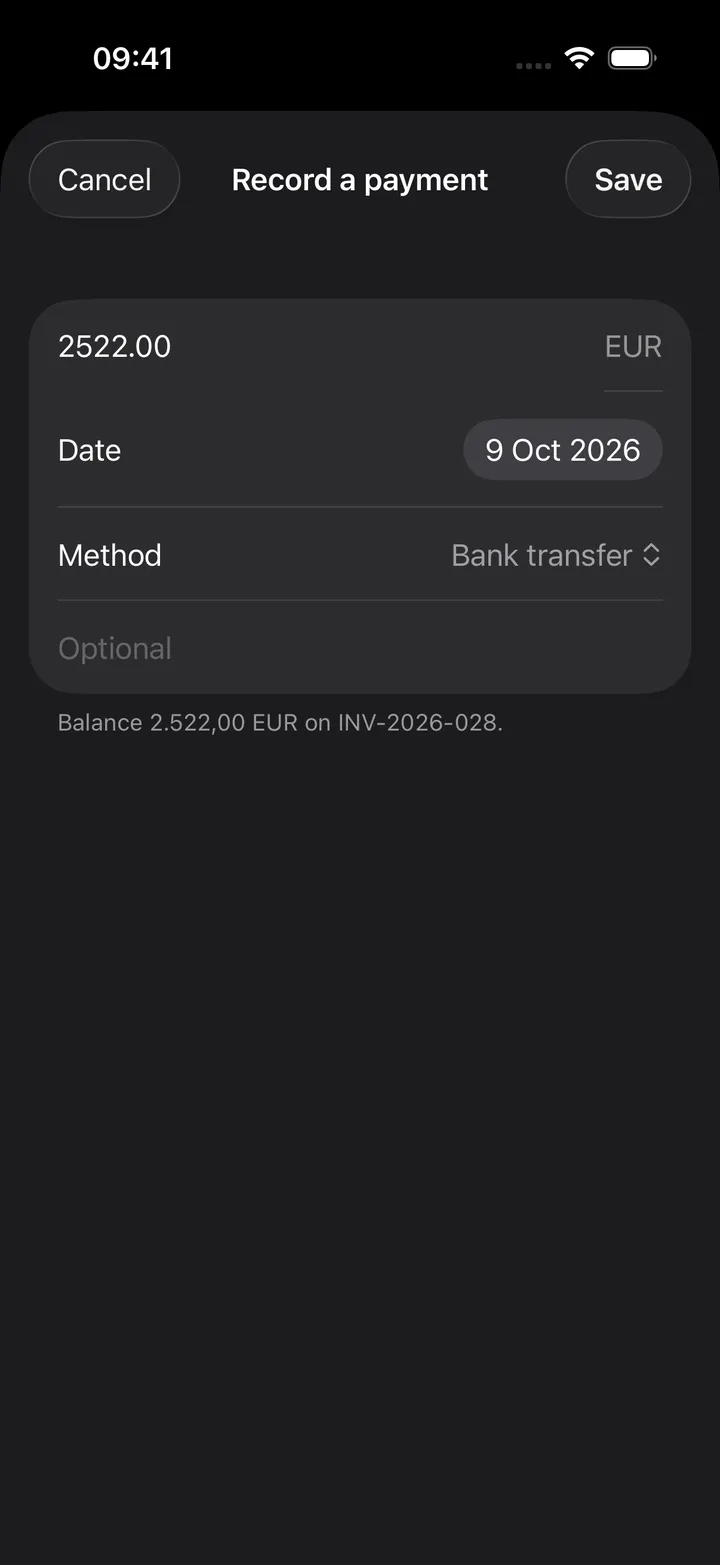
- Record a payment: the amount, the day and the method, for a partial payment or money in another currency
(
POST /api/v1/payments). The invoice comes back with its new balance and status. - Email it to the client: the server sends the invoice with its PDF over its own SMTP and templates, and marks
a draft sent (
POST /api/v1/invoices/<id>/send). - PDF: view it in the app or share it. The PDF is fetched with the token in a header, never in a link.
- Open in browser: the invoice in the Pocket Invoicing web app.
- Attachments: upload files to the invoice (
POST /api/v1/invoices/<id>/attachments), open, share or save one (GET /api/v1/attachments/<id>, token in a header), send one to Paperless or remove it. - Archive to Paperless: the server sends the PDF (and uploads, as its email setting says) to Paperless-ngx
(
POST /api/v1/invoices/<id>/paperless). - Download as Word: the invoice filled into its Word template (
GET /api/v1/invoices/<id>/docx); only when the invoice or its client uses one.
Changes go to the server at once with your token; with the server out of reach they fail with a message rather than wait in the offline outbox. Nothing is changed on the server otherwise.
Works with
- Firefly III keeps your own money; Pocket Invoicing is what clients owe you. The two are separate screens; nothing is copied between them.
- Paperless-ngx: Pocket Invoicing can archive its invoices there itself (see its documentation); Pocket Homelab shows them in Docs like any other document.
Tips & troubleshooting
- Test connection says 401: the token must be an API token from Settings → API tokens (
pi_…), not your password. A deleted token stops at once. - Email fails: sending uses the server’s SMTP settings. Check them with the test button under Settings → Email in Pocket Invoicing.
- Amounts look different from the web app’s dashboard: the app shows the server’s own figures in your base currency, converted at the rate locked on each invoice, the same as the web app’s reports.
- An action says the sample is read-only: the sample workspace refuses every change; connect your own server.